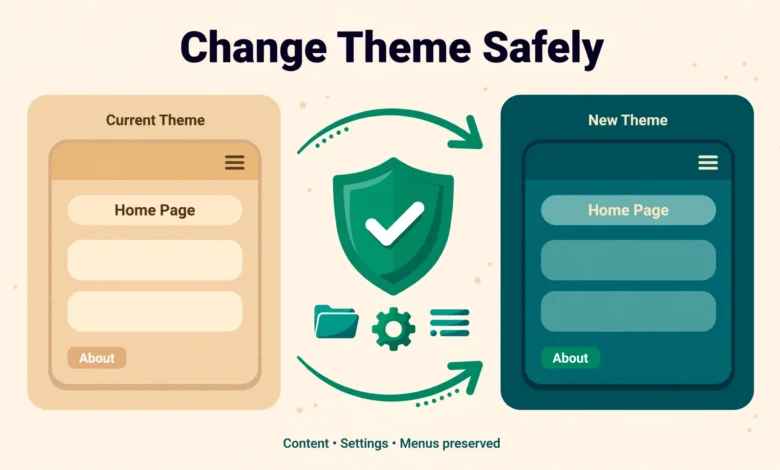
Switching your WordPress theme feels risky. You spent weeks setting up your site, and now a shinier theme is calling your name. The good news is that changing your theme does not delete your content, because your posts, pages, and images live in the database, not in the theme. The bad news is that some settings and customizations can quietly break during the switch, and you only notice after visitors start seeing a messy site. In this guide, you will learn exactly what survives a theme change, what usually breaks, and how to change WordPress theme without losing content, using a checklist, safe testing methods, and post-switch checks that keep everything intact.
What Actually Survives a Theme Switch?
WordPress separates content from design. Your posts, pages, comments, and media files are stored in the database and the uploads folder, so they remain untouched when you change themes. Core site identity, such as your site title and tagline, also stays safe. If you ever want to tweak them, our guide on how to change WordPress site title and tagline covers that separately. This separation is why a theme switch is normally a safe operation for your content.
However, the way that content is displayed changes completely. Your new theme has its own templates, its own menu locations, its own widget areas, and its own Customizer options. Settings that belong to the old theme do not transfer automatically. Think of it like moving your furniture to a new house: the furniture survives, but where it fits and how it looks is entirely different.
What Usually Breaks When You Change Themes?
Here is where most theme-switch problems come from. Knowing these weak spots in advance lets you plan for them.
- Menu locations: your menus still exist, but the new theme registers different menu locations. Your navigation can disappear from the header until you reassign it.
- Widgets: old sidebar and footer widgets move to the “Inactive Widgets” area because the new theme’s widget areas have different IDs. They are not deleted, but they no longer show on your site.
- Customizer settings: colors, fonts, header images, and layout options are theme-specific. The new theme starts with its own defaults, so your old look is gone.
- Custom CSS in the Customizer: CSS added under Appearance, Customize, Additional CSS actually survives a theme switch since WordPress 4.7, because it is stored per theme. That is the catch: it is stored per theme, so you need to switch back to the old theme or copy it before changing. We cover moving it properly in our guide on adding custom CSS in WordPress.
- Code in functions.php: any PHP code added directly to the old theme’s functions.php file is lost forever when you switch, because that file belongs to the old theme. This is the number one cause of “lost functionality” complaints.
- Theme-specific shortcodes: some themes bundle their own shortcodes for sliders, buttons, and portfolio grids. After switching, those shortcodes show as plain text on your pages.
- Custom page templates: if pages used templates like “Landing Page” that only exist in the old theme, they fall back to the default template and can look broken.
What Should You Back Up Before Switching?
Always make a full backup before changing themes. A complete backup includes both your files and your database, because only then can you restore your site exactly as it was if something goes wrong. Our tutorial on how to backup a WordPress database without a plugin is a good starting point, and a file backup from your hosting panel or an FTP download covers the rest.
Beyond the technical backup, take notes the old-fashioned way. Screenshot your Customizer settings, especially colors, typography, header layout, and footer text. Write down which widgets sit in which sidebar and footer area. Note which menu is assigned to each location and which pages use custom templates. This ten-minute exercise saves hours of guessing later, because it gives you an exact reference for what the site looked like before.
How Do You Move Custom Code Safely?
The safest habit is to never put custom code in your theme’s functions.php in the first place. If your old theme has custom PHP there, move that code into a functionality plugin or a code snippets plugin before switching. That way the functionality stays active no matter which theme you use. If you plan to customize the new theme directly, the proper approach is to create a WordPress child theme so your edits survive future theme updates too.
For CSS, copy any custom styles into a safe place outside the theme: a code snippet plugin, the new theme’s Customizer once activated, or a dedicated CSS plugin. The rule is simple. Theme files get replaced when themes change or update, so anything you want to keep must live outside the theme folder.
How Can You Test the New Theme Before Activating It?
You do not have to activate the new theme to see how it looks. WordPress lets you preview any installed theme against your real content without showing it to visitors.
- Live Preview: go to Appearance, Themes, hover over the new theme, and click Live Preview. You can browse your whole site in the preview, check the homepage, posts, and pages, and even tweak Customizer settings, all while visitors still see the old theme.
- Theme Switcha plugin: this free plugin lets you preview the new theme as an admin while everyone else sees the current theme. It is useful if you want to click around the dashboard and frontend normally during testing.
- Staging site: most quality hosts offer one-click staging. Testing there is the most thorough option, because you can activate the theme, fix problems, and then push the finished result live. If your host is weak on features, our web hosting guide explains what to look for in a better plan.
How Do You Switch Themes Step by Step?
Once your backup is done and your notes are saved, the actual switch takes only a few minutes. Work through these steps in order.
- Step 1: install the new theme from Appearance, Themes, Add New, or upload a premium theme ZIP, but do not activate it yet.
- Step 2: if you customized anything, move custom code from the old functions.php to a snippets plugin and save your Customizer CSS to a text file.
- Step 3: put the site in maintenance mode briefly if it is a busy site, so visitors do not see the half-finished switch.
- Step 4: activate the new theme, then immediately go to Appearance, Menus, Manage Locations, and reassign your menus to the new theme’s locations.
- Step 5: go to Appearance, Widgets, and drag your widgets from the Inactive Widgets area back into the new theme’s sidebars and footers.
- Step 6: open the Customizer and set your colors, fonts, logo, header image, and homepage settings to match your old look or the new design.
- Step 7: if you had custom CSS tied to the old theme, re-add it in the new theme’s Customizer or your CSS plugin.
What Should You Check After the Switch?
Do not declare victory right after activating. Walk through this checklist while the change is still fresh in your mind.
- Homepage: open it in a private browser window and confirm it shows the right layout, hero section, and latest content.
- Menus: check the header, footer, and mobile menu. Confirm every link works and nothing points to a 404 page.
- Widgets: verify the sidebar, footers, and any widget-heavy pages display everything you restored.
- Forms: submit a test entry on every contact and lead form. Theme changes can disturb form styling or placement.
- Tracking codes: confirm Google Analytics, Search Console verification, and ad pixels are still firing, especially if the codes were added through the old theme.
- Mobile view: test on a real phone. Responsive behavior differs between themes, and mobile issues hurt rankings.
- Speed: run your key pages through PageSpeed Insights before and after. If the site got slower, the troubleshooting steps in our guide on why your WordPress site is slow apply here too.
- Broken shortcodes: scan important pages for visible shortcode text like [slider] and replace those elements with the new theme’s blocks or widgets.
When Should You Use a Child Theme?
If you plan to customize the new theme with PHP or template edits, create a child theme from day one. A child theme inherits everything from the parent theme but keeps your modifications in separate files, so theme updates never wipe them out. It is a small setup effort that prevents the exact “lost code” problem that makes theme switches painful. Even if you only plan small CSS tweaks today, a child theme costs nothing and protects you tomorrow.
Changing themes is one of the healthiest things you can do for a growing site, as long as you treat it as a small project instead of a one-click gamble. Back up, take notes, move your custom code out of the theme, test with a preview or staging site, switch, and verify everything. Follow that process and your content, rankings, and visitors will survive the move without drama.
Frequently Asked Questions
Will changing my WordPress theme hurt my SEO?
A theme switch by itself does not change your URLs or content, which are the core of your rankings. However, SEO can suffer indirectly if the new theme is slower, breaks your heading structure, drops schema markup, or mishandles mobile layout. Choose a fast, well-coded theme, re-verify your tracking and SEO plugin settings after the switch, and monitor Google Search Console for a few weeks.
Can I undo a theme change and get my old site back?
Yes. Your old theme stays installed and deactivated when you switch, and reactivating it restores its old settings, because Customizer options are stored per theme. If you also made a full backup before switching, you can restore the entire site exactly as it was. This is why the backup step is non-negotiable.
Will my widgets be deleted when I change themes?
No, widgets are never deleted by a theme switch. WordPress moves them to the Inactive Widgets area in the Widgets screen, because the new theme’s sidebar and footer areas have different IDs. You simply drag them back into the new widget areas. Your notes about which widget sat where make this step fast.
Do I lose my Customizer settings when I switch themes?
The settings are not deleted, but they do not carry over either. Customizer options are saved per theme, so the new theme starts with its own defaults. If you switch back to the old theme later, its old settings reappear. Take screenshots of the old settings before switching so you can recreate the look quickly in the new theme.
Last updated: October 2026.