Your permalink structure decides what your URLs look like for years to come. A URL like yoursite.com/how-to-bake-bread is clean, readable, and trusted by visitors and search engines. A URL like yoursite.com/?p=123 is none of those things. Picking the right WordPress permalink structure early is one of the easiest SEO wins you can get, and changing it later without breaking your site takes a little care. This guide explains the six permalink formats, which one is best for your site, and exactly how to change your WordPress permalink structure safely, even on a live site.
What Are Permalinks and Why Do They Matter?
A permalink is the permanent URL of a post, page, or product on your site. The permalink structure is the pattern WordPress uses to generate those URLs. This matters for three reasons. First, readable URLs get clicked more in search results, because people can see what the page is about. Second, search engines use the words in the URL as a small ranking signal. Third, once your URLs are indexed and shared, changing them breaks links across the web, so getting the structure right early saves pain later.
Permalinks are part of your site’s foundation, right alongside your domain name and hosting. If you are still comparing the basics, our guide on the difference between domain and hosting clears up the other two pieces. Get all three right at the start and you avoid the most common beginner rebuilds.
What Are the 6 Default Permalink Structures?
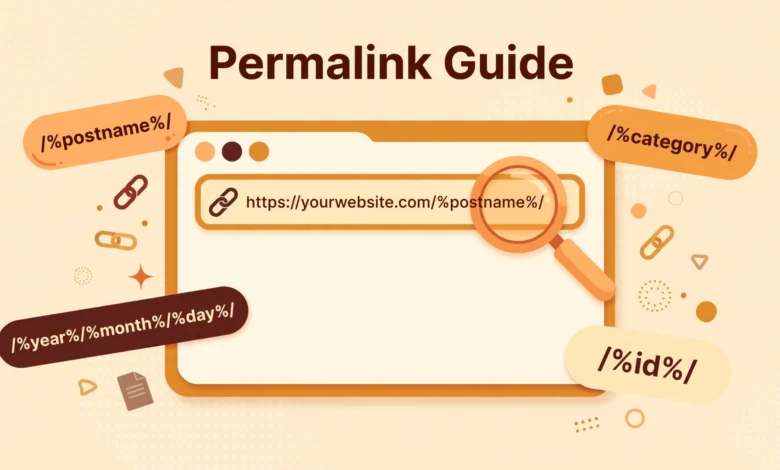
Under Settings, Permalinks, WordPress offers six formats. Here is what each one produces for a post titled “How to Bake Bread” published in October 2026 in the Recipes category.
- Plain: yoursite.com/?p=123. The default. Ugly, unreadable, and useless for SEO. Nobody should keep this.
- Day and name: yoursite.com/2026/10/20/how-to-bake-bread. Adds the full date. Good for news sites where timeliness matters, cluttered for everyone else.
- Month and name: yoursite.com/2026/10/how-to-bake-bread. A lighter date variant. Same use case as day and name, mostly for blogs that publish like a newspaper.
- Numeric: yoursite.com/archives/123. Just an ID number in an archives folder. Slightly better than plain, but still meaningless to humans and search engines.
- Post name: yoursite.com/how-to-bake-bread. Clean, short, keyword-rich, and memorable. This is the best choice for the vast majority of sites.
- Custom Structure: you build your own pattern with tags like /%category%/%postname%/ or /%year%/%postname%/. Powerful for special cases, risky if you pick something silly.
What Is the Best Permalink Structure for SEO?
For most sites, including blogs, business sites, and small stores, Post name is the answer. It produces the shortest readable URLs, puts the keyword near the domain, and is exactly what Google recommends: simple, descriptive URLs. Search engine guidelines from developers.google.com on URL structure reinforce this: keep URLs readable and avoid unnecessary parameters and dates.
Two exceptions are worth knowing. News and magazine sites that publish dozens of stories daily can use Day and name, because readers and editors benefit from seeing the date in the URL. Very large content sites with thousands of posts can use /%category%/%postname%/ through Custom Structure, because the category in the URL helps organize content and adds topical context. But for a normal blog or business site, category-based URLs add length and a failure risk: if you ever rename the category, all those URLs change.
How Do You Change Your Permalink Structure?
On a brand new site, changing is trivial. On a live site with indexed pages and backlinks, it needs the redirect process described below. Here are the basic steps either way.
- Step 1: go to Settings, Permalinks in your WordPress dashboard. If you are new to the dashboard, our WordPress dashboard explained for beginners guide walks through every menu.
- Step 2: select your new structure, for example Post name, or build a Custom Structure with the available tags.
- Step 3: click Save Changes. WordPress rewrites your URLs immediately and attempts to update the .htaccess file automatically.
- Step 4: open several posts, pages, and category pages in a private window and confirm they load with the new URLs.
Why Is Changing Permalinks on a Live Site Dangerous?
The moment you change the structure, every old URL stops working. Visitors clicking old links get 404 errors. Google has to re-crawl and re-index your entire site, and your rankings can dip for weeks while it does. Backlinks from other sites now point to dead pages, leaking the authority those links carried. This is why changing permalinks on an established site is a migration project, not a settings tweak. Done properly with redirects, most sites recover fully. Done carelessly, you can lose a large share of your search traffic.
How Do You Change Permalinks Without Losing Traffic?
The key is a 301 redirect from every old URL to its new equivalent. A 301 tells browsers and search engines the page has permanently moved, passing almost all ranking value to the new URL.
- Back up first: full files and database backup before you touch anything, so you can roll back if the migration goes wrong.
- Use the Redirection plugin: install the free Redirection plugin and create regex-based rules mapping the old pattern to the new one. For example, redirecting from /%year%/%monthnum%/%postname%/ to /%postname%/ can often be handled with one regex rule.
- Or use .htaccess: on Apache servers, redirect rules in .htaccess are faster than plugin redirects. A typical rule looks like this:
RewriteEngine On
RewriteRule ^([0-9]{4})/([0-9]{1,2})/([^/]+)/?$ /$3/ [R=301,L]- Update internal links: search your content for internal links using the old URL pattern and update them. Plugins like Better Search Replace can fix these across the database in minutes.
- Check menus and widgets: any custom menu links or widgets pointing to old URLs need manual updates.
- Monitor Search Console: watch the Coverage and Pages reports in Google Search Console for 404 spikes over the following two to three weeks, and fix any missed redirects.
How Do You Fix the “.htaccess Is Not Writable” Problem?
When you save new permalink settings, WordPress tries to write rewrite rules to your .htaccess file. If it cannot, you see a notice that .htaccess is not writable, and your new URLs return 404 errors. The fix is manual. Copy the rewrite rules WordPress shows you on the Permalinks page and paste them into the .htaccess file in your site’s root folder via FTP or your hosting file manager, above any existing WordPress rules. The standard block looks like this:
# BEGIN WordPress
<IfModule mod_rewrite.c>
RewriteEngine On
RewriteRule .* - [E=HTTP_AUTHORIZATION:%{HTTP:Authorization}]
RewriteBase /
RewriteRule ^index\.php$ - [L]
RewriteCond %{REQUEST_FILENAME} !-f
RewriteCond %{REQUEST_FILENAME} !-d
RewriteRule . /index.php [L]
</IfModule>
# END WordPress
If pasting rules does not fix it, check with your host that the Apache mod_rewrite module is enabled and that your server allows .htaccess overrides. On Nginx servers there is no .htaccess at all, so your host must add the rewrite rules to the server block instead.
How Do You Edit an Individual Post Slug?
You do not always need to change the whole structure. To fix one URL, edit the post and change its slug: the editable text next to the permalink under the post title in the editor. Keep slugs short, lowercase, hyphen-separated, and free of stop words where possible. If the post is already indexed and ranking, set up a 301 redirect from the old slug to the new one with the Redirection plugin, so you keep the traffic you already earned. If it is a brand new draft, no redirect is needed.
Permalinks are a set-and-forget decision that pays off quietly for years. Choose Post name on a new site, leave it alone, and write short descriptive slugs. Changing an existing site is entirely doable, but treat it as a careful migration: back up, redirect everything, update internal links, and watch Search Console. Do it once, do it right, and you will never have to think about permalinks again. Before launching any new site, run through our WordPress website launch checklist so permalink setup and the other foundations are all verified in one pass.
Frequently Asked Questions
Which permalink structure is best for SEO?
Post name (yoursite.com/sample-post) is the best structure for SEO for almost every site. It creates short, readable, keyword-rich URLs that users click and search engines understand. Only news sites publishing many stories daily should consider including dates, and only very large sites should consider adding categories to URLs.
Can I change my permalink structure without losing traffic?
Yes, if you set up 301 redirects from every old URL to the new URL. Use the Redirection plugin or .htaccess rules, update your internal links, and monitor Google Search Console for 404 errors for a few weeks. Expect a small temporary ranking fluctuation while Google re-processes the URLs, then recovery as long as every old URL redirects correctly.
Why do my new permalinks show 404 errors after saving?
This almost always means the rewrite rules were not written to .htaccess. WordPress shows the required rules on the Permalinks settings page when it cannot write the file itself. Copy those rules into the .htaccess file in your site root manually. If that does not help, ask your host to confirm mod_rewrite is enabled, or have them add the rules to the Nginx server block if you are on Nginx.
Should I include the category in my permalinks?
For most sites, no. Category-based URLs like yoursite.com/recipes/how-to-bake-bread are longer, and renaming or moving a category later changes every URL under it, creating a redirect headache. Keep categories for navigation and internal organization, not for URLs. Only very large sites with thousands of posts and a stable category system benefit from the extra structure.
Last updated: October 2026.