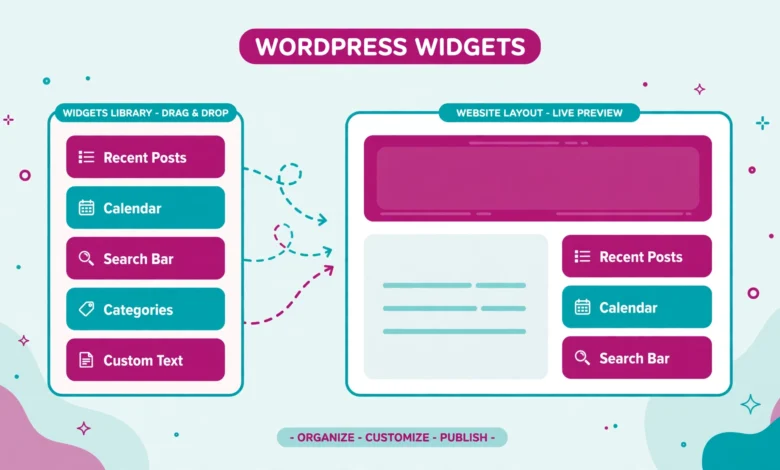
If you have ever visited a blog and seen a search box, a list of recent posts, or a row of categories in the sidebar, you have seen widgets at work. Widgets are small blocks of content that you can place in special areas of your site without writing code or editing a page. They are one of the oldest and most useful features in WordPress, and they still matter today, even though the way you manage them has changed.
In this guide, WordPress widgets are explained for beginners from the ground up. You will learn what widgets are, what widget areas are, how widgets differ from blocks, how to add and manage them in classic themes and in the Customizer, how they work on newer block themes, and when a plugin widget is worth adding.
What Are WordPress Widgets?
A widget is a small, self contained piece of content or functionality that you can add to a widget area. Common examples include a search form, a list of recent posts, a list of categories, an archive calendar, a custom menu, and a short piece of custom HTML such as a newsletter signup form.
What Are Widget Areas and Sidebars?
A widget area is a place on your site where widgets can appear. Your theme decides how many widget areas you have and where they sit. The most common widget area is the sidebar, the column that appears beside your main content on blog pages. Many themes also offer footer widget areas, which appear as columns at the bottom of every page.
Widgets Versus Blocks: What Is the Difference?
Since WordPress 5.8, the Widgets screen uses blocks. That change confuses many beginners, because widgets and blocks now look similar. Here is a simple way to keep them apart.
- Blocks are the pieces you use inside a post or a page: paragraphs, headings, images, lists, and buttons. They belong to one specific piece of content.
- Widgets are pieces you place in a widget area: a sidebar, a footer, or another theme area. They appear across many pages at once.
- A widget area can now contain blocks: in the modern Widgets screen, you add blocks into a widget area, and WordPress treats them as widgets. So a Search block in a sidebar is acting as a widget.
- Legacy widgets still exist: older widgets such as Archives, Categories, and Recent Comments are available as blocks too, so you can use the familiar versions inside the new screen.
How to Add and Manage Widgets in Classic Themes
On a classic theme, which is any theme that does not use full site editing, you manage widgets from Appearance, then Widgets. The screen shows your widget areas as panels, and each panel lists the widgets currently inside it.
Step 1: Open Appearance, then Widgets
From your dashboard, go to Appearance, then Widgets. You will see panels on the right for each widget area, such as Sidebar or Footer 1, and a block inserter you can open with the plus button.
Step 2: Add a widget to an area
Click the plus button inside the widget area you want to fill, then choose a block such as Search, Recent Posts, or Categories. The widget will appear inside that area, and you can fill in its settings right there, such as its title and how many items to show.
Step 3: Rearrange, edit, and remove widgets
Drag widgets up or down inside an area to change their order, or use the move controls in each widget’s toolbar. To change a setting later, click the widget and edit it in place. To remove a widget, open its options menu and choose Remove. Always click Update at the top of the screen when you finish, or your changes will not be saved.
How to Manage Widgets in the Customizer
The Customizer offers another way to manage widgets, with a live preview of your site on the right side of the screen. Go to Appearance, then Customize, and look for the Widgets panel. Inside it, you will see the same widget areas as on the Widgets screen.
The Most Useful Built In Widgets Explained
WordPress ships with a useful set of built in widgets. You do not need all of them, but these six cover most beginner needs.
What does the Search widget do?
The Search widget adds a search box to your sidebar or footer. Visitors type a word, press enter, and WordPress shows matching posts and pages. A search box is one of the most valuable sidebar items on a content site, because it helps visitors who already know what they want to find it fast. Place it near the top of the sidebar so it is easy to spot.
What does the Recent Posts widget do?
The Recent Posts widget lists your newest posts, usually with titles and sometimes with dates or featured images. It keeps your sidebar fresh without any effort from you, and it gives returning visitors a quick way to catch up. Showing three to five posts is usually enough. A longer list pushes more useful widgets further down the page.
What does the Categories widget do?
The Categories widget lists your post categories as links. Visitors can click a category and browse every post in it. This widget works best when your categories are few and clear. If you have dozens of overlapping categories, clean them up first. Our guide to WordPress categories versus tags explains how to keep that structure tidy.
What does the Archives widget do?
The Archives widget lists your posts by month, so visitors can browse older content by date. It is less important than it used to be, because most visitors now browse by topic or search instead of by month, but it can still help on a long running blog. If your sidebar is crowded, this is one of the first widgets you can safely drop.
What does the Custom HTML widget do?
The Custom HTML widget lets you add your own HTML code to a widget area. Beginners commonly use it for a newsletter signup form, a short about blurb with a photo, social media links, or an advertisement snippet. It is powerful, but only paste code from sources you trust, and keep it short. A broken piece of HTML here can affect the whole sidebar, so test it and remove it if the layout breaks.
What does the Navigation Menu widget do?
The Navigation Menu widget displays one of your menus inside a widget area. For example, you might create a small menu called Footer Links with links to your Privacy Policy, Contact page, and sitemap, and show it in a footer widget area. It saves you from typing the same links by hand, and updating the menu updates the widget everywhere automatically.
How Do Widgets Work on Block Themes?
Block themes, also called full site editing themes, work differently. Instead of a Widgets screen, you edit your whole site layout in the Site Editor, under Appearance, then Editor. Sidebars and footers are built from template parts, which are reusable pieces of layout made from blocks.
On a block theme, there is no separate Widgets screen to open. If you want a search box in the sidebar, you open the template that contains the sidebar, add a Search block there, and save. If you want a footer with recent posts, you edit the footer template part in the same way. The result looks the same to visitors, but the workflow is different: you edit the layout itself rather than filling a widget area panel.
Widget Visibility Tips That Actually Help
A sidebar full of widgets does not help visitors. It buries the good items and slows down the page. These tips keep your widget areas useful.
- Show fewer widgets, not more: three to five well chosen widgets beat ten mediocre ones. Every widget should earn its place by helping visitors find content, subscribe, or contact you.
- Put search and recent posts first: these are the two widgets visitors use most. Categories come next, and everything else follows.
- Match the widget to the page: a shop sidebar might highlight product categories, while a blog sidebar highlights recent posts. Plugins that control widget visibility can show different widgets on different pages, but start simple before adding that complexity.
- Keep footer widgets short: footers are seen on every page, so keep them to short links, a brief about line, and maybe a newsletter form. Long footer widgets make every page feel longer.
- Check mobile every time: sidebars stack below content on phones, so a long sidebar becomes a long scroll after the article ends. If mobile visitors rarely reach your footer, trim the sidebar.
When Is a Plugin Widget Worth Adding?
Built in widgets cover the basics, but plugins add widgets for specific jobs. A social media plugin might add a widget that shows your latest Instagram photos. A popular posts plugin might add a widget that lists your most read articles. An email plugin might add a polished newsletter signup widget that looks better than a plain Custom HTML box.
A plugin widget is worth adding when it does something the built in widgets cannot do, and when that feature genuinely helps visitors. It is not worth adding when it only duplicates a built in widget with a slightly different look, or when it adds a heavy script to every page for a feature few visitors use. Before installing a plugin for one widget, check its ratings, its last update date, and whether it is compatible with your WordPress version. Fewer, well chosen plugins keep your site faster and easier to maintain, and that matters more than a crowded sidebar.
For related reading, see our WordPress dashboard guide, our internal linking strategy, and our web hosting guide, plus the official WordPress block themes documentation for Site Editor help.
Frequently Asked Questions
Why did my widgets disappear after I changed themes?
Widgets do not disappear, they move. A new theme has different widget areas, so WordPress places your old widgets in the Inactive Widgets area. Open Appearance, then Widgets, find them there, and drag them into the new theme’s areas. On a block theme, rebuild the sidebar or footer in the Site Editor instead.
Can I show different widgets on different pages?
Not with built in widgets alone, since a widget area shows the same widgets on every page that uses it. Visibility plugins add rules such as show this widget only on blog posts, or hide it on the homepage. Use them sparingly, and test each rule on the live site, because a wrong rule can hide a widget you wanted everyone to see.
Are widgets still used in 2026?
Yes, but the name is less visible than it used to be. On classic themes you still manage widgets directly. On block themes you build the same sidebars and footers with blocks in the Site Editor. The job has not gone away, only the screen you use to do it has changed.
How many widgets should I put in a sidebar?
Three to five is a good range for most blogs. Start with Search, Recent Posts, and Categories, then add one or two more only if they serve a clear purpose, such as a newsletter signup or a navigation menu. If you have to scroll past your sidebar to reach your footer on mobile, you probably have too many.
Last updated: October 2026.