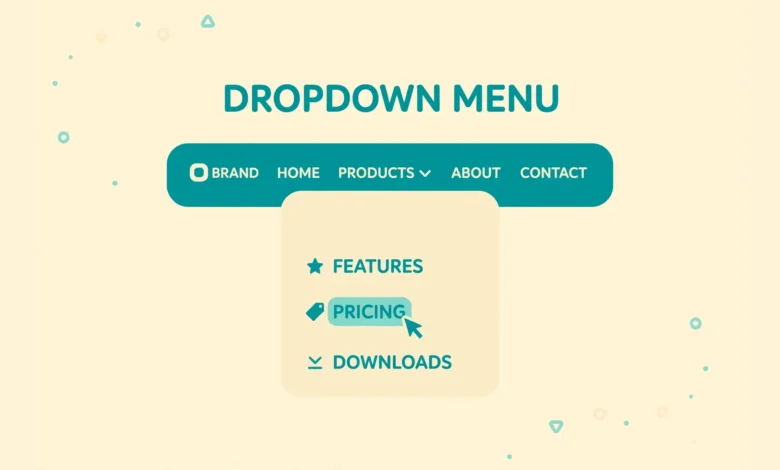
A dropdown menu, also called a submenu, shows extra links only when a visitor hovers over or taps a parent item. It keeps your header clean while still giving readers quick access to deeper pages. Instead of listing twenty links across the top of your site, you can group related pages under one clear parent item and let visitors explore from there.
In this guide you will learn how to add a dropdown menu in WordPress without a plugin. We cover the classic Appearance and Menus screen used by most traditional themes, and the Navigation block used by modern block themes. You will also learn how dropdowns behave on mobile phones, how to style them with a little CSS, and how to fix the most common problems.
What Is a Dropdown Menu in WordPress?
A dropdown menu is a parent menu item with one or more child items nested underneath it. On a desktop computer, the child items usually appear when the mouse hovers over the parent. On a phone or tablet, the visitor taps the parent or a small arrow to reveal the child items. The parent can be a real page, such as Services, or a placeholder item that only groups its children together.
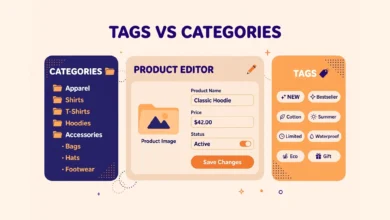
Dropdowns work best for logical groups. For example, a Services parent can hold Web Design, SEO, and Maintenance. A Blog parent can hold Tutorials, News, and Case Studies. When groups are logical, visitors find content faster and search engines can better understand how your pages relate to each other. If you are still learning how WordPress organizes content, read our guide to WordPress categories vs tags before you build a large menu.
Plan Your Menu Structure Before You Build It
Good menus are planned, not improvised. Sketch your structure on paper or in a simple note before you open the menu editor. Decide which items deserve a place in the header and which belong in a dropdown. Keep the top level short, usually five to seven items at most, so the header stays readable on smaller laptop screens.
Stick to a maximum of two levels in most cases: a parent and one level of children. A third level is possible in WordPress, but it often looks crowded, behaves poorly on mobile, and confuses visitors. If you need a third level, that is a sign your site structure may need simpler categories or a separate landing page instead of a deeper menu.
- Use short, clear labels that match the page title or the search term visitors expect.
- Group only closely related pages under the same parent.
- Put your most important pages first in each dropdown.
- Avoid duplicate links to the same page in one menu.
How to Add a Dropdown Menu With the Classic Menus Screen
Most classic themes use the Menus screen in the WordPress dashboard. If your theme uses this system, follow these steps. First, go to Appearance and then Menus in your dashboard. If you have not created a menu yet, give it a name, such as Main Menu, and click Create Menu. You can find a full tour of the dashboard screens in our WordPress dashboard explained for beginners guide.
- On the left side, tick the pages, posts, categories, or custom links you want to add, then click Add to Menu.
- To make an item a child, drag it slightly to the right underneath its parent item until it indents.
- To reorder items, drag them up or down inside the same level.
- Under Menu Settings, tick the display location your theme offers, such as Primary Menu or Header Menu.
- Click Save Menu and check the live site in a private browser window.
Adding pages is only the first step. Categories and custom links are also useful. A category link can point visitors to all posts in a topic, while a custom link can point to an external page, a landing page, or a specific section of your site. When you add a custom link, type the full URL in the URL field and a short label in the Link Text field before you click Add to Menu.
How to Create a Non-Clickable Parent Item
Sometimes the parent item should not link anywhere. For example, a parent called Services might only exist to group service pages, and clicking it should not open a page. WordPress lets you create this kind of placeholder with a custom link. Add a custom link, type a hash symbol in the URL field, and type the parent label as the link text. Then drag your child pages underneath it.
Be careful with this pattern. A hash link does nothing when clicked on desktop, which can confuse visitors who expect a page. A better option for many sites is to create a real landing page for the parent that briefly introduces the child pages and links to each one. That landing page gives visitors value, gives search engines a useful page to index, and avoids a dead click. Use the placeholder approach only when a landing page truly adds nothing.
How to Add a Dropdown in a Block Theme With the Navigation Block
Block themes handle menus differently. Instead of Appearance and Menus, you edit the Navigation block in the Site Editor. Go to Appearance and then Editor, open the header template part, and click the Navigation block. This block is the menu for block themes, and it stays in sync across every page that uses that header.
Inside the Navigation block, click Add block and choose Page Link, Post Link, or Custom Link to add a top level item. To add a dropdown, select an existing item, open its options, and choose Add submenu or add a Submenu block underneath it. Then add Page Links inside that submenu. You can drag items in the List View panel to reorder them or to change their nesting level, which is often easier than dragging inside the header preview itself.
After you save, preview the header on the front end. Check that the submenu opens, that labels are not cut off, and that the menu still looks good on a narrow screen. Block themes vary in how they style submenus, so test with your actual theme rather than assuming the default style will suit your design. For official background on navigation in block themes, see the WordPress documentation on the Navigation block.
How Dropdown Menus Behave on Mobile
Hover does not exist on touch screens, so mobile menus need a tap interaction. Most themes handle this by turning the header menu into a hamburger menu on small screens. Tapping the hamburger opens a vertical list, and tapping a parent item or its arrow expands its children. Test this flow on a real phone, not only by resizing your desktop browser window, because tap targets and scrolling behave differently on real devices.
Keep mobile labels short and tap targets large. Avoid tiny arrow icons placed far from the label, because visitors may tap the label by accident and leave the menu. If your theme hides child items on mobile or makes them hard to open, check theme settings first, then consider a simpler menu. A flat mobile menu with clear top level links often works better than a deep nested menu.
Basic Styling With Additional CSS
You do not need a plugin to change basic dropdown colors and spacing. Go to Appearance and then Customize, open Additional CSS, and add small rules for your theme. Always test on a staging site or keep a copy of your CSS before you change it, and clear your browser cache after saving so you see the new styles. The exact selectors depend on your theme, so use your browser developer tools to inspect the menu and confirm the class names.
.main-navigation ul ul {
background: #ffffff;
box-shadow: 0 4px 16px rgba(0, 0, 0, 0.12);
}
.main-navigation ul ul a {
padding: 12px 18px;
color: #222222;
}
This example gives the dropdown a white background, a soft shadow, and comfortable padding for its links. Change colors to match your brand, but keep contrast high so text stays readable. If your site uses a page builder for the header, style the menu inside that builder instead of Additional CSS, because builder styles can override theme CSS. Our guide to adding a logo to the WordPress header shows how header elements and menu layout work together.
Troubleshooting Dropdown Menu Problems
Most dropdown problems come from a small set of causes. Work through them in order instead of installing a new plugin at the first sign of trouble. Start with the menu assignment, then check the theme, then check caching.
- Menu not showing at all: confirm you saved the menu and ticked a display location under Menu Settings.
- Dropdown not opening: confirm child items are actually indented under a parent, not just listed below it.
- Dropdown looks broken: your theme may have limited submenu styles, so test with a default theme to isolate the cause.
- Changes not visible: clear your browser cache and any caching plugin, and check the site in a private window.
- Mobile submenu missing: check theme mobile settings and test on a real phone before changing code.
If you switched themes recently, remember that menu locations do not transfer automatically. A menu assigned to the old theme header location may need to be reassigned in the new theme. The menu content itself stays saved in WordPress, so you usually only need to tick the new location and save again. Good hosting also matters for reliable caching and fast menu rendering, so compare options in our web hosting guide if speed or caching is a recurring problem.
When Is a Mega Menu Plugin Justified?
A standard dropdown is enough for most blogs and small business sites. A mega menu plugin becomes justified when you have a large store, a magazine with many categories, or a site where visitors need images, grouped columns, and featured posts inside the menu itself. In those cases, a plugin can save design time and keep a complex menu manageable.
Do not add a mega menu plugin just because it looks impressive. It adds code, can slow down your header, and can create mobile problems if it is not configured well. Start with the built in WordPress dropdown, measure whether visitors actually use deeper links, and upgrade only when a simple dropdown clearly limits navigation. For more technical detail on menu registration, developers can read the guide on navigation menus in the theme developer handbook.
Frequently Asked Questions
Can I add a dropdown menu in WordPress without a plugin?
Yes. Classic themes support dropdowns through Appearance and Menus by indenting child items under a parent. Block themes support dropdowns through the Navigation block and its Submenu block. You only need a plugin for advanced layouts like mega menus, images inside menus, or complex multi column designs.
Why is my dropdown menu not showing on the live site?
The most common reason is that the menu is not assigned to a display location. Open Appearance and Menus, tick the correct location under Menu Settings, and click Save Menu. If it still does not show, clear your cache, check the menu in a private window, and confirm the child items are indented correctly.
How many levels should a WordPress dropdown menu have?
Two levels, a parent plus one level of children, work best for most sites. Three levels are technically possible but often look crowded and behave poorly on mobile. If you need more depth, simplify your categories or create landing pages that link to deeper content instead of nesting further.
Do dropdown menus work on mobile phones?
Yes, but they work by tap instead of hover. Most themes convert the header menu into a hamburger menu on small screens, and tapping a parent or its arrow expands the children. Always test on a real phone, keep labels short, and make tap targets large enough for comfortable thumb navigation.
Last updated: October 2026.