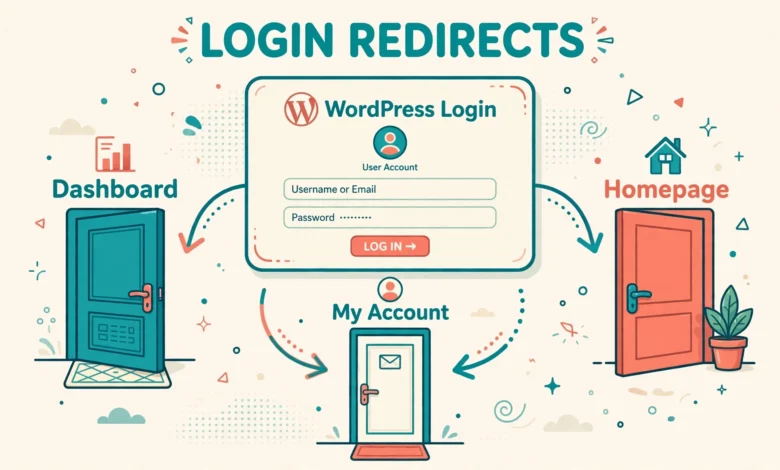
By default, WordPress sends every user to the same place after login. Administrators, editors, authors, subscribers, and customers all land on the WordPress dashboard, even when that dashboard is not useful for them. A subscriber does not need to see the admin area, and a shop customer does not need to see post settings. A simple redirect can fix this experience and make your site feel far more professional.
In this guide, you will learn how to redirect users after login in WordPress based on their role. You will use a small code snippet with the login_redirect filter, which means you do not need a plugin for the basic setup. You will also learn a plugin option for cases where you want a settings screen instead of code, plus how to test your redirects safely so no user gets locked out.
Why redirect users after login in WordPress?
Redirecting users after login is about giving each person the right starting point. When a user logs in and lands on a page that matches their purpose, they find what they need faster, they feel less confused, and they are less likely to click around in areas they should not touch. This matters most on membership sites, online courses, WooCommerce stores, and multi-author blogs.
Consider a few common examples. A subscriber on a membership site should land on a members area or a welcome page, not the dashboard. A WooCommerce customer should land on their account page or the shop, not the admin area. An author should land on the posts list so they can start writing right away. An editor should land on pending posts awaiting review. Each of these is a small improvement on its own, but together they create a much smoother site.
How does the login_redirect filter work?
WordPress provides a filter called login_redirect. A filter lets you change a value before WordPress uses it. In this case, WordPress asks, “Where should this user go after login?” and your code can answer with a different URL based on the user’s role. You do not need to replace the whole login system. You only add a small function that checks the role and returns the right destination.
Your function receives useful information about the login. It can see the requested redirect URL, the original redirect if one was passed, and the user object for the person who just logged in. From the user object, you can read the roles array and decide what to do. If the user is an administrator, you can let WordPress use its normal behavior. If the user is a subscriber, you can return your members page. If no role matches, you can return the normal URL as a safe fallback.
If you are new to the dashboard itself, read our WordPress dashboard explained for beginners guide first so the admin screens mentioned here feel familiar. If you just installed WordPress, our things to do after installing WordPress checklist also covers the basic setup steps you should finish before adding custom code.
Where should you add the redirect code?
You have two safe places to add this code. The best place for most sites is a child theme functions.php file. A child theme keeps your changes safe when the parent theme updates. If you add code directly to a parent theme, the next theme update can erase it without warning. If you do not have a child theme yet, our guide to creating a WordPress child theme walks through the full setup.
The other safe place is a code snippets plugin or a small custom functionality plugin. This keeps the redirect working even if you change themes later, which is often the better choice for a login feature. What you should avoid is editing WordPress core files or editing theme files from a live site without a backup. A small typo in functions.php can lock you out of the admin area, so always test on a staging site first when possible. Our guide to creating a WordPress staging site without a plugin shows a free way to test safely.
Redirect users by role with code
Here is a complete, beginner friendly snippet. It sends administrators to the dashboard as normal, subscribers to a welcome page, customers to their account page, and everyone else to the homepage. Replace the page URLs with your own pages before you use it. You can find a page URL by opening the page on your site and copying it from the browser address bar.
function vtg_login_redirect_by_role( $redirect_to, $request, $user ) {
    if ( isset( $user->roles ) && is_array( $user->roles ) ) {
        if ( in_array( 'administrator', $user->roles, true ) ) {
            return admin_url();
        }
        if ( in_array( 'customer', $user->roles, true ) ) {
            return home_url( '/my-account/' );
        }
        if ( in_array( 'subscriber', $user->roles, true ) ) {
            return home_url( '/welcome/' );
        }
        if ( in_array( 'author', $user->roles, true ) ) {
            return admin_url( 'edit.php' );
        }
    }
    return $redirect_to;
}
add_filter( 'login_redirect', 'vtg_login_redirect_by_role', 10, 3 );
Let us break down what this code does, line by line, so you can change it with confidence. The function name is unique to avoid clashing with other code. The first check makes sure the user object exists and has a roles array. Then each if block checks one role and returns a URL immediately when it matches. The order matters: administrators are checked first, because an administrator who also has another role should still go to the dashboard. The final return at the bottom is the fallback. If no role matches, WordPress uses its normal redirect.
How to customize the redirect for your site
Most sites need only a few changes to the example above. Start by listing the roles that actually exist on your site and the page each role should see first. Keep the list short. Redirecting five roles to five different pages is manageable. Redirecting ten roles to ten pages becomes hard to maintain and confusing for users who change roles later.
- Subscribers: send them to a welcome page, a members dashboard, or a getting started page that explains what to do next.
- Customers: send them to the WooCommerce My Account page, the shop page, or an order history page.
- Authors: send them to the posts list in the dashboard so they can write or edit without extra clicks.
- Editors: send them to pending posts, comments awaiting moderation, or the main dashboard if they manage many areas.
- Shop managers: send them to WooCommerce orders so they can handle new orders right after login.
- Administrators: leave them on the normal dashboard unless you have a custom admin landing page.
When you pick a destination page, make sure the user can actually view it. A subscriber redirected to a private admin page will see an error or get bounced again, which is worse than no redirect at all. Test each role with a real test account, not just your admin account. Create one test user per role, log in as each one, and confirm the landing page loads correctly.
Plugin option when you prefer no code
If you do not want to touch code, a login redirect plugin gives you a settings screen where you pick a destination per role. Search the WordPress plugin directory for a well maintained login redirect plugin, check that it has recent updates and good reviews, and test it on staging first. Plugins are a good choice when a nontechnical teammate will manage redirects later, because a settings screen is easier to hand over than a code file.
Keep in mind that a plugin adds another piece of software to maintain. If you only need two or three simple redirects, the code snippet in this guide is lighter and will not break when a plugin author stops updating it. If you need complex rules, such as redirects based on username, login count, or first login only, a plugin may save you time and reduce custom code. Choose the simpler option that fits your actual need, not the most powerful one.
How to test redirects safely
Testing is the most important part of this setup, because a bad redirect can send users in a loop or to a page they cannot access. Follow this simple testing routine after you add the code or plugin settings.
- Create a test user for each role you redirect, using a different email address for each test account.
- Log out of your admin account completely, then log in as each test user in a private browser window.
- Confirm each test user lands on the correct page and can see its content without an error.
- Log out and log back in to check that the redirect works consistently, not just once.
- Test on mobile too, because some page builders hide content differently on small screens.
- Keep your admin session open in another browser window until testing is finished, so you can remove the code quickly if something goes wrong.
If you get locked out or stuck in a redirect loop, do not panic. You can disable the code by renaming the plugin folder through your hosting file manager, or by removing the snippet from functions.php through the same file manager. This is why you should never test redirect code on a live site without a backup and without knowing how to reach your files. A good host makes this recovery easy, and our web hosting guide explains what to look for when choosing hosting with reliable file access and support.
Common mistakes to avoid
- Redirecting every role, including administrators, to a frontend page. Administrators need dashboard access, so let them use the normal flow.
- Sending users to a page that does not exist yet. Always create the destination page first, then add the redirect.
- Using an external URL you do not control as a redirect target, which can look like phishing to users and security tools.
- Forgetting users with multiple roles. Check the highest priority role first so the result stays predictable.
- Adding the code to a parent theme that will be updated, which erases your work without warning.
- Skipping testing with real test accounts and only testing with an admin account, which hides role specific problems.
For more background on how WordPress handles login and user roles, see the official documentation at developer.wordpress.org and wordpress.org. Both are reliable starting points when you want to go beyond this guide and learn how filters work in general.
Frequently asked questions
Can I redirect users after login without a plugin?
Yes. The login_redirect filter lets you redirect users by role with a short code snippet in a child theme or a code snippets plugin. You do not need a dedicated plugin for basic role based redirects, and the code approach keeps your site lighter.
What happens if a user has more than one role?
WordPress checks roles in the order your code lists them, and the first match wins. Put the most important role first, usually administrator, so a user with multiple roles lands in a predictable place every time.
Will this redirect work for WooCommerce customers?
Yes. WooCommerce adds a customer role, so you can check for that role and send customers to the My Account page or the shop. Make sure the destination page is visible to logged in customers before you enable the redirect.
How do I fix a redirect loop after adding the code?
Remove the snippet through your hosting file manager or by deactivating the code snippets plugin, then clear your browser cache and log in again. A loop usually means the destination page itself sends the user back to login, so check that the destination is viewable by that role before re-adding the code.
Last updated: October 2026.