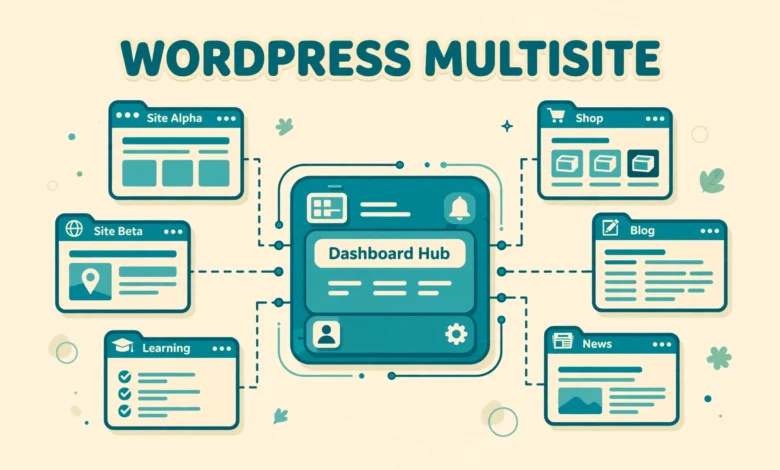
WordPress Multisite is a built in feature that lets one WordPress installation run many separate websites from a single dashboard. Instead of installing WordPress five times for five sites, you install it once, turn on the Multisite feature, and then create new sites inside that same network. Each site in the network gets its own posts, pages, media library, users, and settings, while the network as a whole shares the same core files, plugins, and themes. That shared foundation is what makes Multisite powerful, and it is also what makes it different from simply running several independent WordPress sites on the same hosting account.
If you have ever managed several WordPress sites and felt tired of logging in and out, updating plugins in five places, and repeating the same setup work again and again, Multisite may sound like the perfect answer. Sometimes it is. For a school with a site for each department, a company with a site for each branch, or a blogger running sites in several languages, Multisite can save a lot of time. But it is not the right choice for every situation, and choosing it for the wrong reason can create problems that are hard to undo. This guide explains what Multisite is, when it helps, when separate installs are better, how subdomains and subdirectories differ, and how to set up a network safely.
What Is WordPress Multisite in Simple Terms?
Think of a normal WordPress site as a single house. It has its own rooms, its own furniture, and its own key. WordPress Multisite is more like an apartment building. The building itself is shared, including the structure, the plumbing, and the main entrance, but each apartment is a separate home with its own residents and its own interior. In Multisite terms, the building is the single WordPress installation. Each apartment is a site in the network. Each site has its own content, its own media uploads, and its own site administrators, but all sites share the same WordPress core, the same installed plugins, and the same installed themes.
At the top of the network sits a special role called the Super Admin. The Super Admin manages the whole network: installing and activating plugins and themes for all sites, creating new sites, managing network settings, and upgrading WordPress itself. Below the Super Admin, each individual site has its own administrators who can manage that site only. They can publish posts, change their site settings, and manage their own users, but they cannot install new plugins or themes unless the Super Admin has made them available. This two level structure is the key to understanding Multisite. It gives central control to one person while still letting each site team work independently on its own content.
It is also important to understand what Multisite does not do. It does not give each site a fully separate database. All sites in a network share one database, with separate tables for each site. It does not let each site run a different version of WordPress, and it does not let one site install a plugin that another site cannot see at all, because plugins are installed at network level. If you need complete separation between sites, for example for unrelated clients who should never share anything, separate WordPress installs are usually the safer choice. If you are still learning the basics of running a single site, our guide to install WordPress on localhost with XAMPP is a good place to practise before you try a network.
When Should You Use Multisite?
Multisite works best when one organisation owns all the sites and wants them managed together. A university that needs a site for each faculty, a franchise business with a site for each location, a news group with city editions, or a multilingual site where each language gets its own site are all classic Multisite cases. In these situations, the sites usually share a brand, a design system, and a set of plugins, and one team is responsible for keeping everything updated. With Multisite, one WordPress update updates every site at once, and one plugin update applies across the network, which saves hours compared with updating each site separately.
- One organisation owns all the sites and one team manages updates.
- Sites share branding, themes, and the same set of plugins.
- You need to create new similar sites quickly and often.
- Users need access to more than one site in the group.
- You want central control over which plugins and themes are allowed.
When Is Multisite the Wrong Choice?
Multisite is a poor fit when the sites belong to different owners who should be fully independent. The classic mistake is a freelancer or agency putting unrelated client sites into one Multisite network to save hosting costs. That creates real problems. All sites share one database and one set of files, so a problem on one site, such as a hacked plugin or a traffic spike, can affect every site in the network. If one client wants to move to another host, you cannot simply hand over their site, because their content lives inside a shared installation. Moving a single site out of a network is possible, but it is a technical migration, not a simple export.
Subdomains or Subdirectories: Which Structure Should You Choose?
When you set up Multisite, WordPress asks you to choose how new sites are addressed. The two options are subdomains and subdirectories, and the choice is hard to change later, so decide carefully before you create your network. With subdomains, each site gets an address like branch.example.com, where branch is the site name and example.com is your main domain. With subdirectories, each site gets an address like example.com/branch, where the site name appears after the main domain as a folder style path.
Subdirectories are simpler to set up because they need no special DNS configuration. They work on almost any hosting plan and are a good choice for sites that are clearly sections of one main site, such as departments of one school or categories of one organisation. The downside is that the addresses look less independent, and subdirectory networks cannot be used on a main site that already has a large amount of content with conflicting URLs. A fresh WordPress installation is the cleanest starting point for either structure, which is why most guides recommend setting up Multisite on a new site rather than converting a busy existing site.
How Do You Set Up WordPress Multisite Step by Step?
Before you start, take a full backup of your site, including files and database, and work on a staging copy if the site is already live. Multisite changes your wp-config.php file and your .htaccess file, and mistakes there can take the site offline. If you are practising, a local installation is the safest place to learn, because nothing public breaks if you make an error. Once you have a backup, follow these steps in order.
- Deactivate all plugins first, to avoid conflicts during the network setup.
- Open wp-config.php and add the line that enables Multisite, above the line that says stop editing.
- Save the file, refresh the dashboard, and go to Tools, then Network Setup.
- Choose subdomains or subdirectories, enter a network title and the network admin email, and click Install.
- WordPress will show two blocks of code, one for wp-config.php and one for .htaccess. Copy each block exactly into the correct file.
- Log in again, and you will see a new My Sites menu and a Network Admin dashboard.
- Reactivate your plugins one by one, checking that each one works on the network.
The line you add to wp-config.php is a single define statement that tells WordPress to allow Multisite. In the wp:code block below, you can see the exact line. It must go above the comment that says that is all, stop editing, because code below that comment may not run correctly. Do not edit anything else in wp-config.php unless you know what it does, and keep a copy of the original file before you change it.
define( 'WP_ALLOW_MULTISITE', true );After you add the code WordPress gives you and log in again, your dashboard changes. You will see My Sites in the top toolbar, which lists the sites you can access, and a Network Admin area for managing the whole network. To create a new site, go to My Sites, then Network Admin, then Sites, then Add New. Enter the site address, title, and admin email, and WordPress creates the site instantly. The official documentation at wordpress.org covers the network setup screens in more detail if you want to read the reference alongside this guide.
Super Admin vs Site Admin: Who Can Do What?
Understanding roles prevents most Multisite confusion. The Super Admin is the network owner. Only the Super Admin can install, update, and delete plugins and themes, create and delete sites, manage network settings, and upgrade WordPress. No site admin can do those things, even on their own site, unless the Super Admin grants that ability. This central control is deliberate. It stops one site admin from installing an unsafe plugin that could affect every site in the network.
A site admin, by contrast, manages one site only. They can create and edit posts and pages, manage comments, upload media, manage users on their site, and change their site theme, but only to a theme the Super Admin has already enabled for the network. They can activate a plugin on their site only if the Super Admin has network activated it or made it available for individual activation. Regular roles such as editor, author, and subscriber work the same way inside each site as they do on a single site installation. For a full breakdown of those roles, see our guide to WordPress user roles explained, which pairs well with this network role overview.
What Are the Limits and Warnings You Must Know?
Multisite shares resources, so plan hosting accordingly. All sites in the network share the same server resources, the same database, and the same file system. A traffic spike on one site can slow down the others, and a large network with many sites and heavy plugins needs more memory and a better hosting plan than a single small site. If your host limits database size or PHP memory, a growing network will hit those limits sooner than separate installs would. Check your plan limits before you grow beyond a handful of sites, and monitor performance as you add sites. Compare plans in our web hosting guide before you commit to a large network.
Frequently Asked Questions
Is WordPress Multisite free?
Yes. Multisite is built into WordPress itself, so there is no extra cost to enable it. You still pay for hosting and for any premium themes or plugins you use, and a larger network may need a stronger hosting plan, but the Multisite feature itself is free.
Can I turn an existing single site into a Multisite network?
Yes, but it is safest on a fresh or lightly used site. Existing sites can be converted, but subdirectory networks have restrictions if the site is more than a month old, and any conversion should start with a full backup and plugin deactivation. Test the conversion on a staging copy first.
Can each Multisite site use a different theme?
Yes. The Super Admin installs themes at network level and enables the ones each site may use. Each site admin can then choose from the enabled themes for their own site, so sites in one network can look quite different while sharing the same installation.
Can I use Multisite for unrelated client websites?
You can technically, but you should not. Unrelated client sites share one database and one set of files in a network, which makes separation, migration, and security harder. For clients, separate WordPress installations give each client a clean, independent site they can move anywhere.
Last updated: November 2026.