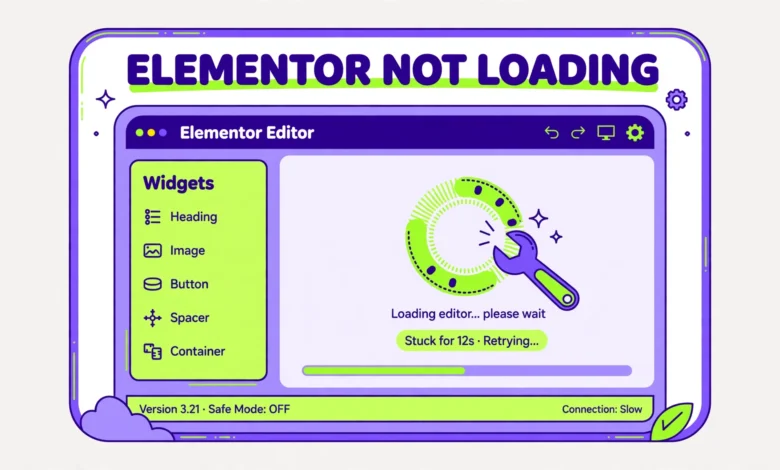
Nothing is more frustrating than clicking Edit with Elementor and staring at a gray screen, an endless loading spinner, or a blank canvas where your page should be. The page itself usually still works fine for visitors, which makes the problem even more confusing, because the front end looks normal while the editor refuses to open. In most cases, the cause is not a broken page at all. It is a conflict, a cache problem, a memory limit, or a setting that stops the editor scripts from loading correctly. This guide walks through the fix in a safe order, starting with the quickest checks and moving to deeper troubleshooting, so you do not break a working site while trying to repair the editor.
Before you change anything, take a backup. That rule applies to every troubleshooting step in this guide, because even a simple plugin deactivation can change how a page looks if a plugin was providing content on that page. A backup lets you undo any step safely. Also, work on one change at a time and test the editor after each change. If you change five things at once and the editor starts working, you will never know which change fixed it, and you may repeat the wrong fix next time. Keep notes as you go, and if you are editing a live client site, tell the site owner you are troubleshooting before you start deactivating plugins.
What Does the Elementor Loading Problem Look Like?
The symptoms vary, but they share one pattern: the editor never finishes loading. Sometimes you see the gray loading screen with the Elementor logo and a spinner that never stops. Sometimes the editor opens but the canvas stays blank, with no sections or widgets visible. Sometimes the left panel loads but the preview area is empty, or clicking a widget does nothing. Occasionally you see a brief error, or the page redirects back to the dashboard. All of these point to the same underlying issue, which is that the editor JavaScript or the preview page failed to load completely.
It helps to check whether the problem affects one page or all pages. Open a different page with Elementor, and try creating a brand new page and editing it with Elementor. If only one page fails, the problem is likely inside that page content, such as a broken widget, a huge page size, or an embedded element that blocks loading. If every page fails, the problem is site wide, such as a plugin conflict, a theme issue, a server limit, or a caching layer. That distinction saves a lot of time, because it tells you whether to focus on one page or on the whole site setup. If your Elementor site also feels slow on the front end, our guide to speed up an Elementor website covers the performance side separately.
What Should You Try First in a Private Window?
Start with a private or incognito browser window, because it rules out browser extensions and cached login data in seconds. Open a private window, log in to WordPress, and try opening the Elementor editor. If it works in the private window, the problem is in your normal browser profile, not in WordPress. Disable browser extensions one by one, especially ad blockers and script blockers, which are known to interfere with editor scripts. Clear the browser cache for your site, or try a different browser entirely to confirm.
How Does Elementor Safe Mode Help You Diagnose the Issue?
Elementor includes a built in diagnostic tool called Safe Mode, and it is the safest next step. Safe Mode loads the editor without the active theme and without other plugins interfering, while leaving the live site untouched for visitors. To enable it, go to Elementor, then Tools, then Safe Mode, and turn it on. Then try opening the editor again. If the editor loads in Safe Mode, you have confirmed that a theme or plugin conflict is the cause, and you can narrow it down without guessing. The official documentation at elementor.com explains Safe Mode and other editor tools in more detail.
How Do You Clear Caches That Block the Editor?
Caching is one of the most common causes of a stuck Elementor editor, because the editor needs fresh JavaScript and CSS files, while caching layers are designed to serve older stored copies. Start inside Elementor itself. Go to Elementor, then Tools, then General, and click Regenerate Files and Data. This rebuilds Elementor CSS files, which can become outdated after a theme change, a plugin update, or a site move. Also click Sync Library if that option is available, to refresh the template library data.
Next, clear every other cache layer, one at a time, testing the editor after each one. Clear your caching plugin cache, if you use one, and temporarily disable minification and combination of JavaScript and CSS while testing, because minified editor scripts are a frequent source of breakage. Clear any server level cache your host provides, and purge the cache in Cloudflare or any other CDN you use, if applicable. Do not skip the CDN step, because a cached old script served by a CDN can keep the editor broken even after you clear everything on the server. Clear the CDN cache fully, wait a few minutes for the purge to spread, and then test the editor again.
What Is the Switch Editor Loader Method Setting?
Elementor offers a setting called Switch Editor Loader Method, which changes how the editor loads its scripts, and it fixes a specific class of loading problems, especially on servers with strict security rules or unusual configurations. To find it, go to Elementor, then Settings, then Advanced, and look for Switch Editor Loader Method. Enable it, save the settings, and try opening the editor again. If the editor was stuck because the default loader method was blocked by a server rule, this alternative method often gets past the block.
How Do You Check for URL Mismatches?
A URL mismatch happens when the WordPress Address and Site Address in Settings, then General, do not match the URL you are actually using to access the site. This commonly happens after moving a site, switching between http and https, changing from www to non www, or accessing the site through a temporary domain. Elementor is sensitive to this mismatch, because the editor loads the preview page in an iframe, and browsers block that iframe when the addresses do not line up. The result is a blank canvas or an editor that never finishes loading.
How Do You Fix PHP Memory Limit Problems?
Elementor, especially on pages with many sections, widgets, and images, needs more PHP memory than a basic WordPress page. If your PHP memory limit is too low, the editor may fail to load, show a blank canvas, or crash with no clear error. You can check your current limits in Elementor, then System Info, which lists the PHP memory limit, PHP version, and other server details. Elementor recommends at least 256 MB of memory for comfortable editing, and many hosts set the default lower than that.
How Do You Isolate a Plugin or Theme Conflict?
If Safe Mode fixed the editor, you still need to find which plugin or theme is causing the conflict. The method is simple but slow, so be patient and methodical. First, switch to a default WordPress theme temporarily, such as Twenty Twenty Four, and test the editor. If the editor works with the default theme, your theme is involved, and you should check for a theme update or contact the theme developer. If it still fails, switch back to your theme and move to plugins.
- Deactivate all plugins except Elementor and Elementor Pro, if you use Pro.
- Test the editor. If it works, a deactivated plugin is the culprit.
- Reactivate plugins one by one, testing the editor after each one.
- When the editor breaks again, the last plugin you reactivated is the likely cause.
- Check that plugin for updates, replace it, or contact its developer.
- Keep a note of the conflicting plugin so you do not reinstall it blindly later.
If the conflicting plugin provided gallery content, consider replacing it with a native Elementor method instead of reinstalling it. Our guide to add an image gallery in Elementor free shows how to build a gallery without adding another plugin.
What About Cloudflare Rocket Loader and Similar Features?
Cloudflare Rocket Loader is a feature that changes how JavaScript loads on your site to improve front end speed, but it is well known to break the Elementor editor, because the editor relies on its scripts loading in a specific order. If you use Cloudflare and the editor fails, log in to Cloudflare, go to Speed, then Optimization, and turn off Rocket Loader. Then purge the Cloudflare cache and test the editor again. This single change fixes many otherwise mysterious editor failures, and it does not harm your front end speed in a meaningful way for most sites.
When Should You Contact Your Host?
Contact your host when you have worked through the steps above and the editor still fails, or when the problem points to a server limit you cannot change yourself. Good examples include a PHP memory limit your host will not raise, a server security rule such as mod_security blocking editor requests, an outdated PHP version, or a server error in the logs that only the host can see. When you contact support, give them a clear summary: what you tried, whether Safe Mode worked, whether the problem affects all pages or one page, and the exact error or symptom you see. That summary gets you past generic first replies much faster. If you are unsure which version you run, our comparison of Elementor free vs Pro can help you confirm your setup.
Frequently Asked Questions
Why is Elementor stuck on the loading screen?
The most common causes are a plugin or theme conflict, an outdated cache, a low PHP memory limit, or a script optimisation feature such as Rocket Loader. Start with a private window and Safe Mode to confirm a conflict, then clear caches, regenerate files, and check memory before deactivating plugins one by one.
Will Safe Mode change my live site?
No. Safe Mode only changes how the editor loads for you while you are diagnosing. Visitors still see the normal site with your theme and plugins active. You can turn Safe Mode off once you finish troubleshooting, with no lasting change to the live site.
Should I deactivate all plugins on a live site to test?
Only as a last resort on a live site, and preferably on a staging copy instead. Start with Safe Mode, which tests for conflicts without affecting visitors. If you must deactivate on a live site, work during low traffic hours, test quickly, and reactivate everything except the confirmed culprit.
Does clearing cache delete my Elementor designs?
No. Clearing caches and regenerating Elementor files rebuilds the stored CSS and script files, but does not delete your pages, sections, or widget settings. Your designs stay in the database. Still, take a backup before troubleshooting, so any accidental change can be undone safely.
Last updated: November 2026.