If you have ever searched on Google and seen star ratings, FAQ dropdowns, or recipe details right in the search results, you have seen schema markup at work. Those extra details are called rich results, and they make a listing stand out without changing its ranking position. Many WordPress users add schema through an SEO plugin, but you do not need one. You can add schema markup WordPress without plugin code, using a small JSON-LD snippet placed in the right spot. This guide explains what schema is, which types matter most, and three practical methods for adding it by hand, plus how to test that Google can read it.
What Is Schema Markup and JSON-LD?
Schema markup is a shared vocabulary that describes your content in a structured way search engines can understand. Instead of guessing what a page is about from headings and paragraphs alone, a search engine can read the markup and learn that a page is an article, a product, a recipe, or a local business, along with details such as the author, the publish date, or the price. The vocabulary itself is maintained at schema.org, where every type and property is documented.
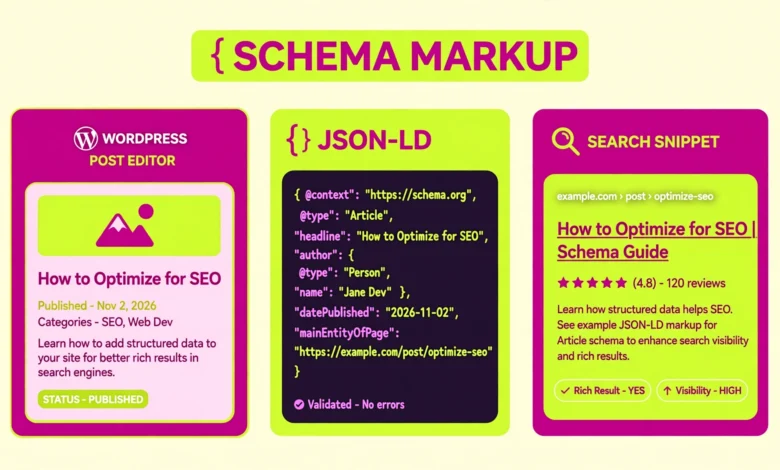
JSON-LD is the format Google recommends for adding schema to a page. It is a block of structured data written in JavaScript Object Notation for Linked Data, placed inside a script tag. Unlike older formats that mixed markup into the visible HTML, JSON-LD sits separately from your content, so it does not change how the page looks. That separation makes it the easiest format to add by hand: you write one self contained block, paste it in the right place, and your visible content stays untouched.
Why Does Schema Markup Help Your Search Results?
Schema does not guarantee a rich result, and it does not directly raise your ranking. What it does is make your page eligible for richer display formats when Google decides they are useful for a query. A listing with a clear FAQ dropdown, a product price, or an article date takes up more visual space and answers the searcher’s question faster, which can raise the click through rate even if the position stays the same. For a small blog competing with large authority sites, that extra visibility is valuable.
Schema also reduces ambiguity. A page titled “Apple” could be about fruit, a company, or a record label, but markup that says the page is a Product with a brand and a price removes the doubt. The same logic applies to your own posts. When you mark a tutorial as an Article with an author and a publish date, you give Google clean facts to work with instead of forcing it to infer them. Good schema supports the rest of your SEO work, which is why it pairs well with basics such as submitting your site to Search Console, covered in our guide on how to add Google Search Console to WordPress.
Which Schema Types Should You Use?
You should only use schema types that honestly describe the page. Adding Product markup to a blog post that sells nothing, or FAQ markup to a page with no questions, is misleading and can cause Google to ignore your markup or remove rich results for the site. Start with the types that match content you already publish:
- Article: for blog posts and news articles, with headline, author, publish date, and publisher details.
- FAQPage: for pages that contain real questions and answers visible on the page, such as a FAQ section at the end of a post.
- Product: for pages that describe a specific product for sale, with name, price, availability, and reviews if genuine.
- LocalBusiness: for a business with a physical location, opening hours, address, and contact details.
- HowTo: for step by step guides, with each step listed in order.
- Recipe: for recipes, with ingredients, cooking time, and instructions.
Most WordPress blogs only need Article and FAQPage. A business site may add LocalBusiness to its contact page, and a shop adds Product to product pages. One accurate type with complete fields beats five vague types.
Method 1: Add Schema Through Your Child Theme Functions File
The most reliable method for sitewide or post type schema is to add a function to your child theme that outputs JSON-LD in the page head. Because the code runs through the wp_head hook, it appears on every page you target, and you can use WordPress template tags to fill in real values such as the post title and publish date automatically. Never edit a parent theme directly, because a theme update will wipe your changes. Our guide on how to create a WordPress child theme shows the safe setup if you do not have one yet.
Here is a simple Article example you can adapt. It uses template tags so the headline, date, and author change for each post:
<script type="application/ld+json">
{
  "@context": "https://schema.org",
  "@type": "Article",
  "headline": "Your Post Title Here",
  "datePublished": "2026-11-02",
  "author": {
    "@type": "Person",
    "name": "Your Name Here"
  }
}
</script>
In a real implementation you would replace the fixed title and date with template tags that pull them from the current post, and you would wrap the output in a condition so it only runs on single posts, for example by checking is_singular(‘post’). Keep the code in your child theme functions.php file, save it, and clear any caching plugin so the new head output appears on the live page. If you are unsure about editing theme files, practise first on a staging copy, as described in our guide on how to create a WordPress staging site without a plugin.
Method 2: Add Schema to a Single Post With a Custom HTML Block
For one off schema, such as FAQ markup on a single post, the Custom HTML block is the simplest option. Open the post in the block editor, add a Custom HTML block at the end of the content, and paste your JSON-LD script block into it. WordPress will output the block in the page body, and Google can read JSON-LD from the body as well as the head, so the markup still works. This method is ideal when only one post needs a specific type and you do not want to write theme code.
The rule for FAQ schema deserves special care. The questions and answers in your JSON-LD must match questions and answers that visitors can actually see on the page. If your post ends with a FAQ section, as this one does, you can mark those same questions in JSON-LD. Do not invent extra questions in the markup that do not appear in the visible content. Google checks for that mismatch and may drop the rich result. The same honesty rule applies to images: if your markup references an image, that image should appear on the page, and our guide to WordPress image SEO tips explains how to optimise it properly.
Method 3: Add Schema With a Custom Field
A custom field approach gives you flexibility without touching theme code for every post. You create a custom field, for example schema_json, on posts, paste the JSON-LD block for that post into the field, and add a small snippet to your child theme that outputs the field value inside a script tag when the field is not empty. Posts without the field get no extra markup, and posts with it get exactly the schema you wrote for them.
This method suits sites where different posts need different schema types. A recipe post can carry Recipe markup, a tutorial can carry HowTo markup, and a standard post can carry nothing extra, all controlled from the post editor. The trade off is that you must write valid JSON for each post by hand, so always validate before publishing. If you later install an SEO plugin, disable this manual output first, or you will end up with duplicate markup.
How Do You Validate Your Schema Markup?
Never assume your JSON is valid because the page looks fine. A missing comma or an unclosed bracket breaks the whole block silently, and visitors will never notice because JSON-LD is invisible. Test every page after adding markup, using the free tools from Google. The Rich Results Test, available through developers.google.com, checks whether a URL is eligible for rich results and shows which types it detected. The Schema Markup Validator checks the markup itself against the schema.org vocabulary and reports errors and warnings in detail.
Test in this order. First, paste your code into the validator or test the live URL before publishing. Fix every error, and review warnings to see if a recommended field is worth adding. Second, publish the post and test the live URL again, because caching plugins and theme output can change what Google actually receives. Third, check Search Console after a few days for the Enhancements section, which reports valid and invalid items found during crawling. If your markup is valid but no rich result appears, that is normal: eligibility is not a guarantee.
What Are the Common Schema Mistakes to Avoid?
- FAQ schema on pages without visible FAQs: only mark questions and answers that appear on the page itself.
- Duplicate schema: if an SEO plugin already outputs Article markup, do not add a second Article block by hand. Pick one source and disable the other.
- Invalid JSON: one missing comma breaks the block, so validate every snippet before publishing.
- Markup that does not match the page: prices, ratings, dates, and availability in markup must match the visible content exactly.
- Marking hidden content: do not add schema for content that visitors cannot see, such as reviews that exist only in the markup.
- Forgetting to clear cache: after adding or fixing markup, clear your caching plugin and test the live URL, not a cached copy.
Schema works best as part of a broader SEO routine. A fast, crawlable site on solid web hosting with clear content gives markup something real to describe. If Google is not indexing your pages at all, fix that first with our guide on how to fix a WordPress site not indexed by Google. For a broader view of how plugins handle schema, our Rank Math vs Yoast comparison covers what each plugin outputs by default, which helps you avoid duplicate schema.
Frequently Asked Questions
Do I need a plugin to add schema markup to WordPress?
No. You can add schema by hand with JSON-LD in your child theme, in a Custom HTML block, or through a custom field. A plugin only automates the same output, so manual markup gives you full control, as long as you validate it before publishing.
Will schema markup guarantee rich results on Google?
No. Valid schema makes your page eligible for rich results, but Google decides whether to show them for each query. Valid markup with honest, complete fields gives you the best chance, and Search Console will report any errors that block eligibility.
Can I add FAQ schema to any page?
Only to pages that show real questions and answers to visitors. The FAQ markup must match the visible FAQ section on the page. Adding FAQ schema to a page with no FAQs can cause Google to ignore the markup or remove rich results.
What happens if my SEO plugin already adds schema?
You will get duplicate markup if you also add it by hand, which can confuse search engines. Check what your plugin outputs with the Rich Results Test, then either rely on the plugin alone or disable its schema output for that type and use your manual markup instead.
Last updated: November 2026.