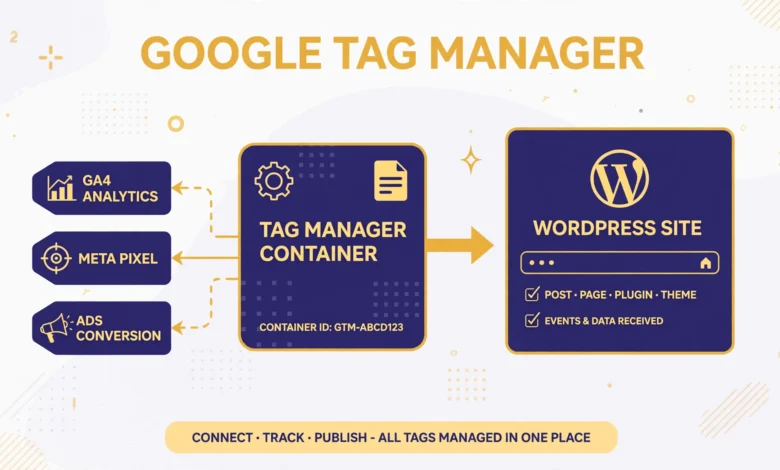
If your WordPress site uses Google Analytics, a Facebook Pixel, a conversion tracker, and a heatmap tool, you probably have several tracking snippets pasted into your theme. Every new tool means another edit, another chance to break something, and another snippet to remove later. Google Tag Manager, usually called GTM, solves this by giving you one container snippet on your site and letting you manage all the other tags from the GTM dashboard. You can add Google Tag Manager WordPress without plugin code, using two small snippets in your child theme or a must use plugin. This guide walks through the whole setup and the testing steps that prove it works.
What Is Google Tag Manager and Why Use It?
Google Tag Manager is a free tag management system. A tag is a small piece of code that sends data to a third party service, such as Analytics for traffic stats or a marketing pixel for ad tracking. Normally you paste each tag directly into your site. With GTM, you paste only the GTM container code into your site once. After that, you add, edit, pause, and remove tags inside the GTM web interface, and GTM serves the updated tags to your site without another theme edit.
The practical benefit is control. A marketer can add a new conversion tag without asking a developer to edit theme files, and a site owner can pause a broken tag in minutes instead of digging through code. GTM also keeps your theme cleaner, because one container replaces many separate snippets scattered through header and footer files. It does not replace Analytics or any other tool: it is the delivery system that loads those tools. You still need an Analytics account or a pixel ID, but GTM is what places them on the page.
How Do You Create a GTM Container?
Start by signing in to Tag Manager with the Google account that owns your Analytics property, so permissions stay simple later. Create an account using your business or site name, then create a container. The container name is usually your site name or domain, and the target platform must be Web, because you are installing it on a WordPress website rather than an app. GTM will then show you a container ID that looks like GTM-XXXXXXX, plus two code snippets.
Copy both snippets exactly and keep them safe until you paste them into WordPress. The first snippet is a script that belongs in the head of every page. The second is a noscript block that belongs immediately after the opening body tag. Both parts are required for a full installation, even though the noscript part only matters for the small share of visitors who browse with JavaScript disabled. Installing only the head script is the most common beginner mistake, so treat the pair as one unit. Support documentation at support.google.com explains the container setup in detail.
How Do You Add the Head Snippet With wp_head?
The safest way to add the head snippet is through your child theme, using the wp_head hook. This hook outputs code in the head section of every page, which is exactly where GTM wants its script, and it keeps your code separate from theme files that an update could overwrite. Never paste the snippet into a parent theme header file. If you do not have a child theme yet, follow our guide on how to create a WordPress child theme first.
Add a function to your child theme functions.php file that prints the GTM head script. Replace GTM-XXXXXXX with your real container ID:
<script>(function(w,d,s,l,i){w[l]=w[l]||[];w[l].push({'gtm.start':
new Date().getTime(),event:'gtm.js'});var f=d.getElementsByTagName(s)[0],
j=d.createElement(s),dl=l!='dataLayer'?'&l='+l:'';j.async=true;j.src=
'https://www.googletagmanager.com/gtm.js?id='+i+dl;f.parentNode.insertBefore(j,f);
})(window,document,'script','dataLayer','GTM-XXXXXXX');</script>
Hook this output to wp_head so it prints near the top of the head section, as close as possible to the opening head tag, as Google recommends. Keep the container ID identical in both snippets. A single wrong character means the container never loads, and GTM Preview mode, covered below, will show nothing firing.
How Do You Add the Noscript Snippet With wp_body_open?
The noscript snippet must go immediately after the opening body tag, not in the head and not in the footer. WordPress provides the wp_body_open hook for exactly this purpose, and most modern themes call it right after the body tag. Add a second function to the same functions.php file that prints the noscript block:
<noscript><iframe src="https://www.googletagmanager.com/ns.html?id=GTM-XXXXXXX"
height="0" width="0" style="display:none;visibility:hidden"></iframe></noscript>
Hook this output to wp_body_open. Then view your site source and confirm the noscript block appears near the top of the body, not buried in the footer. If your theme is old and does not call wp_body_open, the noscript block will not appear at all. In that case, either update the theme, switch to a theme that supports the hook, or use the must use plugin method below, which can print the block through a different approach. Never paste the noscript block into the head: browsers treat it as fallback content for disabled JavaScript, and placing it in the head is invalid and useless.
What Is the Must Use Plugin Method?
A must use plugin, often called a mu-plugin, is a small PHP file placed in the wp-content/mu-plugins folder. WordPress loads it automatically on every page, and it cannot be deactivated from the dashboard, which makes it a durable home for sitewide code. This method suits site owners who change themes often: the GTM snippets stay active across theme switches, whereas child theme code would need to move to the new child theme.
Create the mu-plugins folder if it does not exist, add a PHP file inside it, and put the same two hooked functions from the sections above into that file. The code is identical, only the location changes. The trade off is that mu-plugin code is slightly harder to find later, because it does not appear in the normal plugins list, so leave a clear comment at the top of the file stating that it adds the GTM container and giving the container ID. If you ever remove GTM, delete this file as well as any dashboard tags, so no orphan snippet stays on the site. For safe experimentation with either method, practise on a staging copy first, following our guide on how to create a WordPress staging site without a plugin.
How Do You Test With GTM Preview Mode and Tag Assistant?
Publishing tags without testing is guesswork. GTM Preview mode lets you browse your site with a debug panel that shows exactly which tags fired, which did not, and why. Click Preview in the GTM dashboard, enter your site URL, and browse the site in the connected tab. The debug panel lists each event, such as page view or click, and the tags that fired for it. If your container is installed correctly, you will see the container loaded event and your tags firing as expected.
Tag Assistant, available through developers.google.com, gives a second check from outside the GTM dashboard. It confirms that the container is present on the page and reports installation problems in plain language. Use both tools after installation, and again after you publish any major tag change. Clear your caching plugin and browser cache before testing, because a cached page may not include the new snippets yet. A tag that fires in Preview mode but not for real visitors is often a caching issue, or a publish step that was missed: Preview mode shows workspace changes, while live visitors only see the published container version, so always click Submit and Publish in GTM when testing is done.
What Are the Common GTM Mistakes to Avoid?
- Noscript snippet in the head: it belongs immediately after the opening body tag via wp_body_open, not in the head.
- Duplicate containers: installing GTM with a plugin and by hand at the same time loads the container twice and double counts events.
- Mismatched container IDs: the head script and the noscript block must carry the same GTM ID.
- Forgetting to publish: Preview mode is not live traffic, so Submit and Publish the container after testing.
- Leaving old hardcoded tags in place: remove the standalone Analytics or pixel snippets that GTM now manages, or events will be counted twice.
- Testing a cached page: clear cache before every test, or you will chase a problem that no longer exists.
Duplicate tracking is the costliest mistake on this list, because inflated numbers can mislead marketing decisions for weeks before anyone notices. After installing GTM, compare your Analytics numbers for a few days with the period before the change. A sudden doubling of pageviews almost always means an old hardcoded snippet is still firing alongside the GTM version. The fix is to remove the old snippet, not to adjust GTM.
Will GTM Slow Down Your Site?
GTM itself is a small loader, but the tags it loads can slow a page, especially marketing pixels and heatmap scripts. The honest answer is that GTM does not automatically make a site faster or slower: the total load depends on what you put inside the container. Keep the container lean by only adding tags you actually use, pausing seasonal tags when the campaign ends, and avoiding duplicate tools that measure the same thing.
You can also delay nonessential tags until after the main content loads, using GTM triggers such as window load or a timer, so a marketing pixel does not compete with the content visitors came to read. This helps perceived speed, but it can reduce data collection for visitors who leave quickly, so treat it as a trade off rather than a free win. For broader performance work, our guide on how to add custom CSS in WordPress covers lightweight front end tweaks, and the web hosting pillar page explains why server quality sets the ceiling for any optimisation. If you later connect Analytics through GTM, our guide on how to add Google Search Console to WordPress covers the companion setup for search data.
Frequently Asked Questions
Do I need a plugin to add Google Tag Manager to WordPress?
No. You can add both GTM snippets with a child theme functions.php file or a must use plugin, using the wp_head and wp_body_open hooks. A plugin only automates the same two snippets, so manual installation gives you the same result with fewer dependencies.
Why does GTM need two snippets instead of one?
The head script loads the container for normal visitors with JavaScript enabled. The noscript block after the body tag is a fallback for visitors with JavaScript disabled, so their visits still register. Both parts use the same container ID, and a full installation needs both.
Why do my tags fire in Preview mode but not for real visitors?
The usual cause is an unpublished container. Preview mode shows your workspace changes, while live visitors only see the published version. Click Submit and Publish in GTM, clear your cache, and test again in a normal browser window.
Should I remove my old Analytics snippet after installing GTM?
Yes, once the same Analytics tag is firing correctly through GTM. Leaving the old hardcoded snippet in place alongside the GTM version double counts pageviews and events, so remove the old snippet and verify the numbers settle back to normal.
Last updated: November 2026.