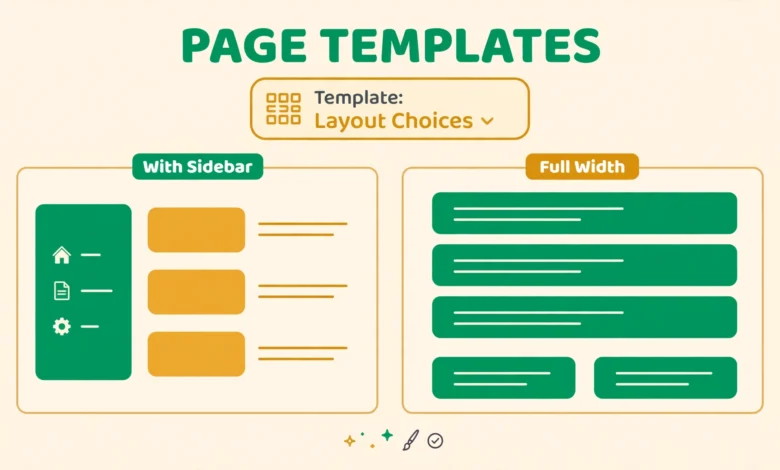
Open two pages on a WordPress site and they can look completely different, even though they use the same theme. One page may have a sidebar and a narrow content column, another may stretch full width with no sidebar at all, and a third may show a landing page layout with no header menu. The feature behind those differences is the page template. A page template is a layout blueprint that tells WordPress how to display a particular page, which parts of the page to show, and how wide the content should be. Understanding page templates gives you far more control over your site design than just changing colours or fonts, and it is a skill every WordPress beginner should learn early. This guide explains what a page template is, how WordPress chooses one, what the default and custom templates do, how to assign a template in the editor, and how to build a simple custom template in a child theme.
What Is a WordPress Page Template?
A page template is a PHP file inside your theme that controls the structure of a page. While your page content lives in the database, the template decides the wrapper around it: whether a sidebar appears, whether the header and footer show, how wide the content area is, and which extra sections, such as a hero banner or a call to action, appear above or below the content. Think of the difference between content and template like the difference between a letter and its envelope. The letter is the same, but the envelope changes how it is presented and delivered. Templates only apply to pages by default, not to posts, although some themes and plugins extend similar layout choices to posts as well. A single theme can include several templates, and you can assign a different template to each page, so your About page, your Contact page, and your landing page can each have a layout that suits its purpose, without needing three different themes.
How Does the Template Hierarchy Choose a Template?
WordPress does not pick a template at random. It follows a decision tree called the template hierarchy. When a visitor opens a page, WordPress first checks whether you have assigned a custom template to that page in the editor. If you have, it uses that template. If you have not, it falls back to the theme default page template, usually called page.php, which is the standard layout for pages. If even that file is missing, WordPress falls back further to a generic template. The same hierarchy idea applies across the whole site: single posts, archives, search results, and the homepage each have their own fallback chain. For beginners, the practical lesson is simple. You only need to assign a template when you want a page to look different from your theme default. For every other page, doing nothing is correct, because the default template already handles it. Problems usually start when a page looks wrong after a theme change, which often means the old custom template no longer exists in the new theme and WordPress has fallen back to the default without telling you.
What Is the Difference Between Default and Custom Templates?
The default template is the standard page layout your theme uses when no other template is assigned. It typically shows the page title, the content, and a sidebar, with the header at the top and the footer at the bottom. It is the safe, consistent choice for ordinary information pages such as About, Privacy Policy, and Services. A custom template, by contrast, is a special layout built for a particular purpose. Theme authors create custom templates for common needs, and developers can create their own for anything unusual. The key difference is intent. Default means normal, while custom means this page deliberately breaks from the normal layout for a reason. You should not assign a custom template just because it exists. Assign it because the page needs that layout, such as a landing page that should have no distractions, or a full width page that needs room for a wide table or gallery. Using custom templates sparingly keeps your site consistent, which helps visitors feel oriented as they move from page to page.
What Are Full Width and No Sidebar Templates For?
Two custom templates appear in almost every theme, and they are worth knowing by name. A full width template removes the sidebar and stretches the content across the full width of the page. It is ideal for pages with wide content, such as pricing tables, large galleries, embedded maps, or landing pages where a sidebar would squeeze the main message. A no sidebar template is similar but not identical: it removes the sidebar while keeping the normal content width, so the page looks cleaner and more focused without becoming very wide. Some themes offer both, some offer only one, and some call them by slightly different names, such as Blank, Canvas, or Landing Page. Before assigning either, preview the page, because full width text lines can become hard to read if they stretch across a very wide screen. A good rule is to use full width for visual or tabular content, no sidebar for focused reading pages, and the default template for everything else. If you need to adjust spacing or fonts inside a template, our guide on how to add custom CSS to WordPress shows how to do it without editing theme files.
How Do You Assign a Template in the Editor?
Assigning a template takes less than a minute, and you do it from the page editor, not from theme settings. Open the page you want to change, then look in the sidebar settings panel for the Template section. In the block editor, it sits under the Page settings, sometimes labelled Template or Page Attributes depending on your theme and WordPress version. Click the dropdown, choose the template you want, and update the page. The change applies only to that page, and you can switch back to Default at any time without losing your content, because the template only changes the wrapper, not the content itself. If you do not see a Template dropdown, your theme may offer layout choices in a different place, such as the Customizer or a theme options panel, or it may offer only the default template. In that case, a custom template needs to be created, as described below. If you are still finding your way around the dashboard, our guide that explains the WordPress dashboard for beginners will help you locate the editor sidebar and its settings quickly.
- Open the page in the editor and find the Template section in the sidebar.
- Choose a template from the dropdown, such as Full Width or No Sidebar.
- Click Update, then view the page to check the new layout.
- Switch back to Default any time if the layout does not suit the page.
How Do You Create a Simple Custom Template?
Creating a custom template is a great first theme development project, because the code is short and the result is immediately visible. The essential ingredient is a special comment at the top of a PHP file that tells WordPress the template name. Without that comment, WordPress will not list the file as a template at all. The rest of the file is normal theme code: it loads the header, displays the page content in the loop, and loads the footer. The example below is a minimal full width template. It loads the header, opens a main wrapper, prints the page title and content, and then loads the footer, with no sidebar call anywhere, which is what makes it full width in a theme that styles the main wrapper accordingly. Always create this file in a child theme, never in the parent theme, because a parent theme update would delete it. If you have not set one up, follow our guide to create a WordPress child theme first, then add the template file there and test it on a draft page before assigning it to a live page.
<?php
/*
Template Name: Full Width No Sidebar
*/
get_header();
?>

<main>
    <?php
    while ( have_posts() ) {
        the_post();
        the_title( '<h1>', '</h1>' );
        the_content();
    }
    ?>
</main>

<?php get_footer(); ?>
After saving the file, go back to the page editor, open the Template dropdown, and you should see Full Width No Sidebar listed alongside the theme templates. Assign it to a test page and view the result. If the template does not appear, check the comment spelling first, because Template Name must be exact, and check that the file sits directly in the child theme folder or in a location your theme scans for templates. The official documentation at developer.wordpress.org explains template files, the hierarchy, and conditional tags in full if you want to build more advanced layouts, such as templates that show extra sections only on certain pages.
How Are Block Theme Templates Different?
If your theme is a block theme, built for full site editing, templates work differently, and this confuses many beginners. Block themes do not use PHP template files in the same way. Instead, templates are built from blocks inside the Site Editor, under Appearance and then Editor, where you can edit the templates for pages, single posts, archives, and more. In a block theme, you duplicate or edit a template visually, adding header, footer, and content blocks by dragging, rather than writing PHP. The Template dropdown in the page editor may still appear, but the templates it lists come from the Site Editor, not from PHP files. The practical advice is to check which kind of theme you use before following a tutorial. If your theme has a Site Editor with Templates and Template Parts, it is a block theme, and PHP template tutorials will not apply directly. If it has a Customizer and theme files like page.php, it is a classic theme, and the PHP method in this guide applies. Page templates do not need special hosting, and any standard plan in our web hosting guide will run both classic and block themes fine. If you are setting up a brand new site and want to avoid early mistakes, our checklist of things to do after installing WordPress covers the setup steps that pair well with choosing the right page layouts.
Frequently Asked Questions
Will changing a page template delete my page content?
No. A template only changes how the page is displayed, not the content stored in the database. You can switch templates back and forth safely, and your text, images, and blocks will remain intact, although the layout around them will change.
Why does my custom template not appear in the editor dropdown?
The most common cause is a missing or misspelled Template Name comment at the top of the file. WordPress only lists files that carry that exact comment. Also check that the file is in the active theme or child theme folder, and refresh the editor after saving the file.
Can I use a different template for each page?
Yes. Templates are assigned per page, so each page can use a different template. This is the normal way to give a landing page a full width layout while keeping the About page on the default layout with a sidebar.
Do page templates work for blog posts too?
By default, no. Page templates apply to pages, while posts use the single post template from the hierarchy. Some themes and plugins add layout options for posts as well, but those are theme features, not standard WordPress page templates.
Last updated: October 2026.