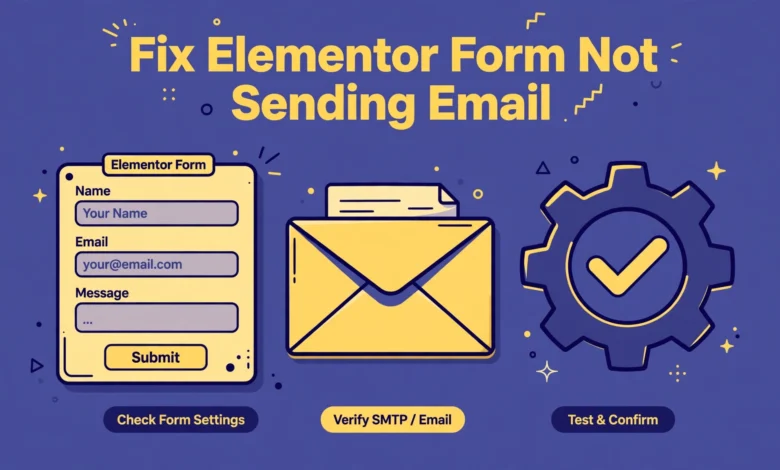
You fill in your own contact form, press submit, and see a friendly success message. Then you wait, and no email arrives. This is one of the most frustrating Elementor problems because everything looks correct on the surface, yet the message never reaches you.
The good news is that this problem has a clear cause in almost every case. The form usually fails at one of a small number of points: the submission never reaches the email handler, the Email action is missing, the From address is rejected, WordPress cannot send mail at all, or the message lands in spam.
Why does Elementor show success but send no email?
A success message only means the visitor completed the form and the browser sent the data. It does not prove that WordPress created an email, that your host accepted it, or that your mail provider delivered it. The success message appears as soon as the form passes validation, even when the email step fails silently.
Think of the form as a chain. The visitor submits the form, Elementor records it, Elementor runs the actions under Actions After Submit, the Email action hands a message to wp_mail, your host sends it, and your mail provider decides whether to deliver it. When any link breaks, you see the same symptom: success on screen and silence in the inbox. Test each link in order, starting inside Elementor, then WordPress mail, then your host and mail provider.
Is the Form widget available in free Elementor?
Here is an honest point that saves many people a lot of time. The Form widget is Elementor Pro only. Free Elementor has no form widget, so you cannot build a working Elementor form without Pro or a separate form plugin. If you use free Elementor and cannot find the Form widget, that is expected behaviour and not a bug.
If you have free Elementor and still need a contact form, upgrade to Pro or use a dedicated form plugin and style it inside Elementor. Our guide to add a contact form in Elementor explains the practical options. If you already have Pro, confirm it is active under Elementor, then License, and continue with the steps below. You can also check the official help docs at Elementor for the current Pro features.
Step 1: Did Elementor receive the submission?
Start here, because this single check splits the problem in half. If Elementor recorded the submission, the form works and the problem is in the email step. If it recorded nothing, the form never reached the handler and the email step never ran. Open your dashboard and go to Elementor, then Submissions. Choose your form and look for your test entry with its date and field values.
If no submission appears, submit the form again in a private browser window, check that the page is published and not only a draft preview, and look for a JavaScript error in the browser console. A caching plugin serving a stale page, a script optimisation plugin breaking the form script, or a security plugin blocking the request are common causes.
Step 2: Is the Email action in Actions After Submit?
This step catches more failures than any other. Open the page in Elementor, click the Form widget, and open Actions After Submit. You must see Email in that list. If the list is empty, or it only contains Redirect or Webhook, Elementor has no instruction to send an email. The form will still show success, because success only confirms the submit.
Click Add Action and choose Email, then open the Email section and check every field. The To field must contain your correct inbox address, because a single typo sends every message to a dead address. Note that Email and Email 2 are separate actions. Email 2 is a second, independent email, often used for a visitor confirmation. Adding Email 2 does not fix a broken Email action, and configuring Email 2 alone sends nothing to you.
Step 3: Is the From address using your own domain?
This is the most common delivery mistake on WordPress sites. Many people set the From address to the visitor email address, because that seems helpful for replies. Mail servers see it very differently. A message that claims to come from a Gmail or Yahoo address, yet is sent from your host, looks forged. Many hosts and mail providers reject it or send it straight to spam.
- From: an address on your own domain, such as wordpress@yourdomain.com.
- To: your real inbox address where you want to receive messages.
- Reply-To: the visitor email field, so replies go to the person who wrote to you.
- Subject: a clear subject that includes the form name, so messages are easy to find.
Set Reply-To to the visitor email shortcode instead of using it as the From address. That way, when you press reply, your mail app replies to the visitor, while the message itself still comes from your own domain. If your host requires the From address to match a real mailbox, create that mailbox in your hosting panel first.
Step 4: Are the field IDs and shortcodes correct?
Elementor identifies each form field by its ID, and the message body uses shortcodes to insert those values into the email. If a shortcode refers to the wrong ID, the email may arrive empty, and some spam filters treat empty mail as suspicious. Click each field, note its ID, then check the message body. A name field with the ID name should appear as [field id=”name”], and an email field with the ID email should appear as [field id=”email”]. If you changed a field ID after writing the message, update the shortcodes to match, then test the form again with realistic values in every field.
Step 5: Can WordPress send any email at all?
At this point you know the form records submissions and the Email action is configured. The next question is whether WordPress itself can send mail from your host. Install a simple mail test plugin, such as Check Email or WP Mail SMTP, and send a test message to your own inbox. If it arrives, WordPress mail works and the problem is specific to the Elementor settings, so go back to Steps 2 to 4.
If the test email does not arrive, WordPress mail is broken at the host level. This is common on shared hosting where the default PHP mail function is disabled or flagged as spam. No Elementor setting can fix a host that refuses to send mail, so move to Step 6. Also check Settings, then General, and confirm your admin email uses your own domain.
Step 6: Set up SMTP with WP Mail SMTP
SMTP is the reliable fix for most WordPress mail problems. Instead of relying on the basic PHP mail function, SMTP sends mail through a proper mail service that authenticates with a username and password. That authentication is exactly what mail providers want to see, and it sharply improves delivery. Install WP Mail SMTP from the WordPress plugin directory and open its setup wizard.
- Choose Gmail, SendGrid, Brevo, or Other SMTP, based on what you already use.
- Enter the SMTP host, port, encryption, username, and password exactly as your provider gives them.
- Set the From address to your domain address and force it in the plugin settings.
- Send a test email from the plugin and confirm it arrives in your inbox.
- Submit your Elementor form again and confirm that message also arrives.
For most small sites, Gmail is a good free choice, while SendGrid and Brevo suit sites that send more mail or want delivery reports. Do not install two SMTP plugins at the same time, because they can fight over the same settings. If the form still fails after SMTP works, check the WP Mail SMTP email log. The error it records is the most useful clue you will get, so read it before you change anything else.
Step 7: Check spam, SPF, DKIM, and conflicting integrations
If every earlier step passes yet mail still does not arrive, the message is probably being sent and then filtered. Check your spam and junk folders in webmail as well as in your mail app, because the two views sometimes differ. If the message is in spam, mark it as Not Spam and add the sender to your contacts. That helps future messages, but it does not fix the underlying cause, so keep going.
The underlying cause is often missing SPF and DKIM records. SPF is a DNS record that lists which servers may send mail for your domain, and DKIM adds a signature that proves the message really came from your domain. Without them, mail providers have no way to trust your messages. Your mailer gives you the exact records to add in your DNS settings, so add them exactly as shown and test again. Check for a conflicting webhook or CRM connection too.
How do I verify the fix properly?
A single successful test is not enough. Run this checklist after every change, and only call the problem fixed when every item passes.
- The submission appears in Elementor, then Submissions, with every field value correct.
- The email arrives in your inbox within two minutes, with the correct subject and body.
- The Reply-To address is the visitor address, so a reply goes to the right person.
- The message does not land in spam, and the sender address is on your own domain.
- SMTP is configured and the test email from WP Mail SMTP also arrives.
If you have worked through all seven steps and the form still fails, gather the evidence before you ask for help: whether submissions appear, whether the SMTP test arrives, what error the SMTP log shows, and whether the message appears in spam. Ask your host whether PHP mail is enabled, whether its mail log shows the failed messages, and whether the server IP is on any blocklist. As a temporary workaround, read messages in the Submissions log, which stores every entry even when email is down. For wider site health, work through our WordPress security checklist for beginners, and if your site also feels slow, read our guide to speed up an Elementor website, because security and caching plugins are frequent causes of form conflicts. Compare Pro features in our Elementor free versus Pro guide, and see the platform docs at WordPress.org for how wp_mail works.
Frequently asked questions
Why is my Elementor form not sending email even though it shows success?
Success only confirms that the form was submitted and passed validation. It does not confirm that the Email action ran, that WordPress sent the message, or that your provider delivered it. Check the Submissions log first, then the Email action, then the From address, then test wp_mail, and finally set up SMTP.
Do I need Elementor Pro to use the Form widget?
Yes. The Form widget is Elementor Pro only, and free Elementor has no form widget. If you use free Elementor, you need Pro or a separate form plugin. Check that Pro is active under Elementor, then License, before you spend time on email settings.
What should I put in the From field in Elementor?
Use an address on your own domain, such as wordpress@yourdomain.com. Never use the visitor address as the From address, because mail servers treat that as forged mail. Put the visitor email shortcode in the Reply-To field instead, so replies still go to the person who contacted you.
Will SMTP fix my Elementor form email problem?
SMTP fixes the problem when WordPress cannot send mail reliably through your host, which is a very common cause. It does not fix a missing Email action, a wrong To address, or a submission that never reaches Elementor. Check the Submissions log and the Email action first, then set up SMTP and add the SPF and DKIM records your mailer provides.
Last updated: November 2026.