Posts and pages cover most WordPress sites, but some content does not fit either one. A movie database is not a blog post, and a product listing needs its own structure. That is exactly what custom post types are for. They give a distinct kind of content its own admin menu, archive page, and template, separate from regular blog posts. This is a hands on code tutorial. If you want the concepts first, read our companion guide WordPress custom post types explained before you start, then come back here to build one.
In this tutorial you will build a Movies post type from scratch. Each movie will have a title, a poster image, a description, and a genre. You will register the post type, register a dedicated genre taxonomy, flush the rewrite rules so the URLs work, and display the movies on the front end with an archive template and a custom query. All of the code goes in a child theme functions.php file or in a small site plugin. Never put it in the parent theme, because a theme update will delete it. If you have not made a child theme yet, follow our guide to create a WordPress child theme first, then return here.
What is a custom post type in WordPress?
A custom post type is a content type you define yourself, alongside the built in post and page types. WordPress treats it like a first class citizen. It gets its own menu item in wp-admin, its own Add New screen, and its own archive URL such as yoursite.com/movies/. You control which features it supports, such as the title, the editor, the featured image, excerpts, and comments. You also control whether it appears in search results, whether it has an archive page, and whether it works with the block editor.
What should I plan before I register a post type?
Plan first, code second. Renaming a live post type is messy because URLs, templates, and queries all depend on the name. For our example, the singular label is Movie, the plural is Movies, the URL slug is movies, and it supports the title, editor, featured image, and excerpt, with its own genre taxonomy for Action, Comedy, or Drama.
- Post type key: movie, lowercase, singular, under 20 characters.
- Labels: Movie for singular, Movies for plural, Add New Movie for the add screen.
- URL slug: movies, so the archive lives at yoursite.com/movies/.
- Supports: title, editor, thumbnail, and excerpt.
- Taxonomy: movie_genre, with terms such as Action, Comedy, and Drama.
- Block editor: enabled, so movies use the same editor as posts.
The 20 character limit on the post type key catches many beginners. WordPress reserves post type keys to a maximum of 20 characters, and the key must be lowercase with no spaces. A key such as movie_review_archive is too long and will fail silently. Use movie instead of movies for the key, even though the plural label is Movies.
How do I register a custom post type with code?
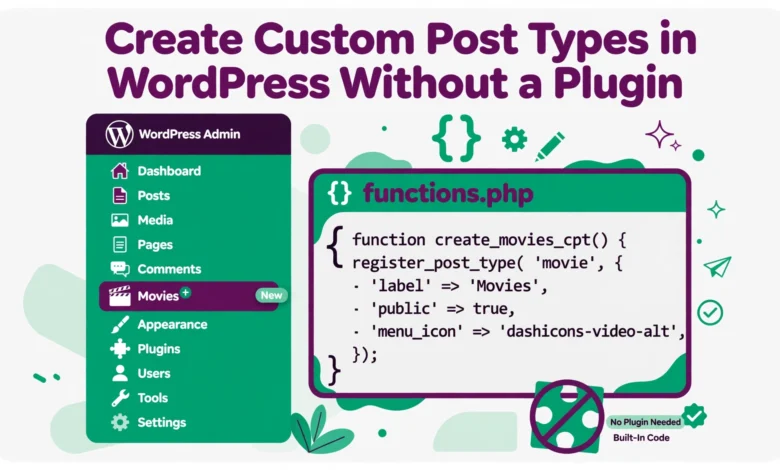
Registration uses the register_post_type function, hooked to init. Add this code to your child theme functions.php file or to a small site plugin. A site plugin is the better choice if you want the post type to survive a theme change. Pick one location and stick to it.
function vg_register_movie_post_type() {
    $labels = array(
        'name' => 'Movies',
        'singular_name' => 'Movie',
        'add_new' => 'Add New Movie',
        'add_new_item' => 'Add New Movie',
        'edit_item' => 'Edit Movie',
        'new_item' => 'New Movie',
        'view_item' => 'View Movie',
        'search_items' => 'Search Movies',
        'not_found' => 'No movies found',
        'not_found_in_trash' => 'No movies found in Trash',
        'all_items' => 'All Movies',
        'menu_name' => 'Movies',
    );

    $args = array(
        'labels' => $labels,
        'public' => true,
        'publicly_queryable' => true,
        'show_ui' => true,
        'show_in_menu' => true,
        'show_in_rest' => true,
        'query_var' => true,
        'rewrite' => array('slug' => 'movies'),
        'capability_type' => 'post',
        'has_archive' => true,
        'hierarchical' => false,
        'menu_position' => 5,
        'menu_icon' => 'dashicons-video-alt2',
        'supports' => array('title', 'editor', 'thumbnail', 'excerpt'),
    );

    register_post_type('movie', $args);
}
add_action('init', 'vg_register_movie_post_type');
Save the file and reload wp-admin. You should see a new Movies menu item below Posts. If the menu does not appear, check for a PHP error and confirm you edited the active child theme or the active site plugin. Test on a staging site first, as shown in our guide to creating a WordPress staging site without a plugin.
What does each register_post_type argument do?
The arguments array controls how the post type behaves. The public argument makes it visible on the front end and in wp-admin. The show_ui argument shows the admin screens, show_in_menu adds the menu item, and has_archive creates the archive page at yoursite.com/movies/. The hierarchical argument stays false for movies, and is true only for page like content with parents and children.
Two arguments deserve special attention. The show_in_rest argument enables the block editor, so always set it to true for a new post type. The supports argument lists the features the edit screen shows, and the rewrite argument sets the URL slug. With slug set to movies, a single movie lives at yoursite.com/movies/movie-title/ and the archive lives at yoursite.com/movies/. Do not reuse a slug that a page already uses, because WordPress will not know whether /movies/ is a page or an archive.
How do I add a genre taxonomy for movies?
A taxonomy groups posts of a type together. Posts use categories and tags, but movies need their own taxonomy so Action movies do not mix with Action blog posts. Register a movie_genre taxonomy with register_taxonomy, also hooked to init. It is hierarchical like categories, so you can add subgenres later. Add this code below the post type code in the same file:
function vg_register_movie_genre_taxonomy() {
    $labels = array(
        'name' => 'Genres',
        'singular_name' => 'Genre',
        'search_items' => 'Search Genres',
        'all_items' => 'All Genres',
        'edit_item' => 'Edit Genre',
        'update_item' => 'Update Genre',
        'add_new_item' => 'Add New Genre',
        'new_item_name' => 'New Genre Name',
        'menu_name' => 'Genres',
    );

    $args = array(
        'labels' => $labels,
        'public' => true,
        'hierarchical' => true,
        'show_ui' => true,
        'show_in_rest' => true,
        'show_admin_column' => true,
        'query_var' => true,
        'rewrite' => array('slug' => 'movie-genre'),
    );

    register_taxonomy('movie_genre', array('movie'), $args);
}
add_action('init', 'vg_register_movie_genre_taxonomy');
Save and reload wp-admin. Open Movies and you will see a Genres submenu. Add terms such as Action, Comedy, and Drama, then tick the right genre in the Genres box on a movie post. The show_admin_column argument adds a Genres column to the All Movies list, and show_in_rest makes the taxonomy work in the block editor sidebar.
Why do my movie URLs show a 404 error?
After you register a new post type, the single movie URL and the archive URL often show a 404 error, even though the admin screens work. This happens because WordPress caches its rewrite rules, and it does not know about the new URLs yet. The fix is to flush the rewrite rules. Go to Settings and then Permalinks in wp-admin and click Save Changes. You do not need to change any setting, just save. WordPress rebuilds the rewrite rules, and your movie URLs start working at once.
Flush the rules only when you register a new post type, change a slug, or register a new taxonomy. Do not flush on every page load, because rebuilding rewrite rules is expensive and slows the site. For general 404 fixes, see our guide to fixing WordPress 404 errors.
How do I display custom post types on the front end?
WordPress handles the archive page automatically when has_archive is true. Visit yoursite.com/movies/ and WordPress will list your movies using archive.php from your theme. For a better layout, copy archive.php from the parent theme into your child theme, rename it to archive-movie.php, and adjust the loop to show the featured image and excerpt for each movie.
For a single movie page, create single-movie.php in the same way. WordPress picks the most specific template it can find, so single-movie.php wins over single.php for movies only. You can also list movies inside a page with a WP_Query loop. The code below shows the latest six movies with their titles, featured images, and excerpts:
$movie_query = new WP_Query(array(
    'post_type' => 'movie',
    'posts_per_page' => 6,
    'orderby' => 'date',
    'order' => 'DESC',
));

if ($movie_query->have_posts()) {
    while ($movie_query->have_posts()) {
        $movie_query->the_post();
        echo '<h2><a href="' . esc_url(get_permalink()) . '">' . esc_html(get_the_title()) . '</a></h2>';
        if (has_post_thumbnail()) {
            echo get_the_post_thumbnail(get_the_ID(), 'medium');
        }
        echo '<p>' . esc_html(get_the_excerpt()) . '</p>';
    }
    wp_reset_postdata();
}
The wp_reset_postdata call at the end is essential. It restores the main query after your custom loop, so the rest of the page shows the correct content. If you want to show a custom field such as a rating on each movie, combine this loop with get_post_meta, which is covered in our guide to adding custom fields in WordPress without a plugin.
Should the code live in a theme or a plugin?
Put the code in a child theme if the post type is tied to the design, such as a portfolio that only makes sense with the current theme. Put it in a small site plugin if the content must survive a theme change, which is true for most post types. Movies, events, testimonials, and products are content, not design, so they belong in a plugin. Activate it once, and the post type stays registered no matter which theme you use.
Never put registration code in the parent theme functions.php file. A theme update will overwrite that file and your post type will vanish from wp-admin. Use a child theme or a site plugin, and back up the database before you test, using the method in our guide to backing up a WordPress database without a plugin.
What mistakes should I avoid?
- Keep the post type key under 20 characters, lowercase only, with no spaces.
- Do not forget show_in_rest, or the block editor will not work for the post type.
- Do not forget to flush permalinks after registration, or the URLs will 404.
- Do not flush rewrite rules on every page load, only on activation or after a slug change.
- Do not reuse blog categories for a custom post type, register a dedicated taxonomy.
- Do not put registration code in the parent theme, use a child theme or a site plugin.
- Do not forget wp_reset_postdata after a custom WP_Query loop.
Read the official developer reference at developer.wordpress.org and the main WordPress site at wordpress.org for full examples of register_post_type and register_taxonomy. Test every change on staging first.
Frequently asked questions
Can I create a custom post type without a plugin?
Yes, use register_post_type hooked to init in a child theme functions.php file or a small site plugin. Add labels, set public to true, set show_in_rest to true for the block editor, set has_archive to true, and flush permalinks once after registration so the URLs work.
Why is my custom post type showing a 404 error?
WordPress caches rewrite rules and does not know about the new URLs yet. Go to Settings, then Permalinks, and click Save Changes to flush the rules. Also check that the slug does not clash with a page slug and that has_archive and rewrite are set correctly.
How long can a custom post type key be?
A post type key can be at most 20 characters long, must be lowercase, and must contain no spaces. Keep keys short and singular, such as movie, product, or event. A key that is too long will fail or behave strangely, so check the length before you register the type.
Do I need a separate taxonomy for a custom post type?
You do not have to use one, but a dedicated taxonomy is best in most cases. It keeps movie genres separate from blog categories, gives you a clean genre archive URL, and makes filtering easier. Register it with register_taxonomy, set hierarchical to true for category style groups, and set show_in_rest to true.
Last updated: November 2026.