Nothing kills confidence in a WordPress site faster than a blank screen with a fatal error message. The WordPress memory exhausted error is one of the most common versions of that problem, and it usually appears at the worst possible moment, right after you install a plugin, update a theme, or import a large batch of content. The good news is that this error is fixable in most cases, and you do not need to be a developer to solve it. This guide explains what the error means, how to check your current limit, and five practical ways to fix it, starting with the safest option.
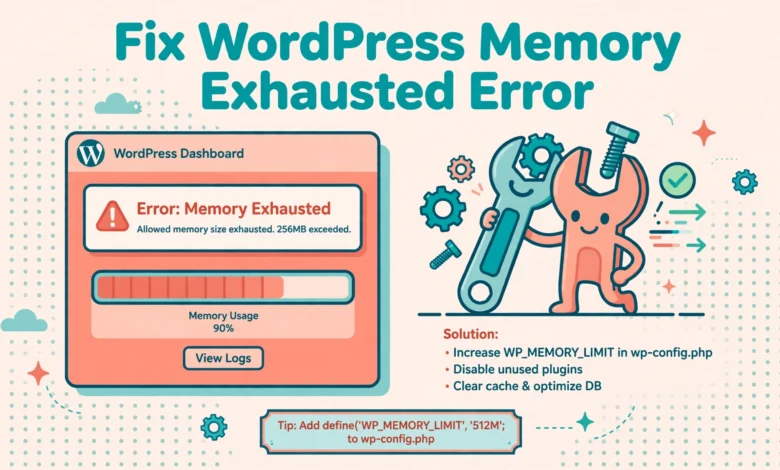
If your site shows a message like Allowed memory size of 134217728 bytes exhausted, WordPress ran out of the PHP memory assigned to it. PHP memory is the working space WordPress uses to run code, load plugins, process images, and build pages. When a task needs more space than the limit allows, PHP stops the task and WordPress shows a fatal error. The number in the message is the limit in bytes, so 134217728 bytes equals 128 megabytes. That tells you the current ceiling, not the amount your site actually needs.
What causes the WordPress memory exhausted error?
Most memory errors come from a small set of causes. A heavy plugin is the usual suspect, especially page builders, security scanners, backup tools, and plugins that process images or import data. A poorly coded theme can also leak memory by loading large files on every page. Large image uploads, bulk imports, and complex WooCommerce product pages push memory use higher too. In some cases the real problem is a low default limit set by the host. Many shared hosts still set the PHP memory limit to 128M or even 64M, which is tight for a modern site with several active plugins.
Before you change anything, make a full backup of your site. Raising a limit is low risk, but editing wp-config.php or .htaccess with a typo can lock you out of wp-admin. A backup gives you a safe way back. If you do not have a backup routine yet, read our guide on how to back up a WordPress database without a plugin first. Also note the warning that matters most in this guide: raising the limit can hide a memory leak. If a plugin keeps consuming more memory over time, a higher limit only delays the next crash. Fix the limit, then find the cause.
How do I check my current WordPress memory limit?
WordPress shows the current limit inside Site Health, so you do not need to guess. Log in to wp-admin, go to Tools and then Site Health, and open the Info tab. Expand the Server section and look for PHP memory limit. That value is the limit WordPress can use right now. If the value is 128M or lower and your site runs a page builder or WooCommerce, a raise to 256M is a sensible first step. For larger sites with many plugins, 512M is common, but do not jump straight to the highest value without checking what your hosting plan allows.
Fix 1: Raise the limit in wp-config.php
This is the most reliable fix for most WordPress sites, because it sets the limit inside WordPress itself. Open wp-config.php in the root folder of your site using your hosting file manager or an FTP client. Find the line that says That is all, stop editing. Add the following lines just above it:
define('WP_MEMORY_LIMIT', '256M');
define('WP_MAX_MEMORY_LIMIT', '512M');
WP_MEMORY_LIMIT controls the memory for normal front end requests. WP_MAX_MEMORY_LIMIT controls the memory for admin tasks such as image processing, imports, and updates. Save the file and reload your site. Then recheck Site Health to confirm the new value appears. If nothing changes, your host may be locking the limit at server level, so move to fix 3 or fix 4.
Fix 2: Raise the limit in .htaccess
If your site runs on Apache, you can set the PHP memory limit in the .htaccess file in your site root. This method works on many shared hosts, but it does nothing on Nginx servers, which do not read .htaccess. Add this line near the top of the file, outside the WordPress rewrite block:
php_value memory_limit 256MSave the file and test the site at once. If the site shows a 500 error after this change, your host does not allow php_value directives in .htaccess. Remove the line immediately and use fix 1 or fix 3 instead.
Fix 3: Raise the limit in php.ini or .user.ini
The php.ini file controls PHP settings for the whole server or account. On shared hosting you usually cannot edit the main php.ini file, but many hosts let you create a .user.ini file in your site root or public_html folder. Create a file named .user.ini and add this line:
memory_limit = 256MSave the file and wait a few minutes, because some servers cache PHP settings and need a short time to apply the change. Then recheck Site Health. If your host uses a MultiPHP INI Editor in cPanel, you can set the same value there without creating a file by hand. Choose your domain, find memory_limit in the editor, set it to 256M, and save. This method is cleaner than editing .htaccess, because it sets the value at the PHP level where it belongs. If the value still does not change, your host has a hard cap on your plan, and only a plan change or a support request will lift it.
Fix 4: Raise the limit from your hosting panel
Many modern hosts, including managed WordPress hosts, let you change PHP settings from the dashboard without editing files. Look for PHP settings, PHP configuration, or Advanced settings in your hosting panel. Find the memory_limit field, change it to 256M, and save. Some panels require you to pick the PHP version first, then show the memory limit under options or extensions. After saving, clear any server cache and recheck Site Health.
This method is the best choice if you are not comfortable editing files, because the panel validates the value and applies it correctly. It is also the right method when your host overrides wp-config.php changes. If your panel shows a maximum lower than 256M, that is a plan limit, not a bug. Before you pay for an upgrade, try fix 5 below, because a single faulty plugin can consume far more memory than a normal site should need. Your hosting choice matters here, and our web hosting guide explains how to compare plans on memory, PHP versions, and real performance instead of marketing claims.
Fix 5: Find the plugin or theme eating your memory
Raising the limit fixes the symptom. Finding the cause stops the error from coming back. Start by enabling WordPress debug logging so you can see which file triggers the error. Add these lines to wp-config.php above the stop editing comment, then reproduce the error once:
define('WP_DEBUG', true);
define('WP_DEBUG_LOG', true);
define('WP_DEBUG_DISPLAY', false);
WordPress will write errors to wp-content/debug.log. Open that file and look for the plugin or theme folder named in the fatal error line. If the same plugin appears every time, you have found the culprit. Our guide on how to enable WordPress debug mode walks through this process in detail, including how to turn debug mode off again when you finish.
Next, test by deactivation. If you can reach wp-admin, deactivate plugins one at a time and test the page that crashed after each change. When the error disappears, the last plugin you deactivated is the problem. If you cannot reach wp-admin, rename the plugins folder to plugins-old using FTP or the file manager, which deactivates every plugin at once. Then rename it back and rename individual plugin folders one at a time until the error returns. That last folder is the faulty plugin. Keep a note of what you find, then decide: update the plugin, replace it with a lighter alternative, or contact its developer with the debug log.
Repeat the same test for your theme if no plugin is at fault. Switch to a default theme such as Twenty Twenty-Four for a few minutes and test the crashing page. If the error disappears, your theme is the cause. A theme that loads huge images, runs heavy queries on every page, or bundles outdated code can exhaust memory quickly. In that case, update the theme, ask the theme author for a fix, or switch to a lighter theme. A slow admin area often points to the same problem, and our guide to fixing a slow WordPress admin dashboard covers plugin and theme checks that help here too.
WordPress itself needs only 32M to run a basic site, but real sites need more. A simple blog with a few plugins usually runs well on 128M, a site with a page builder and several plugins should have at least 256M, and WooCommerce stores and membership sites often need 512M. The right value is the smallest limit that lets your site run without errors during normal work, including image uploads and plugin updates. Setting the limit to 1024M on a small blog does not make it faster, it only gives a faulty plugin more room to misbehave before it fails.
When should I ask my host for help?
Contact your host when the limit will not change no matter which method you try, when the error returns within hours of a raise, or when the debug log points to a server process rather than a plugin. Give support the exact error message, the page that triggers it, and the steps you already tried. If your host says the limit is capped by your plan, compare plans before you upgrade.
Also ask your host if the error appears during a backup, a large import, or a scheduled task, because those jobs can need a higher admin limit through WP_MAX_MEMORY_LIMIT. Read the official guidance at developer.wordpress.org and the support forums at wordpress.org when the debug log names a well known plugin.
Prevention is mostly maintenance. Keep plugins and themes updated, remove any plugin you no longer use, optimise images before upload, and test big updates on a staging site first. Check Site Health once a month, because it flags low memory and outdated PHP before they become fatal errors. The fix itself takes ten minutes, but the habit of checking is what keeps the site stable for the long term.
Frequently asked questions
What does Allowed memory size exhausted mean in WordPress?
It means a PHP task asked for more memory than the limit allows, so PHP stopped the task and WordPress showed a fatal error. The number in the message is the current limit in bytes. Raise the limit with WP_MEMORY_LIMIT in wp-config.php, then check the debug log to find what consumed the memory.
Is 256M enough memory for WordPress?
Yes, 256M is enough for most business sites, blogs, and small WooCommerce stores. Simple blogs can run on 128M, while larger stores and membership sites often need 512M. Choose the smallest limit that runs your site without errors, and investigate the cause if 256M still fails.
Can a plugin cause the memory exhausted error?
Yes, a single faulty or heavy plugin is the most common cause. Enable debug logging, reproduce the error, and read wp-content/debug.log to see which plugin folder appears in the fatal error. Deactivate plugins one at a time to confirm, then update, replace, or remove the faulty plugin.
Why does raising the memory limit not fix my site?
Your host may cap the limit at server level, or the real cause may be a memory leak that grows until it hits any limit. Recheck Site Health to confirm the new value applied. If the value did not change, use your hosting panel or ask support. If it did change and the error returned, find the leaking plugin or theme with the debug log.
Last updated: November 2026.