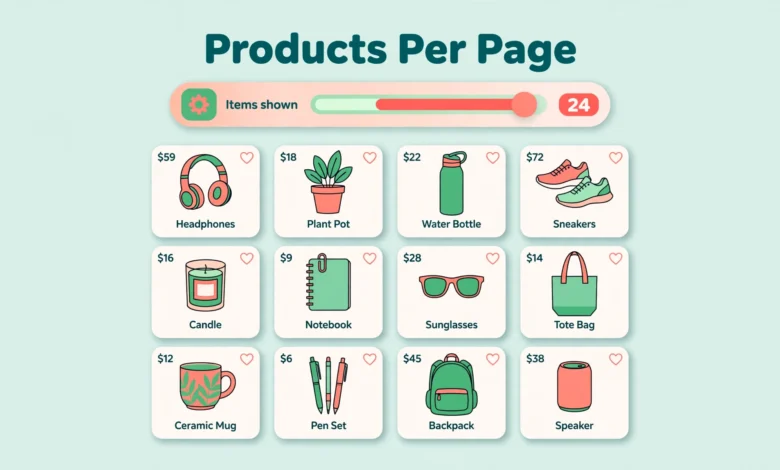
Open your WooCommerce shop page and count the products. By default, WooCommerce shows 16 products per page, arranged in four rows of four. For many stores that default is fine, but for many others it is wrong. A small boutique with twelve products shows a half empty last page. A large catalog store makes shoppers click through page after page to find anything. A store that sells expensive items may want fewer products per page so each one gets more attention.
The good news is that you can change WooCommerce products per page without a plugin, and you have three solid ways to do it. In this guide you will learn the no code Customizer method, the loop_shop_per_page filter method for a child theme, and the Query Loop block method for block themes. You will also learn why page builders sometimes ignore your setting, and how to pick the right number of products per page for your store.
How Many Products Does WooCommerce Show by Default?
WooCommerce shows 16 products per page by default. That number comes from the shop loop, which asks WordPress for 16 products at a time and then splits them into rows. With the default Storefront theme, that means four products per row and four rows per page. Other themes may change the number of products per row, but the total per page stays at 16 unless you change it.
Sixteen is a sensible default for a general store, but it is only a starting point. A store with a small catalog may look better with 12 products per page, because 12 divides neatly into rows of three or four. A large store with hundreds of products may work better with 24 per page, because shoppers see more choice before they have to click to the next page.
Method 1: Change It in the Customizer (No Code)
The easiest method needs no code at all. Go to Appearance, then Customize in your WordPress admin area, and open the WooCommerce section. Inside it you will find Product Catalog, which holds the settings for your shop page layout. There you will see two fields that work together: Products per row and Rows per page. WooCommerce multiplies those two numbers to get the total products per page.
- Go to Appearance, then Customize, then WooCommerce, then Product Catalog.
- Set Products per row to the number of products you want in each row, usually 3 or 4.
- Set Rows per page to the number of rows you want, usually 3 or 4.
- Click Publish to save, then open your shop page and count the products to confirm the change.
For 12 products per page, set 4 products per row and 3 rows per page. For 24 products per page, set 4 products per row and 6 rows per page. If your theme does not show the Product Catalog section, your theme may have replaced the Customizer controls with its own settings, so check your theme options panel first. This method is the safest option for beginners, because it uses a built in WooCommerce setting. If you are new to setting up a store, our guide to WooCommerce product variations covers another essential shop setting in the same plain style.
Method 2: Use the loop_shop_per_page Filter (Child Theme Code)
If the Customizer method does not work with your theme, or if you want to set an exact number that is not a neat multiple of rows, the loop_shop_per_page filter is the reliable fix. This is a WordPress filter hook, which means it lets you change a value that WooCommerce calculates, without editing any WooCommerce files. You add a small function to your child theme functions.php file, and the filter returns the number of products you want per page.
Before you add any code, back up your site and make sure you are using a child theme. Code added to a parent theme functions.php file will be wiped out by the next theme update, which is one of the most common ways people lose customizations. If you do not have a child theme yet, create one first, or use the Code Snippets plugin to run the code safely from the admin area. You can read the official filter reference in the WooCommerce developer documentation if you want to see how the hook is defined.
// Show 12 products per page on the WooCommerce shop page
add_filter( 'loop_shop_per_page', 'vtg_products_per_page', 20 );

function vtg_products_per_page( $per_page ) {
    return 12;
}
Add this code to your child theme functions.php file, save it, and refresh your shop page. You should now see 12 products per page. Change the number 12 to any value you like, for example 24, and the shop page will follow it. The number 20 in the add_filter line is the priority, and it matters, because a priority of 20 runs after most theme filters, so your value wins.
Method 3: Use the Query Loop Block (Block Themes)
If your site uses a block theme, such as Twenty Twenty-Four or Twenty Twenty-Five, your shop page may be built from blocks rather than from a PHP template. In that case, the shop page is a template in the Site Editor, and the products on it come from a Query Loop block. The Customizer method may not appear at all, and the filter method may not affect the block, because the block has its own settings.
To change the count, go to Appearance, then Editor, then Templates, and open the Product Catalog template. Click on the Query Loop block that shows the products, and look at the settings panel on the right. You will see an Items per Page field, which controls how many products the block loads. Change that number to 12 or 24, save the template, and check the shop page. If you want to learn more about working with blocks, our guide on how to add a table of contents in WordPress without a plugin shows another practical block technique.
Why Elementor and Divi Sometimes Ignore Your Setting
Page builders are the most common reason a products per page setting seems to do nothing. Elementor and Divi both replace the standard WooCommerce shop archive with their own archive widgets, and those widgets have their own products per page setting. When you use an Elementor Products widget or a Divi Shop module, the widget query runs instead of the normal shop loop, so the Customizer value and the loop_shop_per_page filter may both be ignored.
The fix is to change the setting inside the builder itself. In Elementor, open the shop page in the editor, click on the Products widget, and look for the Columns and Rows settings, or the Posts Per Page field in the Query section. In Divi, open the Shop module settings and change the Product Count field. Save the page and check the front end.
The same logic applies to other archive plugins. Any tool that builds its own product query will have its own count setting, and the WooCommerce default only applies to the standard archive. When a setting seems to be ignored, find which query renders the page and change the count there. Our guide on how to create a coupon code in WooCommerce is another practical store task that works the same way in any builder.
How Many Products Per Page Should You Show?
The right number depends on your catalog size, your product type, and your shoppers. A store with fewer than 50 products should show all of them in one or two pages, so 12 or 24 per page works well. A store that sells high value items, such as furniture or jewellery, should show fewer products per page, because each product deserves space and a large image.
- 12 per page: best for small catalogs, high value products, and stores that want a clean, uncluttered grid.
- 16 per page: the WooCommerce default, a safe middle ground for most general stores.
- 24 per page: best for large catalogs and low cost items where shoppers compare many options quickly.
- More than 24 per page: rarely a good idea, because long pages load slowly and shoppers lose track of what they have seen.
Performance matters here too. Every extra product on the page adds images, prices, and database queries, so a page with 48 products loads noticeably slower than a page with 12. Slow shop pages hurt conversions and search rankings, so do not chase a high count for its own sake. If your shop feels slow after raising the count, trim the number back down. Our guide on how to optimize your WordPress database without a plugin will help you keep the store fast as it grows.
What About Mobile Shoppers?
Most WooCommerce traffic now comes from phones, so test your new count on a phone, not just on a desktop. On a small screen, WooCommerce usually shows one or two products per row, which means 12 products per page becomes six or twelve rows of scrolling. That is fine for browsing, but a very long page on mobile can feel endless, and shoppers may never reach the pagination links at the bottom.
A good rule is to keep the mobile page short enough that a shopper can reach the bottom without getting tired. Twelve products per page is usually a sweet spot on mobile, because it gives enough choice without turning the page into an endless scroll. If you set 24 per page, check the mobile experience yourself by scrolling through the whole page on your phone.
Troubleshooting: The Count Did Not Change
If you changed the setting and the shop page still shows 16 products, work through the causes in order. First, clear every cache, including your caching plugin, your CDN, and your browser, because a cached shop page will keep showing the old count. Second, check whether the page is built with Elementor or Divi, and if so change the count inside the builder widget.
If the filter method is not working, check that the code is in the active child theme functions.php file, or in an active Code Snippets snippet, and not in the parent theme. Then check the priority, and raise it to 99 if a theme filter is winning. If you want to test whether your code runs at all, temporarily change the return value to 4 and refresh the page. If the page still shows 16, the code is not loading. For other store pricing questions, our guide on how to set a minimum order amount in WooCommerce follows the same troubleshooting pattern.
Frequently Asked Questions
What is the default number of products per page in WooCommerce?
WooCommerce shows 16 products per page by default, usually in four rows of four. You can change it in the Customizer under WooCommerce, then Product Catalog, by setting Products per row and Rows per page, or with the loop_shop_per_page filter.
Why does the Customizer setting not change my shop page?
The most common cause is a page builder. Elementor and Divi replace the standard shop archive with their own widgets, which have their own products per page settings. Change the count inside the builder widget instead.
How many products per page is best for SEO?
There is no SEO penalty for any sensible count, but page speed matters. Twelve to 24 products per page is the sweet spot for most stores, because the page loads quickly and shoppers can browse without endless scrolling.
Can I show a different number of products on category pages?
Yes, with the loop_shop_per_page filter you can return a different number depending on the page. Check whether the current page is a product category inside the function, and return 12 for the main shop and 24 for category archives. The Customizer setting applies one count to all archive pages.
Last updated: November 2026.