A slow checkout page loses sales in a way that a slow blog post never does. A visitor who waits for a product page may stay and read, but a customer who waits at checkout is already holding a card and thinking twice. Every extra second gives doubt time to grow, and many shoppers simply leave.
You can speed up WooCommerce checkout without a plugin in most cases. The biggest wins come from settings that WooCommerce and WordPress already provide, plus a leaner checkout form and a faster server setup. This guide walks through each fix in order, starting with measurement, so you can see which change actually helped.
Why Is WooCommerce Checkout Slow in the First Place?
Checkout is one of the heaviest pages in a WooCommerce store because it does far more work than a normal page. It has to load the cart, check stock, calculate taxes and shipping, show payment methods, and keep the order total correct while the customer types. A product page mostly reads data, while checkout reads and writes data at the same time, and it must do that safely for every customer.
Why Can Checkout Not Be Page Cached?
Page caching saves a finished HTML page and serves that saved copy to the next visitor. Checkout cannot work that way, because every checkout is different. One customer has two items in the cart, another has five, and a third has a coupon applied. A cached checkout page would show the wrong cart, the wrong total, or another customer details, which would be a serious privacy and sales problem.
WooCommerce therefore marks the cart, checkout, and account pages as dynamic, and a good caching plugin or host excludes them from page caching automatically. Never force page caching onto checkout to chase a faster score. Speed it up with the methods in this guide instead, and leave page caching for product pages, blog posts, and the home page, where it is safe and useful.
How Do You Diagnose a Slow Checkout Before Changing Anything?
Measure first, so you know whether the problem is the server, the checkout form, or a third party script. Open your own checkout page in a private browser window, add a test product to the cart, and watch how long each step takes. Then run the same checkout URL through a speed test tool and note the numbers before you change anything.
- Time to first byte: aim for under 600 milliseconds on the checkout URL itself, not just on your home page.
- Largest Contentful Paint: aim for under 2.5 seconds, which is the target Google uses for a good user experience.
- Checkout completion time: time a full test order from the cart page to the thank you page with a stopwatch.
Test the checkout URL itself, not your home page or a product page, because those pages are cached and will look fast even when checkout is slow. Use PageSpeed Insights for the lab numbers and your own stopwatch test for the real customer experience. Write both sets of numbers down, then repeat the same tests after each change.
How Do You Enable High-Performance Order Storage?
High-Performance Order Storage, often called HPOS, stores orders in dedicated database tables instead of the old WordPress posts table. The old method stored every order as a post, with order details scattered across many rows of post metadata, so WooCommerce had to run slow and complex queries to build a single order. HPOS uses tables designed for orders, with proper indexes, so reading and writing orders is faster and more reliable.
New WooCommerce stores have HPOS enabled by default. Older stores may still use the legacy storage, and switching is one of the biggest free speed wins available. Go to WooCommerce, then Settings, then Advanced, then Features in your WordPress dashboard. Choose High-performance order storage as the order data storage setting. Take a full backup first and keep compatibility mode on for a while, as the official High-Performance Order Storage documentation explains.
Should You Allow Guest Checkout?
Forcing every customer to create an account before paying is one of the most common checkout mistakes. It adds extra fields and extra steps, and it adds account creation work for the server at the exact moment the customer wants to pay. Many shoppers abandon the purchase at the account creation screen, because the process feels long and intrusive.
Allow guest checkout unless your store has a strong reason to require accounts, such as a membership store or a wholesale store. Go to WooCommerce, then Settings, then Accounts and Privacy, and tick the option that allows customers to place orders without an account. You can still offer account creation on the thank you page, when the customer is relaxed and the sale is already complete.
How Do You Cut Unnecessary Checkout Fields?
Every field on your checkout form is a small delay and a small reason to leave. The customer has to read it, understand it, type in it, and wait for WooCommerce to validate it. A form with fifteen fields feels like paperwork, while a form with eight fields feels like a quick purchase. Audit your checkout form and remove every field that is not needed to deliver the order and take payment.
- Company name: remove it unless you sell mainly to businesses that need it on invoices.
- Address line 2: keep it only if many customers use apartment numbers, and make it optional.
- Phone number: keep it if your courier needs it, but do not make it required if delivery works without it.
- Order notes: keep the box, but keep it optional, so it does not dominate the form.
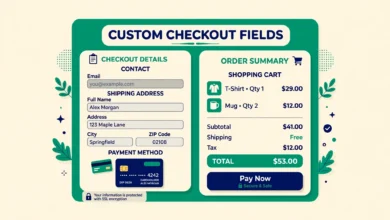
WooCommerce lets you hide many fields from Settings without code. The goal is not to remove information you truly need, but to stop asking for information you never use. If you have never read the company name field on any order, delete it. If you collect extra details for a specific product, think carefully first. Our guide on how to add custom checkout fields in WooCommerce shows the method, but each custom field is another question at the worst possible moment, so add one only when the order cannot be fulfilled without it.
How Do You Tame Cart Fragments AJAX?
Cart fragments keep the cart total in your header up to date without reloading the page. Every time a visitor loads a page, WooCommerce runs a small AJAX request to check whether the cart changed. On checkout it adds an extra request while the page is already busy calculating totals, taxes, and shipping.
On many stores, cart fragments are the single slowest AJAX request on the site, because the request cannot be cached and it has to rebuild the cart from the database on every page load. If your header does not show a live cart count, you can stop the fragments request on pages where it is not needed. Do not disable cart fragments completely without testing, because some themes and mini cart widgets depend on them. Disable them on the blog and product pages first, test the header cart, and only then consider checkout itself.
How Do You Defer Payment Gateway Scripts?
Payment gateways such as Stripe and PayPal load JavaScript on your checkout page so the customer can pay without leaving your site. Those scripts are useful, but they are also heavy, and they often load on every page of your store, not just checkout. A gateway script loading on your home page or a blog post does nothing for the visitor there, yet it still slows the page down.
Check whether your gateway loads its scripts everywhere or only on checkout. Many gateway settings have an option to load scripts only on checkout, cart, and account pages. Turn that on if it exists. Also review how many payment methods you offer. Each gateway adds its own scripts and styles, so offering six payment methods makes checkout heavier for every customer. Keep the two or three methods your customers actually use, and remove the rest.
What Server and Caching Changes Help Checkout Most?
No checkout setting can fix a slow server. If your time to first byte is over 600 milliseconds on checkout, the server is the bottleneck, and front end tweaks will only help a little. Check your PHP version under Tools and then Site Health in WordPress, and ask your host to move you to a current supported PHP version if you are running an old one. Newer PHP versions are faster, and old versions stop receiving security fixes.
Ask your host about object caching with Redis or Memcached. Object caching stores the results of repeated database queries in memory, so WooCommerce does not have to ask the database the same question for every customer. This helps checkout directly, because checkout runs many similar queries for products, taxes, and shipping. Most good WooCommerce hosts offer Redis with one click.
How Do You Test With a Real Transaction After Every Change?
Speed tests and lab scores are useful, but they do not buy anything. The only test that proves checkout works is a real transaction, from adding a product to the cart through to the thank you page. Test after every change in this guide, not just at the end, because a change that looks good in a speed test can still break payments.
- Place a test order with a real payment method in test mode, or a small real order that you refund immediately.
- Test guest checkout and logged in checkout separately, because they follow different code paths.
- Test with a coupon and without one, and test a shipping address in each zone you serve.
- Check the order in WooCommerce, then Orders, and confirm the totals, tax, and shipping are correct.
What Mistakes Should You Avoid When Speeding Up Checkout?
- Page caching checkout, which can show one customer another customer cart or total.
- Installing a speed plugin on top of the fixes here, which often adds its own scripts and conflicts with WooCommerce.
- Removing fields you actually need, such as a phone number your courier requires for delivery.
- Disabling cart fragments everywhere without testing the header cart and mini cart first.
- Changing three things at once, so you cannot tell which change helped and which change broke something.
A fast checkout also recovers lost sales. If a customer still leaves before paying, our guide on how to recover abandoned carts in WooCommerce for free shows how to win many of them back without a paid plugin. Also see our guide on how to set a minimum order amount in WooCommerce, because a small minimum can protect your margins on cheap orders.
Frequently Asked Questions
Can I speed up WooCommerce checkout without a plugin?
Yes. Enable High-Performance Order Storage, allow guest checkout, remove unneeded checkout fields, limit payment gateway scripts to checkout pages, and ask your host for object caching and a current PHP version.
Why is my WooCommerce checkout slow but my product pages are fast?
Product pages can be page cached, but checkout cannot, because every cart is different. Checkout has to calculate totals, taxes, and shipping for each customer, run payment scripts, and write order data safely.
What is a good time to first byte for WooCommerce checkout?
Aim for under 600 milliseconds on the checkout URL itself. If your time to first byte is much higher, the server or the database is the bottleneck. Ask your host about object caching and a current PHP version.
Does enabling HPOS speed up checkout?
Yes, for most stores it helps, because orders move from the old posts table into dedicated tables with proper indexes. Back up first and check extension compatibility before you switch.
Last updated: November 2026.