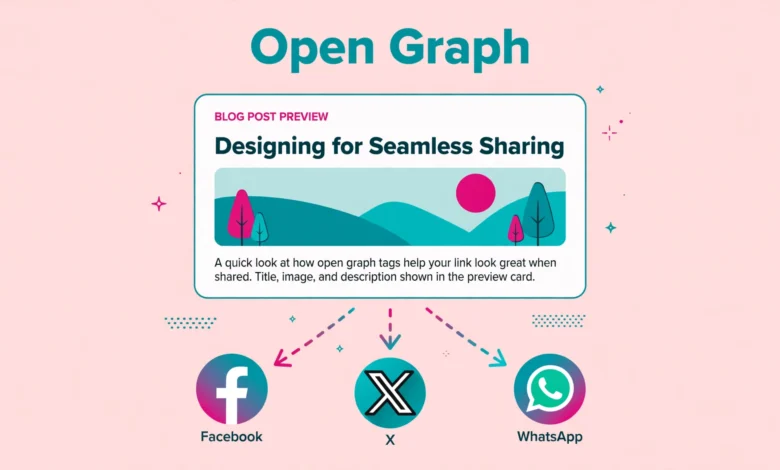
You paste a link to your latest blog post into Facebook, WhatsApp, or X, and the preview looks wrong. The title is cut off, the description is a random sentence from the article, and the image is your site logo, or no image at all. A competitor link shows a big, sharp image with a clear title. The difference is rarely the content. It is the Open Graph tags, small meta tags that tell every social platform exactly what to show when someone shares your link.
The good news is that you can add open graph tags in WordPress without a plugin, or with just the one SEO plugin you probably already use. This guide covers what each tag does, the plugin method, a complete code snippet, the duplicate tags trap, and how to test everything before you share a link in public.
What Are Open Graph Tags?
Open Graph is a protocol created by Facebook in 2010 that lets any web page become a rich object in a social graph. In plain terms, it is a set of meta tags in the head of your page that describe the page to social platforms. When someone shares your link, the platform reads these tags and builds the preview card from them. If the tags are missing, the platform guesses, and its guess is often poor.
- og:title: the title shown on the preview card.
- og:description: a short summary that encourages a click.
- og:image: the image on the card, ideally 1200 by 630 pixels.
- og:url: the canonical URL of the page.
- og:type: the content type, usually article for posts.
- og:site_name: the name of your site.
Why Do Open Graph Tags Matter for Your WordPress Site?
A social preview is often the first impression a reader gets of your post, and first impressions decide clicks. A card with a large, relevant image and a sharp description can earn two or three times the clicks of a bare link. On WhatsApp, where links are shared in private chats and groups, the preview is almost the whole pitch, because there is no headline or surrounding text to help it.
There is also a branding benefit. Without Open Graph tags, each platform picks its own image and text, so your content looks different everywhere and sometimes looks broken. With tags in place, your posts look consistent on Facebook, WhatsApp, X, and LinkedIn, because they all read the same tags. If you care about image SEO and how your images appear in search and social results, Open Graph tags are the social half of that same job.
Method 1: Let One SEO Plugin Output Your Open Graph Tags
The easiest method is to let a single SEO plugin generate the tags for you. AIOSEO, Yoast SEO, and Rank Math all output a complete Open Graph set on every post and page, and they all let you control the image and description per post. If you already use one of these plugins, you may already have Open Graph tags and only need to configure them properly.
- Install and activate just one SEO plugin, then open its Social Networks settings.
- Turn on Open Graph output and Twitter Card output.
- Upload a default social image of 1200 by 630 pixels.
- Set the default title and description format.
- Open any post, find the social settings tab, and check the preview.
- Override the image or description for important posts.
The per post social settings are the part most people skip, and they are the most valuable. A featured image that works well inside your article is not always the best social image, because social cards crop differently. A short, punchy description written for a social feed usually earns more clicks than your meta description, which was written for Google. The most important rule is to use exactly one plugin for the job, because two SEO plugins, or an SEO plugin plus a sharing plugin, will create duplicates.
Method 2: Add Open Graph Tags With Code in Your Child Theme
If you prefer no extra plugin, or you want full control over the exact tags, you can add them with a small PHP snippet in your child theme functions.php file. Before you start, make a backup of your site, and confirm you are editing a child theme, never the parent theme, because a theme update will erase anything you add to the parent. If you are new to editing theme files, read our guide on how to build a WordPress internal linking strategy first, because the same careful approach applies to code changes.
function vtg_add_open_graph_tags() {
    if ( ! is_singular() ) {
        return;
    }

    $default_image = 'https://vutechgeek.com/wp-content/uploads/default-social-image.jpg';
    $og_image = get_the_post_thumbnail_url( get_the_ID(), 'large' );

    if ( ! $og_image ) {
        $og_image = $default_image;
    }

    $og_title = get_the_title();
    $og_description = get_the_excerpt();
    $og_url = get_permalink();
    ?>
    <meta property="og:title" content="<?php echo esc_attr( $og_title ); ?>" />
    <meta property="og:description" content="<?php echo esc_attr( $og_description ); ?>" />
    <meta property="og:image" content="<?php echo esc_url( $og_image ); ?>" />
    <meta property="og:image:width" content="1200" />
    <meta property="og:image:height" content="630" />
    <meta property="og:url" content="<?php echo esc_url( $og_url ); ?>" />
    <meta property="og:type" content="article" />
    <meta property="og:site_name" content="<?php echo esc_attr( get_bloginfo( 'name' ) ); ?>" />
    <?php
}
add_action( 'wp_head', 'vtg_add_open_graph_tags' );
Let us walk through how this snippet works. The is_singular check makes sure the tags only print on single posts and pages, where a title, excerpt, and featured image exist. The get_the_post_thumbnail_url function grabs the featured image, and if the post has none, the code falls back to a default image you upload to your media library and paste into the $default_image variable. Make sure that image is 1200 by 630 pixels, the size Facebook and LinkedIn recommend.
The escaping functions are not optional. The esc_attr function makes the title and description safe inside an HTML attribute, so a quotation mark in a post title cannot break your page markup. The esc_url function cleans the image and page URLs before they are printed. WordPress coding standards require this escaping, and the official WordPress developer documentation explains the functions in detail. Finally, add_action hooks the function to wp_head, so the tags land where scrapers look for them. If you run this code method, do not also enable Open Graph output in an SEO plugin.
What About Twitter Card Tags?
X, formerly Twitter, reads Open Graph tags as a fallback, but it prefers its own Twitter Card tags, and the large image card only appears reliably when twitter:card is set to summary_large_image. Most SEO plugins output Twitter Card tags automatically, so plugin users need no extra work. If you use the code method, add four lines inside the same function, just after the Open Graph tags.
<meta name="twitter:card" content="summary_large_image" />
<meta name="twitter:title" content="<?php echo esc_attr( $og_title ); ?>" />
<meta name="twitter:description" content="<?php echo esc_attr( $og_description ); ?>" />
<meta name="twitter:image" content="<?php echo esc_url( $og_image ); ?>" />
With those four lines added, X shows the same large image card as Facebook, and LinkedIn and WhatsApp keep using the Open Graph tags. Keep both sets of tags in one place, either in your plugin or in your snippet, so you never hunt through two files when something looks wrong. Our web hosting guide explains the performance basics that keep social traffic loading fast once people click through.
The Duplicate Tags Trap: Why Two Plugins Break Your Previews
The most common Open Graph problem on WordPress is not missing tags, it is duplicate tags. A theme, a sharing plugin, and an SEO plugin can each print their own og:title and og:image, so the page ends up with two or three copies of every tag. Scrapers pick whichever copy they find first, which is often the wrong one, and the preview shows an old title or a logo instead of the featured image. To find duplicates, open any post, view the page source, and search for og:title.
- Keep one source of truth: either your SEO plugin or your code snippet, never both.
- Check your theme settings for a social or Open Graph option and turn it off.
- Check your sharing plugin for an Open Graph option and disable it, keeping only its buttons.
- Re-check the page source after every change.
- Clear your caching plugin and CDN cache after fixing duplicates.
Duplicate tags are also why some sites show a perfect preview in the Facebook debugger but a broken one in WhatsApp. Different platforms read the page at different times and may hit a cached copy from before your fix. Clear every cache layer you control, then test again. A clean page source with exactly one copy of each tag is the goal.
How to Test Your Open Graph Tags Before You Share
Never trust a preview until you have tested it with the official tools, because each platform has its own debugger that shows exactly what its scraper sees. The Facebook Sharing Debugger at developers.facebook.com/docs/sharing/webmasters is the most important one, because WhatsApp uses the same Facebook scraper, so a fix that works there usually fixes WhatsApp too. Paste your post URL, click Debug, and check the title, description, image, and warnings.
- Paste the live post URL into the Facebook Sharing Debugger and click Debug.
- Check the image preview, the title, and the description, and read every warning.
- Fix any problem the debugger reports, then click Scrape Again to fetch a fresh copy.
- Repeat the test in the LinkedIn Post Inspector and the X Card Validator.
- Only share the link publicly after all three tools show the preview you want.
One warning about cache: social platforms cache the preview for a link, sometimes for days or weeks, so changing your tags does not change the preview your friends already saw. The Scrape Again button in the Facebook debugger forces a fresh fetch and updates the cached preview. Always test a post in the debuggers before you share it anywhere, because the first share sets the cached preview everyone else will see.
Common Mistakes That Break Social Previews
A few small mistakes account for most broken previews. The first is an image that is too small. Facebook recommends 1200 by 630 pixels, and images under 600 by 315 pixels may show as a small thumbnail or not at all. The second is an image the scraper cannot reach, because of hotlink protection, a login wall, or a relative URL instead of an absolute one. Always use a full URL starting with https, and check that the image loads in a private browser window while logged out.
The third mistake is forgetting the homepage and category pages. Your homepage is the link people share most when they recommend your site, so it needs its own og:title, og:description, and og:image too. Most SEO plugins handle this with a default social image setting, so check the homepage preview in the debugger as well. Finally, test the actual card, not just the image file, because text baked into a featured image can look terrible in a cropped social card. Our image SEO guide covers WordPress image SEO tips that pair directly with the tags in this post.
Frequently Asked Questions
Do I need Open Graph tags if I already use an SEO plugin?
Probably not, because most SEO plugins output Open Graph tags already. Check your page source for og:title first. If the tags are there, you only need to configure the default image and the per post social settings. Only add the code method if your plugin does not output tags, and never run both at once.
What image size should I use for og:image?
Use 1200 by 630 pixels, which is the size Facebook and LinkedIn recommend for large preview cards. Keep the file under 8 MB and use JPG for photos or PNG for graphics with text. Always set a default image of the same size for posts that have no featured image.
Why does Facebook still show the old image after I changed it?
Facebook caches link previews, so an old image can stick for days. Open the Facebook Sharing Debugger, paste the URL, and click Scrape Again to force a fresh fetch. Clear your site cache first, or the debugger may fetch the same cached page again.
Can I set a different social image for each post?
Yes. With an SEO plugin, open the post, find the social settings tab, and upload a custom image for that post. With the code method, the featured image is used automatically, so set a different featured image per post, or extend the snippet to read a custom field.
Last updated: November 2026.