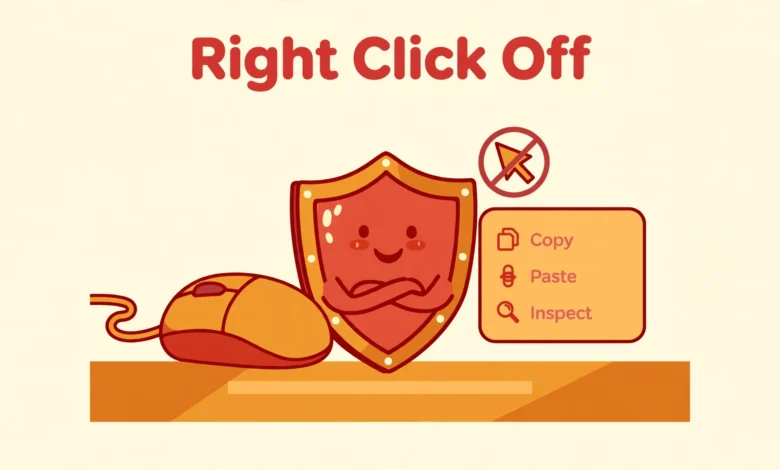
You spend hours writing a guide or editing a photo, publish it, and within a day someone has copied your text or saved your image and posted it as their own. It is a frustrating experience, and it is why so many WordPress site owners ask how to disable right click in WordPress without a plugin. A right click block is a small JavaScript trick that stops the browser context menu from appearing, which makes casual copying a little harder. It takes five minutes to add and needs no plugin.
In this guide you will learn the honest limits first, then two code methods, a whole site version and an images only version we recommend, plus a plugin alternative and stronger protection methods. By the end you will know which option fits your site, how to test it, and how to remove it again.
What Does Disabling Right Click Actually Do?
Disabling right click means intercepting the contextmenu event in the browser and cancelling it, so the small menu with options like Save Image As, Copy, and Inspect never appears. The page still loads normally, links still work, and scrolling still works. Only the right click menu is gone. On mobile there is no right click at all, so the trick has no effect on phones and tablets, where a long press opens a different menu that this code does not touch.
It is equally important to understand what the trick does not do. It does not stop a determined person from copying your content. Anyone can still take a screenshot, view the page source, open the browser developer tools, or disable JavaScript. The honest way to think about it is that it stops casual copying by ordinary visitors, and it does nothing against anyone who actually wants your files. For background on the browser event, see the contextmenu event documentation on MDN.
Should You Disable Right Click on Your Site?
For many sites the answer is no, or at least not everywhere. A right click block can annoy genuine readers who use the context menu for legitimate reasons, such as opening a link in a new tab, copying a quote with attribution, or translating a passage. It can also cause problems for visitors who rely on assistive technology. Search engines do not penalise a right click block directly, but a site that frustrates readers earns fewer return visits and fewer shares, and those things affect search performance over time.
That said, there are sites where a limited block makes sense. Photography portfolios, recipe blogs, and design showcases lose real value when images are saved with one click, so an images only block is a reasonable compromise there. Text heavy blogs gain little from blocking text, because text is copied easily by other means. Our recommendation is simple: if you use it, block right click on images only, leave text and links alone, and pair it with the stronger methods later in this guide. Our guide on how to limit login attempts in WordPress without a plugin covers another code change that protects your site with no visitor annoyance.
Before You Start: Back Up and Pick the Right Scope
Both methods below use a child theme functions.php file, so confirm you are editing a child theme before you paste any code. A theme update replaces the parent theme files completely, and any code you added there will vanish without warning. If you do not have a child theme yet, create one first, or use a code snippets manager instead. Make a full backup before editing, and test in a private window while logged out. Decide your scope in advance: whole site, images only, or one protected section. The images only scope is the one we recommend, and it is Method 2 below.
Method 1: Disable Right Click on the Whole Site With JavaScript
This method blocks the context menu everywhere on your site, on every post, page, image, and link. It is the version most tutorials show, and the version we recommend least, but you should know how it works so you can remove it if a theme or plugin ever adds it without your knowledge. The snippet below hooks a small script into the footer of every page using the wp_footer hook.
function vtg_disable_right_click() {
    ?>
    <script>
    document.addEventListener( 'contextmenu', function( event ) {
        event.preventDefault();
    } );
    </script>
    <?php
}
add_action( 'wp_footer', 'vtg_disable_right_click' );
Here is what each part does. The add_action line tells WordPress to run your function when it builds the footer, so the script loads on every page. The addEventListener call listens for the contextmenu event, which is the event the browser fires whenever a visitor right clicks. The preventDefault call cancels the default behaviour, which is showing the menu, so nothing appears. The script is tiny and has no effect on page speed, but it removes a menu people use for ordinary tasks like opening links in new tabs.
Method 2: Block Right Click on Images Only (Recommended)
The images only method blocks the context menu on img elements and leaves everything else alone. Visitors can still right click text to copy a quote, right click a link to open it in a new tab, and use their browser normally. Only images are protected, which is where the real value sits for most sites, because an image is a finished asset that took real work.
function vtg_disable_right_click_images() {
    ?>
    <script>
    document.querySelectorAll( 'img' ).forEach( function( image ) {
        image.addEventListener( 'contextmenu', function( event ) {
            event.preventDefault();
        } );
    } );
    </script>
    <?php
}
add_action( 'wp_footer', 'vtg_disable_right_click_images' );
The difference from Method 1 is the querySelectorAll line, which finds every img element on the page and attaches the same preventDefault listener to each one, instead of listening for right clicks on the whole document. Everything else keeps its normal menu. One limitation to know: images loaded after the page finishes, such as lazy loaded images, may not be covered, because the script runs once when the footer loads. Our guide on WordPress lazy load images without a plugin explains how lazy loading interacts with scripts like this one.
How Do I Limit the Block to One Section or Gallery?
Sometimes you want protection on one gallery or one premium post, and nowhere else. The cleanest way is to scope the script to a CSS class, so only images inside an element with that class are protected. Add the class no-right-click to a Group or Gallery block in the editor, under Advanced settings, then use the snippet below instead of Method 2.
function vtg_disable_right_click_scoped() {
    ?>
    <script>
    document.querySelectorAll( '.no-right-click img' ).forEach( function( image ) {
        image.addEventListener( 'contextmenu', function( event ) {
            event.preventDefault();
        } );
    } );
    </script>
    <?php
}
add_action( 'wp_footer', 'vtg_disable_right_click_scoped' );
The selector .no-right-click img means every img element inside any element with the no-right-click class, so one class on a Group block protects a whole gallery at once. This scoped approach is the most professional option, because it protects exactly the content you care about and respects your readers everywhere else. Use it for client galleries, premium photo sets, and paid content previews.
Plugin Alternative If You Prefer No Code
If editing theme files is not for you, the plugin WP Content Copy Protection and No Right Click does the same job with a settings page instead of code. Install it, activate it, and choose which elements to protect, such as images, text, or the whole page. A plugin is easier to turn off, which is a real advantage if you want to test the idea for a month. The trade off is another plugin to update, and a small performance cost on every page load.
Better Ways to Protect Your Content
A right click block is the weakest form of content protection, so treat it as a polite notice, not a security measure, and build your real protection from methods that work even when JavaScript is off. Watermarks are the strongest option for images, because a visible watermark survives screenshots, downloads, and reuploads. A subtle watermark in a corner deters casual theft without ruining the image, and a stronger centred watermark suits preview images of work you sell. Low resolution previews are the second strong option: publish a web sized version at 800 pixels wide and keep the full resolution file private.
- Watermarks: add your logo or site name to images before upload.
- Disable hotlinking: stop other sites embedding your images and using your bandwidth.
- Low resolution previews: publish web sized images and keep full resolution files private.
- Copyright notice: state in your footer that images and text may not be reused without permission.
- Monitor and enforce: use reverse image search to find copies, then send a takedown request.
Disabling hotlinking deserves a closer look, because it works at the server level and cannot be bypassed by disabling JavaScript. Add the rules below to your .htaccess file, replacing example.com with your own domain, and other sites will no longer be able to display your images on their pages. If you are unsure about editing .htaccess, read our guide on how to disable XML-RPC in WordPress, which explains the same careful backup first approach.
RewriteEngine On
RewriteCond %{HTTP_REFERER} !^$
RewriteCond %{HTTP_REFERER} !^https://(www\.)?example\.com [NC]
RewriteRule \.(jpg|jpeg|png|gif|webp)$ /blocked [F]
Finally, keep your site healthy overall, because outdated software and weak logins are a bigger risk than copied images. Run the Site Health screen regularly, keep WordPress and your theme updated, and use strong passwords. Our guide explains the WordPress Site Health check and every warning it shows.
How to Test Right Click Protection Properly
Testing while logged in as admin is not a real test, because plugins and code can behave differently for logged in users, and your cache may serve an old copy of the page. Open a private window, log out of WordPress, and visit a post with images. Right click an image and confirm the menu does not appear, then right click a paragraph and confirm the menu does appear if you used the images only method. Right click a link and confirm you can still open it in a new tab. If anything behaves oddly, clear your cache plugin and your browser cache and test again.
How Do I Remove Right Click Protection Again?
Removing the protection is as simple as reversing the install. If you used the code method, delete the function from your child theme functions.php file, or deactivate the snippet in your code snippets manager, then clear your site cache and your CDN cache. If you used the plugin, deactivate it and delete it from the Plugins screen. In both cases, test again in a private window while logged out, and confirm the context menu is back on images and text.
Frequently Asked Questions
Does disabling right click stop people from stealing my images?
No, not really. It stops casual visitors from saving an image with one click, but anyone determined can take a screenshot, view the page source, or disable JavaScript. Watermarks and low resolution previews protect images far better than a right click block ever will.
Will disabling right click hurt my SEO?
There is no direct SEO penalty, because search engines do not measure right click behaviour. The indirect risk is user experience: if readers find the site annoying, they leave faster and share less, and those signals can hurt rankings over time. The images only method avoids almost all of that risk.
Can I disable right click only on certain pages?
Yes. The scoped method in this guide uses a CSS class, so add the no-right-click class to a Group or Gallery block on the pages you want to protect, and leave other pages untouched. For a whole page, you can also wrap the page content in a Group block with the same class.
Is disabling right click legal?
Yes, it is legal to control how your own website behaves in a visitor browser. It is your content and your site, so you may choose which browser menus to allow. Just remember that it does not create any new copyright protection, and it does not stop anyone from quoting your work fairly or linking to it.
Last updated: November 2026.