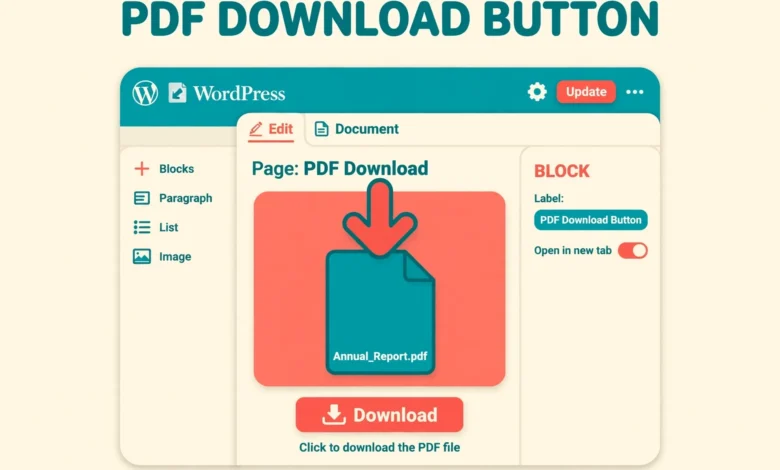
If you share guides, price lists, resumes, brochures, worksheets, or lead magnets, a simple text link is often not enough. Visitors may not notice it, and many will not realise they can save the file. A clear download button solves both problems. It tells the reader exactly what will happen when they click, and it makes the file easy to find on the page. The good news is that you can add a PDF download button in WordPress without a plugin, because WordPress already includes every block you need.
In this guide you will learn three methods. You will start with the File block, which is the fastest option. Then you will learn the Button block method, which gives you better styling. Finally, you will learn the Custom HTML method, which lets you force a download instead of opening the PDF in the browser. You will also learn how to style the button and how to fix the most common problems.
What Is a PDF Download Button in WordPress?
A PDF download button is a button on a post or page that links to a PDF file in your Media Library. When a visitor clicks it, the browser either opens the PDF in a new tab or starts a download, depending on the link settings and the browser. A good download button has clear text such as Download the Guide, Get the Free Checklist, or Download Price List. It should stand out from the body text, sit close to the content that explains the file, and work well on phones as well as on desktop computers.
Many site owners install a download manager plugin for this job. A plugin can help when you need download counts, password protection, or access control. For a simple button, though, a plugin adds weight, updates, and settings you will never use. The built in blocks handle the common cases well and keep your site faster, because no extra scripts load on the page. If you are still setting up your site, read our guide on how to install WordPress on localhost with XAMPP before you test these methods on a live site.
How Do You Add a PDF Download Button With the File Block?
The File block is the fastest way to add a PDF download button in WordPress without a plugin. It uploads the PDF, creates a link, and shows a button in one step. Use this method when you want a working button in under a minute and you are happy with the default WordPress styling.
Open the post or page in the WordPress editor and place your cursor where the button should appear. Click the plus icon to add a block and search for File. Select the File block. Upload a PDF from your computer or choose one from the Media Library. WordPress will insert the file name as a link and a Download button beside it. In the block settings, you can turn on Show download button and choose whether the link opens in a new tab. The File block also shows the file size automatically. Its main limit is styling, because the button uses your theme styles.
How Do You Add a PDF Download Button With the Button Block?
The Button block gives you the best balance of speed and design control. You upload the PDF to the Media Library first, copy its URL, and then link that URL to a styled button. This method works well for landing pages, lead magnets, and resource pages where the button must attract attention.
Go to Media, then Add New, and upload your PDF file. After the upload finishes, click the file and copy the File URL from the attachment details panel. Next, open your post or page, add a Button block, and type clear button text such as Download the Free PDF. Select the button, click the link icon, paste the PDF URL, and press Enter. In the link settings, turn on Open in new tab so visitors do not lose your page when they view the PDF. In the block settings, you can change the background colour, text colour, border radius, width, and alignment.
Button text matters more than most owners realise. Vague labels such as Click Here or Download do not tell the visitor what they will get. Specific labels such as Download the SEO Checklist or Get the Pricing PDF set a clear expectation and earn more clicks. Place the button near the paragraph that explains the value of the file. If the PDF is long, mention the page count or the main benefit in the text above the button. For more ways to guide visitors with on page elements, see our guide on how to add a sticky footer bar in WordPress without a plugin.
How Do You Add a PDF Download Button With Custom HTML?
Custom HTML gives you the most control. It lets you force a download instead of opening the PDF, add a download filename, add CSS classes from your theme, and add tracking attributes. Use this method when the File block and Button block cannot give you the exact behaviour you need.
First, upload the PDF to the Media Library and copy its URL, just as in the Button block method. Then add a Custom HTML block to your post or page and paste code like the example below. Replace the URL with your own PDF URL and change the button text to match your file.
<a href="https://yoursite.com/wp-content/uploads/2026/11/your-file.pdf" download="your-file.pdf" class="wp-block-button__link">Download the Free Guide</a>The download attribute in that code tells the browser to download the file instead of opening it. The value inside the download attribute sets the suggested filename on the visitor computer. The class in the example reuses the WordPress button style, so the link looks like a normal button in most themes. Note that the download attribute only forces a download when the PDF is hosted on the same domain as your site. If you want to style buttons across your site, our guide on how to add custom CSS in WordPress shows the safe way to do it without editing theme files.
How Do You Force a PDF to Download Instead of Opening in the Browser?
By default, most browsers open a PDF in a viewer tab when a visitor clicks a plain link. That is fine when you want people to read the file at once, but it is not ideal when you want them to save it. A forced download is better for worksheets, templates, invoices, and lead magnets, because the file lands in the Downloads folder and the visitor keeps your page open.
How Should You Style a PDF Download Button?
A download button should be easy to spot without shouting. Use a background colour that contrasts with your page background and your body text. Use white or very dark text on a coloured button, and keep the font size close to your body text or slightly larger. Add enough padding so the button feels easy to tap on a phone. Keep the style consistent across your site, so visitors learn to recognise download buttons at once. Add a small file detail under the button when it helps, such as PDF, 2.4 MB, 14 pages.
What Should You Know About PDF Download Buttons on Mobile?
Most visitors now read on phones, so test every download button on a real mobile screen before you publish. Make the button full width or centre aligned on small screens so it is easy to tap, and keep the tap target at least 44 pixels tall. Mobile browsers handle PDFs in different ways. Chrome on Android usually downloads the file or opens it in a viewer. Safari on iPhone often opens the PDF in a viewer first, and the visitor must tap the share icon to save it. The download attribute may not force a download on iOS Safari. That is normal browser behaviour, not a fault in your site.
What Are the Common Problems With PDF Download Buttons?
The most common problem is a button that leads to a 404 page. This usually happens when the PDF was deleted from the Media Library, renamed, or moved, while the button still points to the old URL. Fix it by finding the current file URL and updating the button link. The second common problem is a button that opens the PDF instead of downloading it. Check that the file is hosted on your own domain and that the download attribute is present. A third problem is a PDF that is too large. Compress it before you upload it and aim for under 5 MB for guides. Finally, open the button link in a private browser window while logged out to confirm that a normal visitor can reach the file.
Which Method Should You Choose?
Choose the File block when speed matters most and you are happy with the default style. Choose the Button block when design matters and you want colour, size, and alignment controls without code. Choose Custom HTML when you need a forced download or a custom filename. All three methods need no plugin, and you can mix them across your site. Whichever method you pick, upload the PDF to the Media Library, use a clear file name, write specific button text, and test the link while logged out and on mobile. For hosting basics that keep downloads fast, see our web hosting guide. For more background on blocks and media, the official documentation at WordPress.org is a reliable place to check how the editor works.
Frequently Asked Questions
Can I add a PDF download button in WordPress without a plugin?
Yes. Use the File block for the fastest option, the Button block linked to a PDF URL for better styling, or a Custom HTML block with the download attribute when you want to force a download. None of these methods needs a plugin, and all of them work with the default block editor.
Why does my PDF open in the browser instead of downloading?
Most browsers open PDFs in a built in viewer by default. To force a download, use a Custom HTML link with the download attribute and host the PDF on your own domain. The Button block and the File block do not add this attribute, so they will usually open the file in a new tab instead.
How do I track clicks on a PDF download button?
Use the Custom HTML method and add a tracking attribute or an event that your analytics tool can read. You can also check server logs or use your analytics dashboard to see visits to the PDF URL. A plugin is only needed when you want detailed per file download counts in the WordPress dashboard.
What is the best file size for a PDF download?
Keep PDFs as small as you can without losing readability. Aim for under 5 MB for guides and under 2 MB for short checklists. Compress images inside the PDF before you upload it, use a short lowercase file name with hyphens, and test the download on a phone to confirm it works well on a mobile connection.
Last updated: November 2026.