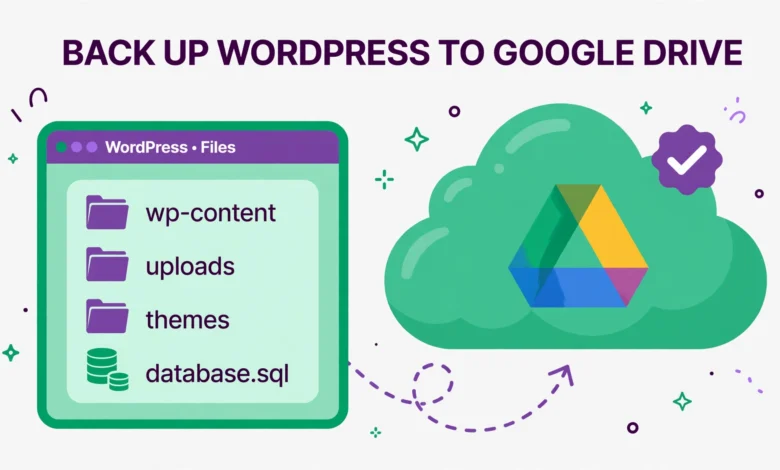
Your WordPress site can break at any moment. A bad plugin update, a hacked login, a hosting failure, or one wrong edit can take your whole site down, and without a backup, rebuilding it means hours of work and lost content. A backup stored on the same server does not solve this, because if the server fails, the backup fails with it.
That is why so many site owners back up WordPress to Google Drive. Backups live off site, in a Google account you already have, with 15 GB of free storage included. In this guide you will learn how to set up free automatic backups with UpdraftPlus, check that the backup actually arrived, restore your site from it, and handle the 15 GB limit.
Why Should You Back Up WordPress to Google Drive?
Most hosts keep their own backups, but you should not rely on them alone. Host backups are often kept for only a few days, restoring from them can mean opening a support ticket and waiting, and some hosts keep backups on the same server as your live site, which helps nobody when the server itself is the problem.
A Google Drive backup gives you a copy you control. You can download it, move it to another computer, or restore it on a completely different host. Because Drive is separate from your host, a problem at your host cannot destroy your backup at the same time. A typical blog produces a backup of a few hundred megabytes, which fits comfortably inside the free 15 GB allowance when you keep only a few recent copies. Our web hosting guide explains how your host fits into the picture, and why off site backups matter even on good hosting.
Is There a Built-In Way to Send WordPress Backups to Google Drive?
No, there is not. WordPress core has no backup feature at all, and no way to connect to Google Drive. WordPress does have an export tool under Tools, then Export, but it only exports your posts, pages, and comments as an XML file, not your theme, plugins, settings, or media library, so it cannot rebuild your site on its own. You need a free backup plugin, and the most popular option, UpdraftPlus, does all of this in its free version, including the Google Drive connection.
What Do You Need Before You Start?
Gather three things before you install anything, so setup takes ten minutes instead of an hour. First, a Google account with free space in Drive, since the free 15 GB is shared between Drive, Gmail, and Google Photos. Second, admin access to your WordPress dashboard, because only an administrator can install plugins and connect remote storage. Third, a rough idea of your site size, which you can find under Tools, then Site Health, then Info, then Directories and Sizes.
- A Google account with free Drive space: check your available storage at drive.google.com before you connect anything.
- Admin access to WordPress: only an administrator can install plugins and connect remote storage.
- Your site size: a 300 MB site can back up daily, while a 5 GB site needs weekly backups and fewer retained copies.
Knowing your site size matters, because it decides your schedule and retention. If your site is large, our guide on optimizing your WordPress database without a plugin can shrink the database part first.
How to Back Up WordPress to Google Drive With UpdraftPlus
UpdraftPlus is the most installed WordPress backup plugin, with millions of active installs, and its free version covers everything this guide needs: full backups, Google Drive as a remote destination, scheduled backups, and one click restores. Install it under Plugins, then Add New, search for UpdraftPlus, then install and activate it. You can also read its official page on wordpress.org first.
Step 1: Connect UpdraftPlus to Your Google Drive
Go to Settings, then UpdraftPlus Backups, then click the Settings tab. Choose Google Drive from the list of remote storage options, then scroll down and click Save Changes. UpdraftPlus will show a link that takes you to Google to authorize the connection. Sign in with the Google account you want to use, grant UpdraftPlus permission to manage the files it creates, and Google will send you back to your dashboard with the connection confirmed. UpdraftPlus creates its own folder in Drive for these backups, so do not move or rename files inside it by hand.
Step 2: Set an Automatic Backup Schedule
On the same Settings tab you will see two schedules, one for files and one for the database. Set files to weekly if your site changes slowly, or daily if you publish often or run a shop. Set the database to daily, because it holds your posts, comments, orders, and settings, and changes every time you publish or a visitor comments. Daily database backups are small, so they cost very little Drive space. Save the settings, then click Backup Now to run your first backup right away, including both database and files, with the box ticked to send it to remote storage.
Step 3: Set Retention So Old Backups Delete Themselves
Retention is the number of backup sets UpdraftPlus keeps before it deletes the oldest one. Set it to 2 or 3 for files and 3 or 4 for the database on a small site, and lower it to 2 for both on a large site. Without retention, every backup piles up in your Drive until the 15 GB is full, and then new backups start failing silently. Retention works per schedule, so weekly file backups kept at 3 cover about three weeks, while daily database backups kept at 4 cover four days.
How Do You Check the Backup Actually Landed in Google Drive?
Never trust a green success message alone. Open Google Drive in a browser, open the UpdraftPlus folder, and look for the backup files. A complete backup is a set of files with the same date and time in their names: one database file, one plugins file, one themes file, one uploads file, and one file for everything else. If any piece is missing, the backup is incomplete and may not restore. Check file sizes too, since a tiny database file on a site with hundreds of posts is a warning sign. UpdraftPlus keeps a log for each backup on its Backup tab, so read it after your first backup and look for completed and uploaded for every part.
Make this check a monthly habit: open Drive, confirm the latest backup date matches your schedule, and confirm the file set is complete. A backup you never check is one you cannot trust, and the worst time to discover a broken backup is the day you need it. The same habit applies to the checks in our WordPress Site Health guide.
How to Restore Your Site From a Google Drive Backup
Restoring is the part most people never practice, and it is the part that matters most. If your dashboard still works, go to Settings, then UpdraftPlus Backups, find the backup set in the Existing Backups list, and click Restore. Choose all components, meaning database, plugins, themes, uploads, and other files, then confirm. UpdraftPlus downloads the files from Drive, restores them, and shows a success message and a log.
If your dashboard is broken and you cannot reach the admin area, reinstall WordPress fresh on your host, install UpdraftPlus again, reconnect the same Google Drive account, and use the Rescan remote storage option on the UpdraftPlus tab. Your old backup sets should appear, and you can restore from there. This works only if Drive uses the same Google account, so keep a note of which account holds your backups. Our guide on backing up your WordPress database without a plugin explains the database side of this process, which is useful even if you normally restore with one click.
What About the 15 GB Free Google Drive Limit?
Every free Google account gets 15 GB shared across Drive, Gmail, and Google Photos, which is the main constraint of this setup. A site with years of photos, videos, or large uploads can fill 15 GB with a single backup set, and when Drive is full, UpdraftPlus cannot upload new backups, so your schedule quietly stops protecting you. Deal with it in four ways: lower retention to 2, back up files weekly while the database backs up daily, delete unused media before the backup runs, or upgrade to a paid Google One plan if your site is genuinely large.
What Is One Free Alternative to UpdraftPlus?
If UpdraftPlus does not suit you, WPvivid Backup Plugin is a solid free alternative, and its free version also supports Google Drive as a remote destination. The setup is similar: install the plugin, connect your Google account from its remote storage settings, choose a schedule, and run a backup. UpdraftPlus has the larger user base and longest track record, which means more tutorials and forum answers when something goes wrong, while WPvivid has a cleaner modern interface. Either one protects your site well, so pick the one whose settings screen makes sense to you, and never run two backup plugins at once. Whichever you choose, keep a second copy of your latest backup elsewhere, such as an external hard drive, and test a restore on a staging copy once, using our guide to building a WordPress staging site without a plugin.
What Mistakes Should You Avoid With Drive Backups?
- Backing up only the database: the database alone cannot rebuild your site, because your images, theme, and plugins live in files.
- Storing backups only on your server: a backup on the same server disappears in the same failure that takes your site down.
- Never testing a restore: a backup you have never restored is a guess, so test it on a staging copy once.
- Ignoring failure emails: turn on email notifications in UpdraftPlus and read them, because a failed backup looks exactly like no backup.
Set up the schedule once, verify the first backup in Drive, test a restore on a staging copy, then let it run. That small amount of work buys you the one thing every site owner wants when disaster strikes: a way back.
Frequently Asked Questions
Is it free to back up WordPress to Google Drive?
Yes, for most small sites. UpdraftPlus is free, and Google Drive gives you 15 GB free. You only pay if your site needs a paid Google One plan, or if you want a premium feature such as incremental backups.
How often should WordPress back up to Google Drive?
Back up the database daily and the files weekly for most blogs and business sites. If you publish daily or run a shop with new orders every day, back up both daily, since the more often your content changes, the more often you should back up.
Can I restore a WordPress backup from Google Drive on a new host?
Yes. Install WordPress and UpdraftPlus on the new host, connect the same Google Drive account, rescan remote storage, and restore the backup set. The restore brings over your database, files, theme, and plugins, so the site returns as it was.
What happens when my Google Drive runs out of space?
New backups fail and your schedule stops protecting your site. Lower retention so old backup sets delete themselves, clean up unused media, or upgrade to a paid Google One plan for more space. Check your Drive storage meter monthly.
Last updated: November 2026.