You click Posts and wait. You open the Customizer and wait some more. Saving a simple page edit feels like sending a letter by post. A slow WordPress admin dashboard does not just waste your time, it slowly drains your motivation to publish, update, and improve your site.
The frustrating part is that the front end of your site might load perfectly fine for visitors while wp-admin crawls. That is because the dashboard runs extra code that visitors never trigger: plugin admin pages, background tasks, autosaves, and API calls that fire every few seconds. The good news is that most of this is fixable without touching a line of theme code.
This guide covers the nine most effective fixes for a slow WordPress admin area, ordered from easiest to most involved. Work through them in order and test the dashboard after each change. For most sites, two or three of these fixes are enough to make wp-admin feel fast again. If your whole site is slow, not just the dashboard, also read our guide on why WordPress sites get slow for front-end fixes.
What causes a slow WordPress admin dashboard?
Before fixing anything, it helps to know what usually slows wp-admin down. The most common culprits are resource-heavy plugins that load scripts on every admin page, an outdated PHP version that runs your code inefficiently, and database bloat from years of post revisions, expired transients, and spam comments.
Other frequent causes include the WordPress Heartbeat API, which sends requests to the server every 15 to 60 seconds while you work, dashboard widgets from plugins you barely use, a low PHP memory limit that forces the server to struggle, and too many items shown per page in Screen Options. And sometimes the honest answer is simply cheap shared hosting with an overloaded server. Let us fix these one by one.
9 ways to speed up a slow WordPress admin dashboard
1. Find the plugin that is slowing you down
Plugins are the number one cause of a slow dashboard. Many plugins load their scripts and styles on every single admin page, even pages that have nothing to do with them. The fastest way to find the offender is beautifully simple: deactivate all plugins, check if the dashboard is fast again, then reactivate them one by one, testing the dashboard after each one.
When you find the plugin that brings back the slowness, decide whether you truly need it. Page builder add-ons, statistics plugins, and security plugins with heavy scanning are common offenders. Sometimes you can replace a heavy plugin with a lighter alternative, or with a few lines of code. Our guide on enabling Gzip compression without a plugin is a good example of replacing plugin functionality with a simple manual fix.
2. Update PHP to version 8.1 or 8.2
PHP is the language WordPress runs on, and newer versions are dramatically faster than old ones. PHP 8.x can execute the same WordPress code roughly twice as fast as PHP 7.4, which is still what many hosts run by default. The admin dashboard benefits enormously because every click runs a lot of PHP.
Log in to cPanel, open Select PHP Version or MultiPHP Manager, and switch your site to PHP 8.1 or 8.2. Then test your site carefully: visit the homepage, open wp-admin, and check key plugin pages. The vast majority of modern plugins and themes support PHP 8, but if something breaks, you can switch back in seconds. This single change is often the biggest speed win available.
3. Raise the PHP memory limit
WordPress defaults to a modest PHP memory limit, often 40M or 64M on shared hosting. When the dashboard runs out of memory, pages load slowly or die with a fatal error. Raising the limit gives WordPress room to breathe. Add these two lines to your wp-config.php file, just above the line that says stop editing:
define( 'WP_MEMORY_LIMIT', '512M' );
define( 'WP_MAX_MEMORY_LIMIT', '512M' );
The first line raises the memory limit for the front end, and the second raises it for admin tasks, which usually need more. Your host must allow this much memory, so if the change has no effect, check with your hosting support. The official WordPress developer documentation lists every wp-config.php constant you can tune if you want to go further.
4. Clean database bloat and limit post revisions
Every time you save a draft, WordPress stores a full post revision in the database. After a year of blogging, your database can hold thousands of revisions, plus expired transients, spam comments, and trashed items. A bloated database makes every dashboard query slower.
First, stop the bleeding by limiting how many revisions WordPress keeps. Add this line to wp-config.php:
define( 'WP_POST_REVISIONS', 3 );Then clean up the existing bloat. In phpMyAdmin you can delete old revisions and expired transients with a couple of queries, but back up your database first. If you have never exported a database before, follow our tutorial on backing up your WordPress database without a plugin. Many site owners are shocked at how much smaller their database gets after one cleanup.
5. Tame the WordPress Heartbeat API
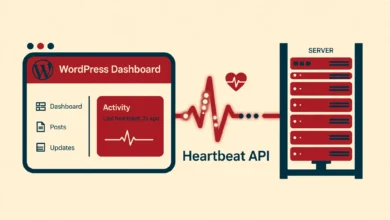
The Heartbeat API is a background feature that keeps your editing session alive, shows when other users are editing the same post, and powers autosaves. It does this by sending a request to your server every 15 seconds while you are on certain admin pages. On shared hosting, or when several team members are logged in at once, this constant chatter adds real load.
You do not need to disable Heartbeat completely, since that breaks autosaves and post locking. Instead, slow it down. Add this snippet with a code snippets plugin or your child theme’s functions.php to change the interval from 15 seconds to 60:
add_filter( 'heartbeat_settings', function( $settings ) {
    $settings['interval'] = 60;
    return $settings;
} );
This one change cuts Heartbeat requests to a quarter of their previous volume while keeping autosaves working. If you work alone and rarely collaborate on posts, you can also disable Heartbeat on the dashboard and front end while keeping it in the post editor, which is where it matters most.
6. Reduce the number of items shown per page
Open your Posts or Pages list and click Screen Options in the top right corner. If the number of items per page is set to 100 or more, WordPress has to query and render all of them every time you open that screen. Drop it to 20. The pages will load noticeably faster, and pagination makes browsing just as easy.
While you are in Screen Options, uncheck columns you never look at. Fewer columns mean less data to fetch and a lighter page. This tiny two-minute tweak is one of those fixes that feels too simple to matter, until you try it on a site with thousands of posts.
7. Remove dashboard widgets you never use
The main dashboard screen loads widgets from WordPress core and from almost every plugin you install: news feeds, activity summaries, statistics panels, upgrade notices. Many of these widgets make their own database queries or even call external APIs every time the dashboard loads.
Click Screen Options on the dashboard and uncheck every widget you do not actually read. Keep only what helps you: At a Glance and Activity are usually enough. If a plugin added a widget that phones home to an external service, removing it can shave whole seconds off the dashboard load time.
8. Keep WordPress core, themes, and plugins updated
Updates are not just about security. Performance improvements ship in almost every WordPress release, and plugin authors regularly optimize slow code once users complain. A dashboard running versions from two years ago is slower than it needs to be for no good reason.
Update in this order: take a backup, update plugins, update the theme, then update WordPress core last. Test the dashboard after each round. If an update ever breaks something, you can restore the backup and investigate calmly. Staying current is also one of the simplest security habits, alongside measures like disabling XML-RPC if you do not need it.
9. Switch to better hosting if nothing else works
If you have applied all eight fixes and wp-admin is still slow, the problem is probably the server itself. Budget shared hosting packs hundreds of sites onto one machine, and when your neighbors get busy, your dashboard pays the price. No plugin or setting can fix an overloaded server.
This is the point where upgrading your hosting gives the best return on investment. Look for a plan with server-level caching, current PHP versions, and enough resources for your traffic. Our web hosting guide breaks down what actually matters when choosing a host, so you can pick a plan that keeps both your visitors and your dashboard happy. Before migrating, check your speed with PageSpeed Insights so you can measure the improvement afterward.
Frequently asked questions
Why is only my WordPress admin slow but the front end is fast?
The dashboard runs extra code that visitors never trigger: plugin admin pages, the Heartbeat API, autosaves, and dashboard widgets. Caching plugins also speed up the front end while leaving wp-admin untouched. This is why a site can feel fast to visitors and painfully slow to its owner at the same time.
Will a caching plugin speed up wp-admin?
Not directly. Page caching plugins deliberately skip the admin area because caching it would show stale data or leak private information between users. Caching helps your visitors, but for the dashboard you need the fixes in this guide: fewer plugins, newer PHP, more memory, and less database bloat.
Is it safe to disable the Heartbeat API completely?
It is better to slow it down than to disable it. Fully disabling Heartbeat breaks autosaves, post locking, and login session warnings. The snippet in fix 5 reduces its frequency to once a minute, which removes most of the load while keeping every feature working.
How much RAM does WordPress need for a fast dashboard?
Most sites run comfortably with 256M, and busy sites with many plugins benefit from 512M. Going beyond that rarely helps unless a specific plugin demands it. If raising the memory limit does not change anything, the bottleneck is elsewhere, usually an outdated PHP version or a heavy plugin.
Last updated: October 2026.