Have you ever wondered how WordPress autosaves your draft while you type, or how it knows to warn you when another editor opens the same post? The answer is a behind the scenes feature called the Heartbeat API. It quietly sends small messages between your browser and your server every few seconds, keeping the two in sync. It is genuinely useful, but those constant messages also consume server resources, and on busy or cheap hosting they can noticeably slow your site. This beginner guide explains what the Heartbeat API is, what it actually does, when it becomes a problem, and how to control it without breaking anything.
What Exactly Is the Heartbeat API?
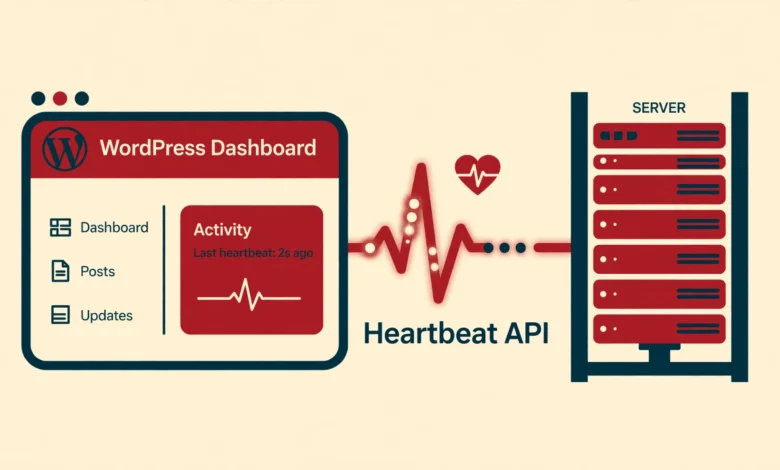
The Heartbeat API is a built in WordPress communication system, introduced back in WordPress 3.6. Think of it as a pulse: while you are logged in and working in the dashboard, your browser sends a small request to the server every 15 to 60 seconds, and the server responds. Each request travels to a file called admin-ajax.php, which is WordPress central hub for background tasks.
The key detail is that every heartbeat request forces WordPress to fully load itself on the server: the core, your active plugins, and your theme, just to process a tiny message. A single pulse is cheap. But multiply it by several open browser tabs, several logged in users, and hours of editing, and you get hundreds or thousands of uncacheable requests per day. Unlike your public pages, these requests can never be served from cache, so each one uses real server processing power.
What Does the Heartbeat API Actually Do?
Before deciding to touch it, it helps to know what you would be affecting. The Heartbeat API powers several features you probably use every day:
- Autosave. WordPress saves your draft automatically about every 60 seconds while you write. Heartbeat carries that data to the server, so a browser crash costs you almost nothing.
- Post locking. When someone else opens a post you are editing, WordPress shows a warning so you do not overwrite each other work. Heartbeat delivers that warning.
- Session management. It keeps your login session alive and shows the “your session has expired” prompt when it times out.
- Real time dashboard updates. Some dashboard widgets and plugin interfaces refresh in the background using heartbeat.
- Plugin communication. Many plugins, from form builders to LMS systems, piggyback on heartbeat for their own live features.
This is why the common advice to “just disable heartbeat completely” is bad advice. Turning it off entirely breaks autosave and post locking immediately, and it can silently break plugin features in ways that are hard to diagnose. The goal is control, not elimination.
Why the Heartbeat API Can Slow Down Your Site
For a typical blog with one author, heartbeat overhead is negligible and you can stop reading here. It becomes a real problem in specific situations:
- Many logged in users. Newsrooms, membership sites, and online course platforms with dozens of simultaneous dashboard users generate a constant stream of heartbeat requests.
- Many open tabs. Each open admin tab runs its own heartbeat. Five tabs means five times the requests.
- Cheap shared hosting. Limited CPU and memory mean background requests compete directly with the resources serving your visitors.
- Long editing sessions. Leaving the editor open for hours keeps the pulse going the whole time.
The symptoms are familiar: a sluggish admin dashboard, hosting warnings about CPU usage, or intermittent 500 errors during busy periods. If your host complains about resource usage but your traffic is modest, heartbeat is one of the first suspects. Our guide on why WordPress sites get slow covers the other usual suspects, since heartbeat is rarely the only factor.
How to Control the Heartbeat API Safely
The safe strategy has three levels: slow it down everywhere, disable it only where it is not needed (the frontend), and leave the post editor fully functional. Here is how.
Option 1: Slow Down the Pulse With Code
WordPress lets you change the heartbeat interval with a filter. The default ranges from 15 to 120 seconds depending on context. Setting it to 60 seconds cuts request volume significantly while keeping every feature working:
add_filter( 'heartbeat_settings', 'vtg_slow_heartbeat' );
function vtg_slow_heartbeat( $settings ) {
    $settings['interval'] = 60;
    return $settings;
}
Add this to your child theme functions.php or a code snippet plugin. Sixty seconds is the sweet spot most performance guides recommend: autosave still works, post locking still works, and your server handles roughly a quarter of the requests it did before.
Option 2: Disable Heartbeat on the Frontend Only
Heartbeat sometimes runs on the frontend too, usually because a plugin enqueues it there. Frontend heartbeat serves almost no purpose for visitors, so disabling it there is pure win:
add_action( 'init', 'vtg_stop_frontend_heartbeat', 1 );
function vtg_stop_frontend_heartbeat() {
    if ( ! is_admin() ) {
        wp_deregister_script( 'heartbeat' );
    }
}
This leaves the dashboard heartbeat completely untouched while removing the useless frontend requests. It is the safest change on this page.
Option 3: Use the Heartbeat Control Plugin
If you prefer not to touch code, the free Heartbeat Control plugin gives you the same options through a settings page: change the frequency, disable on the dashboard, disable on the frontend, or disable everywhere. Choose “Reduce activity” rather than “Disable” for the dashboard, for the reasons explained above. One small plugin doing one job well is a reasonable tradeoff.
How to Check Whether Heartbeat Is Your Problem
Do not optimize blindly. Confirm heartbeat is actually costing you resources first:
- Open your site dashboard in Chrome, press F12, and go to the Network tab.
- Filter by admin-ajax.php and watch for a minute or two.
- If you see repeated POST requests every 15 to 60 seconds while you are not doing anything, that is heartbeat.
- Check your hosting control panel CPU graphs during editing sessions to see the correlation.
If admin-ajax.php is quiet, your performance problem lies elsewhere. Two common companions worth checking: an overloaded login page hammered by bots, which our guide on limiting login attempts without a plugin addresses, and missing compression, covered in our Gzip compression guide. Fix the biggest problem first.
Frequently Asked Questions
Is it safe to disable the Heartbeat API completely?
Technically yes, but practically no. Disabling it everywhere breaks autosave, post locking, and session expiry warnings, and it can break plugin features that depend on it. The recommended approach is to slow it down or disable it only on the frontend, never to kill it entirely.
Will controlling heartbeat speed up my site for visitors?
Indirectly. Heartbeat runs for logged in users, mostly in the dashboard, so visitors rarely feel it directly. But on resource limited hosting, heartbeat requests compete with visitor traffic for the same CPU and memory. Reducing them frees resources for everyone, which is why the improvement shows up most on busy or cheap hosting.
Does heartbeat affect my Google rankings?
Not directly. Google never sees heartbeat requests because they only happen for logged in users. But if heartbeat overload slows your server enough to hurt page load times or cause errors, those downstream effects can affect rankings. Treat heartbeat control as server hygiene, not an SEO tactic.
Do caching plugins already handle this?
Some do. A few performance plugins include heartbeat control in their settings, so check yours before adding code or another plugin. If your caching plugin already offers it, use that option and skip the snippets in this guide to avoid duplicate handling.
Last updated: October 2026.