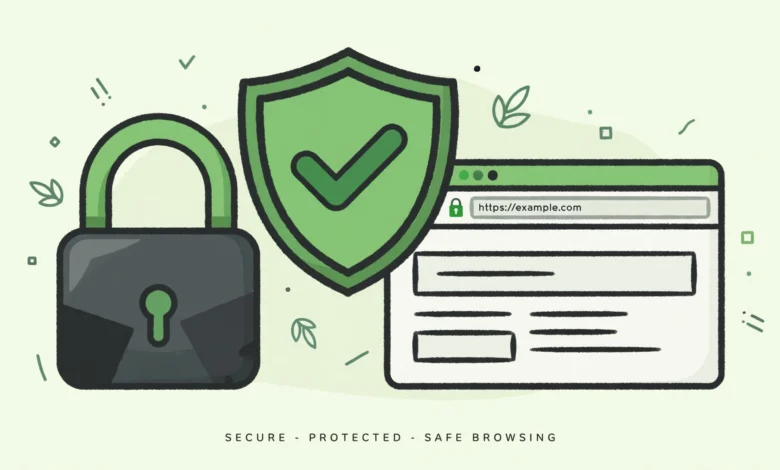
Every modern website should run on HTTPS. Browsers now label plain HTTP pages as “Not Secure”, which scares visitors away before they even read your content. Google also uses HTTPS as a ranking signal, and any site that handles logins or payments needs the encryption that SSL provides. The good news is that forcing the secure version of your site takes one small server rule, and you do not need a plugin for it. This guide shows you how to redirect HTTP to HTTPS in WordPress without a plugin: installing SSL first, adding the redirect rule for Apache servers, an alternative method for other hosts, updating your site URLs, and testing that everything works.
Why Does HTTPS Matter for a WordPress Site?
HTTPS encrypts the connection between your visitor’s browser and your server. That single change brings several concrete benefits:
- Visitor trust. Browsers show a padlock icon for HTTPS sites and a “Not Secure” warning for HTTP ones. That warning alone drives visitors away.
- Data protection. Login details, contact form submissions, and payment information travel encrypted instead of in plain text.
- SEO advantage. Google confirmed HTTPS as a ranking signal, and its announcement at developers.google.com explains why secure sites get a boost. All else equal, the HTTPS page wins.
- Payment readiness. Payment gateways and most advertising networks require HTTPS before they will work with your site.
Before touching any redirect, make sure SSL is actually installed. A redirect to a broken HTTPS version is worse than no redirect at all.
How Do I Install an SSL Certificate First?
Almost every decent host offers free SSL certificates today, usually powered by Let’s Encrypt. Log in to your hosting control panel and look for an SSL or Security section. In cPanel you will find it under Security and then SSL/TLS Status, where you can enable AutoSSL for your domain. Many managed hosts install and renew the certificate automatically with nothing for you to click.
After enabling it, wait a few minutes and then open the HTTPS version of your site manually by typing https:// before your domain. If the padlock appears, the certificate is live and you can proceed. If it does not, contact your host before continuing. Choosing a host with free one click SSL is one of the criteria in our web hosting guide, so check there if your current provider makes this difficult.
How Do I Redirect HTTP to HTTPS with .htaccess? (Method 1)
Most shared WordPress hosting runs on Apache servers, which read redirect rules from a file called .htaccess in your site’s root folder. Adding three lines to this file forces every HTTP request to its HTTPS version with a permanent 301 redirect. First, back up your site. If you have never done that, our guide on backing up WordPress without a plugin covers a quick manual method.
Now open .htaccess through your host’s file manager or an FTP client and add this snippet at the very top of the file, before the WordPress rules:
RewriteEngine On
RewriteCond %{HTTPS} off
RewriteRule ^(.*)$ https://%{HTTP_HOST}%{REQUEST_URI} [L,R=301]
Here is what each line does. The first line enables the rewrite engine. The second checks whether the current request is already secure. The third redirects everything that is not secure to the HTTPS version of the same URL, using a 301 status code that tells search engines the move is permanent. That 301 matters: it transfers your existing rankings and link value to the secure URLs instead of splitting them across two versions.
Save the file and the redirect is live immediately. There is nothing else to configure on the server side for Apache hosts.
What If My Host Does Not Use Apache? (Method 2)
Some hosts run Nginx or LiteSpeed, where .htaccess rules are ignored. On those servers you can force the redirect from wp-config.php instead. Open wp-config.php in your site root and add this snippet right after the opening <?php tag, before the line that says “That’s all, stop editing!”:
if ( ! isset( $_SERVER['HTTPS'] ) || $_SERVER['HTTPS'] !== 'on' ) {
    if ( ! headers_sent() ) {
        header( 'Status: 301 Moved Permanently', false, 301 );
        header( 'Location: https://' . $_SERVER['HTTP_HOST'] . $_SERVER['REQUEST_URI'] );
        exit();
    }
}
This checks every page load: if the request is not already secure, it sends a 301 redirect to the HTTPS version of the same URL. It is slightly less efficient than a server level rule because WordPress has to load before the redirect fires, but it works on any hosting stack. Note that many managed hosts provide their own HTTPS forcing toggle in the dashboard, so check there first before adding code.
How Do I Update My WordPress Site URLs to HTTPS?
The redirect handles incoming visitors, but WordPress itself should also generate HTTPS links. Go to Settings, then General, and change both the WordPress Address and Site Address from http:// to https://. Save the changes. If you get locked out because of a typo, you can fix these values in wp-config.php with two define statements, but double checking before you save avoids the problem entirely.
Changing the settings does not rewrite old content. Images and internal links you inserted with the old HTTP address will still point to the insecure version, which causes mixed content warnings. The clean fix is a database search and replace of http://yourdomain.com with https://yourdomain.com. The free Better Search Replace plugin handles this safely: run it in dry run mode first to preview the changes, then run it for real. Always keep a backup before touching the database.
How Do I Fix Mixed Content Warnings?
A mixed content warning means the page itself loads over HTTPS but pulls in an image, script, or stylesheet over HTTP. Browsers may block those resources or downgrade the padlock. After the database search and replace above, most cases disappear. For anything left over, open the page, press F12, and check the browser console. It names the exact insecure resource and where it loads from. Fix the source: update the theme or plugin setting that stores the HTTP URL, or re upload the media file. Hardcoded HTTP links in theme files should be edited to protocol relative or HTTPS URLs.
How Do I Test That the Redirect Works?
Run through these checks in order:
- Private window test. Open a private or incognito window and type the HTTP version of your domain. It should land on HTTPS with the padlock showing.
- Deep page test. Try an HTTP link to an inner page, not just the homepage. The redirect must preserve the full path, so http://yoursite.com/about/ should become https://yoursite.com/about/.
- Header check. If you have terminal access, run
curl -I http://yoursite.com. The first lines should show a 301 status and a Location header pointing at the HTTPS URL. - Console check. With the page open, press F12 and look at the console tab. No mixed content warnings should appear.
If a redirect loop appears, with the browser complaining about too many redirects, the usual cause is a caching or CDN layer also trying to force HTTPS. Clear all caches, including any CDN cache, and check for conflicting rules before assuming the snippet is wrong. Redirect issues can also masquerade as speed problems, so if the site feels slow after the change, our guide on why WordPress sites get slow helps you isolate the real cause. And since HTTPS is a security upgrade, consider pairing it with other hardening steps like disabling XML-RPC to reduce your attack surface.
Frequently Asked Questions
Will redirecting to HTTPS hurt my SEO?
No, as long as you use a proper 301 redirect. The 301 tells search engines the move is permanent, so rankings and link equity transfer to the HTTPS URLs. You may see a brief fluctuation while Google recrawls, but sites consistently recover and often improve thanks to the HTTPS ranking signal. The official WordPress HTTPS documentation at wordpress.org covers the migration in more detail.
Do I need a paid SSL certificate?
No, as long as you use a proper 301 redirect. Free certificates from Let’s Encrypt provide the same encryption as paid ones and are trusted by all modern browsers. Paid certificates only make sense for special cases like extended validation or wildcard coverage across many subdomains.
My site shows mixed content warnings. What should I do?
Run a database search and replace to convert old HTTP URLs in your content to HTTPS, then check the browser console for any remaining insecure resources. The leftovers are usually hardcoded URLs in theme files or plugin settings, which you fix at the source.
Should I just use a plugin instead of editing files?
A plugin works, but the manual method is three lines in one file with zero ongoing overhead. Plugins that force HTTPS add another dependency to maintain and another potential point of failure. If you are comfortable opening .htaccess once, the manual route is cleaner and permanent.
Last updated: October 2026.