If you run a WooCommerce store, you have probably seen it happen: a customer places an order for a single low cost item, and by the time you pack it, ship it, and pay the payment gateway fee, there is barely anything left. Tiny orders can quietly drain your profit, especially when shipping costs and transaction fees stay the same no matter how small the cart is.
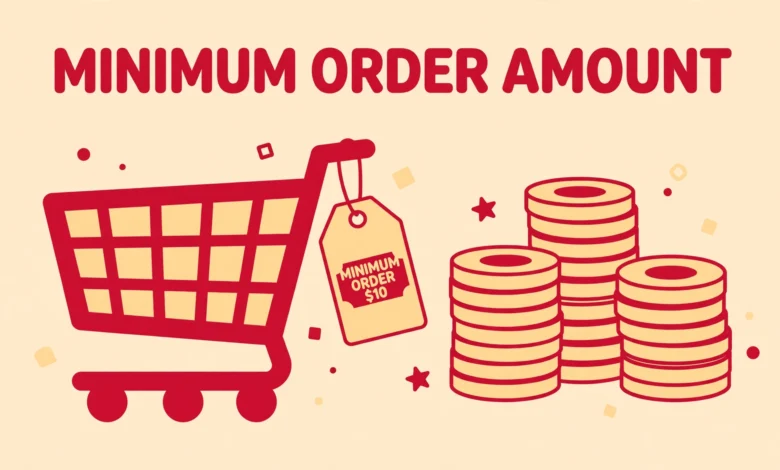
A minimum order amount solves this problem cleanly. Instead of hoping customers spend enough, you set a clear threshold. If the cart total is below it, the customer simply cannot check out. They see a friendly message telling them how much more they need to add, and most of them happily add another product instead of abandoning the cart.
In this guide, you will learn why a minimum order amount makes sense for many stores, and two reliable ways to set one up: a short PHP snippet that requires no plugin, and a free plugin route if you prefer a no-code solution.
Why set a minimum order amount on your store?
A minimum order amount is not about turning customers away. It is about making every order worth fulfilling. Here are the most common reasons store owners add one.
Protecting your profit margins
Every order carries fixed costs: packing materials, warehouse time, the payment gateway fee, and sometimes a pickup fee from your courier. On a small order, these fixed costs eat a huge share of the revenue. A minimum order amount keeps the average order value high enough that each sale stays profitable.
Covering shipping and payment fees
Flat rate shipping is a classic example. If shipping costs you 300 PKR but the customer only bought a 200 PKR item, you lose money before you even start. A minimum cart value makes sure the sale is big enough to absorb shipping and gateway fees comfortably.
Reducing tiny, unprofitable orders
Small orders create the same workload as large ones: you pick, pack, print the label, and handle customer messages for a fraction of the revenue. Setting a threshold reduces the number of these low value orders and frees up your time for customers who buy more.
Wholesale and bulk-selling use cases
If you sell to resellers or offer bulk pricing, a minimum order amount is practically mandatory. It stops retail shoppers from placing tiny orders at wholesale-friendly prices, and it signals clearly that your store is built for serious buyers.
Does WooCommerce have a built-in minimum order setting?
Short answer: no. WooCommerce does not ship with a setting for a store-wide minimum order amount. There are minimums for specific things, like coupons and some shipping methods, but there is no toggle anywhere in the dashboard that says “require a minimum cart total.”
The good news is that the fix is simple and stable. You can add this rule with a few lines of PHP, or with a free plugin. Both approaches work on any WooCommerce store, and neither one slows your site down in any meaningful way.
Method 1: Set a minimum order amount with a PHP snippet (recommended)
This is the cleanest solution. You add a small code snippet that checks the cart total before checkout. If the total is below your minimum, the customer sees an error notice and cannot complete the order. No new plugin to install, no extra scripts loading on your site.
Where to put the code
Never edit your parent theme files directly, because a theme update will wipe your changes. Use one of these two safe places instead:
- Your child theme’s functions.php file, if you already use a child theme.
- A code snippets plugin (for example, the free Code Snippets plugin), which lets you add PHP without touching theme files at all. This is the easiest option for most store owners.
If you go the Code Snippets route, create a new snippet, set it to run everywhere, and paste the code below.
The complete snippet
Copy this code, then change the $minimum value to your own minimum amount. The example below sets a minimum of 2000. Everything else works as it is.
add_action( 'woocommerce_checkout_process', 'vtg_minimum_order_amount' );
add_action( 'woocommerce_before_cart', 'vtg_minimum_order_amount' );

function vtg_minimum_order_amount() {
    $minimum = 2000; // Change this to your minimum order amount.

    if ( WC()->cart->subtotal < $minimum ) {
        wc_add_notice(
            sprintf(
                'Your current order total is %s. A minimum of %s is required to check out.',
                wc_price( WC()->cart->subtotal ),
                wc_price( $minimum )
            ),
            'error'
        );
    }
}
Here is what the snippet does. It hooks into two places: the checkout process and the cart page. On both, it compares the cart subtotal with your minimum. If the subtotal is lower, it adds an error notice and WooCommerce blocks the checkout automatically. The message shows the customer’s current total and the required minimum, so they always know exactly what to do.
Note that this checks the subtotal, which is the cart value before taxes and shipping. That is usually the fairest basis for a minimum, because taxes and shipping are costs the customer pays on top anyway. If you would rather check the full cart total including everything, replace WC()->cart->subtotal with WC()->cart->total in both places.
Method 2: Use a free plugin instead
If you are not comfortable with code, the plugin route works well. Search the WordPress plugin directory for min/max quantity plugins. These free plugins add a settings page where you type your minimum order amount, and they handle the cart validation for you.
To install one: go to Plugins, then Add New in your WordPress dashboard, search for a min max quantities plugin with good ratings and recent updates, install it, and activate. Open its settings page, enter your minimum amount, and save. Most of these plugins also let you set maximums and per-product quantity rules if you need them later.
The trade-off is small but real. A plugin adds another piece of software to maintain, and you depend on its developer to keep it compatible with future WooCommerce updates. The snippet in Method 1 avoids that dependency entirely, which is why it is the recommended approach.
UX best practices: tell customers before they hit checkout
The rule itself is only half the job. How you present it decides whether customers add more products or leave. Follow these practices to make the minimum feel helpful, not hostile.
Display the minimum clearly on cart and product pages
Do not let customers discover the minimum only at checkout. Mention it in a notice on the cart page, and consider adding a short line near the add to cart button on product pages. When shoppers know the rule early, they plan around it instead of feeling blocked.
Combine it with a free shipping threshold
A minimum order amount pairs beautifully with free shipping. If your minimum is 2000 and free shipping kicks in at 2500, customers below the minimum have a natural reason to add more. A free shipping progress bar on the cart page makes this even more effective, because shoppers can see exactly how close they are. You can add one with our free shipping progress bar tutorial.
Keep the message friendly, not scolding
Your error message sets the tone. “A minimum of 2000 is required to check out” reads as a store policy, while wording that sounds like a scolding pushes people away. Keep it short, state the current total and the required amount, and let the shopper decide what to add.
How do you test that the minimum order amount works?
Before you rely on the rule, test it like a customer would.
- Add a cheap product to the cart so the total is below your minimum, then try to check out. You should see the error notice and the order should not go through.
- Add more products until the total crosses the minimum, then check out again. This time the process should complete normally.
- Test on the cart page too, not just the checkout page, since the snippet runs in both places.
- If you use coupon codes, test with a coupon applied as well. A discount that drops the subtotal below your minimum will correctly block checkout with this snippet. If you want coupons to bypass the check, that takes extra code, so decide your policy first. Our guide to creating coupon codes in WooCommerce explains how coupons interact with the cart.
It is also worth thinking about how the minimum affects your abandoned carts. Customers who leave because of the minimum are not lost forever; a well timed reminder can bring them back. See our guide to recovering abandoned carts for free for a complete recovery setup.
Frequently Asked Questions
Can I set a different minimum for different products or categories?
Yes, but the basic snippet above applies one store-wide minimum. For per-category or per-product minimums you would extend the code to loop through the cart items and check their categories, or use one of the min/max plugins that includes category rules in its settings.
Will a minimum order amount hurt my sales?
Usually the opposite happens. Many customers respond to the minimum by adding another item, which raises your average order value. The orders you lose are the tiny unprofitable ones you were barely earning from anyway. Keep the minimum reasonable for your price range and communicate it clearly.
Does the minimum apply to the cart subtotal or the total with shipping?
The snippet in this guide checks the subtotal, which is the products value before taxes and shipping. That is the fairest and most common approach. If you prefer to include everything, swap WC()->cart->subtotal for WC()->cart->total as explained in Method 1.
What happens if a coupon drops the cart below the minimum?
With the snippet above, a discounted subtotal that falls below the minimum will block checkout, because the check runs against the current cart value. Decide your policy in advance: either accept that discounted orders must still meet the minimum, or add extra logic to skip the check when a coupon is applied.
Last updated: October 2026.