You update a plugin, refresh your site, and instead of your homepage you see… nothing. Just a blank white page. No error message, no clues, just emptiness. This is the infamous WordPress white screen of death, often shortened to WSOD, and it is one of the most stressful things a site owner can encounter. The good news is that it is almost always fixable, and in most cases the cause is one of a small handful of usual suspects. This beginner friendly checklist walks you through every fix in the right order, from the easiest checks to the deeper ones.
What Exactly Is the White Screen of Death?
The white screen of death happens when a PHP error occurs but your server is configured to hide error messages from visitors. Instead of showing you what went wrong, WordPress dies silently and the browser renders an empty page. It can affect your whole site, just the admin dashboard, or only a single page, and that pattern is actually a useful clue, as you will see below.
Do not confuse WSOD with the maintenance mode screen, which shows a brief “Briefly unavailable for scheduled maintenance” message during updates. If your site is stuck showing that message instead of a blank page, follow our separate guide on how to fix WordPress stuck in maintenance mode, because the fix is completely different.
What Causes the White Screen of Death?
Nearly every WSOD traces back to one of four causes. Understanding them helps you pick the right fix instead of guessing:
- Plugin conflicts. The number one cause by far. A plugin update introduces code that clashes with another plugin, your theme, or your PHP version, and the resulting fatal error kills the page.
- Theme problems. A buggy theme update, a broken child theme, or a missing parent theme file can white screen your entire front end while the admin area still works.
- PHP memory exhaustion. WordPress runs out of the memory your host allocates to it, usually because a heavy plugin or a large operation needs more than the default limit.
- Corrupted core files. Rare, usually after a failed update. Covered near the end of the checklist.
Before You Start: Two Quick Safety Checks
Before touching anything, do these two things. First, check your email. Since WordPress 5.2, a fatal error triggers an email to the site administrator with the subject “Your Site is Experiencing a Technical Issue.” It often names the exact plugin or theme that broke, which can save you the whole troubleshooting process. Check your spam folder too.
Second, try the recovery mode link if the email includes one. WordPress may offer a special login link that pauses the broken plugin or theme automatically. If you can get into the dashboard through recovery mode, simply deactivate the culprit and you are done. If there is no email and no recovery link, continue with the checklist below.
Step 1: Enable WordPress Debug Logging
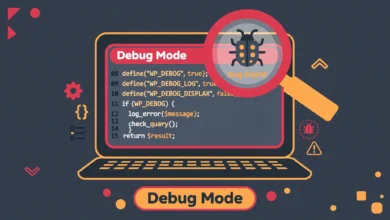
Guessing is slow. Logging tells you exactly which file and line caused the fatal error. You enable it by adding three lines to your wp-config.php file, which lives in your site root. Access it through your hosting file manager or an FTP client, and add this just above the line that says “stop editing”:
define( 'WP_DEBUG', true );
define( 'WP_DEBUG_LOG', true );
define( 'WP_DEBUG_DISPLAY', false );
This writes errors to wp-content/debug.log instead of showing them to visitors. Reload the white page once, then open debug.log and read the last few lines. You will usually see something like “PHP Fatal error” followed by a plugin or theme file path, which points straight at the culprit. For a deeper walkthrough of these constants and what each one does, see our complete guide to enabling WordPress debug mode. The official WordPress debugging documentation is also worth bookmarking.
Step 2: Deactivate All Plugins by Renaming the Folder
If you cannot reach the dashboard, you cannot deactivate plugins the normal way. The trick is to rename the plugins folder, which forces WordPress to treat every plugin as deactivated. In your file manager or FTP client, go to wp-content and rename the plugins folder to something like plugins-old. Then reload your site.
If the white screen is gone, you have confirmed a plugin conflict. Now rename the folder back to plugins, go to the dashboard (WordPress will show all plugins as deactivated), and reactivate them one by one, reloading your site after each one. When the white screen returns, the last plugin you activated is the culprit. Leave it deactivated, delete it if you do not need it, or roll it back to the previous version.
This process is tedious on sites with many plugins, but it is definitive. A useful shortcut: reactivate in small batches first to find the bad batch, then narrow it down within that batch. Always keep a note of which plugin caused the issue so you can report it to the developer or look for an alternative.
Step 3: Switch to a Default Theme
If deactivating plugins did not help, the theme is the next suspect, especially if the white screen appeared right after a theme update. If you can access the dashboard, go to Appearance, then Themes, and activate a default theme like Twenty Twenty-Five. Reload the front end. If the site comes back, your theme is the problem.
If you cannot reach the dashboard, rename your active theme folder inside wp-content/themes (add -old to its name). WordPress will automatically fall back to a default theme if one is installed. For detailed instructions on swapping themes safely without losing widgets and customizer settings, read our guide on how to change your WordPress theme without losing content. Once you have confirmed the theme is at fault, check for a theme update, contact the theme author, or restore the previous version from a backup.
Step 4: Increase the PHP Memory Limit
Memory exhaustion often strikes during heavy operations like importing content, regenerating thumbnails, or running a bloated page builder. The symptom is a white screen with no obvious trigger, and the debug log will mention “Allowed memory size exhausted.” The fix is to raise the limit WordPress is allowed to use.
Add this line to wp-config.php, near your other define statements:
define( 'WP_MEMORY_LIMIT', '256M' );Save the file and reload your site. If 256M solves it, great. Some hosts cap this value on their end, so if the problem persists, check your hosting control panel for a PHP settings section where you can raise the memory limit directly, or ask your host support to increase it. As a rule of thumb, 256M is comfortable for most sites, while large WooCommerce stores sometimes need 512M.
Step 5: Check Your PHP Version and Reset .htaccess
Two more quick checks round out the list. First, look at your PHP version in your hosting panel (usually under a “PHP Selector” or “Software” section). WordPress currently recommends PHP 8.1 or newer. If your site runs on something ancient like PHP 7.0, or your host just upgraded you to a brand new major version, that mismatch alone can cause a white screen. Switch to a supported version and test again.
Second, a corrupted .htaccess file can white screen a site, particularly after a security plugin or caching plugin writes bad rules to it. Rename .htaccess to .htaccess-old in your site root, then reload. If the site works, go to Settings, then Permalinks in the dashboard and click Save Changes to generate a fresh, clean .htaccess file.
When Nothing Above Works
If you have worked through all five steps and the screen is still white, the issue is likely corrupted WordPress core files or a server level problem. At this point, restore your most recent backup from before the problem started. Every decent host offers one click backups, and most backup plugins keep several restore points. Restoring is faster and safer than continuing to guess.
If you have no backup, download a fresh copy of WordPress from wordpress.org and replace the wp-admin and wp-includes folders via FTP, leaving wp-content and wp-config.php untouched. And if even that fails, contact your hosting support with your debug log in hand. A log showing the exact fatal error turns a vague “my site is broken” ticket into a problem they can solve in minutes.
Frequently Asked Questions
Will I lose my content when I rename the plugins folder?
No. Renaming the folder only deactivates the plugins. Your posts, pages, media, and settings all live in the database and the wp-content/uploads folder, which you are not touching. When you rename the folder back, WordPress sees the plugins again and you can reactivate them. Plugin settings are preserved in the database, so everything returns to normal once the faulty plugin is identified and removed.
Why does the white screen only appear on one page?
A single page white screen usually means something specific to that page is broken: a shortcode from a deactivated plugin, a corrupt revision, or a page builder element referencing missing code. Try editing the page and removing recently added blocks or shortcodes. If the page uses a custom template, switch it back to the default template temporarily to isolate the cause.
Can a white screen of death damage my database?
Almost never. The white screen is a PHP execution failure, not a data corruption event. Your database is intact in the overwhelming majority of cases, which is why restoring files or deactivating a plugin brings everything back instantly. That said, this is a good reminder to keep automated backups running, because the one time you truly need a backup is the one time you will not have it.
How do I prevent the white screen of death in the future?
Four habits prevent most occurrences: keep the number of installed plugins small and delete the ones you do not use, update plugins one at a time instead of in bulk so you can spot the culprit, test major updates on a staging site first, and keep daily automated backups. Also, leave debug logging enabled on a staging copy of your site so you catch warnings before they become fatal errors in production.
Last updated: October 2026.