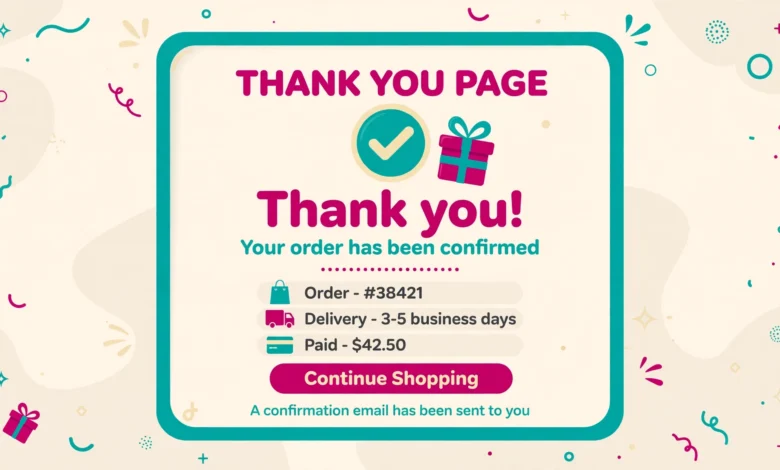
When a customer finishes checkout, the thank you page is the last thing they see, and it is also one of the most underused pages in many stores. A clear message, useful next steps, and a small personal touch can turn a completed order into repeat business. The good news is that you can customize WooCommerce thank you page without plugin tools for the most useful changes, using two simple code hooks.
This guide stays honest about scope. Code can change the message, add helpful content, personalize the page, and show different content by payment method. Code alone cannot easily rebuild the whole page into a fancy visual landing page. For that kind of redesign you would normally need a page builder or a dedicated plugin. The code route below, however, covers what most small stores actually need, and it costs nothing.
What Can You Realistically Change Without a Plugin?
WooCommerce shows an order received message, then order details such as order number, date, total, email, and payment method. With code, you can replace that first message, add a block of content after the order details, and personalize both parts with the customer name or order information. You can also show different notes for different payment methods, which is useful when bank transfer orders need extra instructions.
What you cannot easily do with a short snippet is move the order table into a new layout, add a full width hero section, or build a multi column design with images and buttons styled like a sales page. Those changes need template overrides or a builder. Knowing this limit saves time. Start with message and content changes, measure whether customers respond, and only invest in a redesign if the simple version proves useful.
Before you edit any store code, use a child theme or a code snippets tool so an update does not wipe your work. Our guide on how to create a WordPress child theme explains the safe setup. If you prefer small style tweaks as well, see how to add custom CSS to WordPress without editing theme files directly.
How Do You Change the Thank You Message?
The woocommerce_thankyou_order_received_text filter controls the main message shown after checkout. It passes the current message and the order object, so you can return your own text. Keep the message warm, short, and specific. Confirm the order, tell the customer what happens next, and point them to help if they need it.
add_filter( 'woocommerce_thankyou_order_received_text', 'vutechgeek_custom_thankyou_message', 10, 2 );
function vutechgeek_custom_thankyou_message( $text, $order ) {
    if ( ! $order ) {
        return $text;
    }
    return 'Thank you for your order. We have received it and will email your order updates shortly.';
}
Notice the safety check at the start. If no order object exists, the snippet returns the original message instead of failing. That small habit matters in WooCommerce code, because the thank you page can sometimes load without a complete order context, for example after a failed payment redirect. Always check the order object before you read data from it.
Write the message in your brand voice, but avoid promises you cannot keep. If you do not send tracking within 24 hours, do not say that you will. A calm and accurate message builds more trust than an excited message that proves wrong. For official background on WooCommerce hooks, see the documentation at WooCommerce Developer Documentation.
How Do You Add Helpful Content After the Order Details?
The woocommerce_thankyou hook runs after the order details on the thank you page. It is the best place for next steps, support information, and a gentle offer for the next order. Customers are in a buying mindset at this moment, so one clear offer works better than five competing banners.
add_action( 'woocommerce_thankyou', 'vutechgeek_thankyou_extra_content' );
function vutechgeek_thankyou_extra_content( $order_id ) {
    if ( ! $order_id ) {
        return;
    }
    $order = wc_get_order( $order_id );
    if ( ! $order ) {
        return;
    }
    echo '<h2>What happens next?</h2>';
    echo '<p>We will email your order confirmation and delivery updates. If you need help, please contact our support team and include your order number.</p>';
    echo '<p>Use code THANKS10 for 10 percent off your next order.</p>';
}
Keep this block short and useful. A short list of next steps, one support link, and one discount code is enough. If you add too much content, customers stop reading and miss the support details that actually reduce refund requests and support tickets. Also make sure any discount code in the snippet really exists in WooCommerce, or customers will feel misled at their next checkout.
- Tell the customer what happens next in one or two sentences.
- Add one clear way to contact support, with the order number handy.
- Offer one simple incentive for a return visit, not a wall of offers.
- Link to a help page or FAQ instead of repeating long policies on this page.
How Do You Personalize the Page With the Customer Name?
Personalization can be as simple as using the billing first name in your message. WooCommerce stores that value on the order, so you can read it safely after checking that the order object exists. Escape the output before printing it, because customer input should never go straight into page HTML without escaping.
add_filter( 'woocommerce_thankyou_order_received_text', 'vutechgeek_personal_thankyou_message', 10, 2 );
function vutechgeek_personal_thankyou_message( $text, $order ) {
    if ( ! $order ) {
        return $text;
    }
    $first_name = $order->get_billing_first_name();
    if ( ! $first_name ) {
        return $text;
    }
    return sprintf( 'Thank you, %s. Your order is confirmed and we will keep you updated by email.', esc_html( $first_name ) );
}
This version falls back to the default message if no first name is available. That fallback keeps the page clean for guest checkouts with incomplete data and for orders created in unusual ways. Small fallbacks like this separate reliable store code from code that only works in perfect test conditions.
How Do You Show Different Content by Payment Method?
Different payment methods need different next steps. A card payment is usually complete, while a bank transfer order may need payment instructions and a longer wait. Cash on delivery needs delivery guidance instead. Conditional content lets you speak to each case without confusing the others.
add_action( 'woocommerce_thankyou', 'vutechgeek_payment_method_note' );
function vutechgeek_payment_method_note( $order_id ) {
    if ( ! $order_id ) {
        return;
    }
    $order = wc_get_order( $order_id );
    if ( ! $order ) {
        return;
    }
    if ( 'bacs' === $order->get_payment_method() ) {
        echo '<p>Please complete your bank transfer using the details in your confirmation email. We will prepare your order once payment is received.</p>';
    }
    if ( 'cod' === $order->get_payment_method() ) {
        echo '<p>You chose cash on delivery. Please keep the exact amount ready and check your items when they arrive.</p>';
    }
}
Use the payment method codes that match your store setup. The examples above use bacs for direct bank transfer and cod for cash on delivery, which are standard WooCommerce codes. If you use a payment gateway plugin, check its method code in a test order before you rely on it, because a wrong code means the note never appears.
Conditional notes also help your support team. When customers already know what to expect for their payment type, they ask fewer repeat questions, and they are less likely to cancel an order they think has failed. Keep each note to one or two sentences so the page stays easy to scan.
How Do You Test Your Changes Safely?
Never test thank you page changes with a real customer order. Use a test product with a tiny price, enable a test payment method such as cash on delivery or bank transfer, and place a test order yourself. Check the message, the extra content, the personalization, and the payment note for each method you customized.
- Create a cheap test product that only you can find.
- Place one test order for each payment method you changed.
- Check the page on mobile, where most customers will see it.
- Confirm discount codes and support links actually work.
- Delete test orders after testing so reports stay clean.
Also test what happens when a payment fails and the customer returns to checkout. Your thank you code should never break that flow, which is why every snippet above checks the order before using it. If a snippet causes a blank page, remove it immediately and test again with a simpler version. A broken thank you page can make a successful buyer think the order failed, which creates support work and lost trust.
For a smoother store overall, pair this page with a clear launch routine. Our WordPress website launch checklist covers testing steps that catch common store issues before real customers hit them. If your store feels slow during checkout, our guide on why a WordPress site is slow can help you find the bottleneck. For general WordPress background, see WordPress.org.
What About Redirecting to a Custom Page?
Some store owners prefer to send buyers to a regular WordPress page after checkout instead of using the default thank you page. That page can be built with the block editor or a builder, with full control over layout, images, and calls to action. The tradeoff is that you lose the automatic order details unless you add them back yourself, and you must handle failed or incomplete orders carefully so buyers do not land on a success page for an order that never completed.
A redirect is worth considering only when the default page truly cannot carry your message, for example when you need a video, a detailed course onboarding flow, or a multi step next action. For most stores, the hook based changes in this guide are simpler, safer, and easier to maintain. Start simple, watch customer questions and repeat orders, and let real feedback decide whether a custom page is ever needed.
Frequently Asked Questions
Do I need a plugin to customize the WooCommerce thank you page?
No, not for message changes, extra content, personalization, or payment based notes. Those changes work with the hooks shown in this guide. A plugin or builder is only needed for a fully redesigned visual layout.
Where should I add the thank you page code?
Add it to a child theme functions.php file or a code snippets tool. Avoid editing the parent theme directly, because a theme update can remove your changes without warning.
Why does my thank you page show the default message after I add code?
The most common causes are a caching issue, a code error, or a snippet that runs on the wrong hook. Clear your cache, check for errors, and confirm the snippet is active in the child theme or snippets tool.
Can I show a discount code on the thank you page?
Yes, and it works well because the customer has just trusted you with an order. Show one code, make sure it exists in WooCommerce, and keep the terms simple so the next checkout feels easy.
Last updated: October 2026.