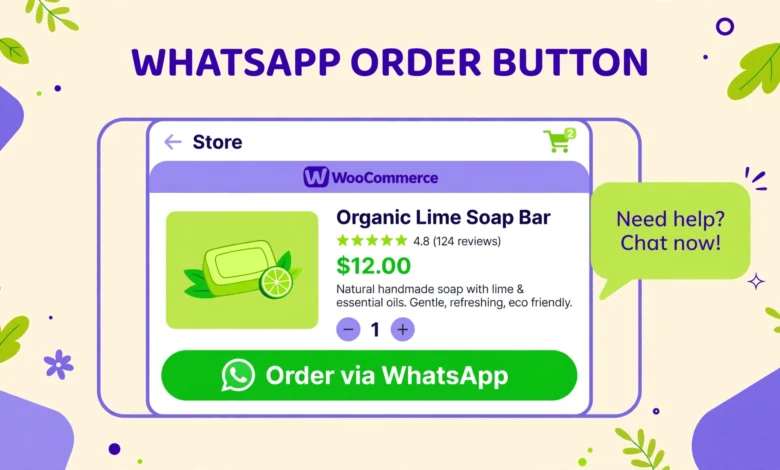
Many small online stores in Pakistan and across South Asia sell very differently from large ecommerce sites. Customers often want to ask a question, confirm the price, or place an order by chatting first, rather than completing a checkout form on their own. A WhatsApp order button meets customers exactly where they already are, and it turns a product page visit into a conversation that frequently ends in a sale.
In this guide, you will learn how to add WhatsApp order button WooCommerce functionality to your store in two ways: a free plugin route that needs no code, and a small code snippet that builds a wa.me link with the product name and price prefilled. You will also learn where to place the button, what message templates to use, and how to handle orders and cash on delivery once they arrive in WhatsApp.
Why Does Chat Ordering Convert So Well?
Checkout abandonment is one of the biggest problems in ecommerce. A customer adds a product to the cart, reaches a long form, and leaves. A WhatsApp button removes most of that friction: one tap opens a chat with a prefilled message, and the customer never has to create an account or fill in a long form.
Trust is the other factor. In markets where cash on delivery is the norm, customers often want to confirm availability, delivery charges, and delivery time before paying anything. A chat conversation answers those questions in minutes, and a human reply builds far more confidence than a static product page. That is why small stores that add a WhatsApp order option often see more completed sales, even if their website traffic stays the same.
How Do You Add the Button With a Free Plugin?
The simplest route is a free plugin from the WordPress plugin directory. Several well maintained options exist, and you can browse them on WordPress.org by searching for WhatsApp chat or WhatsApp order. Look for a plugin that is tested with your WordPress version, updated recently, and rated well by other store owners.
Popular free choices include Click to Chat, which adds a floating WhatsApp button and lets you customize the prefilled message, and JoinChat, which offers a chat style button with its own message window. Some WooCommerce focused plugins go further and add an order button directly on product pages, with the product name and price included in the message automatically. Compare two or three options on a staging site or a test product before choosing, since button styling and placement vary.
Installation follows the usual pattern: install and activate the plugin, enter your WhatsApp number in international format, write your default message, and choose where the button appears. Test the button on a phone, not just on a desktop, because most of your WhatsApp orders will come from mobile visitors. Send yourself a test message and confirm that the product details arrive correctly.
How Do You Build the Button With a Code Snippet?
If you prefer not to add another plugin, a small snippet can create the same button using a wa.me link. A wa.me link is an official WhatsApp short link: visiting it opens a chat with your number and an optional prefilled message. The basic format is wa.me followed by your full international number, with no plus sign, spaces, or dashes.
On a WooCommerce product page, you can output a button with the product name and price in the message. A simplified example for your theme functions file or a code snippets plugin looks like this:
<a href="https://wa.me/923001234567?text=Hello, I want to order this product." class="whatsapp-order-button">Order on WhatsApp</a>Replace the example number with your own number in international format, starting with the country code, for example 92 for Pakistan, followed by the rest of the number without the leading zero. The text parameter holds the prefilled message, and spaces and special characters in it must be URL encoded in a real implementation, so use a proper encoding function rather than pasting raw text with spaces into a live link.
For a dynamic version that pulls the current product name and price automatically, hook the button output into a WooCommerce product page action and build the message from the product object. That way, every product page shows its own correct details without you editing the snippet per product. If you are not comfortable editing theme files, use a code snippets plugin instead of editing functions.php directly, so a theme update cannot wipe out your button.
No WhatsApp Business API is needed for this method. The wa.me link uses the regular WhatsApp app, and it works with a personal number or a WhatsApp Business app number. You do not need approval from Meta, you do not pay per message, and there is no complex setup. That simplicity is exactly why this approach suits small stores.
Where Should You Place the Order Button?
Placement decides how many people actually use the button. The single most effective spot is the product page, right next to the Add to Cart button. A customer who has just decided they want the product should see the WhatsApp option immediately, without scrolling or searching.
- Product page, beside Add to Cart: the highest intent spot, and the one every store should use first.
- Shop and category pages: useful for customers browsing several products, though the message cannot include a specific product unless the button is tied to each product card.
- Cart page: a second chance for customers who hesitate at checkout, offering a chat alternative before they abandon the cart.
- Floating button on all pages: good for general questions, but less effective for orders, since it carries no product context.
What Message Templates Work Best?
The prefilled message should do most of the work for the customer. A good template includes the product name, the price, and a clear request, so the customer only has to press send. For example, a template might read: Hello, I want to order the Blue Cotton Kurti, price Rs 2,499. Please confirm availability and delivery charges.
Prepare reply templates for yourself as well. Fast replies are the main advantage of chat ordering, so have ready answers for availability, delivery time, delivery charges by city, payment options, and exchange policy. A customer who waits hours for a reply will often buy from a competitor instead, so speed matters as much as the button itself.
How Do You Handle Orders That Arrive in WhatsApp?
A WhatsApp order is not automatically recorded in WooCommerce, so you need a simple manual process. When an order arrives, confirm the product, size or variant, quantity, delivery address, and total including delivery charges in the chat. Once the customer confirms, create the order yourself: either enter it as a manual order in WooCommerce, or record it in a spreadsheet or order book if your volume is low.
Recording orders in WooCommerce, even manually, is worth the effort. It keeps stock counts accurate, gives you a proper order history, and makes it possible to track which products sell through WhatsApp versus the website checkout. If you skip this step, stock errors and lost orders become common as volume grows.
How Does Cash on Delivery Pair With WhatsApp Orders?
Cash on delivery and WhatsApp ordering are a natural pair, because both remove the need for the customer to pay online before receiving the product. When a customer orders through WhatsApp, confirm in the chat that the order is cash on delivery, state the total amount they will pay the courier, and confirm the delivery address. That single confirmation prevents most delivery disputes.
Make sure cash on delivery is actually enabled and configured correctly in your store, so that any order you create manually or through checkout uses the right payment method. If you have not set it up yet, read our guide on cash on delivery in WooCommerce before promoting WhatsApp ordering, since a mismatch between what you promise in chat and what the store charges will confuse customers.
What Are the Common Pitfalls to Avoid?
- Wrong number format: the wa.me number must include the country code and must not include a plus sign, spaces, or a leading zero. A wrong format breaks the link entirely.
- Slow replies: a WhatsApp button promises a conversation. If nobody replies for hours, customers leave, and the button hurts more than it helps.
- No product details in the message: a generic Hello message forces the customer to type the product name themselves, which defeats the purpose of a prefilled template.
- Using a personal number with no backup: if one person handles all chats and goes offline, orders stop. Use a WhatsApp Business number that more than one team member can access when possible.
- Ignoring privacy: never share customer chats, phone numbers, or addresses publicly, and do not add customers to broadcast lists without their permission.
Another common mistake is treating WhatsApp as a replacement for a proper store. The button works best alongside a complete product page, clear pricing, and a working checkout. Customers who prefer to check out normally should still be able to do so, and customers who prefer chat should find the button easily. Offering both paths captures the most sales.
How Does This Fit With Other WooCommerce Setup?
A WhatsApp order button is one piece of a store that converts well. A general chat button on every page can handle pre sale questions from visitors who are not yet on a product page. If you want that sitewide option too, see our guide on adding a WhatsApp chat button in WordPress, which covers the floating button setup separately from product page ordering.
Promotions also pair well with chat ordering. A customer chatting about one product is easy to offer a discount on a second item, or a coupon for their next order. If you have not created coupons yet, our guide on how to create a coupon code in WooCommerce walks through the setup, and a coupon code shared in chat is a simple way to close a hesitant buyer.
Finally, keep the button design consistent with your store. A green button with the WhatsApp icon is instantly recognizable, so do not recolor it beyond recognition. Customers should spot it in one second on a product page, and that recognition is part of why the button works.
Frequently Asked Questions
Do I need the WhatsApp Business API to add an order button?
No. A wa.me link works with the regular WhatsApp app or WhatsApp Business app, with no API approval and no per message cost. The API is only needed for large scale automated messaging, not for a simple order button.
Which number format should I use in the wa.me link?
Use the full international format with the country code and no plus sign, spaces, or leading zero. For a Pakistani number, that means 92 followed by the number without its initial zero.
Will WhatsApp orders appear in WooCommerce automatically?
Not with a simple wa.me button. You must create the order manually in WooCommerce, or use a dedicated plugin that creates orders from chat. Manual entry keeps stock and order history accurate.
Can I use a WhatsApp order button with cash on delivery?
Yes, and the combination works very well. Confirm the total and delivery address in chat, make sure cash on delivery is enabled in WooCommerce, and consider a confirmation call for higher value orders.
Last updated: October 2026.