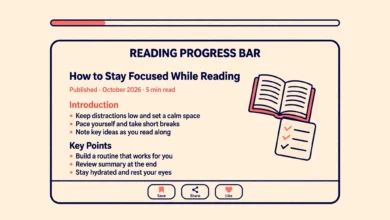
When a reader opens a post, the first silent question is simple: how long will this take? A small reading time label answers that question at once. A line that says 6 min read helps a busy reader decide whether to read now, save the post for later, or look for a shorter answer. That small moment of honesty builds trust, and trusted readers stay longer.
You do not need a plugin to show reading time. WordPress now includes a built in option in block themes, and a very small PHP function can do the same job on other themes. This guide explains the reading time math, shows both methods step by step, and covers styling and image heavy posts. Everything here is beginner friendly, and the code is kept as simple and safe as possible.
Why Does Reading Time Help Readers Decide?
Reading time sets an expectation. Without it, a reader has to guess the length of a post from the scrollbar, which is a poor guide. With it, the reader can make a real choice. Someone with two minutes can pick a short post now and save a long guide for the evening. Someone researching a topic can judge whether a post is a quick overview or a deep guide before they invest time in it.
Reading time also signals respect for the reader. It says you know their time matters and you are not trying to trap them in a long page. Sites that respect reader time tend to earn return visits. A reading time label will not fix weak content on its own, but paired with clear headings and a useful structure, it makes a good post easier to choose. If you also want readers to jump to the section they need, our guide on how to add a table of contents in WordPress without a plugin pairs well with this one, since both features help readers navigate long posts.
How Is Reading Time Calculated?
Reading time is based on words per minute. Most guides use a rate between 200 and 225 words per minute for an average adult reading English on screen. That range is an estimate, not a measurement of any single reader. Some people read faster, some read slower, and technical content takes longer than simple stories. The label is a guide, not a promise.
The math itself is simple. Count the words in the post, divide by your chosen rate, and round up to the next whole minute. For example, a 1,200 word post at 200 words per minute works out to exactly 6 minutes. A 1,350 word post at the same rate works out to 6.75 minutes, which rounds up to 7 minutes. Rounding up is the honest choice, because a label that says 6 minutes for a post that takes 7 feels misleading. Using 200 words per minute gives a slightly generous estimate, which readers usually prefer.
You do not need to do this math by hand for every post. Both methods below calculate it automatically from the post content, so the label updates itself whenever you edit the post.
Method 1: Use the Built In Time to Read Block
If your site uses a block theme, WordPress already includes a Time to Read block. This is the easiest method, because it needs no code at all. The block is usually added to a post template, not to a single post, so it appears on every post automatically once you set it up.
To use it, go to Appearance, then Editor, then Templates, and open the single post template. Add a Time to Read block where you want the label to appear, usually near the post title or the post meta line with the date and author. Save the template. From then on, every post using that template will show its own reading time, calculated from its own word count.
- Open Appearance, then Editor, then Templates in your dashboard
- Open the single post template used by your theme
- Add the Time to Read block near the title or post meta
- Save the template and preview any post to check the label
If you cannot find the Editor menu, your theme is probably a classic theme rather than a block theme. That is normal, and it simply means Method 2 is the right choice for your site. If you are unsure which kind of theme you have, our WordPress dashboard explained for beginners guide walks through the menus you will see.
Method 2: Add a Small PHP Function
For classic themes, or for anyone who wants full control over the label, a small PHP function does the job. The function counts the words in the post, divides by 200, rounds up, and returns a short label such as 5 min read. You then place a short template tag where you want the label to appear, or use a code snippet plugin to display it.
Before you touch any PHP, back up your site. A full backup, or at least a copy of the file you are about to edit, turns a mistake from a crisis into a two minute restore. If you are not comfortable editing theme files directly, use the Code Snippets plugin instead of editing functions.php. It lets you add the same function through the dashboard, and you can turn the snippet off with one click if anything goes wrong. Never edit a parent theme directly. Use a child theme, so a theme update does not wipe out your function. You can read the official guidance on safe theme development at developer.wordpress.org.
Here is a simple, safe version of the function:
function vtg_reading_time() {
  $words = str_word_count( strip_tags( get_the_content() ) );
  $minutes = ceil( $words / 200 );
  if ( $minutes < 1 ) {
    $minutes = 1;
  }
  return $minutes . ' min read';
}
This code does three things only. It strips HTML tags so only real words are counted, it divides the word count by 200, and it makes sure the result is never less than one minute. It does not change your content, it does not add scripts to your pages, and it does not store anything in your database. That simplicity is a strength. If you later want a different rate, change 200 to 225. If you want different wording, change min read to whatever fits your site.
To show the label on your posts, you need to call the function in your theme template where the post meta appears, or display it through your snippet setup. The exact template file depends on your theme, so look for the file that outputs the post date and author, often single.php or a template part for post meta. If that step feels too technical, ask your theme support or a developer for a one line placement, and keep the function itself as written here. Getting the function right matters more than placing it yourself.
How to Style the Reading Time Label
A reading time label should be easy to notice but not loud. It usually sits with the date, author, and category, in the same small, muted style as the rest of the post meta. If your label looks too large or too bold, it competes with the post title. If it is too faint, readers miss it entirely. The goal is a quiet helper, not a headline.
You can style it with a little CSS in Appearance, then Customize, then Additional CSS. First, wrap the label in a span with a class in your template or snippet output, then target that class. Here is a gentle example that keeps the label small and grey:
.reading-time {
  font-size: 0.9rem;
  color: #666;
}
Adjust the size and color to match your theme. If your theme already styles post meta, matching that style is usually the best choice, because it keeps the page looking consistent. Our guide on how to add custom CSS in WordPress explains the Additional CSS panel in more detail, including how to test a change before you publish it. Also consider the related posts on your site: a clear reading time label works well alongside related posts in WordPress without a plugin, because readers who finish one post can quickly judge the next one too.
How to Handle Image Heavy Posts
Image heavy posts need a little extra thought, because word count alone does not capture the time spent looking at images. A photo gallery post with 300 words and 40 images does not really take two minutes to enjoy. A tutorial with screenshots takes longer than its words suggest, because readers pause to study each image. A pure word count label can understate these posts.
There are two honest ways to handle this. The simple way is to keep the word based label and accept that it is an estimate. Most readers understand this, and a label that is roughly right is still useful. The more careful way is to add a small allowance for images, for example a few seconds per image, or to round up more generously on image heavy posts. If you use the PHP method, you could count images and add time for them, but keep the code simple. A label that is roughly honest is better than a complex formula that nobody on your team understands or maintains.
For tutorials, another useful trick is to pair the reading time with a short note in the introduction, such as follow along at your own pace. That tells readers the label measures reading, not doing, which is a fair distinction for a hands on guide. For a good example of site structure that supports this kind of clear content, see our web hosting guide and our WordPress permalink structure guide.
Frequently Asked Questions
Is 200 or 225 words per minute the right rate?
Both are reasonable, and 200 is the safer, more generous choice for most sites. It gives readers a slightly longer estimate, so they are rarely surprised. If your audience reads technical content slowly, 200 is clearly better. If your content is very simple, 225 is fine. Pick one rate and use it consistently across your site.
Will adding reading time slow down my site?
No, not in any meaningful way. The Time to Read block and the small PHP function both do a simple word count on the post being viewed. There are no extra database queries of note and no added scripts. This is one of the lightest improvements you can make to a post layout.
Can I add reading time to pages as well as posts?
Yes, technically, but it is usually unnecessary. Pages such as About, Contact, and service pages are not read like articles, and a reading time label there can look odd. Keep reading time on posts, where readers actually weigh up a time commitment before they start reading.
What should I do if the label shows the wrong time?
First, check whether the count includes content you did not expect, such as a long author bio or related post text added by your theme. The function in this guide counts the post content only, which avoids most of those surprises. If the label still looks wrong after an edit, clear your site cache and check the post again, since cached pages can show an old label. For general WordPress help, the official site at WordPress.org is a good starting point.
Last updated: October 2026.