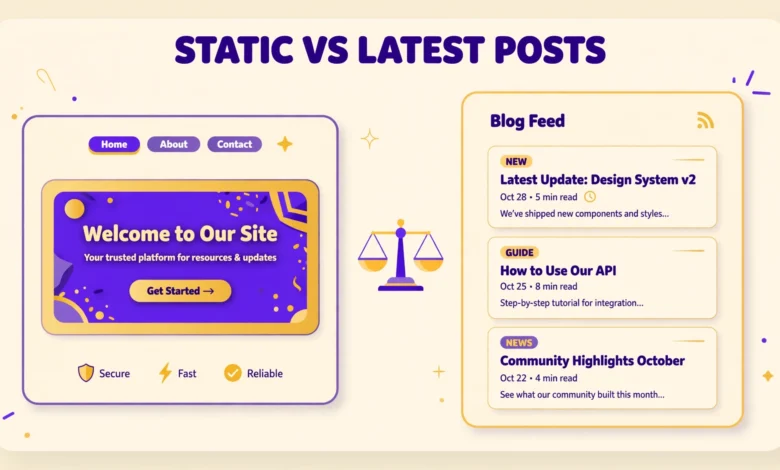
When you first install WordPress, your homepage shows your latest blog posts by default. That makes sense for a blog, but it is not right for every site. A business site usually wants a fixed welcome page with services, testimonials, and a contact button. A portfolio site wants a curated introduction, not a list of recent posts. WordPress lets you choose between these two setups, and picking the right one shapes how every visitor experiences your site.
In this guide, you will learn the difference between a static homepage and a latest posts homepage in WordPress, when to pick each option, and how to set it correctly in Settings, Reading. You will also learn how to create a separate posts page, avoid the common mistake of using the same page for both roles, and fix a homepage that does not look the way you expected.
What does a latest posts homepage do?
A latest posts homepage is a blog feed. Every time you publish a new post, it appears at the top of your homepage, pushing older posts down the page. Visitors see your newest content first, without clicking into a blog section. This is the default WordPress behavior, and it is ideal when fresh content is the main reason people visit your site.
This setup works best for news sites, personal blogs, magazines, and tutorial sites where readers come back to see what is new. It also helps search engines discover new posts quickly, because the homepage updates often and links to the newest content. The downside is control. You cannot easily design a fixed welcome message, a services section, or a custom layout, because the homepage content changes every time you publish.
With a latest posts homepage, your site still has a homepage, but it does not have a single editable page behind it in the usual sense. WordPress generates the feed automatically from your posts. You can control how many posts appear per page in the Reading settings, and your theme controls how each post looks in the feed, but you do not write the homepage content as one page.
What does a static homepage do?
A static homepage, also called a static front page, is a normal WordPress page that you choose as your homepage. Its content stays the same until you edit it. You can design it with the block editor or a page builder, add headings, images, buttons, testimonials, pricing sections, and anything else your site needs. Visitors always see that same designed page first, no matter how many posts you publish.
This setup works best for business websites, portfolios, landing pages, agencies, restaurants, and online stores. A visitor landing on a business site wants to understand what you offer within seconds, not scroll through blog posts to find it. A static homepage lets you control that first impression completely, with a clear headline, a call to action, and the most important information in one place.
Choosing a static homepage does not mean you lose your blog. WordPress lets you pick a second page, called the posts page, where your blog feed lives. Visitors can still read all your posts by clicking Blog or News in your menu. The difference is that your blog no longer takes over the front door of your site. Your homepage welcomes people, and your blog page holds your articles.
Static page vs latest posts: which should you choose?
The right choice depends on the main job of your site. Ask yourself what a first time visitor should do in the first ten seconds. If the answer is read your newest article, choose latest posts. If the answer is understand your business, view your work, or contact you, choose a static page. There is no universally correct answer, only the answer that matches your goal.
- Choose latest posts if you run a blog, news site, magazine, or personal journal where new content is the product.
- Choose latest posts if you publish daily or weekly and want returning readers to see new posts immediately.
- Choose a static page if you run a business, agency, portfolio, restaurant, clinic, or online store.
- Choose a static page if you want a designed landing experience with a headline, services, and a contact button.
- Choose a static page if your homepage needs to stay consistent for ads, social links, or search results.
- Choose a static page if you still blog, but blogging is secondary to selling a service or showcasing work.
If you are still learning the WordPress basics, our WordPress dashboard explained for beginners guide will help you find the settings mentioned here. After installing WordPress, our things to do after installing WordPress checklist also covers homepage and reading settings as part of the initial setup.
How to set a static homepage in WordPress
Setting up a static homepage takes three steps: create the homepage, create a posts page if you want a blog, and select both in the Reading settings. Do the pages first, because the settings screen can only select pages that already exist.
First, create your homepage. Go to Pages, Add New, and give it a clear title such as Home. Add your welcome content with the block editor: a headline explaining what you do, a short introduction, your main services or work, and a button that sends visitors to contact or pricing. Publish the page. Do not worry about making it perfect on the first try. You can edit it any time, and it will update on the homepage immediately.
Second, create a posts page if you still want a blog. Go to Pages, Add New, and title it Blog or News. Do not add content to this page. That sounds strange, but it is how WordPress works. When a page is assigned as the posts page, WordPress ignores any content you type in it and shows the blog feed instead. Leave the content area empty, publish the page, and move on to settings.
Third, go to Settings, Reading in the dashboard. Under “Your homepage displays”, select “A static page”. Two dropdowns will appear. Set Homepage to your Home page, and set Posts page to your Blog page. Click Save Changes. Visit your site address in a new browser tab to confirm the homepage now shows your designed page, and visit the Blog page to confirm it shows your posts.
How to set a latest posts homepage
To use a latest posts homepage, go to Settings, Reading and select “Your latest posts” under “Your homepage displays”, then save. That is the whole setup. Your homepage will immediately show your newest posts in reverse chronological order, with the newest post first.
On the same Reading screen, you can control how the feed behaves. The “Blog pages show at most” setting controls how many posts appear on one page before pagination begins. Setting this to 10 is a common choice, but a lower number such as 6 can make the homepage load faster and feel less overwhelming. The “Search Engine Visibility” checkbox on this screen is unrelated to the homepage choice, but make sure it stays unchecked on a live site, or search engines may ignore your whole site.
If you use categories and tags to organize posts, our WordPress categories vs tags guide explains how to structure them well. Good categories make a latest posts feed easier to browse, because readers can filter by topic instead of scrolling through everything. For clean post URLs in the feed, see our WordPress permalink structure guide as well.
Common mistakes to avoid
- Using the same page for homepage and posts page. WordPress will not let this work correctly, and one of the two will not display as expected. Always use two different pages.
- Adding content to the posts page and wondering why it never shows. WordPress replaces posts page content with the blog feed, so leave that page empty.
- Forgetting to add the Blog page to your menu. If visitors cannot find the blog, they may think you stopped publishing. Add Blog to your main menu after setup.
- Setting a static homepage but leaving the old blog feed as the menu Home link. Check that your Home menu item points to the site address, not to a specific blog URL.
- Expecting the static homepage to update automatically with new posts. It will not. New posts appear on the posts page, not on a static homepage, unless you add a latest posts block to it manually.
- Changing the Reading settings but not saving, or saving and then checking a cached page. Clear your browser cache or open a private window to see the real result.
One extra tip is worth knowing. You can add a Latest Posts block inside a static homepage if you want the best of both worlds. Your homepage can start with a designed welcome section, then show your three newest posts below it, with a button linking to the full blog page. This gives business visitors a clear introduction while still showing that your site is active. Many themes also offer a homepage template or front page section that does this automatically, so check your theme options before building it by hand.
What to do after changing your homepage setting
After you save the Reading settings, do a quick check from a visitor point of view. Open your site in a private browser window where you are not logged in, because logged in admins sometimes see extra toolbars and drafts that visitors never see. Confirm the homepage headline, images, and buttons look right. Click through to the blog page and confirm posts appear in the right order. Click your menu links and confirm Home and Blog go to different pages.
Also check mobile. More than half of most sites traffic comes from phones, and a homepage that looks good on desktop can feel cramped on a small screen. Scroll through the homepage on your phone, check that buttons are easy to tap, and confirm images do not overflow the screen. If something looks off, edit the homepage in the block editor and adjust spacing or image sizes, then check again.
Finally, run a quick health check. Our WordPress Site Health check explained guide shows how to spot issues after settings changes. For official documentation on reading settings, see wordpress.org and developer.wordpress.org.
Frequently asked questions
What is the difference between a static page and latest posts in WordPress?
A static page homepage shows one fixed page you design, and its content only changes when you edit it. A latest posts homepage shows a feed of your newest blog posts automatically, with the newest post first. The first suits business sites, while the second suits blogs and news sites.
Can I have both a static homepage and a blog in WordPress?
Yes. Choose a static page as your homepage and a different page as your posts page in Settings, Reading. Your homepage shows your designed welcome page, and your posts page shows your blog feed. Add the posts page to your menu so visitors can find it easily.
Why does my posts page show no content I typed?
WordPress ignores content typed into a posts page and replaces it with the blog feed. This is normal behavior, not an error. Leave the posts page content empty and let WordPress generate the feed from your published posts.
Can I change from latest posts to a static page later?
Yes, you can change the setting at any time in Settings, Reading without losing posts or pages. Create your homepage and posts pages first, select them in the Reading settings, save, and check both pages in a private browser window to confirm the change worked.
Last updated: October 2026.