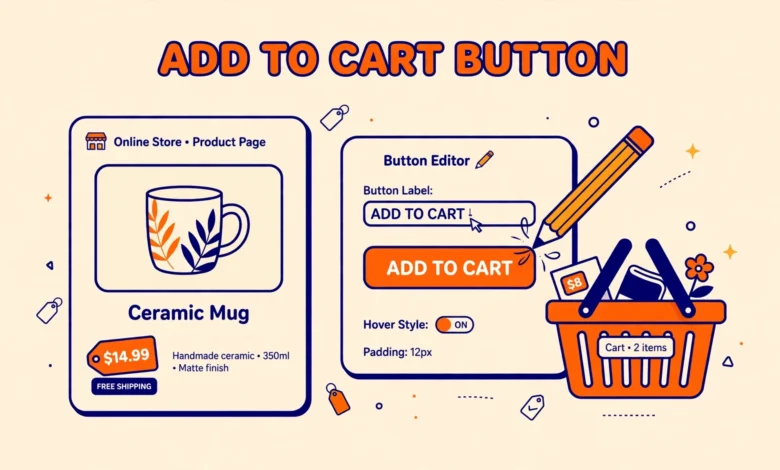
The default Add to Cart button works fine for most stores, but it does not fit every product. A digital course is not really added to a cart in the mind of the buyer, a booking is reserved rather than bought, and a free download should say Download Now instead of Add to Cart. Small wording changes like these can make a product page clearer, and they can lift conversions because the visitor knows exactly what happens next.
In this guide you will learn how to change the WooCommerce Add to Cart button text with a few lines of PHP. We will cover shop and archive pages, single product pages, different text for different product categories, and a short CSS note for styling the button. No paid plugin is required, and every snippet below is safe to use on a child theme.
Why Should You Change the Add to Cart Button Text?
The button is the last thing a visitor reads before buying, so its wording matters more than most store owners expect. Generic text works for physical products, but it feels wrong for other product types. A service business might prefer Book a Call, a membership site might prefer Join Now, and a store selling a free ebook might prefer Download Free. Matching the button text to the action removes hesitation and sets the right expectation before the click.
- Bookings and appointments: use Reserve Your Spot or Book Now
- Digital downloads: use Download Now or Get Instant Access
- Memberships: use Join Now or Start Your Membership
- Preorders: use Preorder Now so buyers know shipping comes later
- Free products: use Download Free or Claim Yours
Keep the text short. One to three words works best on mobile screens, where long button labels wrap awkwardly and push other page elements around. Test every new label on a phone before you call the job done.
Before You Start: Use a Child Theme
Every snippet in this guide belongs in your child theme functions.php file. If you edit the parent theme directly, your changes will vanish the next time the theme updates, and you will have to redo the work. If you do not have a child theme yet, read our guide on how to create a WordPress child theme first. It takes only a few minutes and protects all of your future customizations, not just this one.
Before pasting any code, take a quick backup of your site or at least of the functions.php file. A single typo in PHP can lock you out of wp-admin with a white screen, and a backup turns a stressful fix into a one minute restore.
How Do You Change the Button Text on Shop and Archive Pages?
The shop page, category archives, and related product sections all use the same filter, so one snippet changes the button everywhere products appear in a loop. Add this code to your child theme functions.php file:
add_filter( 'woocommerce_product_add_to_cart_text', 'vutechgeek_custom_add_to_cart_text' );

function vutechgeek_custom_add_to_cart_text() {
    return __( 'Buy Now', 'woocommerce' );
}
Replace Buy Now with whatever text fits your products. Save the file, clear your cache, and visit your shop page to see the new label. This filter only changes the label, not the button behavior, so checkout and cart totals keep working exactly as before. You can find the full list of WooCommerce filters in the official docs at developer.woocommerce.com.
How Do You Change the Button Text on Single Product Pages?
Single product pages use a different filter, so you need a second snippet if you want the product page button to match. Add this code below the previous one:
add_filter( 'woocommerce_product_single_add_to_cart_text', 'vutechgeek_custom_single_add_to_cart_text' );

function vutechgeek_custom_single_add_to_cart_text() {
    return __( 'Buy Now', 'woocommerce' );
}
Use the same text on both snippets so shoppers see a consistent label from the shop page to the product page. Note that variable products behave differently: on archive pages they show Select Options instead of Add to Cart, because the buyer must pick a variation first. If you sell variable products, our guide to WooCommerce product variations explains how that flow works.
How Do You Set Different Button Text for Different Product Categories?
Many stores sell mixed product types, and one label rarely fits them all. A store selling both courses and physical books might want Enroll Now on courses and Add to Cart on books. You can do this by checking the product category inside the filter:
function vutechgeek_category_add_to_cart_text( $text ) {
    if ( has_term( 'courses', 'product_cat' ) ) {
        return __( 'Enroll Now', 'woocommerce' );
    }
    return $text;
}
add_filter( 'woocommerce_product_add_to_cart_text', 'vutechgeek_category_add_to_cart_text' );
Replace courses with your own category slug, which is the lowercase, hyphenated version of the category name shown in Products and then Categories in your dashboard. Products outside that category keep the default text, so you can stack extra if blocks for more categories as your catalog grows. This technique pairs well with other store tweaks, such as learning how to create a coupon code in WooCommerce for a category specific promotion.
How Do You Style the Button with CSS?
New text sometimes needs new styling, especially if the label is longer than the original. A short CSS snippet can adjust the background color, corner rounding, and padding so the button still looks clean:
.woocommerce a.button.add_to_cart_button {
    background-color: #2271b1;
    border-radius: 6px;
    padding: 12px 24px;
}
Add this CSS in Appearance and then Customize and then Additional CSS, or follow our guide on how to add custom CSS in WordPress. Keep contrast high enough that the text stays readable on the button color, and always preview the result on mobile, where buttons stretch to full width on many themes.
Is There a Plugin Alternative?
Yes. Several free plugins in the WordPress plugin directory at wordpress.org let you change button text from a settings page with no code at all. That route suits store owners who never want to touch PHP. The code method in this guide is still worth learning, because it adds zero plugin overhead, costs nothing, and keeps working even if a plugin author stops updating their plugin. For a small one line change, code is usually the lighter choice.
What If the Button Text Does Not Change?
If the old label is still showing after you save, work through these checks in order before assuming the snippet is broken:
- Clear your browser cache, your caching plugin cache, and your host cache if your host provides one
- Confirm you edited the child theme functions.php file, not the parent theme file
- Check for a PHP syntax error: a white screen after saving means a typo, so remove the snippet and re-add it carefully
- Remember variable products show Select Options on archive pages, which is normal behavior, not an error
- Check whether your theme overrides WooCommerce templates, since a heavily customized theme may replace the button markup entirely
One more honest note: button wording will not rescue a slow store. If pages load sluggishly, shoppers leave before they ever read the button, so read our web hosting guide and make sure your store sits on hosting that can handle WooCommerce traffic.
Frequently Asked Questions
Will changing the button text affect checkout?
No. These filters only change the visible label on the button. The cart, checkout flow, pricing, and order processing all keep working exactly as before.
Can I change the button text for one product only?
Yes. Inside the filter function, check the current product ID with get_the_ID and return your custom text only when it matches. Every other product then keeps the default label, which is handy for a flagship product or a limited offer.
Does this method work with all themes?
It works with most themes, because the filters are part of WooCommerce itself. Themes that fully replace WooCommerce templates with custom markup are the exception, and in that case the theme documentation usually explains its own button settings.
Do I need a plugin to change the button text?
No. The PHP snippets in this guide do the job with no plugin at all. A plugin only makes sense if you want a settings page for nontechnical team members to edit the text later.
Last updated: October 2026.