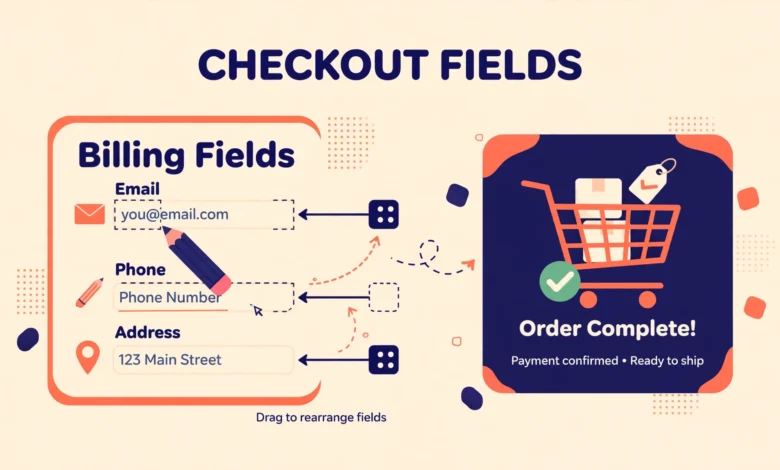
The default WooCommerce checkout asks for a standard set of billing and shipping details, and for many stores that set is close to perfect. But real stores often need something slightly different. A business that sells digital products may not need a shipping address at all. A store that delivers food may need a delivery note field. A wholesale shop may need a company tax number. Learning how to customize WooCommerce checkout fields lets you collect exactly the information you need, and nothing you do not, which keeps checkout shorter and reduces abandoned carts. This guide shows how to add, remove, rename, reorder, and validate checkout fields with a small amount of code, explains the important difference between the classic checkout and the newer block checkout, and covers the plugin route if you prefer not to write code.
How Do WooCommerce Checkout Fields Work?
WooCommerce builds the checkout form from a structured array of fields, grouped into billing, shipping, and account sections. Each field has a key, such as billing_first_name, plus settings for its label, placeholder, type, CSS classes, priority, and whether it is required. The filter woocommerce_checkout_fields lets you change that array before the form is drawn, which is why almost every code method in this guide uses it. Priority controls the order: lower numbers appear first, and the default fields use priorities in steps of ten, which leaves room for you to slot a new field between two existing ones. Field type matters too. A text field suits a short answer, a textarea suits a longer note, and a select field suits a fixed set of options. Getting the type right improves the experience on mobile, where the wrong keyboard or a cramped input can cost you a sale.
What Should You Do Before Changing Checkout Fields?
Checkout code touches money, so a little preparation pays off. First, add all snippets in this guide to a child theme functions file or a code snippets plugin, never to your parent theme, because a theme update would erase them. If you have not made one yet, follow our guide to create a WordPress child theme before you start. Second, back up your site or at least export your theme settings, so you can roll back quickly if a snippet causes an error. Third, test every change with a real test order using a payment method in test mode, and check that the order email and the order details screen in your dashboard show the new field values correctly. A field that looks fine on the checkout page but never reaches the order is worse than no field at all, because you will be missing information you thought you had collected. Keep checkout changes minimal, and only ask for details you will actually use.
How Do You Add a New Checkout Field?
Adding a field is the most common checkout customization. The example below adds a delivery instructions field to the billing section, placed after the address fields, and makes it optional so it never blocks a purchase. The label is what customers see, the placeholder gives a hint inside the empty field, and the class controls how wide the field sits on the form. Setting the priority to 120 places it below the standard address fields, which use lower priorities. After adding the snippet, the field will appear on the checkout page, but you will also need a second small snippet, shown later in the validation section, if you want its value saved and shown on the order screen. Many beginners stop at the first snippet and then wonder why the value never appears in the order, so treat adding and saving as two halves of one job.
add_filter( 'woocommerce_checkout_fields', 'vutechgeek_add_checkout_field' );
function vutechgeek_add_checkout_field( $fields ) {
    $fields['billing']['billing_delivery_notes'] = array(
        'type'        => 'textarea',
        'label'       => 'Delivery instructions',
        'placeholder' => 'Gate code, floor, or anything our driver should know',
        'required'    => false,
        'class'       => array( 'form-row-wide' ),
        'priority'    => 120,
    );
    return $fields;
}
How Do You Remove a Checkout Field?
Removing a field is even simpler: you unset it from the fields array. The example below removes the company field and the second address line from billing, which suits stores that sell to individual customers rather than businesses. Be careful with removals, though. Some fields are needed by payment gateways or shipping methods, and removing a field that a gateway expects can break payment or shipping calculations. Never remove the email field, because WooCommerce needs it to send order confirmations, and think twice before removing the country or postcode fields if you charge shipping based on location. The same unset pattern works for shipping fields by changing billing to shipping in the array key.
add_filter( 'woocommerce_checkout_fields', 'vutechgeek_remove_checkout_fields' );
function vutechgeek_remove_checkout_fields( $fields ) {
    unset( $fields['billing']['billing_company'] );
    unset( $fields['billing']['billing_address_2'] );
    return $fields;
}
How Do You Rename a Label or Change a Field to Optional?
Renaming a label and changing whether a field is required are two small edits that often fix real customer confusion. Some stores rename the company field to Business name, or rename the order notes field to something clearer for their audience. Changing required to false is useful for fields that are nice to have but should never block a sale, such as a phone number on a digital product store or a company name on a retail store. The snippet below does both: it renames the company label and makes the phone field optional. Remember that making a field optional does not remove it from the form. Customers can still fill it in, but they can also leave it blank and complete checkout.
add_filter( 'woocommerce_checkout_fields', 'vutechgeek_tweak_checkout_fields' );
function vutechgeek_tweak_checkout_fields( $fields ) {
    $fields['billing']['billing_company']['label'] = 'Business name';
    $fields['billing']['billing_phone']['required'] = false;
    return $fields;
}
How Do You Reorder Checkout Fields?
Field order is controlled by the priority setting, and the cleanest way to reorder is to set priorities explicitly for the fields you care about. The default WooCommerce fields use priorities in steps of ten, starting at 10 for first name, so you can insert a field at 15 to place it between two defaults, or move a field to 200 to push it to the bottom of its section. Reordering matters more than it seems. Customers fill forms top to bottom, so putting email and name first, then address, then payment details matches how most people think about an order. Avoid reordering so aggressively that related fields get split apart. Keep first name next to last name, and keep city, state, and postcode together, because splitting a logical group forces customers to jump around the form. If you also sell variable products, our guide to WooCommerce product variations is worth reading, since variation choices on the product page affect what customers expect at checkout.
How Do You Validate and Save a Custom Field?
A custom field that is required needs validation, and every custom field needs saving. Validation runs when the customer submits the form, and if a required custom field is empty, you show a notice and stop the order. Saving runs after checkout, and it stores the value as order meta so it appears on the order screen and in emails if your theme supports it. The two snippets below work together: the first checks a required custom field, and the second saves a custom field value. For a deeper reference on the checkout hooks, the documentation at developer.woocommerce.com lists the available filters and actions with examples. Only collect personal details you genuinely need.
add_action( 'woocommerce_checkout_process', 'vutechgeek_validate_custom_field' );
function vutechgeek_validate_custom_field() {
    if ( empty( $_POST['billing_delivery_notes'] ) ) {
        wc_add_notice( 'Please add delivery instructions.', 'error' );
    }
}

add_action( 'woocommerce_checkout_update_order_meta', 'vutechgeek_save_custom_field' );
function vutechgeek_save_custom_field( $order_id ) {
    if ( ! empty( $_POST['billing_delivery_notes'] ) ) {
        update_post_meta( $order_id, '_billing_delivery_notes', sanitize_textarea_field( $_POST['billing_delivery_notes'] ) );
    }
}
How Is the Block Checkout Different?
This is the part that catches many store owners out. WooCommerce now ships two checkouts: the classic shortcode checkout and the newer Checkout block. The filter methods in this guide work fully with the classic checkout, which is still the default for many stores. The Checkout block, however, renders its form from block settings and additional fields registered through a different API, so the classic filter will not add a visible field to it. If your site uses the Checkout block, you have three options. You can switch back to the classic checkout by replacing the Checkout block with the classic shortcode on your checkout page, which restores full filter support. You can use a checkout field editor plugin that supports blocks, as discussed below. Or you can register the field through the block checkout API, which needs more code and is best left to developers. To find out which checkout you use, open your checkout page in the editor: if you see a single Checkout block, you are on blocks, and if you see a shortcode, you are on classic.
When Should You Use a Plugin Instead of Code?
Code gives you full control and costs nothing, but a plugin is the better choice in several situations. If you need conditional fields that appear only when a customer picks a certain shipping method or product category, a plugin will do that with settings instead of complex code. If you need to reorder fields by dragging, show fields only for certain user roles, or add file uploads to checkout, a dedicated checkout field editor plugin will save hours. Plugins also tend to handle the block checkout better than hand-written classic filters, which matters if you plan to stay on blocks. The tradeoff is cost, plugin weight, and dependence on another vendor. For a simple add, remove, or rename, the code in this guide is cleaner. For conditional logic, role-based fields, or block support, a well-reviewed plugin is worth paying for. If you want to grow average order value while you are improving checkout, our guide to creating a WooCommerce coupon code pairs well with a shorter, cleaner checkout. You do not need special hosting to customize checkout fields, and any reliable plan from our web hosting guide will run a WooCommerce store fine, provided it meets WooCommerce memory and PHP requirements.
Frequently Asked Questions
Why does my new checkout field not appear on the checkout page?
The most common cause is using the Checkout block while adding the field with the classic filter, which the block does not use. Check whether your checkout page uses the Checkout block or the classic shortcode, then use the matching method. A caching plugin showing an old version of the page is another frequent cause.
Why does my custom field value not show on the order?
Adding a field only draws it on the form. You also need to save its value as order meta when checkout completes, as shown in the validation section. Without the save step, the value is submitted but never stored, so it cannot appear on the order screen or in emails.
Can I make the phone field optional in WooCommerce?
Yes. Set the required setting for billing_phone to false through the checkout fields filter. Customers can still enter a phone number, but checkout will no longer block them if they leave it blank. Keep it required if you need it for delivery coordination.
Is it safe to remove the billing address for digital products?
For purely digital stores, many owners simplify billing or hide shipping fields entirely, but check your payment gateway first. Some gateways require a billing address for fraud checks, so test a full payment in test mode after any removal to make sure checkout still completes.
Last updated: October 2026.