After a customer places an order, the most common question they ask is simple: where is my order? If your store has no clear place to answer that question, those customers will email you, message you on social media, or worry that something went wrong. A dedicated order tracking page solves this problem neatly, and WooCommerce already includes the tool you need. You do not need to buy a plugin or write custom code to give customers a self service way to check their order status.
This guide shows you how to add an order tracking page in WooCommerce without a plugin. You will learn how the built-in shortcode works, how to create the page correctly, where to link it so customers can actually find it, how guest lookup works, what the page does not show, and what to do when you need real carrier tracking. By the end, your store will have a professional order lookup page that reduces support messages and builds trust.
What Is a WooCommerce Order Tracking Page?
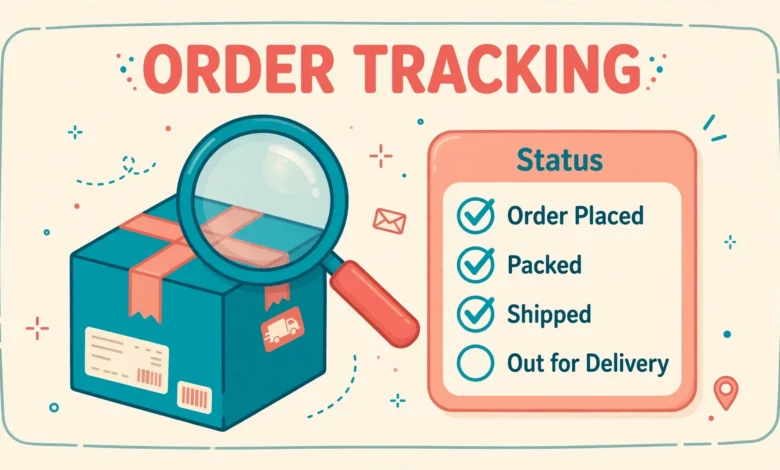
An order tracking page is a single page on your store where a customer can enter their order number and billing email address, then see the current status of that order. WooCommerce calls this the order tracking form, and it is built into the core plugin. When a customer submits the form, WooCommerce looks up the matching order and shows its status, such as processing, completed, on hold, or cancelled, along with basic order details.
How Does the Built-In Order Tracking Shortcode Work?
WooCommerce provides a shortcode that displays the order tracking form on any page. A shortcode is a small piece of bracketed text that WordPress replaces with dynamic content when the page loads. In this case, the shortcode renders a form with two fields, one for the order ID and one for the billing email, plus a Track button. After submission, the same page shows the order status and a summary of the order.
The shortcode you need is shown below. When you paste it into your page, keep the brackets exactly as shown. If you are writing about the shortcode inside a post, the brackets are encoded so WordPress does not execute it as a live form, but on your actual tracking page you paste the real shortcode normally.
[woocommerce_order_tracking]
That is the whole technical requirement. There is no setting to enable, no extra plugin to install, and no code to add to your theme. If WooCommerce is active on your site, the shortcode is already available. If the form does not appear after you publish the page, the usual cause is that the shortcode was typed with a spelling mistake, or it was pasted into a block that treats it as plain text in a way that breaks it. We cover that troubleshooting step later in this guide. For the official shortcode reference, see the documentation at WooCommerce.com and the developer reference at Developer.WooCommerce.com.
How Do I Create the Order Tracking Page?
Creating the page takes only a few minutes. Start in your WordPress dashboard, then follow the steps below in order. Choose a clear page title that customers will understand at a glance, such as Track Your Order. Avoid clever titles here, because customers search for plain words when they are worried about an order.
- Go to Pages, then Add New, and give the page the title Track Your Order.
- Add a short introduction above the form, for example: Enter your order number and the email address you used at checkout to see your order status.
- Add a Shortcode block, then paste the order tracking shortcode into it.
- Publish the page, then open it in a private browser window to confirm the form appears correctly.
- Test the form with a real test order, using its order number and billing email, to confirm the status displays as expected.
The introduction sentence matters more than it looks. Many customers do not know their order number off the top of their head, so tell them where to find it: in the order confirmation email, or in the My Account area under Orders. A single helpful sentence prevents a second round of confused messages. You can also add a short note telling customers to contact you if the form says no order was found, with a link to your contact page.
Where Should I Link the Order Tracking Page?
A tracking page only helps if customers can find it. The most common mistake store owners make is creating the page and then never linking it anywhere, so customers keep emailing instead. Place the link in every spot where a customer would naturally look for order help.
- Main navigation menu: add Track Your Order to your header menu or footer menu, where it is visible on every page.
- Footer: the footer is a natural place for help links, and many customers scroll there when they need support.
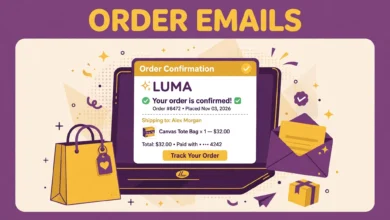
- Order confirmation email: WooCommerce order emails already include order details, and adding a link to the tracking page in your email template or email text gives customers a place to return to later.
- Thank you page: after checkout, customers are already thinking about their order, so a link on the order received page is timely and useful.
- Contact and FAQ pages: if a customer visits your contact page to ask about an order, a tracking link there can answer the question before they send a message.
How Does Guest Order Lookup Work?
Guest lookup is the reason this page is so valuable. A guest customer did not create an account, so they cannot log in to see their orders. The tracking form solves this by matching two pieces of information together: the order ID and the billing email address used at checkout. Both must match the same order, which prevents a stranger from guessing an order number and seeing someone else’s details.
What Does the Tracking Page NOT Show?
This is the point where expectations need careful handling. The built-in WooCommerce tracking page shows your store’s internal order status, not live carrier tracking. It will tell a customer that an order is processing, completed, or on hold. It will not show a map, a delivery vehicle location, or a carrier scan history such as “package arrived at sorting facility.” Customers who expect courier style tracking will be disappointed if you promise more than the page delivers.
Be honest on the page itself. A short note such as “This page shows your order status in our store. For courier tracking, use the tracking number in your shipping email once your order has been dispatched” sets the right expectation and prevents complaints. If you use cash on delivery, this distinction matters even more, because many cash on delivery customers expect updates after dispatch. Our guide on cash on delivery in WooCommerce explains how that payment method affects order flow and customer communication.
What If I Need Real Carrier Tracking?
When your store ships with a courier that provides tracking numbers, you have a few honest options, depending on your budget and order volume. The simplest option costs nothing: paste the carrier tracking number and a link to the carrier tracking site into the customer note or the completed order email when you mark the order as shipped. The customer clicks through to the carrier site for live scans, while your WooCommerce page continues to show the store order status. This manual step works well for low volume stores.
Also consider your hosting and store performance when you add tracking features. Extra plugins and external tracking scripts can slow order pages, so keep your store lean and test page speed after any change. Our web hosting guide explains how hosting quality affects WooCommerce performance, which matters most on checkout and account pages where customers are least patient with delays.
How Do I Troubleshoot a Tracking Page That Does Not Work?
Most tracking page problems have simple causes. Work through this checklist in order, testing the page after each step, so you find the real cause instead of changing several things at once.
- Form does not appear: confirm the shortcode spelling, and confirm it sits inside a Shortcode block rather than a paragraph block that may display it as text.
- Form appears but finds no orders: test with an order you created yourself, and double check the order number and billing email match exactly.
- Page shows a 404 error: re-save your permalink settings under Settings, then Permalinks, which regenerates rewrite rules.
- Page looks broken after a theme change: switch briefly to a default theme to test whether your theme styles are interfering with the form layout.
- Customers report the page is slow: check for plugin conflicts and caching rules, since account and tracking pages should never be served from a static cache.
If the form works for you but not for a specific customer, the problem is almost always the lookup details, not the page. Ask for a screenshot of what they entered, with any sensitive details partially hidden, and compare it with the order record in WooCommerce, then Orders. That comparison resolves most reports in minutes. For stores that deal with many abandoned checkouts, reducing confusion at every step helps, and our guide on how to recover abandoned carts in WooCommerce for free covers related checkout improvements.
Frequently Asked Questions
Do I need a plugin to add an order tracking page in WooCommerce?
No. WooCommerce includes a built-in order tracking shortcode that displays a lookup form on any page. Create a page, add the shortcode in a Shortcode block, publish it, and link it from your menu and footer. You only need a plugin if you want live carrier tracking with tracking numbers and courier scan updates.
Can guest customers track their orders without an account?
Yes. Guest customers can use the tracking page by entering the order ID and the billing email address used at checkout. Both values must match the same order. Guests cannot see other orders or change order details through this form, which keeps each customer’s information private.
Why does the tracking form say no order was found?
The usual causes are a wrong order number, a different billing email address than the one used at checkout, or entering a payment provider transaction ID instead of the WooCommerce order number. Ask the customer to check their confirmation email and compare both values character by character with the order record in your dashboard.
Does the WooCommerce tracking page show courier or parcel location?
No. The built-in page shows your store’s order status, such as processing or completed. It does not show live courier scans or delivery locations. For carrier tracking, send customers the courier tracking number and link at dispatch time, or use a shipment tracking plugin that supports your courier.
Last updated: November 2026.