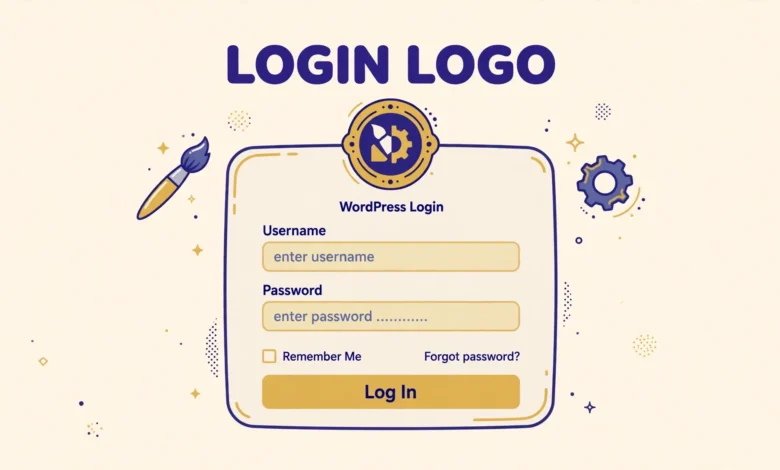
Every WordPress site shows the same WordPress logo on its login page by default. It looks fine on a fresh install, but it looks unfinished on a client site, a membership site, or a store where every other page carries your own brand. Visitors notice the mismatch, and clients often ask why their own logo is missing from the one page they visit every day.
You do not need a plugin to change the WordPress login logo. A short CSS snippet hooked into the login page is enough, and it takes only a few minutes once your logo file is ready. This guide shows how to prepare the logo, add the snippet safely, change where the logo links to, and test the result.
Why Should You Brand the WordPress Login Page?
The login page is the front door of your WordPress admin area. You see it every time you log in, your clients see it, and your team members see it. A branded login page tells everyone at once that they are in the right place, on the right site, with the right owner. That small signal builds trust, especially on client sites where the owner may not know WordPress well.
Branding the login page also finishes the job that your theme and site logo started. Your home page, your header, and your emails all carry your brand, so a default WordPress logo on the login screen stands out as unfinished work. It costs nothing, it takes minutes, and it stays in place through WordPress updates when you add it the right way.
There is one limit to keep in mind. Changing the logo is a branding change, not a security change. A custom logo does not hide your login page, stop brute force attacks, or make your password stronger. If you also want real login security, read our guide on how to limit login attempts in WordPress without a plugin after you finish this one, because that guide covers the protection side that a logo cannot provide.
How Do You Prepare the Right Logo File?
Start with the logo file itself, because a good snippet cannot fix a bad image. The login logo sits in a small space above the login form, so a wide and short logo works best. Aim for a file about 320 pixels wide and 80 pixels tall, which gives a clear image on normal screens and stays sharp on retina screens when you use a high resolution source.
- SVG: best for simple logos, sharp at every size, tiny file size.
- Retina PNG: best for detailed logos, export at twice the display size for sharpness.
- Transparent background: avoids a visible white box on the light grey login page.
- Small file size: keep it under 100 kilobytes so the login page stays fast.
Upload the finished logo through the Media Library, from Media and then Add New in your WordPress dashboard. After the upload finishes, click the file and copy its full URL from the file details panel. You will paste that URL into the snippet in the next section, so keep the Media Library tab open or paste the URL into a safe note.
Method 1: Change the Logo With the login_enqueue_scripts Hook
The safe way to change the login logo is the login_enqueue_scripts hook. WordPress runs this hook only on the login, registration, and password reset screens, so the CSS you add through it never affects your front end or your dashboard. The snippet below replaces the default logo image with your own file by styling the link element that WordPress uses for the logo. The official hook reference at developer.wordpress.org confirms that this is the proper hook for login page styles and scripts.
Add the snippet to a child theme functions.php file or to the Code Snippets plugin, and never add it to your parent theme functions.php file. A parent theme update overwrites functions.php and deletes your change without warning, while a child theme keeps it safe. If you have not used custom CSS in WordPress before, our guide on how to add custom CSS in WordPress explains the safe places to put custom code.
function vtg_custom_login_logo() {
    ?>
    <style type="text/css">
        #login h1 a {
            background-image: url(https://yoursite.com/wp-content/uploads/custom-logo.png);
            background-size: 320px 80px;
            width: 320px;
            height: 80px;
            background-repeat: no-repeat;
        }
    </style>
    <?php
}
add_action( 'login_enqueue_scripts', 'vtg_custom_login_logo' );
Replace the example image URL in the snippet with the real URL of the logo you uploaded to the Media Library. Set the width, height, and background size to match your own logo dimensions, so the image is not stretched or cropped. Save the snippet, then open your login page in a private browser window to see the change. Never edit wp-login.php to change the logo, because that file is part of WordPress core, and every WordPress update overwrites it and deletes your edit.
How Do You Change the Logo Link and Link Text?
By default, the login logo links to wordpress.org. That is polite, but it sends your visitors and your clients away from your site, and it does nothing for your brand. Change the link so it points to your own home page instead. WordPress provides a filter called login_headerurl for exactly this purpose, and a one line snippet is enough to use it.
function vtg_login_logo_url() {
    return home_url();
}
add_filter( 'login_headerurl', 'vtg_login_logo_url' );

function vtg_login_logo_text() {
    return 'Back to VU Tech Geek';
}
add_filter( 'login_headertext', 'vtg_login_logo_text' );
The first part changes the link target to your home page, and the second part changes the link text that screen readers announce for the logo. That text matters for accessibility, because a visitor using a screen reader hears the link text instead of seeing the logo. Do not use login_headertitle for this job. That filter set the title attribute on the logo link in older WordPress versions, but it has been deprecated since WordPress 5.2, and WordPress now uses login_headertext instead.
How Do You Test the New Login Logo?
Test the logo before you tell anyone about it, because a small CSS mistake can hide the logo completely or stretch it into an unreadable shape. Log out of WordPress, then open yourdomain.com/wp-login.php in a private or incognito browser window. A private window shows the page as a logged out visitor sees it, without your admin bar or cached styles getting in the way.
- Logo visible: your logo appears above the form, with no WordPress logo left behind.
- Sharp image: edges look clean on a normal screen and on a phone screen.
- Correct size: the logo is not stretched, squashed, or cut off at any edge.
- Link works: clicking the logo takes you to your home page, not to wordpress.org.
- Form still works: you can log in normally with your usual username and password.
Test on a phone as well as on a desktop, because the login page layout is narrower on mobile and a wide logo can overflow the small screen. Clear your browser cache and any caching plugin cache if the old logo still shows after you save the snippet. If the logo does not appear at all, check the image URL first. Open the URL in a browser tab on its own: if it shows a 404 error, the URL in your snippet is wrong, and you need to copy the correct URL from the Media Library again.
What Else Can You Customise on the Login Page?
Once the logo is changed, you can customise the rest of the login page with the same hook and the same safe method. A light background colour, a matching button colour, and a small footer note can make the page feel fully branded without any plugin. Keep the changes subtle, because the login form must stay easy to read and easy to use.
You can also change the login page background, the button colour, and the link colours with extra CSS inside the same login_enqueue_scripts function. Add one rule at a time and test after each addition. If you want a fuller login page redesign, read our guide on how to customise the WordPress login page without a plugin, which builds on the same hook and covers backgrounds, forms, and buttons in detail. Keep a backup of your snippet in a safe note outside WordPress, so a theme change does not turn it into a fresh research task.
What Mistakes Should You Avoid?
- Editing wp-login.php or any WordPress core file, because updates overwrite those files.
- Adding the snippet to a parent theme functions.php file, because a theme update deletes it.
- Using login_headertitle, which has been deprecated since WordPress 5.2, instead of login_headertext.
- Uploading a tiny logo and stretching it large, which makes it look blurry on every screen.
- Using a logo with a white background on the light grey login page, which shows as a visible box.
- Forgetting to test the login form after the change, and finding out later that you cannot log in.
The most common mistake is the simplest one: pasting the snippet into the wrong place and then wondering why nothing changed. A snippet in a draft post, a widget, or the Customizer CSS box will not run on the login page, because only code in a loaded theme file or an active snippets plugin reaches login_enqueue_scripts. Put the snippet in a child theme or Code Snippets, save it, clear the cache, and test in a private window. For general WordPress help and documentation, wordpress.org is the authoritative source to check first.
Frequently Asked Questions
Can I change the WordPress login logo without a plugin?
Yes. Add a short CSS snippet with the login_enqueue_scripts hook that sets a new background image on the login logo link. Put the snippet in a child theme functions.php file or in the Code Snippets plugin, never in wp-login.php or a parent theme file.
What size should the WordPress login logo be?
About 320 pixels wide and 80 pixels tall works well for most logos. Use an SVG file for simple logos, or a retina PNG exported at twice the display size for detailed logos. Use a transparent background so no white box shows on the light grey login page, and set the width, height, and background size in your CSS to match your file.
How do I change where the login logo links to?
Use the login_headerurl filter and return home_url() from your function, so the logo links to your home page instead of wordpress.org. Use the login_headertext filter to set the link text for screen readers. Do not use login_headertitle, because that filter has been deprecated since WordPress 5.2.
Does changing the login logo improve WordPress security?
No. Changing the logo only changes how the login page looks, and it does not hide the login page or stop attacks. For real protection, use a strong password, limit login attempts, and keep WordPress, themes, and plugins updated. Treat the logo as branding, and handle security with separate measures.
Last updated: November 2026.