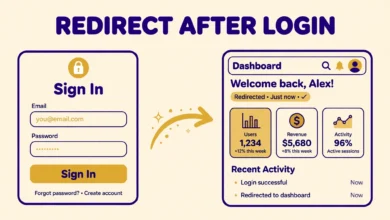
If your site has members, customers, students, or clients who log in, they need a clear way to sign in and sign out. Many WordPress sites hide the login page or force visitors to guess the wp-admin address. A login and logout link in the main menu solves the problem. It stays visible on every page and changes with the user state. You can add a login logout link to a WordPress menu without a plugin, using built in menu items, custom links, a small code snippet, or the Navigation block in a block theme.
In this guide you will learn four methods. You will start with the built in Login Logout menu item, which is the simplest option in classic themes. Then you will learn the custom link method, which gives you control over the URL and the label. Next you will learn a code method that shows Login to logged out visitors and Logout to logged in users automatically. Finally, you will learn how the same idea works in block themes with the Navigation block.
Why Should You Add a Login Logout Link to Your Menu?
A menu link is the most visible place for account actions. Visitors expect account links in the header, near the search icon or the cart icon. When the link is missing, users may try to log in through the admin bar or a footer link. A menu link also helps you control the user journey. A logged out visitor sees Login or Sign In. A logged in user sees Logout or Log Out, often beside a link to their account or dashboard. That small change makes a membership site, an online course site, or a WooCommerce store feel complete and professional.
The link also reduces support work. New members often ask where to log in after they register. A clear menu item answers that question before they ask it. Returning users can sign out safely from a shared computer because the logout action is easy to find. If your site has different user roles, read our guide on WordPress user roles explained first, so you understand what each role can do after login.
How Do You Add the Built In Login Logout Menu Item?
Classic WordPress themes include a built in Login Logout menu item, but it is hidden by default. Many owners never see it because the Screen Options panel hides it. This is the easiest method when your theme uses the classic menu system under Appearance and Menus. It needs no code and no custom URL.
Go to your WordPress dashboard, then Appearance, then Menus. Select the menu you want to edit, usually the Primary menu or Main menu. At the top right of the screen, click Screen Options. In the panel that opens, find the Boxes section and tick the Login Logout checkbox. A new Login Logout panel will appear on the left. Open that panel, tick the Log In and Log Out items, and click Add to Menu. Drag the item to the position you want, usually at the end of the menu, and click Save Menu.
This built in item is smart. It shows Log In to visitors who are logged out, and it shows Log Out to users who are logged in. You do not need two separate items. If you want different wording such as Sign In, click the small arrow on the menu item and change the Navigation Label. Keep the label short so it fits on mobile screens.
How Do You Add a Login Logout Link With a Custom Link?
The custom link method gives you full control over the label and the destination. Use it when you want a login link that goes to a custom login page, a membership page, or a WooCommerce My Account page instead of the default WordPress login screen.
Open Appearance, then Menus, and select your menu. On the left, open the Custom Links panel. In the URL field, enter your login page address. For the default WordPress login page, use your site address followed by wp-login.php, for example https://vutechgeek.com/wp-login.php. In the Link Text field, enter Login or Sign In. Click Add to Menu, drag the item into place, and click Save Menu. That covers login.
For logout, WordPress expects a URL that includes a nonce, which is a one time security token tied to the user session. The function wp_logout_url creates that URL for you, but you cannot paste a fresh nonce into a static menu link by hand, because the nonce changes for each user and each session. A plain link to wp-login.php?action=logout may show an error or fail to log the user out. Use the built in item or the code method below for logout. If you use a custom login page design, our guide on how to customize the WordPress login page without a plugin pairs well with this method.
How Do You Add a Dynamic Login Logout Link With Code?
The code method adds one menu item that changes automatically. Logged out visitors see a Login link. Logged in users see a Logout link that includes the correct nonce. This is the best method when you want one clean menu item and you are comfortable adding a small snippet. Add the code to a child theme functions file or a code snippets tool that runs PHP.
The snippet below hooks into wp_nav_menu_items. It checks whether the visitor is logged in. If not, it adds a login link that points to wp_login_url. If the visitor is logged in, it adds a logout link built with wp_logout_url, which adds the nonce for you. The example targets the primary menu location, so change the theme location name to match your theme if needed. Most themes use primary, main, or header as the location name.
add_filter( 'wp_nav_menu_items', 'vutechgeek_login_logout_menu_link', 10, 2 );
function vutechgeek_login_logout_menu_link( $items, $args ) {
    if ( 'primary' !== $args->theme_location ) {
        return $items;
    }
    if ( is_user_logged_in() ) {
        $items .= '<li class="menu-item"><a href="' . esc_url( wp_logout_url( home_url() ) ) . '">Log Out</a></li>';
    } else {
        $items .= '<li class="menu-item"><a href="' . esc_url( wp_login_url() ) . '">Log In</a></li>';
    }
    return $items;
}
Test the snippet carefully. Log out and open your site in a private window. You should see Log In in the menu. Click it and sign in. After login, the same menu position should show Log Out. Click Log Out and confirm that you are signed out and sent back to the home page. If the link does not appear, check the theme location name first. That is the most common mistake. If the link appears twice, remove the built in item from the menu and keep only the code version. For more detail on the functions used here, the official reference at Developer.WordPress.org documents wp_login_url, wp_logout_url, and wp_nav_menu_items with examples.
How Do You Add a Login Logout Link in a Block Theme?
Open Appearance, then Editor, then Navigation, or open the Site Editor and select the header template part. Click the Navigation block to edit the menu. Click the plus icon inside the navigation area and search for Login Out. Add the Login Out block. In the block settings, you can choose whether to show the login link, the logout link, or both, and you can set the redirect after logout. Save the template. Keep it at the end of the navigation list and check the mobile preview to confirm the link is easy to tap.
What Should You Watch Out For With Logout Links?
The logout nonce is the main security detail to understand. WordPress adds a nonce to logout URLs to stop other sites from logging your users out without their consent. A logout link without a nonce triggers a confirmation screen in recent WordPress versions, which asks Are you sure you want to log out. That screen is safe but confusing. Use wp_logout_url or the built in menu item so the nonce is always present. Never hardcode a logout URL with a nonce you copied from your own session, because that token will expire.
Redirects matter too. After logout, WordPress sends the user to the login page by default, unless you set a redirect. Most sites should send logged out users to the home page or to a page with a login button. You can pass a redirect URL to wp_logout_url, as in the code example above, where home_url is the destination. Also think about caching. A cached menu can show Log In to a user who is already signed in. Label the link in plain language. Log In and Log Out are clear. For login security beyond the menu, read our guide on how to limit login attempts in WordPress without a plugin.
How Do You Test the Login Logout Menu Link?
Test the link in both states before you call the job done. First, log out of WordPress and open your site in a private browser window. Confirm that the menu shows the login label and that clicking it opens the login page. Sign in with a test account, not your admin account, if you can. After login, return to the front of the site and confirm that the menu now shows the logout label. Click it and confirm that you are signed out. Repeat the test on a phone, because menu items can hide behind a mobile menu toggle.
If the label does not change after login, clear your cache and check whether a cache plugin is serving a cached header. If the logout click shows a confirmation screen, your logout URL is missing its nonce, so switch to the built in item or the code method. Choose the built in item for a classic theme, a custom link for login only, the code method for one dynamic item with a correct nonce, or the Login Out block for a block theme. All four methods need no plugin. Keep the menu clean. One login logout item is enough, placed last in the menu, with plain labels. For hosting basics that keep login pages fast, see our web hosting guide.
Frequently Asked Questions
Can I add a login logout link to a WordPress menu without a plugin?
Yes. In a classic theme, enable the Login Logout item under Screen Options in Appearance and Menus. In a block theme, add the Login Out block in the Navigation block. For full control, use a small code snippet with wp_nav_menu_items, wp_login_url, and wp_logout_url. None of these options needs a plugin.
Why does my logout link ask for confirmation?
WordPress asks for confirmation when the logout URL has no valid nonce. The nonce is a security token that stops other sites from logging users out without consent. Use the built in Login Logout item, the Login Out block, or wp_logout_url in code, because each of these adds the nonce for you.
Can I change the login link to go to a custom login page?
Yes. Use a custom link in the menu and point it to your custom login page URL. For logout, do not use a plain custom link, because it will lack a nonce. Use the code method with wp_logout_url and a redirect, or keep the built in item for logout and use the custom link for login only.
Why does the menu still show Log In after I log in?
This is usually a caching problem. A cached header may show the guest version of the menu to a logged in user. Clear the cache, check your cache plugin settings for logged in users, and test in a private window. Also confirm that you saved the menu and that the item is in the menu assigned to that display location.
Last updated: November 2026.