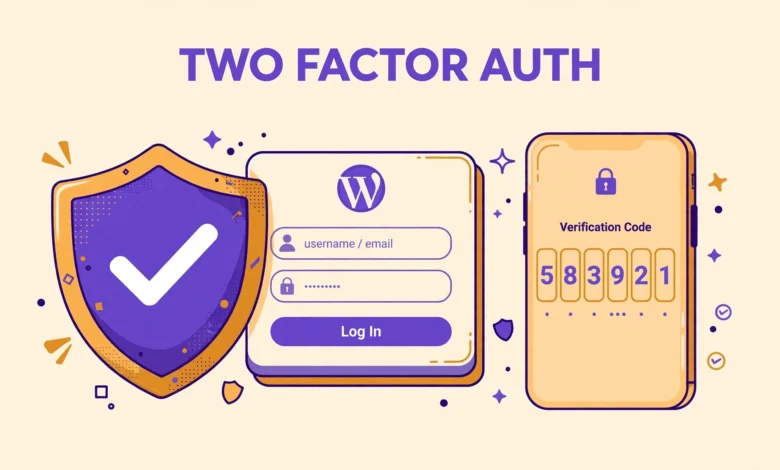
Two-factor authentication adds a second check after the password, and that second check stops most stolen password attacks. An attacker who guesses or buys a password still cannot log in without the second factor, which is usually a code from an app or an email inbox. That is why WordPress site owners keep asking for the same protection.
Here is the honest starting point: WordPress core has no built-in two-factor authentication. There is no setting to turn it on and no code prompt on the login form. The no-plugin route in this guide is a code snippet that adds an email one-time code. It is a real method, but it is not the same as a full authenticator app system. This guide explains that method, shows a short sample, explains its limits, and points to the practical plugin alternative.
Why Does Two-Factor Authentication Matter for WordPress?
WordPress login pages are public, and bots test them constantly with lists of leaked usernames and passwords. A strong password helps, but passwords leak in data breaches, get reused across sites, and get phished with fake login pages. Once a password leaks, a single factor login offers no further resistance.
Two-factor authentication matters even more on sites with several users. An editor, a shop manager, or a client with a weak password can become the entry point for the whole site, even if the administrator password is strong. If you have not hardened the login page yet, read our guide on how to limit login attempts in WordPress without a plugin first, because login limits and a second factor work best together.
It is also worth naming what two-factor authentication does not do. It does not fix an outdated plugin, a weak hosting setup, or a theme with a known flaw. It protects the login step only, so treat it as one strong layer in a wider plan, not as a complete security system on its own. Our web hosting guide covers the hosting side of that plan.
Does WordPress Core Have Built-In Two-Factor Authentication?
No. WordPress core does not include two-factor authentication, and no core update has added it. The login form asks for a username and a password only, and the authenticate filter lets developers add a second step, but core itself never prompts for a code. Any article that claims a hidden core setting turns it on is wrong, and any tutorial that shows a code field appearing by itself is showing a plugin at work without saying so.
That gap exists because two-factor authentication needs storage, delivery, recovery codes, and a verification screen, and those pieces differ from site to site. Some sites want app codes, some want email codes, and some want hardware keys, and core cannot pick one method for every site. Plugins fill that gap, and code snippets can fill it too, but the owner must choose the method and maintain it.
The method in this guide uses email codes. Email is already available on almost every WordPress install, it needs no app install, and it needs no secret key exchange. It is the simplest no-plugin route, and it is the one a code snippet can add with the least extra infrastructure. It is also the weakest of the common second factors, because email accounts get compromised too, and email delivery can be slow or unreliable.
How Does the Email Code Method Work?
The email code method adds a second step between the password check and the login itself. When a user enters a correct username and password, WordPress does not log them in yet. Instead, your snippet generates a six digit code, stores it briefly, emails it to the user, and shows a form that asks for the code. Only when the user enters the matching code does the login complete. If the code is wrong or expired, the login stays blocked.
- User enters a username and password on the normal login form.
- WordPress checks the password through the authenticate filter.
- Your code generates a six digit code with wp_rand() and stores it in a transient.
- WordPress emails the code to the address stored on the user account.
- User enters the code on a verification form to finish the login.
- WordPress deletes the code after use so it cannot be reused.
That flow needs three pieces: a hook that runs after the password check, a place to store the code for a few minutes, and a verification screen that accepts the code. Transients give you the storage piece, because a transient holds a value for a set time and then expires on its own. The wp_mail() function gives you the delivery piece. The sample below shows the first two pieces, the interception and the code generation.
function vtg_send_login_code( $user, $username, $password ) {
    if ( ! $user instanceof WP_User ) {
        return $user;
    }
    $code = (string) wp_rand( 100000, 999999 );
    set_transient( 'vtg_2fa_' . $user->ID, $code, 10 * MINUTE_IN_SECONDS );
    wp_mail( $user->user_email, 'Your WordPress login code', 'Your login code is ' . $code );
    return $user;
}
add_filter( 'authenticate', 'vtg_send_login_code', 30, 3 );
Read that sample carefully, because it shows the idea without pretending to be a finished system. It generates a code, stores it for ten minutes, and emails it, but it does not yet show the verification form, check the code the user types, or limit how many times a code can be tried. A production version needs all of those pieces, plus a lockout after too many wrong guesses.
What Are the Limits of a Hand-Built Email Code System?
An email code system is only as reliable as your email delivery. If your host blocks outgoing mail, if your messages land in spam, or if your mail provider delays delivery by several minutes, the ten minute code may expire before the user sees it. Test email delivery first with a password reset email, because that uses the same wp_mail() path. If reset emails arrive slowly or not at all, fix your mail setup first.
Email codes are also weaker than app codes. An attacker who controls the email account controls the second factor too, and email codes travel through mail servers that the site owner does not control. Authenticator app codes, known as TOTP codes, avoid that problem, because the secret never leaves the phone and the code changes every thirty seconds. Building TOTP by hand in PHP is complex, and it is not a sensible weekend project.
There is one more limit that catches many owners by surprise. A code snippet that changes the login flow affects every login, including logins from mobile apps and tools that use the REST API. If the snippet blocks a login method that your team relies on, work stops until you fix it. A well maintained plugin handles those edge cases and offers recovery codes for lost phones, while a hand-built snippet usually does not.
What Is the Practical Plugin Alternative?
For most site owners, the practical answer is the free Two Factor plugin by WordPress.org contributors. It adds email codes, authenticator app codes, and backup codes without any custom login code. Install it from Plugins and then Add New in the dashboard, search for Two Factor, install it, and activate it. Each user then turns on their preferred method from their own profile page.
The plugin route also gives you a clear upgrade path. Start with email codes if you want the simplest setup, then switch individual users to an authenticator app when they are ready, and keep backup codes in a safe place for the day a phone is lost. If a user loses access completely, an administrator can disable the second factor from that user profile, which is a recovery path a hand-built snippet rarely provides.
Choosing a plugin does not mean abandoning the no-plugin mindset. It means choosing the right tool for a security critical job. For example, our guide on how to disable XML-RPC in WordPress shows a login related hardening step that a short snippet handles well, while two-factor authentication is the kind of feature where a maintained plugin earns its place. The official plugin directory at wordpress.org lists the Two Factor plugin with its reviews and changelog.
How Do You Set Up Two-Factor Authentication Safely?
Whether you use the plugin or the code method, set it up in the same careful order. Start on a staging copy or a low traffic hour, and keep an administrator session open in a second browser while you test, so you can undo the change if the test login fails. Turn the second factor on for your own account first and confirm that the full flow works before you ask anyone else to use it.
- Confirm that password reset emails arrive quickly, because email codes use the same delivery path.
- Turn on the second factor for the administrator account first and test a full logout and login.
- Save backup or recovery codes in a password manager before you need them.
- Turn on the second factor for editors and shop managers next, one account at a time.
- Tell each user where their code comes from and what to do if it does not arrive.
- Keep a second administrator account with a tested recovery path.
After setup, watch the login logs for a few days. A sudden rise in failed code attempts can mean a bot is testing the login page, and that is the moment to check your login limits and your hosting firewall as well. If users report that codes arrive late, check your mail provider before you blame the plugin or the snippet, because slow mail is the most common cause.
What Mistakes Should You Avoid?
- Claiming that WordPress core includes two-factor authentication, because it does not.
- Deploying a code snippet on a live site without testing a full logout and login first.
- Using a code with no expiry, because a code that never expires is barely a second factor.
- Skipping backup codes, so a lost phone or a changed email address locks a user out for good.
- Turning the second factor on for every user at once, instead of testing it on one account first.
- Hand-rolling authenticator app codes without understanding secret storage and time synchronisation.
The most common mistake is treating the code sample in this guide as a complete system. It is an illustration of the interception and generation steps, not a drop-in replacement for a tested plugin. If you want the code route, build the verification form, the attempt limits, and the recovery path, and test all of them on staging. If you want protection today with the least risk, install the maintained plugin and save your backup codes.
Frequently Asked Questions
Does WordPress have built-in two-factor authentication?
No. WordPress core has no built-in two-factor authentication setting. You add it with a code snippet, such as the email code method in this guide, or with a plugin such as the free Two Factor plugin by WordPress.org contributors.
Can I add two-factor authentication to WordPress without a plugin?
Yes, with an email code snippet that intercepts the login, generates a six digit code, emails it, and verifies it before the login completes. The sample in this guide shows the interception and generation steps. A full system also needs a verification form, attempt limits, and a recovery path, which is why many owners choose the plugin instead.
Is email two-factor authentication as safe as an authenticator app?
No. Email codes are better than a password alone, but they are weaker than authenticator app codes, because email accounts can be compromised and email delivery can be slow. Authenticator app codes stay on the phone and change every thirty seconds. Use email codes as a starting point, then move to an app when you can.
What should I do if I lose my second-factor device?
Use a saved backup code to log in, then turn the second factor off and on again to set up a new device. If you have no backup code, ask a site administrator to disable the second factor from your user profile. Keep a second administrator account with a tested recovery path so one lost device never locks the whole site.
Last updated: November 2026.