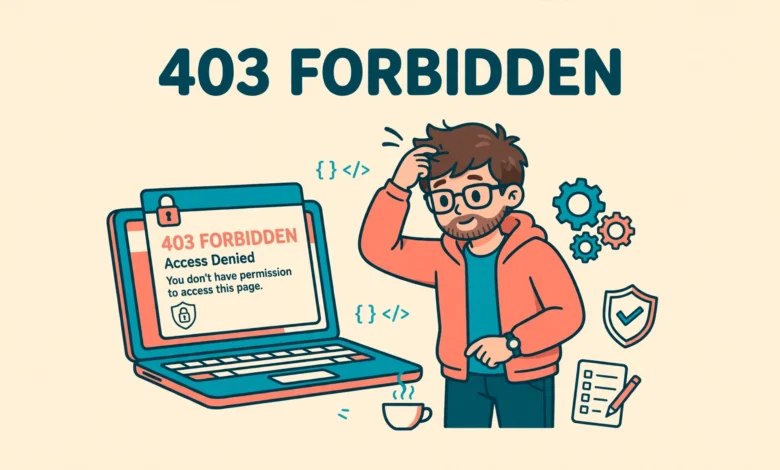
You open your WordPress site and instead of your homepage you see a plain page that says 403 Forbidden, or that you do not have permission to access this resource. Nothing else loads, and the message gives you almost no clue about what went wrong. The site itself is probably fine, but something between you and the site has decided you are not allowed in.
A 403 error is a permissions problem, not a broken site. WordPress, your server, a security plugin, or a firewall is refusing a request it thinks should not be allowed. The cause is usually one of a short list of suspects, and this guide works through them in order, from the quickest fix to the deeper ones, even if the error has locked you out of your dashboard.
What does a 403 Forbidden error mean in WordPress?
When a browser asks a server for a page, the server answers with a status code. A 200 code means everything is fine, a 404 means the page does not exist, and a 403 means the server understood the request but refuses to fulfil it. That refusal can come from WordPress itself, from the server software, from a security plugin, or from a firewall sitting in front of your site.
The tricky part is that a 403 can hit only one page, only the admin area, or the whole site. If only wp-admin is blocked but the front of the site loads, the problem is probably a security plugin or a rule in your .htaccess file. If the whole site is blocked, the cause is more likely file permissions, a firewall, or a server level rule. If your site shows a blank page instead of an error message, the cause is different, and our guide to fix the WordPress white screen of death covers that problem.
How do I tell what is causing my 403 error?
Before you change anything, read the error page carefully, because its branding often names the culprit. A plain white page with a short 403 message usually comes from your server or your .htaccess file. A styled page with a Cloudflare logo and a ray ID means Cloudflare or your host firewall blocked the request. A page that mentions Wordfence, Sucuri, or another security plugin by name means that plugin blocked you. Take a screenshot of the page for your host support team.
Next, check whether the error affects everyone or only you. Open the site in a private browser window and try your phone on mobile data instead of your WiFi. If the site loads on mobile data but not on your home connection, your IP address may be blocked. If the site is blocked everywhere, the problem is on the server side.
What should I try first when WordPress shows a 403 error?
Start with the simplest fixes, because a surprising number of 403 errors come from stale cookies or a bad cached page rather than a real permissions problem. Clear your browser cookies and cache for your site, or open the site in a private window, which ignores stored cookies. If the site loads in the private window, the problem was a corrupted cookie.
- Clear cookies and cache for your site, then reload the page in a normal window.
- Try a private or incognito window to rule out a bad cookie or a browser extension.
- Try another device or switch from WiFi to mobile data to rule out an IP block.
- Clear any caching plugin cache and your CDN cache if you can still reach the dashboard.
How do I disable a security plugin that locks me out?
Security plugins such as Wordfence and Sucuri protect your site by blocking suspicious requests, but they can also block you. A wrong firewall rule, a blocked IP, or a setting that is too strict can lock you out of the admin area or block the whole site. When you cannot reach the dashboard to turn the plugin off, you can disable all plugins from outside WordPress instead.
Log into your hosting account and open the file manager, or connect with FTP. Go to the wp-content folder and find the folder called plugins. Rename it to plugins-off. WordPress will deactivate every plugin at once, because it can no longer find the folder. Now try loading your site again. If the 403 error is gone, a plugin was the cause. Rename the folder back to plugins, then reactivate your plugins one at a time in the dashboard, testing the site after each one, until the error returns. The last plugin you activated is the culprit. Leave it off or check its settings. For a regular health check of your whole setup, read our guide to the WordPress Site Health check explained.
How do I regenerate a clean .htaccess file?
The .htaccess file is a small configuration file in your WordPress root folder that controls how the server handles requests. Security plugins, caching plugins, and redirect plugins all write rules into it. A single bad rule, a leftover rule from a deleted plugin, or a corrupted file can block your whole site with a 403 error.
Open your hosting file manager and go to the root folder of your site, the folder that contains wp-admin, wp-content, and wp-includes. The .htaccess file is hidden by default, so turn on the option to show hidden files. Download a copy as a backup, then delete the file from the server. Now log into your WordPress dashboard, go to Settings, then Permalinks, and click Save Changes without changing anything. WordPress will create a fresh .htaccess file with only the default rules.
# BEGIN WordPress
<IfModule mod_rewrite.c>
RewriteEngine On
RewriteCond %{REQUEST_FILENAME} !-f
RewriteCond %{REQUEST_FILENAME} !-d
RewriteRule . /index.php [L]
</IfModule>
# END WordPress
The code above is the clean default .htaccess content WordPress creates for a standard site. If your site still shows a 403 error after regenerating the file, the cause is not .htaccess, and you can move on to file permissions. If the error is gone, watch whether a plugin rewrites the file when you reactivate it, because a plugin that adds bad rules will bring the error back. A bad .htaccess file can also cause a 500 error, so if you ever see that one instead, our guide to fix the WordPress 500 internal server error uses a similar approach. The official documentation at developer.wordpress.org explains how WordPress uses this file.
How do I fix wrong file permissions in WordPress?
Every file and folder on your server has permission settings that decide who can read, write, and run it. WordPress expects folders to use permission 755 and files to use permission 644. If a folder is set to 777, many servers block it outright for security reasons. If a file is set to 600 or a folder to 700, the server may refuse to serve it, and visitors see a 403 error.
- All folders should be 755, which lets the server read and run them but not rewrite them freely.
- All files should be 644, which lets the server read them but keeps them safe from unwanted changes.
- The wp-config.php file should be 600 or 644, never 777, because it holds your database password.
- Never set anything to 777 on a live site, because it lets anyone on the server change the file.
You can fix permissions from your hosting file manager or from cPanel. In the file manager, select the folders and files that are wrong, open the permissions or chmod option, and set the correct numbers. Some hosts let you reset permissions for a whole folder at once, including everything inside it. Our guide to WordPress file permissions in cPanel walks through the exact clicks. After fixing permissions, clear your browser cache and reload the site. If only one page is still blocked, check the permission on that single file or its folder.
Could my CDN or host firewall be blocking me?
If you use Cloudflare or another CDN, the block may be happening before the request ever reaches your server. Cloudflare has its own firewall rules, bot protection, and rate limits, and these can block legitimate visitors, especially after many login attempts or quick form submissions. Log into your Cloudflare dashboard, open the Events log under Security, and look for your own IP address and the blocked requests. If you see your IP there, add it to the allow list, or turn on Development Mode briefly to test whether Cloudflare is the cause.
Your host firewall can cause the same problem. Many hosts run ModSecurity, a firewall that blocks requests matching known attack patterns. A plugin update, a form submission, or a post containing code can accidentally match one of those patterns and trigger a block. You usually cannot turn ModSecurity off yourself, but many hosts let you disable it from cPanel or the hosting panel. Turn it off briefly to test, and if the site loads, ask your host to whitelist the specific rule that blocked you rather than leaving the firewall off.
When should I contact my hosting provider?
Contact your host when you have tried the steps above and the error is still there, or when you cannot reach the file manager or the dashboard at all. The host can check the server error logs, which record the exact rule or permission that caused the block. Before you open a ticket, gather the facts: the exact URL that shows the error, a screenshot of the error page, the time it first appeared, and what you changed just before it started. Support teams solve these tickets far faster when they have that information up front.
Ask your host three specific questions: is my IP address blocked anywhere on the server or firewall, is ModSecurity blocking any rule for my site, and are the server error logs showing a permission or rule problem? Those three answers cover almost every server side cause of a 403 error. Most 403 errors are fixed by one of the steps in this guide, and the fix usually takes less than an hour once you know which layer is blocking you. If your host is slow or unhelpful, our web hosting guide explains what to look for in a host that takes support seriously. You can also find help in the community forums at WordPress.org.
Frequently asked questions
What causes a 403 Forbidden error in WordPress?
The most common causes are a corrupted .htaccess file, wrong file permissions, a security plugin blocking access, or a firewall rule at your CDN or host. Work through the fixes in order, starting with cookies, then plugins, then .htaccess, then permissions, then the firewall.
Can a 403 error fix itself?
Sometimes, if the cause is a temporary IP block or rate limit that expires after a few minutes. Most 403 errors do not fix themselves, because the rule or permission causing the block stays in place until someone changes it. If the error lasts more than an hour, start the fixes in this guide instead of waiting.
Is a 403 error the same as a 404 error?
No. A 404 means the page does not exist, while a 403 means the page exists but the server refuses to show it. A 404 is usually a wrong link or a deleted page, while a 403 is a permissions problem at the plugin, file, or server level.
Will fixing a 403 error hurt my SEO?
A short 403 error will not hurt your rankings, but a long one can, because search engines may drop pages they cannot reach for days. Fix the error quickly, then check that your important pages return a 200 status and are reachable in Search Console.
Last updated: November 2026.