Your WordPress site URL is the address WordPress uses to build links, load images, and point visitors to your content. When that address changes, because you moved to a new domain, switched from HTTP to HTTPS, or moved a local site to a live server, WordPress needs to know about it. If the stored URL still points at the old address, your site can redirect in circles, load broken images, or lock you out of the admin area completely.
The good news is that you do not need a plugin to fix this. WordPress stores its address in only two settings, and you can update them from the admin dashboard, from a single line in your wp-config.php file, from the database, or from the command line. In this guide you will learn all four methods, when to use each one, and what to do afterwards so every old link on your site keeps working.
What Is the Difference Between home and siteurl?
Before you change anything, you need to understand the two values WordPress keeps. The first is called home, and it is the address visitors type into their browser to reach your site. The second is called siteurl, and it is the address where the WordPress core files live. On most sites these two values are identical, because WordPress is installed in the main folder of the domain. When they match, your site works exactly as you expect.
The two values differ when WordPress lives in a subfolder. Imagine your site is at https://example.com, but the WordPress files sit in a folder called wordpress. In that case home is https://example.com while siteurl is https://example.com/wordpress. Visitors never see the subfolder, yet WordPress still knows where its own files are. Mixing these two values up is a common cause of a broken site after a URL change, so always update both.
Before You Start: Back Up Your Site
Changing a site URL touches the database, and a single typing mistake can make your site unreachable. Always make a full backup before you begin, including both the files and the database. A backup turns a stressful mistake into a five minute restore instead of a lost weekend. Our guide to backing up your WordPress database without a plugin walks through a free method you can use right now.
- Take a full backup of files and database before changing any URL.
- Write down the current home and siteurl values so you can restore them.
- Confirm the new domain resolves to your hosting account before you start.
- Keep your hosting control panel open in another tab for quick access.
Method 1: Change the URL in Settings, General
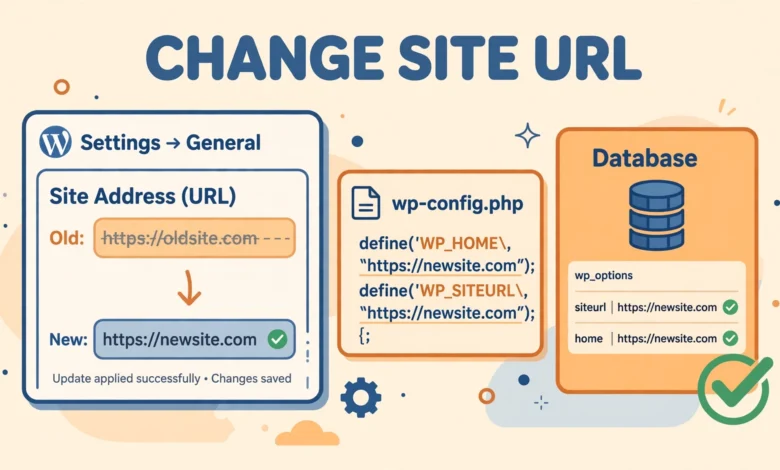
This is the simplest method, and it is the right choice whenever you can still log in to your WordPress admin area. Go to Settings, General in the admin sidebar. You will see two fields at the top of the page: WordPress Address (URL) and Site Address (URL). Replace both with the new address, making sure to include the correct protocol, either http:// or https://, and to leave out any trailing slash.
Click Save Changes at the bottom of the page. WordPress will log you out and redirect you to the new address, so log back in using the new URL. Your site should now load on the new address, although links inside your posts and pages will still point to the old one. That is normal, and you will fix those links later in this guide with a search and replace.
One warning: if you type the new address incorrectly here, you can lock yourself out of the admin area, because WordPress will redirect you to an address that does not exist. If that happens, do not panic. Method 2 below fixes exactly this situation, and it only takes a minute.
Method 2: Define the URL in wp-config.php
The wp-config.php method is the rescue method. It works even when you cannot log in to WordPress at all, because the two lines you add override whatever is stored in the database. Open wp-config.php in your hosting file manager or over FTP, and add these two lines above the line that says stop editing.
define( 'WP_HOME', 'https://example.com' );
define( 'WP_SITEURL', 'https://example.com' );
Replace https://example.com with your real new address in both lines. WP_HOME sets the home value and WP_SITEURL sets the siteurl value. Save the file, and your site should load on the new address immediately. You will also notice that the two URL fields on the Settings, General screen become greyed out, because the constants in wp-config.php now control them.
This method is a temporary fix as much as a permanent one. It is perfect for getting back into a locked site, but for a clean long term setup you should later update the database values with Method 3 or Method 4 and remove these two lines from wp-config.php. Keeping them forever is not harmful, but it hides the real values from the admin screen and can confuse a future developer who edits the settings there. The official WordPress documentation at developer.wordpress.org covers these constants and their exact behaviour.
Method 3: Update the URL in phpMyAdmin
phpMyAdmin gives you direct access to the database, so this method works even when the admin area is unreachable. Log in to your hosting control panel, open phpMyAdmin, and select your WordPress database from the left sidebar. Then open the wp_options table. Your table prefix may differ from wp_ if your installer used a custom prefix, so look for the table ending in _options.
Inside wp_options, find the row where option_name is siteurl and click Edit. Replace its option_value with the new address, then save. Do the same for the row where option_name is home. Both rows must be updated, or your site will behave strangely, with the front end on one address and the admin area on another. Log in to WordPress at the new address to confirm the change took effect.
You can also update both rows with one SQL query. Click the SQL tab in phpMyAdmin and run the following, replacing the example address with your own.
UPDATE wp_options SET option_value = 'https://example.com' WHERE option_name = 'siteurl';
UPDATE wp_options SET option_value = 'https://example.com' WHERE option_name = 'home';
Never run a plain SQL REPLACE across your whole database to change URLs. WordPress stores many settings as serialised data, where each value carries its own length. A raw REPLACE changes the text without updating the length, which corrupts the data and can break widgets, theme settings, and plugin options. Use a proper search and replace tool instead, as explained later in this guide.
Method 4: Change the URL With WP-CLI
WP-CLI is the command line interface for WordPress, and it is the fastest method once you are comfortable with a terminal. It needs SSH access to your server, which most good web hosts provide, but some budget shared hosts do not. If your host gives you a terminal or SSH access, this method is worth learning, because it handles the URL change and the old link cleanup in a few commands.
Connect to your server over SSH, move into your WordPress folder, and run these two commands, replacing the example address with your own. The first updates siteurl and the second updates home.
wp option update siteurl https://example.com
wp option update home https://example.com
WP-CLI also fixes old URLs inside your content in one step. The search-replace command scans every table, updates URLs safely inside serialised data, and reports how many replacements it made. Always run it with the dry run flag first so you can see what will change before anything is actually written.
wp search-replace 'http://oldsite.com' 'https://newsite.com' --all-tables --dry-run
wp search-replace 'http://oldsite.com' 'https://newsite.com' --all-tables
How Do I Fix Old URLs After the Change?
Changing home and siteurl only updates the address WordPress uses for new links. Every link already written inside your posts, pages, and widgets still points to the old address. Images embedded with the old URL will break, and internal links will send visitors to the old domain. This step is not optional, and it is where most people stop too early.
If you have WP-CLI, use the search-replace command from Method 4. It understands serialised data and updates URLs inside post content, widgets, and theme settings safely. If you do not have SSH access, use a trusted search and replace plugin, run it once, check the results, and then delete the plugin. Either way, search for both the http:// and https:// versions of the old address, because content written at different times may use either one. A related guide on how to move WordPress from localhost to a live server covers the same search and replace workflow in the context of a full migration.
What Should I Do After Changing the URL?
First, flush your permalinks. Go to Settings, Permalinks and click Save Changes without changing anything. This rebuilds the rewrite rules and prevents 404 errors on posts and pages. Our WordPress permalink structure guide explains why this step matters and which structure works best for most sites.
Second, set up 301 redirects from the old domain to the new one if you changed domains. A 301 redirect tells search engines and visitors that the move is permanent, and it passes most of your search ranking to the new address. Without redirects, every old link on the internet points at a dead site. Finally, clear every cache, update your address in Google Search Console and your social profiles, and check for mixed content warnings after an HTTP to HTTPS switch.
- Flush permalinks by saving the Settings, Permalinks screen.
- Add 301 redirects from the old domain to the new one.
- Clear plugin, hosting, and CDN caches.
- Update Google Search Console and your social profiles with the new address.
- Check for mixed content warnings after an HTTP to HTTPS switch.
What If I Am Locked Out of WordPress Admin?
Being locked out usually means the stored URL points somewhere wrong, and WordPress keeps redirecting your login attempts to that broken address. The wp-config.php method from Method 2 is the fastest way back in, because it overrides the database values without needing the admin area at all. Add the two define lines, save the file, and log in at the new address.
If you cannot edit files either, phpMyAdmin from Method 3 is your next option. Update the siteurl and home rows directly, then log in again. If both routes fail, the problem may be elsewhere, such as a bad redirect in your .htaccess file or a caching plugin serving a stale redirect. In that case, rename the .htaccess file temporarily and clear your browser cache before trying again. A staging site is a good place to practise a URL change first, so a mistake never touches your live site.
Frequently Asked Questions
Can I change my WordPress site URL without a plugin?
Yes. You can change it in Settings, General, by adding two define lines to wp-config.php, by editing the siteurl and home rows in phpMyAdmin, or with two WP-CLI commands. All four methods are built into WordPress and need no plugin.
What is the difference between home and siteurl in WordPress?
Home is the address visitors use to reach your site, while siteurl is the address where the WordPress core files live. They are usually identical. They differ only when WordPress is installed in a subfolder, in which case siteurl includes the subfolder and home does not.
Will changing the site URL break my images and links?
Links and images already written in your content keep pointing at the old address until you update them. Run a proper search and replace, either with WP-CLI or a trusted plugin, to update every old URL inside posts, pages, and widgets. Never use a plain SQL REPLACE for this, because it corrupts serialised data.
How do I change my WordPress URL if I am locked out of admin?
Add define lines for WP_HOME and WP_SITEURL to your wp-config.php file, above the stop editing line. These override the database values and let you log in again at the new address. Afterwards, update the database values properly and remove the two lines if you prefer a clean setup.
Last updated: November 2026.