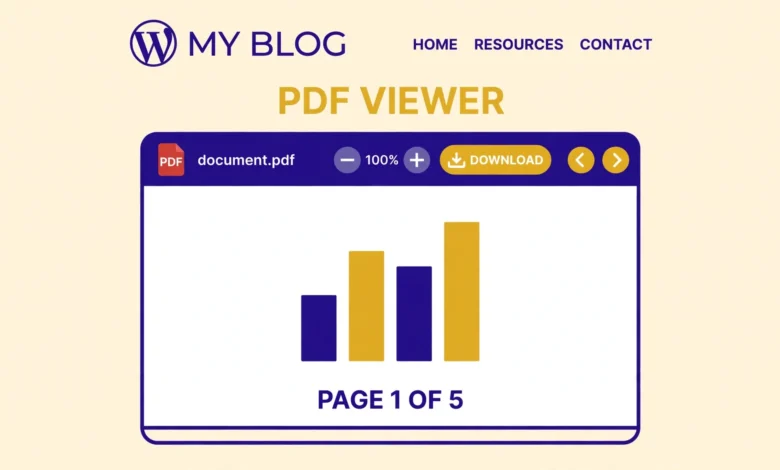
A PDF viewer lets visitors read a document right on your page instead of downloading it first. They can scroll through the pages, zoom in, and decide whether the file is worth saving, all without leaving your site. That small change keeps visitors on the page longer and makes documents such as brochures, menus, price lists, and guides much easier to use.
WordPress has no dedicated PDF viewer block, but you do not need a plugin to show a PDF inline. The File block can embed a PDF, and a simple iframe can do the same job with more control over height and width. A third option is the free Google Docs viewer, which suits large files but needs a public file URL. This guide covers each method, plus mobile behaviour, privacy, and fixes for the blank viewer problem.
Before you start, upload the PDF to the Media Library and copy its URL. Check the file size too. A PDF under 5 MB loads quickly and previews smoothly, while a 40 MB scanned catalogue can feel slow even on a fast connection. If your file is large, compress it first, then upload the smaller version. A smaller file also uses less hosting storage, so check your limits in our web hosting guide if you publish many large files.
What do you need before you start?
You need three things: the PDF file, its Media Library URL, and a page or post where the viewer will live. Upload the PDF from Media, then Add New, or from inside the editor with a File block. After the upload finishes, click the file in the Media Library and copy the File URL from the details panel. Methods 2 and 3 both need it.
Also decide what the visitor should be able to do. Some PDFs are meant to be read only, such as a menu or a price list, while others are meant to be downloaded, such as a worksheet or a form. The methods below all show the PDF inline, and you can add a download link under the viewer for files that visitors should keep.
Method 1: How do I embed a PDF with the File block?
Method 1 is the simplest way to add a PDF viewer in WordPress without a plugin. The File block has a built-in preview that shows the PDF inside the page. Add a File block, upload your PDF or pick it from the Media Library, and WordPress inserts the file with a preview and a download button. No code is needed at all.
- Open the page or post in the block editor.
- Click the plus icon and add a File block where you want the viewer.
- Upload your PDF or choose it from the Media Library.
- In the block settings on the right, turn on Show inline embed so the preview appears.
- Update the page and preview it while logged out.
The inline embed shows the PDF in a viewer with scroll and zoom controls, and visitors can also click the download button to save the file. The exact look depends on the visitor browser, because the browser itself renders the preview. One limit is height: the File block preview uses a fixed height, so a long document needs scrolling inside a fairly short window. If you want a taller viewer, use Method 2 instead.
Method 2: How do I embed a PDF with an iframe?
Method 2 uses an iframe, which is an HTML element that loads another page or file inside your page. It gives you control over the viewer width and height, which the File block does not. Add a Custom HTML block to the page and paste the code below, replacing the example URL with your own PDF URL from the Media Library.
<iframe src="https://example.com/wp-content/uploads/2026/11/guide.pdf" width="100%" height="700" style="border:1px solid #ddd;"></iframe>
<p><a href="https://example.com/wp-content/uploads/2026/11/guide.pdf" download>Download the PDF</a></p>
The height attribute sets the viewer height in pixels. A height of 600 to 800 works well on desktop, because it shows most of a page at once. The width of 100 percent makes the viewer fill the content area on any screen size. The second line adds a plain download link under the viewer.
Test the iframe in more than one browser before you publish. Chrome, Edge, and Firefox all have a built-in PDF viewer, so the PDF opens inline. Older browsers and some mobile browsers do not, and they may show a download prompt instead. That is the browser falling back to the only option it has, not a broken embed.
Method 3: How do I embed a PDF with the Google Docs viewer?
Method 3 uses the free Google Docs viewer, a Google service that renders a PDF inside an iframe. It is useful when the File block preview looks rough or when the PDF is large, because Google handles the rendering instead of the visitor browser. Add a Custom HTML block and paste the code below, replacing the example URL with your own PDF URL. The URL must be encoded, so special characters are written as percent codes.
<iframe src="https://docs.google.com/viewer?url=https%3A%2F%2Fexample.com%2Fwp-content%2Fuploads%2F2026%2F11%2Fguide.pdf&embedded=true" width="100%" height="700" style="border:1px solid #ddd;"></iframe>To build your own viewer URL, take your PDF URL and replace every colon with %3A and every slash with %2F, then place it after url= and before &embedded=true. A free online URL encoder can do this for you. One important condition applies: the PDF must be publicly reachable. Google fetches the file from your server, so a PDF behind a login wall or a protected folder will not load in the viewer at all.
The Google Docs viewer also adds a small delay on first load, because Google downloads and renders the file before showing it. It also shows a small Google toolbar with options to open the file in Google Docs. If that branding bothers you, or if you do not want Google fetching your files, use Method 1 or Method 2 instead.
Method 4: When is a dedicated PDF plugin worth it?
The no plugin methods in this guide are free, fast, and good enough for most sites. A dedicated PDF plugin is worth paying for when you need features that code alone cannot give you easily: page thumbnails, view analytics, flipbook style page turning, password protection for individual files, and click tracking on the download button. If you publish many PDFs and want to know which ones get read, those features pay for themselves.
A plugin is also the easier choice if you are not comfortable editing HTML at all. With a plugin you upload the PDF, pick a viewer style, and insert a block, with no code to copy and no URL to encode. The cost is a heavier site: another plugin to update and another script to load on pages with PDFs. For one or two PDFs on a small site, that cost is hard to justify. For a document library with dozens of files, the plugin wins on time saved.
How does a PDF viewer behave on mobile phones?
Mobile behaviour is the weakest part of every no plugin PDF method, so test it on a real phone before you publish. On Android, Chrome usually shows the PDF inline inside the iframe, though the controls are smaller. On iPhone, Safari often refuses to render a PDF inside an iframe and shows a download link or a grey box instead. That is a Safari limit, not a mistake in your code.
Because of this, always add a clear download link under the viewer, as shown in Method 2. Mobile visitors who cannot see the inline preview can still tap the link and read the PDF in their phone PDF app. Avoid placing the viewer inside a narrow column, because a squeezed viewer is unreadable on a phone screen. If mobile traffic is most of your audience, consider linking to the PDF directly and letting the phone handle it.
Should visitors view the PDF or download it?
Think about your goal for the document too. If the PDF is a lead magnet, keep visitors reading inline and add links inside the PDF that point back to your pages. If it is a reference, make the download obvious. The File block does both by default, which is one reason Method 1 is a good default choice. Before you change a finished page, read our guide to the WordPress dashboard explained for beginners and our backup guide for WordPress without a plugin.
What about privacy and public file URLs?
Every method in this guide assumes the PDF has a public URL. Files in the WordPress Media Library are public by default: anyone who knows the URL can open the file, even if no page links to it. Search engines can also find and index Media Library files. Never upload contracts, invoices, or anything with personal data to the Media Library and expect it to stay private.
The Google Docs viewer makes this more important, because Google downloads a copy of your file to render it. Only use Method 3 for documents you are happy to share publicly. For sensitive documents, keep them off the public Media Library and share them through a membership plugin or a password protected page instead. The official documentation at WordPress.org explains the Media Library, and the developer reference at developer.wordpress.org covers how uploads work under the hood.
Why is my PDF viewer blank?
A blank viewer is the most common problem with embedded PDFs, and the cause is usually simple. Work through this checklist in order, testing after each step, and you will find it in a few minutes.
- Open the file URL in a new tab. If the PDF does not open there, the URL is wrong or the file was deleted.
- Check for mixed content. If your site uses HTTPS but the PDF URL starts with HTTP, browsers block the file. Change the URL to HTTPS.
- Open the PDF on your computer. If it does not open there, the file is corrupt. Re-export and re-upload it.
- Clear your cache and test while logged out. A cached page can show an old viewer for a moved file.
- For the Google Docs viewer, wait a minute and reload. A first load can fail while a second load works.
- Try a different browser. If it works there, the problem is a browser setting, not your site.
If the viewer is blank only on phones, that is the mobile limit described above, not a broken embed. Add a download link under the viewer and move on. If it is blank everywhere, check whether a security plugin is blocking iframe embeds.
Frequently asked questions
Can I add a PDF viewer in WordPress without a plugin?
Yes. Use the File block with Show inline embed turned on, or add a Custom HTML block with an iframe that points to the PDF URL in your Media Library. Both show the PDF inside the page with no plugin.
Why does my PDF download instead of opening inline?
The visitor browser decides this. Some browsers and most phones prefer to download PDFs rather than render them inside a page. You cannot override that choice from WordPress, so keep a download link under the viewer.
Can I embed a PDF from Google Drive?
Yes, if the file is shared with anyone who has the link. Open the file in Google Drive, choose Share, and set access to anyone with the link, then use the preview link in an iframe. A private Drive file will show a blank viewer or a permission error.
What is the best PDF file size for a web page?
Aim for under 5 MB for a normal document. Compress images inside the PDF before you export it, and avoid scanned pages at very high resolution unless print quality is the point. Smaller files load faster and preview sooner.
Last updated: November 2026.