Imagine updating a plugin and watching your homepage turn into a blank white screen during your busiest hours. Every minute it stays broken costs you visitors and sales. That is why experienced site owners never test changes on a live website. They use a staging site instead.
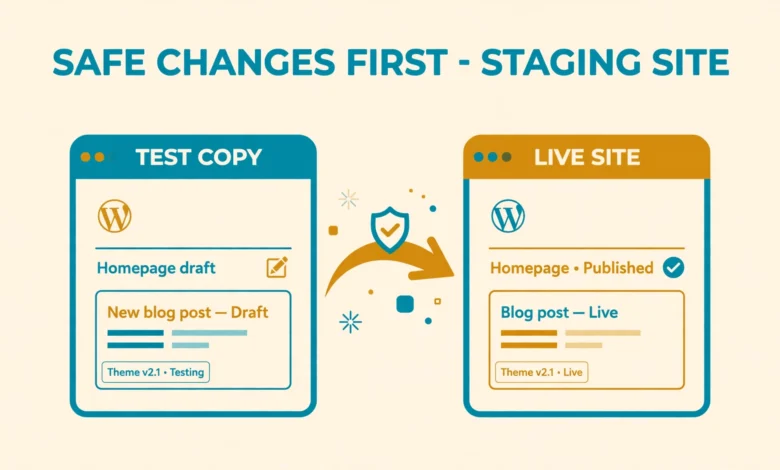
A staging site is an exact copy of your website on a private subdomain like staging.yourdomain.com. Visitors never see it and search engines cannot find it. There you can update plugins, switch themes, and redesign pages with zero risk to the live site, moving changes over only when everything works.
You do not need an expensive plugin for this. Many hosts include one-click staging, and on basic shared hosting you can build one with cPanel in under an hour. This guide covers three methods, plus how to protect your staging copy and move tested changes back to live.
What exactly is a WordPress staging site?
A WordPress staging site is a full duplicate of your live website: the same files, the same database, the same plugins and themes. It runs on a separate URL, most commonly a subdomain such as staging.yourdomain.com, and it is hidden from the public and from search engines.
Think of it as a rehearsal room: never try a major update, a new theme, or a checkout redesign directly on the live site. The staging copy is where experiments happen safely.
Unlike a local copy on your computer, which is great for building from scratch before you move a finished site to a live server, a staging site mirrors the live site exactly: real content, real orders, and the real server environment, so your tests reflect reality.
Why does every site owner need a staging site?
A broken update on a hobby blog is annoying. On a site that earns money, it is expensive. A staging site removes that risk. Here is what it lets you do:
- Test plugin and theme updates before they touch the live site, so a bad update never breaks your real pages.
- Try new plugins and page layouts without visitors ever seeing half-finished work.
- Redesign your homepage or sales pages calmly over days or weeks, then launch the finished version in minutes.
- Show clients or team members proposed changes on a private link and collect feedback before anything goes public.
- Learn and experiment freely. You can break a staging site a hundred times and your live business never notices.
WooCommerce stores benefit the most. On a staging copy you can place test orders, break the checkout, fix it, and repeat until the flow is perfect, without real customers ever hitting an error. If performance worries you, also read our guide on why WordPress sites slow down.
Method 1: use your host’s built-in staging tool
Before doing anything manual, check your hosting dashboard. Many managed WordPress hosts include one-click staging as a standard feature. Hosts like Kinsta, WP Engine, SiteGround, and several others let you create a staging copy with a single button, test your changes there, and push them back to live with another button.
This is the easiest and safest method: the host handles file copying, database duplication, URL replacement, and search-engine blocking automatically. If your host lacks staging and you need it often, consider a better plan. Our web hosting guide explains what to look for, including staging, backups, and support quality.
Look for a section named Staging, Staging Sites, or Staging Environment inside your hosting control panel. If you cannot find one, the manual method below works on almost any host with cPanel.
Method 2: build a staging site manually with cPanel
The manual method takes about 30 to 60 minutes the first time, and much less once you have done it once. It works on most shared hosting plans and gives you full control over the process. Follow the steps in order.
Step 1: create a staging subdomain
Log in to cPanel and open Subdomains. Create a subdomain called staging, so you get staging.yourdomain.com. cPanel automatically creates a folder for it, usually public_html/staging. Note the document root path, because you will copy your WordPress files into it.
Step 2: copy your WordPress files to the subdomain
Open File Manager in cPanel. Select all files in your main WordPress folder (usually public_html), copy them, and paste the copy into the staging subdomain folder. On large sites this can take several minutes. Alternatively, download the files with an FTP client and upload them to the staging folder. Either way, the staging folder should end up containing a complete second copy of WordPress.
Step 3: create a new database and import a copy of your live database
Your staging site must use its own database. Never point it at the live database, because then your tests would change real content and orders. In cPanel, open MySQL Databases and create a new database and a new database user, then add the user to the database with all privileges. Write down the database name, username, and password.
Next, open phpMyAdmin and export your live database to a .sql file. Then select the new empty staging database and import that file into it. You now have an exact copy of your content in a separate database. If you have never done a database export before, read our guide on how to back up your WordPress database without a plugin first, since the steps are the same and the backup also protects you if anything goes wrong.
Step 4: connect the staging copy to the new database
Open the wp-config.php file inside your staging folder and update the database credentials to the new staging database. Only this copy of wp-config.php changes. Your live site keeps using its original database.
define( 'DB_NAME', 'username_stagingdb' );
define( 'DB_USER', 'username_staginguser' );
define( 'DB_PASSWORD', 'your_strong_password_here' );
Replace the example values with the real database name, username, and password you created in step 3. Save the file.
Step 5: update the site URLs in the staging database
Your staging database still contains the live domain everywhere. Skip this step and staging links will send you back to the live site. In phpMyAdmin, select the staging database and run this query in the SQL tab with your own domains:
UPDATE wp_options SET option_value = REPLACE(option_value, 'https://yourdomain.com', 'https://staging.yourdomain.com') WHERE option_name IN ('siteurl', 'home');This updates the two most important URLs. Menu items, image URLs, and other content links may still point to the live domain. The cleanest fix is a full search and replace across every table. If you have WP-CLI access, one command does it safely, including serialized data:
wp search-replace 'https://yourdomain.com' 'https://staging.yourdomain.com' --all-tables --dry-runRun it first with the dry-run flag to preview, then without it to apply. Without WP-CLI, run extra REPLACE queries on the wp_posts and wp_postmeta tables in phpMyAdmin. Never do a plain find and replace on a raw .sql file in a text editor: that breaks serialized data and corrupts settings.
Step 6: keep search engines and visitors out
A staging site must never be indexed by Google or found by visitors. Take two precautions. First, log in to the staging wp-admin, go to Settings, then Reading, and check the box labeled Discourage search engines from indexing this site. Second, add password protection with a .htaccess file so only people with the password can even load the site. Create a .htpasswd file in cPanel or with your host’s password protection tool, then add these lines to the .htaccess file inside the staging folder:
AuthType Basic
AuthName "Staging Area"
AuthUserFile /home/yourusername/.htpasswd
Require valid-user
With both layers in place, your staging site is private, invisible to search engines, and safe to experiment on. If your site collects customer data, remember that the staging copy now contains a copy of that data too, so keep the password strong and limit who knows the staging URL.
Method 3: create a staging site with WP-CLI for SSH users
With SSH access, WP-CLI does the copying in minutes. Run these from your home directory, adjusting paths and domains:
cp -r public_html public_html/staging
wp db export live-backup.sql --path=public_html
mysql -u username_staginguser -p username_stagingdb < live-backup.sql
wp search-replace 'https://yourdomain.com' 'https://staging.yourdomain.com' --all-tables --path=public_html/staging
You still need to create the staging subdomain and database first, update the staging wp-config.php with the new credentials, and block search engines as described in method 2. WP-CLI simply replaces the slow manual copying. The official WordPress developer documentation is a good reference if you want to learn more WP-CLI commands for everyday site management.
How do you move tested changes from staging back to live?
Testing is only half the job. Once a change works on staging, you need to move it to the live site. The safest approach depends on what you changed.
For small changes, such as a plugin update or a settings tweak, simply repeat the exact change on the live site. Take a fresh backup first. You already know it works, so this takes minutes and carries almost no risk.
For bigger changes like a redesign, copy the staging files back to live and reverse the database migration from method 2. But never overwrite a live store database with the staging copy: the live database gains new orders and users daily, and overwriting it deletes them. Migrate only the files and repeat database changes manually instead.
Whatever you move, test the live site immediately afterward: load the homepage, submit a contact form, and if you run a store, place a test order. Keep the staging copy around for a few days in case you need to compare settings.
Staging site checklist before every testing session
Run through this checklist each time you start testing:
- Back up the live site completely, files and database, before you start.
- Refresh the staging copy from the live site if it is more than a few days old, so you test against current content.
- Confirm the staging site blocks search engines and requires a password.
- Test the full visitor journey: homepage, key pages, contact forms, and checkout on a store.
- Check the staging site on a phone, since layout bugs often appear only on small screens.
- Write down every change you make on staging, in order, so you can repeat them on live.
- After moving changes to live, test the live site again and keep the staging copy for a few days.
Frequently asked questions
Does a staging site slow down my live website?
Barely. A staging copy sits idle and only uses resources while you test. On tiny shared plans the extra files do take disk space, so delete old staging copies you no longer need.
Will Google penalize me for duplicate content on staging?
No, as long as you block it properly. The Discourage search engines option plus password protection means Google never sees the staging copy. Problems only happen when people skip step 6 and the subdomain gets indexed.
Can I create a staging site on cheap shared hosting?
Yes. The manual cPanel method works on almost any shared plan with subdomains, phpMyAdmin, and File Manager. You only need enough disk space for a second copy of your site.
How often should I refresh my staging copy?
Refresh it before every testing session. A months-old copy no longer matches your live site, so tests on it mislead. Re-copying files and database takes only minutes once you know the process.
Last updated: October 2026.