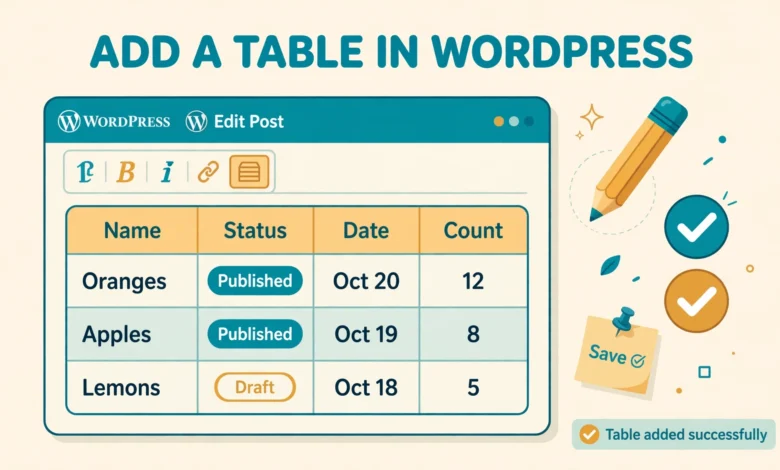
Tables are one of the most useful ways to present information on a WordPress site. Price comparisons, feature lists, schedules, product specifications, and pros and cons lists all become much easier to read when they sit inside a clean table instead of a long paragraph. The good news is that you do not need to install a plugin to create one. Modern WordPress already includes everything you need, and in most cases the built in tools are faster, lighter, and easier to maintain than a dedicated table plugin.
In this guide, you will learn how to add table in WordPress without plugin support, using three practical methods. We will start with the Gutenberg Table block, which suits most users, then cover the Custom HTML block for full control, and finally show how to paste a table from a spreadsheet. You will also learn how to fix the most common problem with WordPress tables, which is poor display on mobile phones, and how to style a table with a small amount of CSS.
Why Should You Avoid a Plugin for Simple Tables?
Every plugin you install adds code, settings, and a future maintenance task to your site. For a simple table with a few rows and columns, that extra weight is rarely justified. A table built with the Gutenberg Table block lives inside your post content, loads with the post, and does not depend on a third party developer keeping a plugin updated. If you later change themes, the table still works, because it is plain HTML.
Plugins make sense for advanced needs, such as sortable columns, live search, pagination, or tables pulled from a database. We will look at that boundary near the end of this guide. For everyday tables, however, the built in methods below are the better choice, and they keep your site lean.
How Do You Create a Table With the Gutenberg Table Block?
The Table block is the quickest method, and it is the one most WordPress users should start with. Open the post or page where you want the table, click the add block button, and search for Table. When you insert the block, WordPress asks how many columns and rows you want. A simple starting point is 3 columns and 4 rows, which gives you a header row plus three data rows. You can always add or remove rows and columns later.
Once the table appears, click inside any cell and type your content. Pressing Tab moves you to the next cell, which makes data entry fast. If you reach the last cell and press Tab again, WordPress adds a new row automatically. That small shortcut saves a lot of clicking when you are entering a longer table.
How Do You Add a Header Row, Footer Row, and Stripes?
With the Table block selected, look at the block settings panel on the right side of the editor. Turning on the header section makes the first row stand out and tells browsers and screen readers that this row labels the columns below it, so always enable the header row for a data table.
The footer section adds a final row at the bottom of the table. It is useful for totals, such as the total price in a pricing table or a summary note. The stripe style option, also in the settings panel, shades every second row. Striped rows help readers follow a long row across the screen without losing their place, so enable stripes for any table with more than four or five rows.
You can also set a fixed width for the table. With fixed width enabled, every column gets the same width, which looks tidy for tables where each column holds similar content, such as a weekly schedule. With fixed width turned off, columns resize based on their content, which works better when one column holds long descriptions and another holds short values like Yes or No.
How Do You Add or Remove Rows and Columns?
To change the shape of your table, click inside any cell, then open the block toolbar and look for the table editing options. From there you can insert a row above or below the current row, insert a column before or after the current column, or delete a row or column you no longer need. You can also select several cells at once if you want to merge them, although merged cells can complicate mobile display, so use them sparingly.
How Do You Build a Table With the Custom HTML Block?
Sometimes you need control that the Table block does not offer, for example a table with specific classes for styling, or a table copied from another source. In that case, use the Custom HTML block. Add the block, then paste or type standard HTML table markup. A small example looks like this:
<table>
<thead>
<tr><th>Plan</th><th>Price</th><th>Storage</th></tr>
</thead>
<tbody>
<tr><td>Basic</td><td>$5 per month</td><td>10 GB</td></tr>
<tr><td>Pro</td><td>$12 per month</td><td>50 GB</td></tr>
</tbody>
</table>
The thead element holds the header row, and the tbody element holds the data rows. Each tr element is one row, th elements are header cells, and td elements are data cells. If you already know a little HTML, this method gives you total control over the markup, and you can add classes to the table element for custom styling later. If you are not comfortable with HTML, stick with the Table block, which generates this same markup for you behind the scenes.
Can You Paste a Table From a Spreadsheet?
Yes, and this is often the fastest method when your data already lives in Google Sheets or Excel. Select the cells in your spreadsheet, copy them, then paste directly into the WordPress editor. WordPress usually converts the pasted data into a Table block automatically, keeping the rows and columns intact.
After pasting, check three things before publishing. First, confirm that the header row is marked as a header, since a paste does not always set it. Second, remove any empty trailing rows or columns that came along with the copy. Third, scan for odd characters or broken formatting, especially if the spreadsheet contained formulas, because WordPress pastes the displayed values, not the formulas behind them.
Why Do WordPress Tables Break on Mobile Phones?
The most common complaint about WordPress tables is that they look fine on a desktop screen but overflow or squeeze unreadably on a phone. This happens because a table has a minimum natural width: if it has five columns of text, it simply needs more horizontal space than a phone screen provides. The browser then either squeezes the columns until the text wraps into tall, narrow cells, or lets the table overflow off the edge of the screen.
The fix depends on how wide your table is. For a table with two or three short columns, your theme may already handle it well, and no fix is needed. Test it on a real phone or with the browser responsive preview before assuming there is a problem. For wider tables, you need one of the fixes below.
How Do You Fix Table Display on Mobile?
The simplest reliable fix is horizontal scrolling. Wrap the table in a container that scrolls sideways on small screens, so the table keeps its readable column widths and the reader swipes to see the rest. With the Custom HTML block, you can wrap the table in a div with an overflow style. With the Table block, many themes already add scrolling, so check your theme behavior first.
Another approach is to reduce the table itself. Ask whether every column is truly needed on mobile. A comparison table with six features can often be trimmed to the three features readers actually use to decide, with the rest covered in the text below the table. Fewer columns mean a table that fits without any code at all.
How Do You Style a Table With CSS?
Your theme controls the default table appearance, including borders, padding, and header colors. If you want a different look, a small amount of CSS targeting tables inside post content is enough. Keep the styling subtle: generous cell padding and a clear header row matter more than bright colors.
If you are new to adding CSS in WordPress, read our guide on how to add custom CSS in WordPress first, since it covers the safe places to put your code and how to avoid losing changes on a theme update. Always test your styling on both desktop and mobile, because padding that looks generous on a wide screen can make a narrow table overflow.
What Makes a Good Table for Readers and SEO?
A good table answers a question at a glance. Put the most important information in the first two columns, because readers scan tables from left to right. Keep cell text short, use consistent formats for numbers and prices, and avoid stuffing keywords into table cells. Search engines can read table content, and a well structured comparison table sometimes appears in search results, but the real benefit is for readers, who stay longer on a page they can scan easily.
Structure matters beyond tables too. Just as categories and tags help readers navigate your posts, tables help them navigate information inside a post. If you are still sorting out your site structure, our guide on WordPress categories versus tags explains how the two systems differ and when to use each one.
Images inside tables deserve the same care as images elsewhere on your site. If a table cell contains a product photo, give it a descriptive alt text and a sensible file name. Our WordPress image SEO tips cover alt text, file names, and compression in more detail, and they apply just as well to small images inside a table as to large featured images.
When Is a Plugin Like TablePress Actually Justified?
A plugin becomes worth it when you need features the block editor cannot provide. Sorting, filtering, live search, pagination, and importing large datasets from CSV files are the classic examples. If you publish a table with hundreds of rows, such as a directory or a price list that updates regularly, a plugin will save you far more time than it costs.
A plugin also makes sense when the same table must appear on many pages and stay in sync. Editing one central table and having every page update automatically beats editing the same table separately on ten pages. For a one off table inside a single post, though, the block editor wins on simplicity and speed.
Before installing any table plugin, check that it is actively maintained and tested with your WordPress version on WordPress.org.
Frequently Asked Questions
Can I add a table in WordPress without a plugin?
Yes. The Gutenberg Table block creates tables with no plugin, and the Custom HTML block lets you write table markup directly. Both methods produce standard HTML tables that work with any theme.
Why does my table look broken on mobile?
Wide tables need more horizontal space than a phone screen provides. Reduce the number of columns, shorten the cell text, or allow horizontal scrolling on small screens so the table stays readable instead of overflowing.
Can I paste a table from Excel or Google Sheets?
Yes. Copy the cells in your spreadsheet and paste them into the editor, and WordPress usually converts them into a Table block. Always check the header row and remove empty rows after pasting.
Should I use TablePress instead?
Use TablePress or a similar plugin only when you need sorting, search, pagination, large imports, or one table shared across many pages. For a simple table in one post, the Table block is faster and lighter.
Last updated: October 2026.