If you want to edit robots.txt WordPress without plugin tools, you first need to understand one surprising fact. Most WordPress sites do not have a real robots.txt file at all. WordPress creates a virtual one on the fly, so search engines can still read rules even when no file exists in your hosting account. That virtual file works well for a basic site, but it is not easy to change, and it disappears if you later upload a physical file.
This guide shows you both safe routes: changing the virtual file with a small code snippet, and uploading a real robots.txt file through your hosting panel or FTP. You will also learn which rules are genuinely useful, which mistakes can remove your site from search results, and how to test your changes before they cause harm.
What Is robots.txt and Why Does WordPress Handle It Differently?
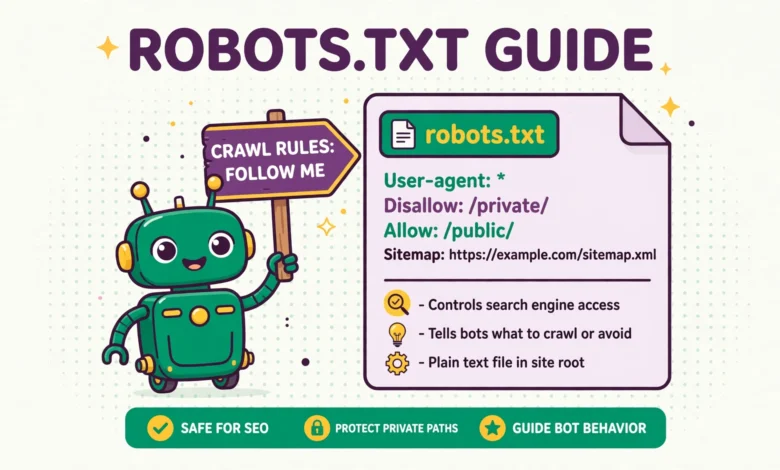
A robots.txt file gives polite instructions to search engine crawlers. It tells them which parts of your site they may crawl and which parts they should leave alone. It does not password protect anything, and it does not hide a page from people who already know its address. It is simply a request that well behaved crawlers respect.
WordPress generates its default robots.txt dynamically. When a crawler asks for your robots.txt address, WordPress builds a short set of rules in memory and sends them back. This is convenient, but it means you cannot edit the file in your media library or your theme editor. You need code to change the virtual version, or you need to create a physical file that takes priority over the virtual one.
For most small sites, the default rules are fine. You only need a custom file when you have a clear reason, such as blocking internal search pages, protecting a staging site, or adding a sitemap reference. If you are still working on basic visibility, read our guide on why your WordPress site may not be indexed by Google before you change crawler rules.
How Can You View Your Current robots.txt File?
Before you change anything, look at what search engines currently see. Open a browser and add /robots.txt to the end of your domain, for example yoursite.com/robots.txt. You should see plain text rules. If you see a 404 page instead, your site may not be generating the virtual file correctly, or your server may be blocking that request.
- Visit yourdomain.com/robots.txt in a private browser window.
- Copy the current rules into a text file so you can restore them later.
- Check whether a sitemap line is already present.
- Note any rules you do not understand before you replace them.
Keep that backup copy somewhere safe. A robots.txt mistake is easy to fix only if you know what the previous version said. If you use a caching plugin, clear the cache after viewing the file so you are not looking at an old copy.
How Do You Edit the Virtual robots.txt With Code?
The cleanest code route uses the robots_txt filter. This filter lets you replace the virtual output without creating a file. Add the snippet to a child theme functions.php file or to a code snippets plugin. A child theme is the safer choice for a permanent change, and our guide on how to create a WordPress child theme explains that setup in detail.
The snippet below keeps the normal WordPress defaults, blocks the admin area, allows the admin ajax file that many themes and plugins need, and points crawlers to your sitemap. Allowing admin-ajax.php matters because blocking it can break front end features that rely on ajax requests, even though the file lives inside wp-admin.
add_filter( 'robots_txt', 'vutechgeek_custom_robots_txt', 10, 2 );
function vutechgeek_custom_robots_txt( $output, $public ) {
    if ( ! $public ) {
        return "User-agent: *\nDisallow: /\n";
    }
    $output  = "User-agent: *\n";
    $output .= "Disallow: /wp-admin/\n";
    $output .= "Allow: /wp-admin/admin-ajax.php\n";
    $output .= "Sitemap: https://yoursite.com/sitemap.xml\n";
    return $output;
}
Replace yoursite.com with your real domain and replace sitemap.xml with your actual sitemap address if it differs. Save the change, clear your cache, then reload yourdomain.com/robots.txt to confirm the new rules appear. If nothing changes, your site may already have a physical robots.txt file, which always wins over the virtual version.
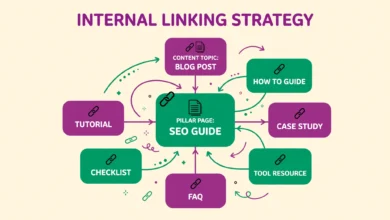
This method is ideal when you only need a few rules and you do not want another file to manage. It is also easy to remove: delete the snippet and WordPress returns to its default output. For a broader look at how small technical choices affect discovery, see our WordPress internal linking strategy, which helps crawlers find important pages once they are allowed to crawl them.
How Do You Upload a Physical robots.txt File?
A physical file gives you full control and works even if you change themes. It also survives a theme update, which a functions.php edit in a parent theme would not. Create a plain text file named exactly robots.txt, with no extra extension such as .txt.txt, and upload it to the root folder of your site, usually public_html.
- Open cPanel File Manager or connect with FTP.
- Go to the root folder that holds wp-config.php, wp-content, and wp-admin.
- Upload your robots.txt file to that root folder, not to wp-content.
- Visit yourdomain.com/robots.txt to confirm the physical file now loads.
A safe starter file looks like the code version above. Use one User-agent block for all crawlers unless you have a specific reason to treat one crawler differently. Keep the file short. Long lists of disallow rules are hard to maintain and easy to get wrong, and they rarely help a small site rank better.
If your hosting plan or server setup is unfamiliar, check your host documentation first. The root folder location can differ on some hosts, and uploading to the wrong folder is the most common reason a new file seems to have no effect. Our web hosting guide can help you understand common hosting layouts before you touch server files.
Which Rules Are Actually Worth Adding?
Not every disallow rule helps. Crawlers already ignore many admin files, and blocking useful content by accident is worse than leaving a harmless page crawlable. Add a rule only when you can explain what problem it solves.
- Block internal search result pages with Disallow: /?s= so crawlers do not index endless low value search URLs.
- Block a staging or development site completely while it is not ready for the public.
- Keep Allow: /wp-admin/admin-ajax.php when you block wp-admin, so front end features keep working.
- Add one Sitemap line for your main sitemap index file.
Blocking search result pages is a good example of a useful rule. WordPress search can create a new URL for every search term, and those pages add little value for search engines. Blocking them keeps crawl budget focused on your real posts and pages. If your URLs themselves need attention, our WordPress permalink structure guide explains clean URL settings that pair well with sensible crawler rules.
Which Mistakes Can Hurt Your Search Rankings?
The most dangerous line in robots.txt is also the shortest: Disallow: / under User-agent: *. That single rule tells every crawler to stay away from your entire site. It is correct for a private staging site, but it is a disaster on a live site. Always double check that line before saving, especially after copying a sample from another site.
- Never use Disallow: / on a live site unless you truly want it hidden from search engines.
- Never block /wp-content/uploads/ if you want your images to appear in image search.
- Never assume robots.txt hides a page, because anyone with the URL can still open it.
- Never block CSS and JavaScript files that Google needs to render your pages correctly.
Another common mistake is blocking the uploads folder to save crawl budget, then wondering why image traffic disappears. Images can bring real visitors, so keep uploads crawlable unless you have a clear privacy reason to block a specific folder. The same logic applies to theme files: Google needs to see how a page looks to judge it fairly.
How Do You Test robots.txt After Making Changes?
Testing takes only a few minutes and can save weeks of lost traffic. First, reload yourdomain.com/robots.txt and read every line out loud, slowly. Then use Google Search Console to confirm Google reads the same version you see. Search Console also lets you test a specific URL against your current rules, which is the fastest way to catch an accidental block.
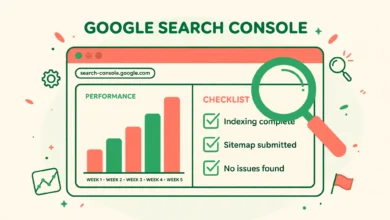
If you have not connected Search Console yet, follow our guide to add Google Search Console to WordPress. Once connected, check the indexing reports over the next few days. A sudden drop in indexed pages after a robots.txt change is a strong signal to review your new rules immediately. For official background on how crawlers interpret these files, see the documentation at Google for Developers and the WordPress project at WordPress.org.
Finally, remember that robots.txt is only one part of technical SEO. Clean URLs, useful internal links, fast loading, and genuinely helpful content matter far more than an elaborate robots.txt file. Keep your rules simple, test them after every change, and revisit them whenever you launch a staging site or change your sitemap.
Frequently Asked Questions
Does WordPress have a robots.txt file by default?
WordPress does not create a physical file by default. It generates a virtual robots.txt when a crawler requests it. If you upload a physical file to your site root, that file replaces the virtual version.
Can robots.txt hide a private page from the public?
No. Robots.txt only asks crawlers not to crawl a URL. It does not block human visitors, and it does not remove a page that is already indexed. Use password protection or proper privacy settings for truly private content.
Should I block wp-admin in robots.txt?
Blocking wp-admin is a sensible default for most sites, but you should still allow admin-ajax.php. That file supports front end features, and blocking it can break forms, carts, and other interactive parts of your site.
How long does it take Google to respect a new robots.txt file?
Google usually picks up a new robots.txt file within a day, but changes to indexing can take longer to appear in reports. Test the file right away, then monitor Search Console for a few days before judging the result.
Last updated: October 2026.