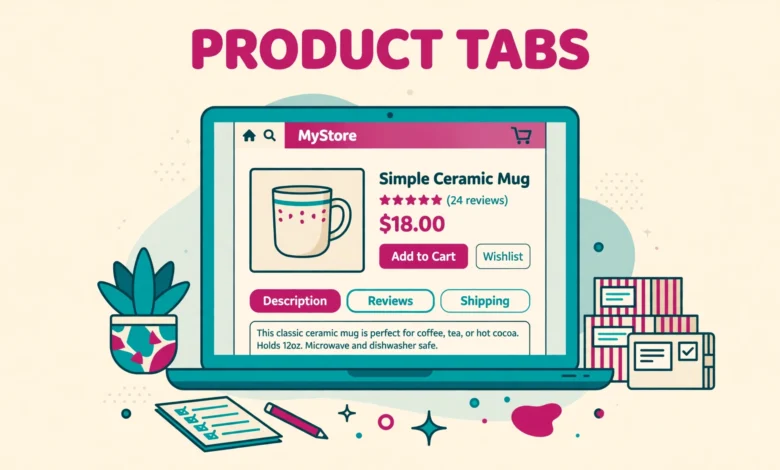
Every WooCommerce product page ships with three default tabs: Description, Additional Information, and Reviews. Those tabs cover the basics, but they rarely cover everything a buyer wants to know. A clothing store needs a size guide, an electronics store needs full specifications, and a food store needs ingredients and allergy notes. When that information sits far down the page or hides inside a long description, shoppers miss it and ask the same questions again and again. A custom tab fixes that by giving important details a clear home right next to the description.
You can add a custom tab to a WooCommerce product page without a plugin. All you need is one small code snippet that uses the woocommerce_product_tabs filter. In this guide you will learn where to put the code, how to add a simple tab, how to show a tab only for one product category, how to reorder or remove the default tabs, and what content works best inside a custom tab. You will also learn how to fix the tab when it does not appear.
What Is a WooCommerce Product Tab?
A product tab is one of the clickable sections under the main product image and summary on a WooCommerce product page. Clicking a tab shows its content while the other tabs stay hidden. Tabs keep the page tidy because long details stay folded away until the shopper wants them. Without tabs, a page with specifications, a size guide, a FAQ, and a video would turn into a very long scroll that pushes the add to cart button far from the top.
WooCommerce builds its tabs through a filter called woocommerce_product_tabs. A filter is a hook that lets you change data before WordPress uses it. Here the filter hands you an array of tabs, and your code adds a new entry or changes the entries that already exist. Each tab entry has a title, a priority number that sets its order, and a callback function that prints the content. Once you understand those three parts, you can build almost any tab you need.
Where Should You Put the Code?
You have two safe places for the code: your child theme functions.php file or the free Code Snippets plugin. A child theme keeps your changes safe when the parent theme updates, but editing functions.php directly can break your site if you make a typing mistake. The Code Snippets plugin is the safer choice for most store owners, because it lets you add, test, and turn off each snippet from the dashboard, and a bad snippet will not lock you out of your site.
If you use the Code Snippets plugin, go to Snippets, then Add New, paste the code, choose Run snippet only on front end, and save it. If you use a child theme, open functions.php in Appearance, then Theme File Editor, and paste the code at the end of the file. Never paste this code into your parent theme functions.php file, because the next theme update will erase it. Before you add any code, make a backup of your site. Our guide on how to back up and restore WordPress with cPanel shows the full process, and it only takes a few minutes.
How Do You Add a Simple Custom Tab?
The snippet below adds a Specifications tab to every product page. The priority number 25 places it after the Description tab, which uses priority 10, and before the Reviews tab, which uses priority 30. Lower numbers appear first, so you can control the order by choosing the number. The callback function prints the content that appears when a shopper clicks the tab.
add_filter( 'woocommerce_product_tabs', 'my_custom_product_tab' );
function my_custom_product_tab( $tabs ) {
    $tabs['specs'] = array(
        'title'    => __( 'Specifications', 'woocommerce' ),
        'priority' => 25,
        'callback' => 'my_specs_tab_content',
    );
    return $tabs;
}
function my_specs_tab_content() {
    echo '<p>Add your product specifications here. Keep the list short and use the same units on every product.</p>';
}
Save the snippet, clear any cache, and open a product page. You should see the new Specifications tab next to the default tabs. Click it to check that the content shows correctly. If you want a different tab name, change the text inside the title line and change the specs key to a short lowercase slug of your own. The key must be unique, so do not reuse description, additional_information, or reviews, because those keys already belong to the default tabs.
How Do You Show a Tab Only for One Product Category?
A size guide tab makes sense for clothing but not for phone chargers. A tab that shows on every product soon becomes noise. The fix is to check the product category inside your function and add the tab only when the product belongs to that category. The snippet below adds a Size Guide tab only to products in the clothing category. Change clothing to the slug of your own category. You can find the category slug on the Products, then Categories screen in your WordPress dashboard.
add_filter( 'woocommerce_product_tabs', 'my_category_tab' );
function my_category_tab( $tabs ) {
    global $product;
    if ( has_term( 'clothing', 'product_cat', $product->get_id() ) ) {
        $tabs['size-guide'] = array(
            'title'    => __( 'Size Guide', 'woocommerce' ),
            'priority' => 30,
            'callback' => 'my_size_guide_content',
        );
    }
    return $tabs;
}
function my_size_guide_content() {
    echo '<p>Measure your chest and waist before you order. If you sit between two sizes, choose the larger one.</p>';
}
You can repeat this pattern for other categories: a second if block for electronics with a Specifications tab, or a third for food products with an Ingredients tab. Keep the number of conditional tabs small, because each one adds code you must maintain. If you sell many categories with very different details, use custom fields to store the tab content per product instead of hard coding it. Then the same snippet works for every product, and you only edit the content in the product editor.
How Do You Reorder or Remove the Default Tabs?
The same filter lets you change the default tabs. You can move the Description tab to the front, push Reviews further down, or remove a tab you never use. The snippet below sets new priority numbers for the Description and Additional Information tabs and removes the Reviews tab completely. The number 98 at the end of the add_filter line makes this snippet run after other tab code, so its changes win when two snippets touch the same tabs.
add_filter( 'woocommerce_product_tabs', 'my_reorder_product_tabs', 98 );
function my_reorder_product_tabs( $tabs ) {
    $tabs['description']['priority'] = 5;
    $tabs['additional_information']['priority'] = 15;
    unset( $tabs['reviews'] );
    return $tabs;
}
Think twice before you remove the Reviews tab. Reviews build trust and help your store rank in search results, so removing them usually costs more than it saves. A better use of this snippet is reordering. Put your most useful custom tab early, keep Reviews visible, and remove only a tab that truly adds nothing, such as Additional Information on a store that never fills in product attributes. If you remove a tab by mistake, delete the unset line and the tab will return at once.
What Content Works Best in a Custom Tab?
A custom tab earns its place only when it answers a question shoppers actually ask. The best tab content is short, specific, and easy to scan. A wall of text inside a tab is no better than a wall of text in the description. Use the formats below and match each one to the product type it suits best.
- Specifications table: dimensions, weight, material, model number, and what is included in the box. Best for electronics, tools, and furniture.
- Size guide: a simple table of sizes with chest, waist, and length measurements, plus one line of advice for shoppers between sizes. Best for clothing and shoes.
- FAQ: four to six short questions about delivery, returns, warranty, and compatibility. Best for any product that gets repeated questions.
- Video: a short product demo or unboxing video. Best for products that need a visual explanation, such as gadgets and beauty tools.
- Care instructions: washing, storage, or maintenance steps. Best for clothing, food, plants, and handmade goods.
For a video tab, do not paste a full video player into the callback. Upload the video to your media host, then print the video link or embed code from inside the callback function. A video that loads only when the shopper opens the tab keeps the product page fast, which matters for sales and search rankings. For more ideas on product page details that lift conversions, see our guide on how to set up WooCommerce product variations and our guide on WooCommerce product tags versus categories.
How Do You Style the New Tab?
A custom tab inherits your theme tab styling automatically, so it usually looks right with no extra work. If the tab title looks different from the others, the cause is almost always a different text case or a longer title. Keep tab titles short, use the same capitalisation as the default tabs, and avoid long phrases. Inside the tab content, use the same heading sizes and paragraph spacing as the rest of your product page so the tab feels like part of the store, not an add on.
If you want a styled table inside a specifications tab, add a small amount of CSS through the Customizer under Additional CSS. Style the table borders and padding only, and leave the colours to your theme. Test the result on a phone, because wide tables are the most common cause of sideways scrolling on product pages. A table that fits on desktop but overflows on mobile will push shoppers away. For another small product page improvement, our guide on how to add a sticky add to cart button in WooCommerce without a plugin shows a useful code snippet in the same style.
What If the Tab Does Not Appear?
A missing tab usually has a simple cause. Work through this checklist before you assume the code is wrong.
- Check that the snippet is active. In Code Snippets, the toggle next to your snippet must be on, and in functions.php the code must be saved.
- Clear your cache. Caching plugins and server cache can show an old copy of the product page without the new tab.
- Check the category slug. A conditional tab will not show if the slug is wrong or if the product is in a child category rather than the exact category you named.
- Check for a theme conflict. Some themes replace the default WooCommerce tabs with their own layout. Try the default Storefront theme on a staging copy to confirm the code works.
- Check for a PHP error. A missing bracket or a mistyped function name can stop the whole snippet. The Code Snippets plugin shows an error message when it catches one.
Test every change on a staging site before you apply it to your live store. Our guide on how to create a WordPress staging site without a plugin walks through a free method that takes only a few minutes. If you want to learn more about how WooCommerce hooks work, the official documentation at developer.woocommerce.com explains filters and actions in detail, and WooCommerce.com is the official home of the plugin itself.
Frequently Asked Questions
Can I add a custom tab to a WooCommerce product page without a plugin?
Yes. Add a small snippet that uses the woocommerce_product_tabs filter in your child theme functions.php file or in the Code Snippets plugin. The snippet defines the tab title, its priority, and a callback function that prints the content. No extra plugin is needed.
How do I show a custom tab only for one product category?
Check the product category inside your function with has_term and the product_cat taxonomy. Add the tab only when the check returns true, and return the tabs array unchanged for every other product. Use the exact category slug from the Products, then Categories screen, because a wrong slug will hide the tab everywhere.
Can I change the order of the WooCommerce product tabs?
Yes. Each tab has a priority number, and lower numbers appear first. Description uses priority 10, Additional Information uses 20, and Reviews uses 30. Set new priority numbers through the same woocommerce_product_tabs filter, and use a late filter priority such as 98 so your changes run after other tab code.
Will a custom tab slow down my WooCommerce store?
No, a simple tab adds almost no load, because it only prints a small amount of HTML when the shopper opens it. A tab becomes slow only when it loads heavy content such as large images or an auto playing video. Keep the content light, host videos externally, and compress images before you add them.
Last updated: November 2026.