Product reviews are one of the strongest trust signals a WooCommerce store has. Shoppers read them before they buy, and they tell you what customers think of your products. But reviews only help if someone is watching them. Without moderation, fake reviews, spam links, and unfair one star ratings sit on your product pages for every visitor to see, and they quietly cost you sales.
Moderation does not mean deleting every criticism. It means approving genuine reviews quickly, filtering out spam and abuse, answering complaints in public, and using feedback to improve your products.
How Do You Enable Reviews and Moderation in WooCommerce?
Reviews are controlled from WooCommerce settings, and the first job is to make sure they are on. Go to WooCommerce, then Settings, then the Products tab, and scroll to the Reviews section. Check the box to enable product reviews. Just below it you can show a verified owner label on reviews from customers who bought the product. Turn it on: it is the single most useful trust signal on a review.
The most important moderation setting is not on this screen at all. Open Settings, then Discussion, and find Before a comment appears. Check the box that says a comment must be manually approved. Product reviews are a type of WordPress comment, so this setting applies to them too. With it on, every new review waits in a pending queue until you approve it.
While you are in the settings, decide whether guests can leave reviews at all. In the same Reviews section you can choose to allow reviews only from verified owners. This is the stricter option, and for most stores it is the right one. It means only customers with a completed order can review, which cuts fake reviews dramatically. The trade off is fewer reviews overall, but trusted reviews convert better than a large set nobody believes. For the official background, see WooCommerce.com and the documentation on Developer.WordPress.org.
Where Do You Find and Manage Reviews in the Dashboard?
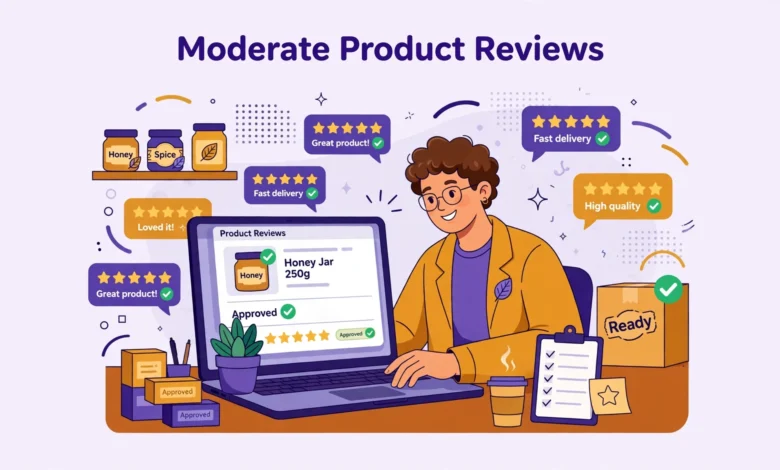
All product reviews live in one place: Products, then Reviews, in the WordPress dashboard sidebar. This screen shows every review with reviewer, product, rating, text, and status. At the top, counts for All, Pending, Approved, Spam, and Trash show how much work is waiting.
Read a pending review in full before you act. Check the product it belongs to, the date, and whether the reviewer is marked as a verified owner. A verified owner badge next to a thoughtful review is almost always safe to approve. A review with no verified badge, a generic name, and a link to an unrelated site is almost always spam.
Make reviewing a routine, not a rare event. Check the queue every day or two, because a genuine review that sits unapproved for a week is a missed chance to win a new buyer. If you run a busy store, assign the job to one team member with clear rules for what to approve, reply to, and escalate.
What Can You Do With Each Review: Approve, Reply, Spam, or Trash?
Hover over any review to see its actions. Each one has a clear purpose, and using the right one keeps your review history clean.
- Approve: publishes the review on the product page immediately. Use this for genuine reviews, including fair criticism, because honest criticism makes the positive reviews more believable.
- Unapprove: pulls a published review back into the pending queue without deleting it. Use this when a review needs a second look, for example after a customer edit or a shopper report.
- Reply: lets you answer the review publicly, right below it on the product page. Reply to questions, thank happy customers, and address complaints. Your replies are visible to every future buyer, so write them as if a hundred shoppers are reading.
- Spam: marks the review as spam and trains the spam filter. Use this for obvious spam, such as links to unrelated sites, copied text on many products, or bot written reviews.
- Trash: removes the review from the public list and puts it in the Trash, where you can restore or delete it permanently. Use this for reviews that are abusive, off topic, or clearly fake.
- Edit: lets you correct a typo or remove a personal detail such as a phone number from a review. Edit as little as possible, and never change the meaning or rating of what a customer wrote.
Never delete a genuine negative review just because it hurts. Shoppers distrust stores with only five star reviews, and a fair criticism with a thoughtful reply often sells more than a perfect score. Delete only reviews that break your rules: spam, abuse, personal information, or claims about a product the reviewer never bought.
How Do Bulk Actions Speed Up Daily Moderation?
When several reviews arrive at once, opening them one by one is slow. The Reviews screen supports bulk actions for exactly this situation. Tick the checkbox beside each review, or the top checkbox to select everything on the page, then choose an action from the Bulk actions dropdown and click Apply. You can approve, spam, trash, or unapprove a whole batch in seconds.
Bulk actions are powerful, so use them with care. Only bulk approve reviews you have actually read, and only bulk mark as spam reviews that are clearly spam. Filter the list to Pending first, read the batch, tick the genuine ones, and approve them in one go. You can also filter by product, which is useful after a promotion brings a flood of reviews for one item.
How Do Verified Owner Reviews and Comment Settings Protect Your Store?
Verified owner only reviews are your strongest defence against fake reviews. When this is on, a customer must have a completed order before the review form accepts their review, and it carries a verified owner label. Competitors cannot easily fake this, because they would need to buy the product first. If your store sells in Pakistan, our guide on JazzCash and Easypaisa in WooCommerce explains how local payment methods affect order completion.
The WordPress Discussion settings add a second layer. Under Settings, then Discussion, Comment Moderation lets you hold comments with certain words, links, or suspicious patterns. Add common spam words and the domains spammers keep linking to. Because product reviews pass through the same comment system, these lists protect your reviews as well. Review the held comments regularly, because a genuine review can occasionally trip a keyword filter.
For larger stores, an anti spam plugin such as Akismet can catch what the built-in settings miss. These tools score incoming reviews and hold the suspicious ones automatically. Even with a filter, keep a human in the loop: no tool judges tone, fairness, or context as well as a person who knows the products. If your store is growing fast, also check that your hosting keeps the dashboard quick, since slow admin screens make daily moderation a chore. Our web hosting guide explains what to look for.
How Should You Handle Fake, Spam, and Negative Reviews?
Fake and spam reviews follow patterns. Watch for reviews posted within minutes of each other with similar wording, five star reviews from accounts that never bought anything, and reviews that only link to another site. For a suspected fake, check the order records first. If there is no matching order, you have solid grounds to mark it as spam or trash.
Negative reviews from real customers deserve a different response. Read them twice before replying, and do not get defensive. A good public reply thanks the customer, apologizes for the specific problem, and offers a concrete next step, such as a replacement or a refund. Keep it short, stay polite even if the review is unfair, and never argue in public.
Negative feedback is also product research. If several reviews mention the same problem, such as sizing, packaging, or delivery time, fix the product or the listing instead of just replying to each review. Update the product description to set better expectations, and if the issue is delivery related, review our guide to WooCommerce shipping zones. If your store offers order tracking, customers who can see where their order is complain less; see our guide on adding an order tracking page in WooCommerce without a plugin.
How Do Replies to Reviews Build Trust With Future Buyers?
Every reply you write is public marketing. Shoppers choosing between your product and a competitor read your replies to judge whether you care after the sale. Thank five star reviewers briefly and by name, and mention something specific so it does not read like a copied template.
Reply quickly, ideally within one business day, and keep the tone consistent with your brand: friendly, clear, and honest. If a review raises a fair point you cannot fix immediately, say so and say what you are doing. Honesty in a public reply earns more trust than a polished excuse.
Frequently Asked Questions
How do I turn on product reviews in WooCommerce?
Go to WooCommerce, then Settings, then Products, and enable product reviews. Then open Settings, then Discussion, and check the box that requires manual approval before a comment appears, so no review goes live without moderation. Turn on the verified owner label in the same screen so buyers can see which reviews came from real customers.
Should I only allow reviews from verified owners?
For most stores, yes. Verified owner only reviews block almost all fake reviews, because a reviewer must have bought the product first. The trade off is fewer reviews in total, since guests and gift recipients cannot review. If your store is new, you can allow all reviews at first and switch to verified owner only once orders flow steadily.
Can I delete a negative review from my WooCommerce store?
You can move any review to trash from the Products then Reviews screen, but only for reviews that break your rules, such as spam, abuse, or fake claims. A genuine negative review from a real customer should stay, with a polite public reply. Deleting honest criticism damages trust, and shoppers notice when a store has only perfect ratings.
Why are my WooCommerce reviews not showing on product pages?
The most common cause is reviews still waiting for approval, so check Products, then Reviews, and look at Pending. Other causes are reviews disabled in WooCommerce settings, your theme hiding the reviews tab, or a caching plugin showing an old page. After approving, clear your cache and reload the product page to confirm the review appears.
Last updated: November 2026.