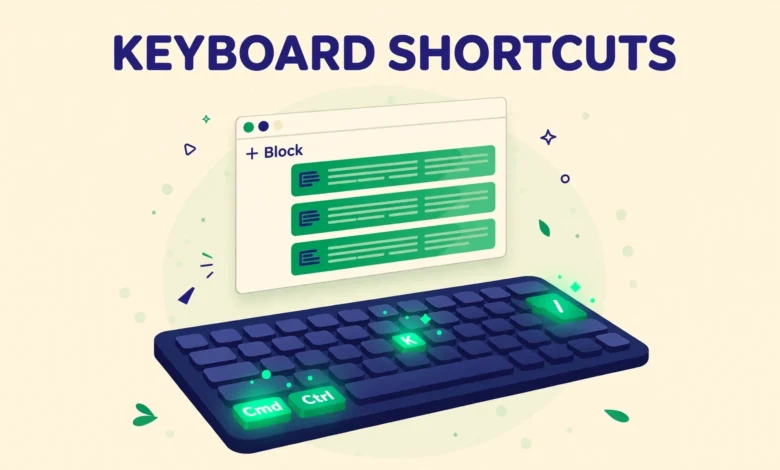
The WordPress block editor rewards writers who keep their hands on the keyboard. Every trip to the mouse to add a block or move a paragraph breaks your flow. Keyboard shortcuts remove most of those trips, so you can add blocks, format text, and move content without leaving the keyboard.
This guide lists the shortcuts that matter in daily writing, grouped by what they do, with Mac and Windows keys side by side. Learn the global shortcuts first, then the block shortcuts, then the formatting keys. The full official list is at wordpress.org.
How Do You Find Shortcuts Inside the Editor?
The editor has its own shortcut help screen. Press Shift plus Alt plus H on Windows or Shift plus Option plus H on Mac to open it. The screen lists the shortcuts in groups, and you can close it with the same keys or with the Escape key.
Two keys appear in almost every shortcut, so learn them first. On Windows, Ctrl is the main modifier and Alt is the secondary modifier. On Mac, Cmd replaces Ctrl, and Option replaces Alt. When this guide says Ctrl plus K, Mac users should press Cmd plus K.
Shortcuts behave differently depending on where your cursor sits. Some work anywhere in the editor, some work only inside a text block, and some work only when a block is selected. If a shortcut seems to do nothing, click inside a paragraph block first and try again. If you are new to the editor, our guide on the WordPress dashboard explained for beginners covers the layout first.
What Are the Global Editor Shortcuts?
Global shortcuts control the editor as a whole, rather than the block under your cursor. They open panels, save the post, and switch views. Learn these first, because they save the most mouse trips over a writing session.
- Ctrl + S or Cmd + S: Save the post as a draft.
- Shift + Alt + H or Shift + Option + H: Open the shortcuts help screen.
- Ctrl + Shift + , or Cmd + Shift + ,: Show or hide the settings sidebar.
- Ctrl + Shift + Alt + M or Cmd + Shift + Option + M: Switch to the code editor.
- Alt + Shift + O or Option + Shift + O: Open the block list view.
Save with Ctrl plus S or Cmd plus S early and often, because it turns a draft save into a reflex. The code editor toggle is worth learning too, because it lets you check the block HTML behind your content without opening a separate tool.
What Are the Block Shortcuts?
Block shortcuts act on the block you are working in. They add a block, duplicate it, move it, and delete it, all without touching the block toolbar. These matter most when you are restructuring a draft, because moving a paragraph with the mouse means dragging it through a long page.
- Enter: Create a new paragraph block below the current block.
- Ctrl + Shift + D or Cmd + Shift + D: Duplicate the selected block.
- Ctrl + Alt + T or Cmd + Option + T: Insert a block before the selected block.
- Ctrl + Alt + Y or Cmd + Option + Y: Insert a block after the selected block.
- Ctrl + Shift + Alt + T or Cmd + Shift + Option + T: Move the selected block up.
- Ctrl + Shift + Alt + Y or Cmd + Shift + Option + Y: Move the selected block down.
- Shift + Alt + Z or Shift + Option + Z: Remove the selected block.
Duplicating a block is the shortcut writers use most after Enter. It copies a callout, a list, or a styled paragraph exactly, including its formatting, so you can reuse a structure without rebuilding it.
Changing a block type saves time in a different way. Type slash and then the block name to change the current block. That transform keeps your text in place, so you never need to copy text out, delete a block, add a new block, and paste the text back in. Our guide on how to add custom CSS in WordPress shows the other side of block styling.
What Are the Text Formatting Shortcuts?
Text formatting shortcuts work inside a paragraph, heading, or list block, and they match the shortcuts used in most word processors. Bold, italic, underline, and link are the four to learn first, because they cover almost all inline formatting in a normal article.
- Ctrl + B or Cmd + B: Make selected text bold.
- Ctrl + I or Cmd + I: Make selected text italic.
- Ctrl + U or Cmd + U: Underline selected text.
- Ctrl + K or Cmd + K: Add a link to selected text.
- Ctrl + Shift + K or Cmd + Shift + K: Remove a link from selected text.
- Shift + Alt + 1 to 6 or Ctrl + Option + 1 to 6: Change the block to a heading of that level.
The link shortcut opens the link editor without the mouse. Select the text, press Ctrl plus K or Cmd plus K, type or paste the URL, and press Enter to apply it. That flow is faster than clicking the link button. When you link to your own posts, use natural anchor text, as in our guide on WordPress image optimisation without a plugin.
Heading shortcuts are the formatting keys that most writers overlook. Pressing Shift plus Alt plus a number turns the current paragraph into a heading of that level, which is useful when you draft as plain paragraphs first and add the structure afterwards.
What Are the Selection and Editing Shortcuts?
Selection shortcuts help you select text and blocks quickly, and editing shortcuts help you undo, redo, cut, copy, and paste without the mouse. Most match the standard keys used across Windows and Mac, so they transfer from other apps with no extra learning.
- Ctrl + Z or Cmd + Z: Undo the last change.
- Ctrl + Shift + Z or Cmd + Shift + Z: Redo the change you just undid.
- Ctrl + A or Cmd + A: Select all text in the block, then all blocks on a second press.
- Ctrl + X or Cmd + X: Cut the selected text or block.
- Ctrl + C or Cmd + C: Copy the selected text or block.
- Ctrl + V or Cmd + V: Paste the copied text or block.
- Ctrl + Shift + V or Cmd + Shift + V: Paste as plain text without formatting.
Paste as plain text prevents the most formatting mess. When you copy text from a document, a web page, or an email, it often carries hidden fonts, colours, and sizes with it, and a normal paste brings all of that into your post. Pasting as plain text strips the hidden formatting.
Undo deserves a note too, because the block editor undo history covers block changes as well as text changes. If you delete a block by accident, press Ctrl plus Z or Cmd plus Z at once, before you type anything else, and the block returns.
How Do the Slash Command and the Command Palette Work?
The slash command is the fastest way to add a block. Type a forward slash inside an empty paragraph block, and the editor shows a small menu of blocks. Type a few letters of the block name, such as image or heading, press Enter, and the block appears.
The command palette is the newer and broader tool, and it does more than add blocks. Press Ctrl plus K or Cmd plus K when no text is selected, or use the palette button in the editor header, and a search box appears. Type an action such as add image or open list view, and the palette shows matching commands. Select one with the arrow keys and press Enter to run it.
These two tools overlap, so use whichever feels faster for the job. The slash command wins when you are already typing inside a block and want to add the next one. The command palette wins when you want to run an editor action without hunting through menus. Together they replace most toolbar clicks in a normal writing session. For a related speed win, our guide on how to enable GZIP compression in WordPress without a plugin shows how a small change can make the whole site feel faster.
How Do Mac and Windows Keys Differ?
Mac and Windows shortcuts differ in modifier keys, not in the letters or numbers involved. Windows uses Ctrl as the main modifier, while Mac uses Cmd for the same actions. Windows uses Alt as the secondary modifier, while Mac uses Option for the same actions. Once you know those two swaps, you can read any Windows shortcut list and translate it for a Mac.
- Ctrl on Windows maps to Cmd on Mac for save, bold, italic, copy, and paste.
- Alt on Windows maps to Option on Mac for block and panel shortcuts.
- Shift stays the same on both systems in almost every shortcut.
Check the help screen on the machine you actually write on, because it shows the keys for that system rather than a generic list. If a shortcut does not work, check whether another app has claimed the same keys, because browser extensions and system tools can intercept them before WordPress sees them.
How Should You Learn These Shortcuts?
Do not try to memorise the whole list in one sitting. Pick five shortcuts that match the work you do most, write them on a sticky note beside your screen, and use them for a week. Save, bold, link, duplicate block, and move block up are a good starting five.
Practice inside a real draft, not in an empty test post, because real writing creates the situations where shortcuts help. When you need a new block, force yourself to type the slash command instead of clicking the plus button. When you need to move a paragraph, use the move keys instead of dragging it. The first few attempts will feel slower than the mouse, and that is normal. If you want a speed win on the site itself, our guide on why a WordPress site is slow covers the causes.
Frequently Asked Questions
What is the most useful WordPress block editor shortcut?
The slash command is the most useful single shortcut, because typing slash and then a block name adds any block without the mouse. After that, learn save, bold, and link, because those cover most daily writing.
How do I see all keyboard shortcuts in the block editor?
Press Shift plus Alt plus H on Windows or Shift plus Option plus H on Mac to open the shortcuts help screen inside the editor. You can close it with the Escape key or by pressing the same keys again.
Do block editor shortcuts work the same on Mac and Windows?
Yes, with two swaps: Ctrl on Windows becomes Cmd on Mac, and Alt on Windows becomes Option on Mac. The letters, numbers, and Shift key stay the same, so a Windows list translates to a Mac list by swapping those two modifier keys.
Why is a shortcut not working in the block editor?
Check where your cursor sits first, because some shortcuts work only inside a text block or only when a block is selected. Then check whether a browser extension or a system tool has claimed the same keys.
Last updated: November 2026.