An excerpt is the short preview of a post that WordPress shows on archive pages, search results, and your blog homepage. It is the first thing a visitor reads before deciding whether to click through to the full article, so a well written excerpt can lift your click through rate in a visible way. A weak excerpt either cuts off mid sentence or shows a random chunk of your introduction that says nothing useful about the post.
The good news is that you do not need a plugin to take control of your excerpts. WordPress has a built-in Excerpt field, two simple filters, and a template function that trims any text to any length. In this guide you will learn all of them, from the no code method to a few lines of PHP.
What Is a WordPress Excerpt?
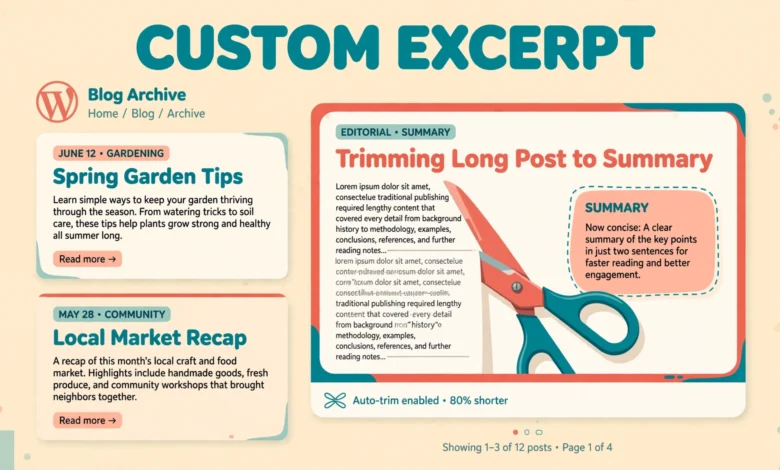
An excerpt is a short summary of a post, usually one or two sentences long, that appears wherever WordPress lists posts instead of showing the full article. Your blog page, category archives, tag archives, author archives, and search results all use excerpts to give visitors a quick taste of each post before they commit to reading it.
Excerpts also matter for search engines and social sharing. Search results often show the first part of your content, and a clear excerpt helps Google understand what the post is about. A custom excerpt lets you write that preview yourself instead of leaving it to chance.
How Does the Default WordPress Excerpt Work?
If you do not write a custom excerpt, WordPress creates one automatically by taking the first 55 words of your post content and adding an ellipsis at the end. The number 55 is the default excerpt length, and it has been the same for many years. The automatic excerpt also strips out images, headings, shortcodes, and other formatting, so what remains is plain text only.
The automatic excerpt has two problems. First, 55 words is often too long for a clean archive layout, and it can make your blog page look crowded. Second, the first 55 words of a post are rarely a good summary. Most introductions build up to the topic slowly, so the excerpt ends up vague and uninviting. Writing your own excerpt fixes both problems at once.
Method 1: Use the Built-In Excerpt Field
The simplest way to add a custom excerpt is the Excerpt field built into the WordPress editor. It needs no code, no theme change, and no plugin. You write a short summary, WordPress stores it with the post, and your theme displays it wherever excerpts appear.
Where Is the Excerpt Field in the Block Editor?
- Open the post in the block editor, then click the Post tab in the settings sidebar on the right.
- Scroll down to the Excerpt section and click to expand it if it is closed.
- Type your custom excerpt in the text box, keeping it to one or two sentences.
- Click Update or Publish, then check your blog page to see the new excerpt in place.
If you do not see the Excerpt section, open the editor options menu at the top right, choose Preferences, then Panels, and make sure the Excerpt panel is switched on. In the classic editor the Excerpt box sits below the main content area, and you may need to enable it from the Screen Options tab at the top of the screen.
What Should a Good Manual Excerpt Say?
A good excerpt answers one question for the reader: what will I learn if I click this post? State the topic, name the benefit, and stop. Avoid repeating the post title word for word, and avoid starting with filler such as In this post we will discuss. Readers scan excerpts quickly, so the first few words should carry the main idea.
Keep manual excerpts between 20 and 40 words. That length fits neatly into most archive layouts without wrapping awkwardly, and it is short enough to read at a glance. If your theme shows excerpts in a grid, check how they look on a phone too. Our guide to WordPress categories vs tags explains how archive pages organise your posts, which helps you understand exactly where excerpts appear.
Method 2: Change the Excerpt Length With the excerpt_length Filter
If the default 55 words is too long or too short for your design, you can change it site wide with a single filter. The excerpt_length filter lets you set a new word count, and WordPress applies it to every automatic excerpt on your site. Manual excerpts are not affected, because WordPress uses your text exactly as written when one exists.
function vtg_excerpt_length( $length ) {
    return 30;
}
add_filter( 'excerpt_length', 'vtg_excerpt_length' );
Add this code to your child theme functions.php file or to a site specific plugin. The number 30 sets the new length to 30 words. Change it to any number that suits your layout, but avoid going below 15 words. If you are not sure where to put the code, our guide to creating a WordPress child theme walks through the safe way to add custom code.
How Do I Set a Different Length for Different Sections?
Sometimes you want a short excerpt on the homepage and a longer one on category pages. You can do that by checking which page WordPress is showing inside the filter function, then returning a different number for each case. This keeps one filter in place while giving each archive its own length.
function vtg_conditional_excerpt_length( $length ) {
    if ( is_front_page() ) {
        return 20;
    }
    if ( is_category() ) {
        return 40;
    }
    return 30;
}
add_filter( 'excerpt_length', 'vtg_conditional_excerpt_length' );
This version returns 20 words on the front page, 40 words on category archives, and 30 words everywhere else. You can add more conditions for tag archives, search results, or author pages using the same pattern. Keep the logic simple, because a filter that is hard to read is hard to debug later.
Method 3: Change the Read More Text With the excerpt_more Filter
By default WordPress ends an automatic excerpt with an ellipsis in square brackets, which looks plain and gives the reader no clear next step. The excerpt_more filter lets you replace that ending with your own text, including a link to the full post. A clear call to action such as Continue reading works better than three dots, because it tells the reader exactly what to do next.
function vtg_excerpt_more( $more ) {
    return '... <a href="' . get_permalink() . '">Continue reading</a>';
}
add_filter( 'excerpt_more', 'vtg_excerpt_more' );
This code replaces the default ending with an ellipsis followed by a Continue reading link that points at the full post. You can change the link text to anything that fits your site, such as Read the full guide. Keep the text short and action oriented, and make sure the link is styled clearly in your theme. The official developer documentation at developer.wordpress.org lists every filter hook related to excerpts.
Method 4: Use wp_trim_words for a Custom Excerpt Anywhere
The filters above change excerpts everywhere at once. Sometimes you want a one off excerpt in a specific place, such as a custom homepage section or a related posts area. The wp_trim_words function is built for exactly that job. It takes any text, trims it to the number of words you choose, and adds your chosen ending.
$custom_excerpt = wp_trim_words( get_the_content(), 25, '...' );
echo '<p class="vtg-custom-excerpt">' . $custom_excerpt . '</p>';
This example trims the post content to 25 words and adds an ellipsis. You can pass any string as the first argument, so the same function works for trimming a custom field, a term description, or a block of text from another source. Because wp_trim_words is a core WordPress function, it handles multibyte characters and HTML correctly, which makes it safer than writing your own trimming code with PHP string functions.
Method 5: Use the Read More Block in the Editor
The Read More block gives you per post control without touching any code. Place it at the point in your post where you want the preview to end, and WordPress will use everything above the block as the excerpt on archive pages. This method is ideal when the best preview is simply the opening of the article itself, cut at a natural stopping point.
To use it, click where you want the break in your post, open the block inserter, and search for Read More. The block appears as a small divider with a Read More label. Everything above it becomes the excerpt, and everything below it stays behind the full post link. You can also use the classic More tag from the toolbar in the same way if you prefer the older editor controls.
Method 6: Show Excerpts in a Block Theme With the Post Excerpt Block
Block themes handle excerpts through the Post Excerpt block inside query loops, which means you control excerpts from the Site Editor instead of from theme files. Open Appearance, Editor, then open the template that lists posts, such as the Blog Home or Archive template. Inside the Query Loop block you will find a Post Excerpt block for each listed post.
Select the Post Excerpt block and open its settings in the sidebar. You can set the maximum number of words, choose whether to show the read more link, and change the link text. These settings apply to that template only, so your blog page and your category archives can each have their own excerpt length without any code at all.
If the Post Excerpt block is missing from your template, add it inside the Query Loop block from the block inserter. The Query Loop repeats your post layout once per post, so any block you place inside it appears for every post in the list. For a refresher on working with blocks, our guide to WordPress block editor keyboard shortcuts will speed up the whole editing process.
What Should I Avoid When Customising Excerpts?
- Do not add excerpts directly in your parent theme files, because a theme update will erase your changes. Use a child theme or a site specific plugin instead.
- Do not set the excerpt length too short. A five word excerpt tells the reader nothing and makes your archive pages look empty.
- Do not stuff keywords into excerpts. Write for the human reader first, and let the keyword appear naturally if it fits.
- Do not use the automatic excerpt on posts that start with a shortcode, a form, or a table. The stripped output can look broken, so write a manual excerpt for those posts.
- Do not forget to clear your cache after changing excerpt settings, or you may keep seeing the old excerpts for hours.
If your hosting setup limits what you can customise, for example by blocking access to theme files, our web hosting guide covers how your hosting choice affects site control.
Frequently Asked Questions
What is the default excerpt length in WordPress?
The default excerpt length is 55 words. WordPress takes the first 55 words of the post content, strips out formatting, and adds an ellipsis. You can change this number with the excerpt_length filter or by writing a manual excerpt in the Excerpt field.
How do I add a custom excerpt without a plugin?
Use the built-in Excerpt field in the post editor sidebar. Open the Post tab, expand the Excerpt section, and type your summary. That text will appear on archive pages and your blog page wherever your theme shows excerpts.
Can I set a different excerpt length for different pages?
Yes. Inside the excerpt_length filter you can check conditional tags such as is_front_page or is_category and return a different word count for each case. In a block theme you can also set the length per template using the Post Excerpt block settings in the Site Editor.
Why is my custom excerpt not showing on the blog page?
Your theme may be showing the full post content instead of excerpts, or a page builder template may override the excerpt. Check your theme customiser settings for a content or excerpt option, clear your cache, and confirm the template uses the_excerpt rather than the_content. The developer documentation at developer.wordpress.org explains how the_excerpt works in templates.
Last updated: November 2026.