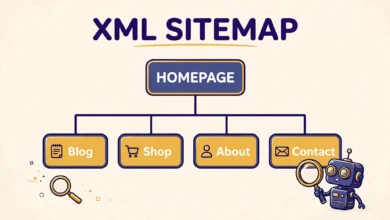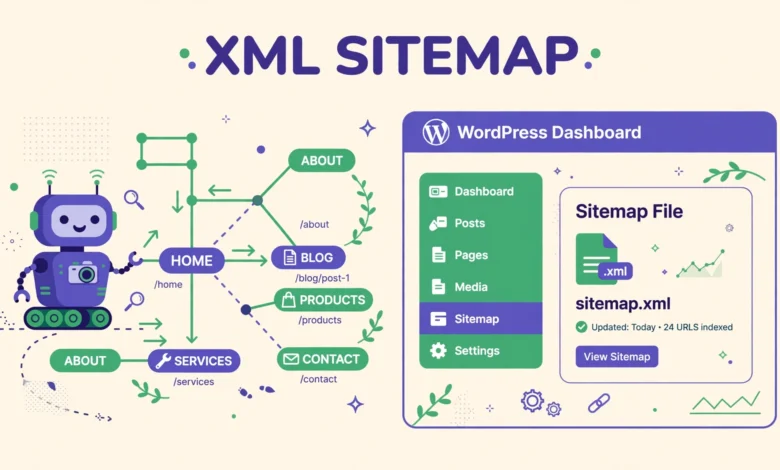
An XML sitemap is a file that lists the pages on your website in a format search engines can read. It tells Google and Bing which pages exist, when each one was last updated, and how your pages relate to each other. Think of it as a map you hand to a search engine so it can find every important page on your site without guessing.
Every WordPress site already has an XML sitemap built in, and most site owners never look at it. In this guide you will learn what the sitemap contains, where to find it, when a plugin sitemap is worth using instead, how to submit it to Google Search Console, and how to fix the problems that stop a sitemap from working.
What Is a WordPress XML Sitemap?
An XML sitemap is a structured list of URLs written in XML, a format designed for machines rather than people. Each entry in the file contains a page address and the date it was last modified. Some sitemaps also include extra detail, such as how often a page changes or which images it contains. Search engines read this file to discover pages they might otherwise miss, especially new posts, pages buried deep in your site structure, and pages with few or no internal links pointing at them.
It is important to know what a sitemap is not. It is not a page your visitors ever see, and it is not a navigation menu. The sitemap your visitors use is called an HTML sitemap, which is a normal web page listing your posts and pages as clickable links for humans. The XML sitemap serves search engines, while the HTML sitemap serves people. They solve different problems, and most sites benefit from having both. Our guide on how to add an HTML sitemap in WordPress without a plugin covers the visitor facing side.
How Does the Built-In WordPress Sitemap Work?
Since WordPress 5.5, every WordPress site generates an XML sitemap automatically, with no plugin and no setup required. You can find it at your domain followed by /wp-sitemap.xml, for example https://example.com/wp-sitemap.xml. This address is a sitemap index, which is a list of smaller sitemaps, one for each type of content on your site.
The built-in sitemap covers your posts, pages, custom post types, categories, tags, and author archives. Each individual sitemap holds up to 2000 URLs, and WordPress splits larger sites into multiple files automatically. When you publish a new post or update an old one, WordPress updates the sitemap for you, so you never need to rebuild it by hand.
The core sitemap is simple on purpose, and that simplicity comes with limits. You cannot exclude a single post or page from it through the admin screen, it does not include images or videos, and you cannot add custom entries for pages that WordPress does not know about. For a small blog or a simple business site, those limits rarely matter. For a larger site with content you want to keep out of search results, a plugin sitemap is the better choice.
How Do I Find and Check My WordPress Sitemap?
Open your browser and add /wp-sitemap.xml to the end of your domain, then press Enter. You should see the sitemap index, listing the sitemap for posts, the sitemap for pages, and sitemaps for each taxonomy. Click any entry to open it and check that your newest posts appear in the list. If the newest post is missing, wait a few minutes and check again, because the sitemap is cached briefly.
- Visit yourdomain.com/wp-sitemap.xml to see the sitemap index.
- Open the posts sitemap and confirm your latest post is listed.
- Check that every URL uses the correct protocol and domain.
- Re-check the sitemap after a redesign, migration, or permalink change.
Should I Use a Plugin Sitemap Instead?
SEO plugins such as AIOSEO, Rank Math, and Yoast SEO each generate their own sitemap, and they disable the built-in WordPress sitemap when they are active. Their sitemaps live at /sitemap_index.xml instead of /wp-sitemap.xml, and they offer far more control. You can exclude individual posts, pages, categories, and custom post types, include image and video sitemaps, set priorities for important pages, and split large sitemaps more finely.
A plugin sitemap is worth using when you run a site with hundreds of pages, when you publish content you want to keep out of search results, or when you need image sitemaps for a photography or product heavy site. Image sitemaps help Google discover images that appear inside JavaScript galleries or on pages that are hard to crawl, which the core sitemap cannot do at all.
For a small site, the built-in sitemap is enough, and adding a heavy SEO plugin only for its sitemap is overkill. Choose one sitemap source and stick with it, because running two sitemaps at once confuses search engines and splits your crawl signals. If you activate an SEO plugin, check that the old /wp-sitemap.xml address now redirects to or is replaced by the plugin sitemap, and submit the new address to Google Search Console.
How Do I Submit My Sitemap to Google Search Console?
Submitting your sitemap to Google Search Console is how you tell Google where to look. Log in to Search Console, select your property, and open the Sitemaps report from the left sidebar. Type the sitemap address into the field, either wp-sitemap.xml or sitemap_index.xml depending on which one your site uses, and click Submit. Google will fetch the file and report how many URLs it discovered.
If you have not set up Search Console yet, our guide on how to add Google Search Console to WordPress walks through verification step by step. Once the sitemap is submitted, check back after a few days. The report shows how many URLs were discovered and whether Google found any errors. A clean report with a growing count of discovered URLs is exactly what you want to see.
Submit your sitemap to Bing Webmaster Tools as well, since Bing powers several other search engines. The process is almost identical: add your site, verify ownership, and submit the same sitemap address. The official Google documentation at developers.google.com explains how Google uses sitemaps and what it expects from them.
How Do I Exclude a Post or Page From the Sitemap?
Sometimes a page should exist but should not appear in search results. Thank you pages, internal landing pages, and private member pages are common examples. The built-in WordPress sitemap has no setting for this, but SEO plugins do: open the post editor, find the plugin settings box, and switch off the option to include the page in the sitemap. That is the easiest method for most site owners.
If you prefer a code solution and you use the built-in sitemap, you can filter the posts query with a small snippet in your child theme or a code snippets plugin. The filter below excludes a single post by its ID from the posts sitemap. Replace 123 with the ID of the post you want to hide.
add_filter( 'wp_sitemaps_posts_query_args', function( $args ) {
    $args['post__not_in'] = array( 123 );
    return $args;
} );
Remember that removing a page from the sitemap does not remove it from Google. If the page is already indexed, you also need to set it to noindex or block it with a password. Excluding a page from the sitemap only stops Google discovering it through that file; a link from another page can still lead Google to it. For pages that should never be indexed, use the noindex setting in your SEO plugin instead of relying on the sitemap alone.
How Do I Fix Common Sitemap Problems?
Why does my sitemap return a 404 error?
A 404 on /wp-sitemap.xml usually means your permalinks need refreshing. Go to Settings, Permalinks and click Save Changes without changing anything, which rebuilds the rewrite rules that make the sitemap address work. If the error continues, check for a conflicting SEO plugin or a security plugin that blocks the sitemap address, and clear your caching plugin and server cache before testing again.
Why is my sitemap not updating with new posts?
WordPress updates the sitemap when you publish, but caching can delay what you see. Clear your site cache and your CDN cache, then reload the sitemap in a private browser window. If the new post still does not appear, check that the post status is Published rather than Draft or Scheduled, because only published content appears in the sitemap. A sitemap generated by a plugin may also need its own cache cleared from the plugin settings.
Why is my sitemap blocked in robots.txt?
Some security plugins and hosting setups add rules to robots.txt that block the sitemap address by accident. Open yourdomain.com/robots.txt and look for any Disallow rule that covers wp-sitemap.xml or sitemap_index.xml. Remove the blocking rule, and add a line pointing search engines to your sitemap, such as Sitemap: https://example.com/wp-sitemap.xml. The support documentation at support.google.com explains how Google reads robots.txt and sitemap declarations.
Why does Search Console say my sitemap could not be read?
This error usually means Google fetched the sitemap and found broken XML, a redirect loop, or an empty file. Open the sitemap address in your browser and confirm it loads as a proper list. Check that the address you submitted matches the live address exactly, including the https:// protocol, and that your site is not blocking Googlebot. If you recently changed domains, submit the sitemap under the new property and update any old redirects. If your site has deeper indexing trouble, our guide on why a WordPress site is not indexed by Google covers the other causes step by step.
Does a Sitemap Guarantee Indexing?
No. A sitemap helps Google discover your pages, but discovery is only the first step. Google then decides whether each page is worth indexing, and it indexes only pages it considers useful, original, and technically sound. A page with thin content, heavy duplication, or no incoming links may be discovered through the sitemap and still left out of the index.
That is why a sitemap works best alongside the fundamentals: original content that answers a real question, clean internal linking so every important page is reachable in a few clicks, fast loading times, and a mobile friendly design. Your hosting setup affects several of these at once, which is why our web hosting guide treats speed and uptime as SEO factors rather than technical details. Keep the sitemap healthy, keep the content strong, and let the two work together.
Check your sitemap once a month as part of a basic site health routine. Confirm it loads, confirm new posts appear, and confirm Search Console reports no errors. That small habit catches most sitemap problems before they cost you traffic.
Frequently Asked Questions
Where is the WordPress XML sitemap?
The built-in WordPress sitemap lives at yourdomain.com/wp-sitemap.xml. If you use an SEO plugin such as AIOSEO, Rank Math, or Yoast SEO, the plugin replaces it with its own sitemap at yourdomain.com/sitemap_index.xml.
Do I need a plugin for a WordPress sitemap?
No. WordPress has generated an XML sitemap automatically since version 5.5. A plugin is useful only when you need exclusions, image sitemaps, video sitemaps, or finer control over which content types are included.
How do I submit my WordPress sitemap to Google?
Open Google Search Console, select your property, go to the Sitemaps report, and enter wp-sitemap.xml or sitemap_index.xml. Google will fetch the file and show how many URLs it discovered. Check back after a few days for any errors.
Does an XML sitemap guarantee my pages will be indexed?
No. A sitemap helps Google discover your pages, but Google decides which pages to index based on quality, originality, and links. Keep your sitemap clean and your content strong, and use Search Console to monitor which pages actually enter the index.
Last updated: November 2026.