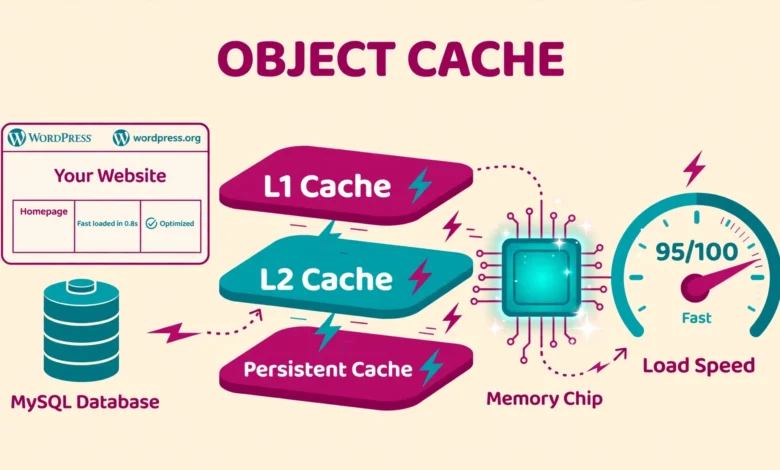
Every WordPress page load triggers dozens or even hundreds of database queries. WordPress asks the database for your site settings, your theme options, your menu items, your post details, and your user data, then it asks again on the next page load, and again on the one after that. Object caching exists to stop that repetition. It stores the answers in fast memory so WordPress can reuse them instead of asking the database the same question over and over.
What Is Object Caching in WordPress?
Object caching is a way of storing the results of expensive work so WordPress does not repeat that work. When WordPress runs a database query, it stores the result in the object cache under a key, which is a short label that identifies the data. The next time the same data is needed, WordPress checks the cache first. If the key exists, it uses the stored result. If the key is missing, it runs the query, stores the fresh result, and moves on.
WordPress caches many kinds of objects by default. Options and settings are cached, so the dozens of get_option() calls on a page load hit memory instead of the database. Post data, terms, user data, and menu items are cached the same way. Plugins and themes can cache their own objects too, using the same functions, which is why a well built plugin can feel fast even on a busy site. The official WP_Object_Cache documentation on developer.wordpress.org describes the class behind all of this.
How Does the Default WordPress Object Cache Work?
WordPress ships with a built in object cache, and it is always on. You do not need to install or enable anything to use it, because every WordPress site runs WP_Object_Cache on every page load. The catch is that the default cache is non-persistent, which means it lives only in PHP memory for the length of a single request. When the page finishes loading, PHP throws the memory away, and the cache goes with it.
That sounds useless at first, but it is not. A single page load can ask for the same option or the same post ten times, from the theme, from plugins, and from widgets, and the default cache answers nine of those ten requests from memory. That alone saves a large number of repeat queries on every page. What the default cache cannot do is help the next visitor, because the next page load starts with an empty cache and runs every query from scratch again.
What Is a Persistent Object Cache?
A persistent object cache stores cached data outside PHP memory, in a fast in memory data store that keeps running between requests. Redis and Memcached are the two stores WordPress uses for this job. When you install one of them and add a small drop-in file to WordPress, the cache survives after the page finishes loading, so the next visitor benefits from the work the previous visitor already paid for.
- Redis: an in memory data store that keeps cached values in RAM and can also save them to disk. It supports many data types, it is actively maintained, and it is the most common choice for WordPress hosts. Learn more at redis.io.
- Memcached: a simpler in memory caching system built for speed. It stores key value pairs in RAM and drops the least used items when memory fills up. Learn more at memcached.org.
- object-cache.php drop-in: a file placed in the wp-content folder that replaces the default WP_Object_Cache with one that talks to Redis or Memcached. WordPress loads it automatically when it exists.
Object Cache vs Page Cache vs OPcache: What Is the Difference?
- Object cache: stores database query results and objects, so WordPress skips repeat queries. Helps logged in users, dynamic pages, WooCommerce, and membership sites most, because those pages cannot use a page cache easily.
- Page cache: stores the finished HTML of a page and serves it directly, skipping PHP and the database entirely. Helps anonymous visitors most. A caching plugin or your host provides it, and it is the biggest speed win for most blogs.
- OPcache: stores compiled PHP bytecode in memory, so PHP does not recompile your theme and plugin files on every request. It ships with modern PHP, it is usually on by default, and you rarely need to touch it.
A fast site usually runs all three. Page cache handles anonymous traffic, object cache handles the database work behind dynamic pages, and OPcache handles the PHP layer underneath everything. Add a persistent object cache when dynamic pages stay slow after page caching is in place. Our guide to enabling Gzip compression in WordPress without a plugin covers another cheap speed win that pairs well with caching.
Does Your Site Actually Need a Persistent Object Cache?
Not every site does, and adding one to a site that does not need it is pure overhead. Use this checklist to decide honestly. If two or more items describe your site, a persistent object cache is worth testing. If none of them do, skip it and spend the effort on page caching and image optimization instead.
- High traffic: your site gets thousands of visits a day, so the same queries run again and again within minutes.
- Many logged in users: members, customers, or students see personal pages that page caching cannot serve, so every visit runs full database queries.
- WooCommerce or a membership plugin: carts, accounts, and checkout pages are dynamic, and they generate heavy queries on every visit.
- Slow database queries: your host database is the bottleneck, shown by slow Time to First Byte on pages that page caching cannot help.
- Complex queries: your theme or plugins run expensive filtering, searching, or reporting queries that return the same results for many visitors.
If your admin dashboard feels slow, the cause is often different. Heavy admin pages come from plugin queries and background tasks, and our guide to fixing a slow WordPress admin dashboard covers the usual suspects, including the Heartbeat API, which our WordPress Heartbeat API guide explains in detail.
How to Enable a Persistent Object Cache
There are three common routes, and the right one depends on your host. Managed WordPress hosts often provide a one click toggle in their dashboard, which installs Redis, configures it, and drops the file in place for you. That is the easiest route by far, so check your host panel before doing anything manual.
Option 1: Enable Redis From Your Host Dashboard
Hosts like Cloudways, Kinsta, and SiteGround offer Redis as a dashboard toggle or an add-on. Turn it on, wait for the service to start, and your host usually installs the matching drop-in automatically. Some hosts then ask you to install a small plugin to connect WordPress to the running Redis server, while others wire it up with no plugin at all. Follow your host documentation for the exact steps, because the details vary.
Option 2: Use the Redis Object Cache Plugin
If your server already runs Redis, the free Redis Object Cache plugin by Till Kruss is the standard way to connect WordPress to it. Install the plugin, open Tools then Redis in your admin area, and click Enable Object Cache. The plugin copies the object-cache.php drop-in into your wp-content folder and starts routing cache calls to Redis. Its status screen shows the connection state, the Redis version, and hit and miss counts, which makes verification easy.
For Memcached, the equivalent route is a Memcached drop-in paired with a plugin that manages it, or a host provided setup. The steps are similar, but the plugin choices are fewer, which is one more reason Redis is the common pick for new setups.
How to Check the Object Cache Is Working
Never assume the cache is working because the drop-in file exists. A stale drop-in, a stopped Redis service, or a wrong port all fail silently, and WordPress quietly falls back to the default non-persistent cache without showing an error. Check the status properly with one of these methods.
- Plugin status screen: the Redis Object Cache plugin shows connected or not connected, plus hit and miss counts. A rising hit count proves the cache is being used.
- Query Monitor: this free plugin shows database query counts and object cache hit rates per page load. Compare a page before and after enabling the cache to see the drop in repeat queries.
- WP-CLI check: run wp cache type from the command line. If it reports Redis or Memcached, the persistent cache is active. If it reports the default, the drop-in is not loading.
- Speed test: measure Time to First Byte on a dynamic page before and after, using the same page and the same conditions. A real improvement shows up here, not just in the status screen.
How Do Object Cache and Transients Work Together?
Transients are WordPress built in way to store temporary data with an expiry time, such as an API response you want to keep for an hour or a computed list you want to refresh daily. Under the hood, transients use the object cache when a persistent cache exists, and the options table when it does not. That makes transients the easiest way for theme and plugin developers to benefit from a persistent object cache without writing any cache code themselves.
What Are the Common Object Cache Problems?
Object caching is reliable when set up correctly, but three problems show up again and again. The first is stale data, where a page shows old content after an update. WordPress clears the relevant cache keys when you save a post or change a setting, but a buggy plugin can cache data and never clear it. If a change does not appear, flush the object cache from the plugin status screen or your host panel, then check again.
The third problem is a cache that silently stops working after a server restart or a host migration. Redis must be running for the drop-in to connect, and if the service did not restart, WordPress falls back to the default cache with no warning. Add a cache status check to your routine after any server change, and check your host panel first when dynamic pages suddenly slow down. Good hosting makes this rare, and our web hosting guide explains what to look for in a host cache and Redis support before you buy.
Frequently Asked Questions
Is the WordPress object cache on by default?
Yes, the default WP_Object_Cache is always on, but it is non-persistent, so it only removes duplicate queries inside a single page load. You need Redis or Memcached plus an object-cache.php drop-in to make it persistent across page loads.
Should I use Redis or Memcached for WordPress?
Redis is the safer default for most sites, because more hosts support it, more plugins target it, and its tooling is better. Memcached is simpler and still fast, so it is a fine choice if your host provides it and your needs are simple.
Will an object cache speed up my small blog?
Probably not. A small blog runs few queries and serves mostly anonymous visitors, so page caching helps far more. A persistent object cache earns its keep on busy sites, logged in traffic, WooCommerce stores, and membership sites.
Do I need to clear the object cache after updating content?
Usually no, because WordPress clears the affected cache keys when you save a post or change a setting. If a change does not appear on the site, flush the object cache once from your plugin status screen or host panel, then check again before assuming something is broken.
Last updated: November 2026.