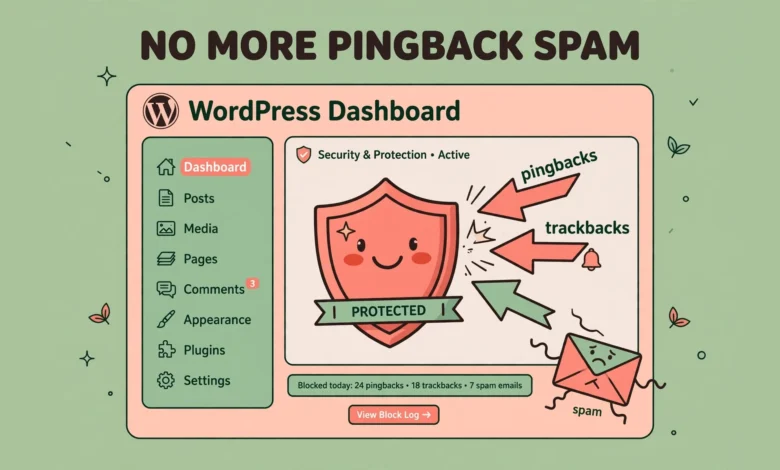
If you run a WordPress site, you have probably opened your comments queue and found strange entries that look nothing like real comments. They mention your post title, link to a website you have never heard of, and add no value to the conversation. In most cases, those entries are pingbacks or trackbacks, and they are almost always spam.
Pingbacks and trackbacks were useful in the early days of blogging, when blogs linked to each other and wanted a public record of the connection. That era is long gone. In 2026, legitimate blogs rarely rely on them, while spammers use them as a free way to place links on other sites. The good news is that you can turn them off completely without installing a plugin, and the whole job takes only a few minutes.
This guide explains what pingbacks and trackbacks are, why they cause so much spam, and how to disable them for new posts, existing posts, and your whole site. You will also learn how to stop self-pings, clean up the spam that is already in your comments, and use WP-CLI when you manage many posts at once. Spam traffic also wastes server resources, so if your site feels slow, our web hosting guide explains how to pick a host that handles it well.
What Are Pingbacks and Trackbacks?
A pingback is an automatic notification. When another WordPress site links to one of your posts, its WordPress installation sends a ping to your site. WordPress then checks that the link really exists and, if it does, creates a comment on your post that says the other site linked to you. The entry usually shows the title of the linking post and a link back to it.
A trackback works in a similar way, but it is older and more manual. The author of the other site sends a trackback to your post on purpose, usually through a special trackback URL. Trackbacks can include a short excerpt of the linking post, which is why they sometimes look like a small quote. Unlike pingbacks, trackbacks do not verify the link automatically, so they were abused even more often.
Both features live under the same idea: when someone talks about your content, you get a notification on your own site. That sounded helpful when the blogosphere was small and friendly. Today, the notification system is mostly used by automated spam tools that send thousands of fake pings in the hope that a few site owners will approve them and hand over a free backlink.
Why Are Pingbacks and Trackbacks Mostly Spam in 2026?
Spammers love pingbacks for one simple reason: they are cheap. A single script can send pingbacks to thousands of WordPress sites in a few minutes, and every approved pingback becomes a link from your site to a spammy page. Those links can hurt your search rankings, confuse your readers, and make your site look neglected when the comments area fills up with junk.
How to Disable Pingbacks and Trackbacks for New Posts
The simplest method uses the built-in Discussion settings. No code is needed, and the change applies to every post you publish from now on. Log in to your WordPress dashboard and follow these steps.
- Go to Settings > Discussion in your WordPress dashboard.
- Find the section called Default post settings near the top of the page.
- Uncheck the box labelled Allow link notifications from other blogs (pingbacks and trackbacks) on new posts.
- Uncheck the box labelled Attempt to notify any blogs linked to from the article.
- Scroll down and click Save Changes.
The first checkbox controls incoming pings. When it is off, other sites can no longer leave pingbacks or trackbacks on your new posts. The second checkbox controls outgoing pings. When it is off, your site stops notifying other blogs when you link to them. For a spam-free setup, turn both off.
This setting only affects new posts. WordPress stores the ping setting on each post when it is created, so posts you published before this change keep their old setting. That surprises many site owners, so the next section shows how to close pings on the posts you already have.
How to Close Pings on Existing Posts
If your site already has dozens or hundreds of posts, editing each one by hand would take forever. WordPress includes a bulk edit tool that closes pings on many posts at once. It takes about a minute, and it works on posts and pages.
- Go to Posts > All Posts in your WordPress dashboard.
- Tick the checkbox at the top of the list to select every post on the page, or tick individual posts if you only want to change some of them.
- Open the Bulk actions dropdown, choose Edit, and click Apply.
- In the bulk edit panel, find the Pings dropdown and choose Do not allow.
- Click Update to save the change for all selected posts.
WordPress shows twenty posts per page by default. If you have more than twenty posts, repeat the same steps on each page of the list. You can also raise the number of posts shown per page under Screen Options at the top right, so you can select more posts in a single pass.
You can also change the setting for a single post. Open the post in the editor, open the Discussion panel in the sidebar, and uncheck Allow pingbacks and trackbacks. If you do not see the Discussion panel, click the three dot menu at the top right of the editor, choose Preferences, open the Panels section, and turn on Discussion.
What Are Self-Pings and How Do You Stop Them?
A self-ping is a pingback your own site sends to itself. It happens when you link from one of your posts to another post on the same site. WordPress treats your own domain like any other site, so it creates a pingback entry in your comments that says you linked to your own article. The result looks odd, because your comments area shows an entry from yourself, linking to yourself.
Self-pings are harmless, but they are noisy. They clutter the comments queue, they can confuse readers who think a real person left a comment, and they add nothing to the discussion. Internal linking is good for SEO, so you should keep linking between your posts, but you do not need a pingback every time you do it.
How to Close Pings With WP-CLI
If you manage a large site or you work from the command line, WP-CLI closes pings much faster than clicking through the dashboard. You need SSH access to your server and WP-CLI installed. Run the commands from your WordPress root directory, where the wp-config.php file lives.
To close pings on a single post, use its post ID:
wp post update 123 --ping_status=closedTo close pings on every published post at once, list the open posts and pipe them into the update command:
wp post list --post_type=post --post_status=publish --ping_status=open --format=ids | xargs wp post update --ping_status=closedYou can do the same for pages by changing the post type in the list command:
wp post list --post_type=page --post_status=publish --ping_status=open --format=ids | xargs wp post update --ping_status=closedBefore you run a bulk command, take a database backup. WP-CLI is powerful, and a typo in a bulk update can change many posts before you notice. After the command finishes, check a few posts in the dashboard to confirm that the Discussion panel shows pings as closed. Pair this cleanup with our guide on how to limit login attempts in WordPress without a plugin, since both steps block the same automated abuse. If your host does not offer WP-CLI, the dashboard bulk edit method works just as well, it only takes a little longer.
Pingbacks, Trackbacks, and XML-RPC
Pingbacks arrive through XML-RPC, which is a system WordPress uses to let outside apps talk to your site. The WordPress mobile app and some publishing tools use it, but most sites never need it. Attackers know this, and they use XML-RPC to try thousands of login passwords in a single request, which is why many security guides recommend turning it off.
Disabling pingbacks and disabling XML-RPC are two separate steps. Turning off pingbacks stops the spam comments, but XML-RPC stays active in the background. Turning off XML-RPC stops pingbacks as well, because the ping has no way to reach your site, but it can also break tools that rely on XML-RPC, such as the Jetpack plugin or the classic mobile app connection. Our guide on how to disable XML-RPC in WordPress explains the trade-offs in detail.
How to Remove Existing Pingback Spam
Turning off pings stops new spam, but it does not delete the spam that is already in your comments. You need to clean that up separately. Go to Comments in your dashboard and look for entries marked as Pingback or Trackback. Genuine pingbacks from real sites are rare, so you can usually delete the whole group.
- Go to Comments in your WordPress dashboard.
- Use the comment type filter or search for pingback entries.
- Tick the checkbox at the top to select all entries on the page.
- Choose Move to Trash from the Bulk actions dropdown and click Apply.
- Repeat for each page of comments, then empty the trash to delete them permanently.
If you have thousands of spam pingbacks, the dashboard method is slow. A plugin such as a bulk comment deletion tool can remove them faster, or you can ask your host for help with a database query. Whatever method you choose, back up your database first, because deleted comments cannot be recovered after the trash is emptied. For general background on how comment spam works, the WordPress documentation on comment spam is a useful reference.
When You Should Not Disable Pingbacks and Trackbacks
For almost every site, disabling pings is the right call. There are only a few exceptions. Some older blogging networks and niche communities still use trackbacks as part of their workflow, for example when member blogs notify each other about shared topics. If your site belongs to such a network, check with the other members before you turn pings off.
Frequently Asked Questions
Will disabling pingbacks hurt my SEO?
No, it will not hurt your SEO. Search engines do not use pingbacks to judge your site, and the links inside pingback spam can actually harm you. Internal links between your own posts and genuine backlinks from other sites still work exactly as before, because those are normal HTML links, not pingbacks.
Does turning off pingbacks in Settings affect my old posts?
No, the Discussion setting only applies to posts you publish after the change. Your existing posts keep their old ping setting until you change it. Use the bulk edit method or WP-CLI to close pings on the posts you already published.
What is the difference between a pingback and a trackback?
A pingback is automatic. When a WordPress site links to your post, it sends a ping, and WordPress verifies the link before creating the comment. A trackback is manual and older. The linking author sends it on purpose, and WordPress does not verify the link. Both appear in your comments, and both are used for spam today.
Can I disable pingbacks but keep normal comments open?
Yes, the two settings are independent. Unchecking the link notification boxes only stops pingbacks and trackbacks. Your readers can still leave normal comments as long as the Allow people to submit comments option stays checked in the same Discussion settings page.
Last updated: November 2026.