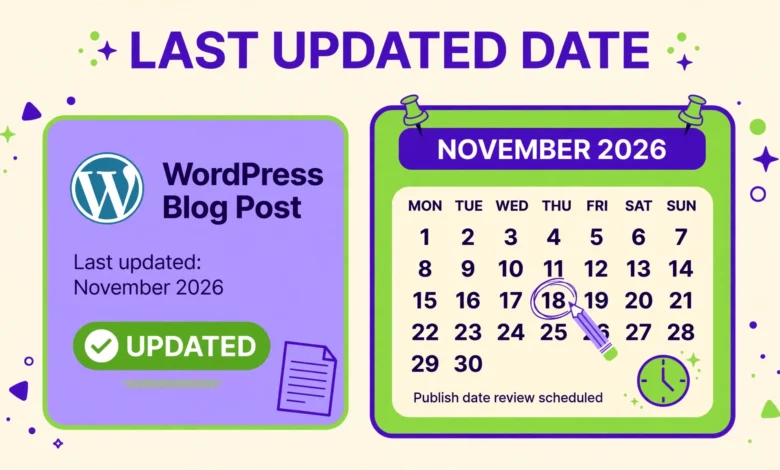
Most WordPress themes show the date a post was published, and never mention it again. That is a problem for any post you keep updating, because a reader who finds a three year old date on a guide assumes the information is three years old, even if you rewrote half of it last week. A last updated date fixes that at a glance: it tells readers the content is current.
You do not need a plugin to add one. WordPress already tracks the modified date of every post, and it takes only a few lines of code to display it. This guide covers three methods: the_modified_date() in a classic theme, the Modified Date block in a block theme, and a the_content filter that works with almost any theme, plus the 24 hour rule that stops WordPress from showing a last updated date on a post you only just published.
Why Show a Last Updated Date?
A last updated date builds trust in seconds. When someone lands on a tutorial about WordPress settings or hosting, the first thing they check is whether the advice still applies. A date that says the post was updated this month answers that question before they even start reading, while a publish date from years ago pushes them back to the search results to find something newer.
Search engines care about freshness too. Google shows dates in search results, and for topics where accuracy changes over time, a recent modified date can help a page hold its position against newer competitors. A last updated date does not guarantee a ranking boost on its own, but it supports the freshness signals Google already reads, and it improves the click through rate when the date appears in the results. For a broader look at keeping a site current, our web hosting guide also covers why a fast, well maintained host matters for pages you update often.
How Do I Add the Date in a Classic Theme?
Classic themes print the publish date from a template file, usually single.php or content-single.php, with a function called the_date() or the_time(). The matching function for the modified date is the_modified_date(), and it works the same way. Find the line that prints the publish date, and add the modified date next to it. Make this edit in a child theme, so a theme update does not wipe out your change. Our guide to creating a WordPress child theme shows how to set one up in a few minutes if you do not have one yet.
<p class="entry-meta">
    Published on <?php the_date(); ?>
    <?php if ( get_the_modified_time( 'U' ) > get_the_time( 'U' ) + DAY_IN_SECONDS ) : ?>
        | Last updated on <?php the_modified_date(); ?>
    <?php endif; ?>
</p>
The snippet prints the publish date first, then checks whether the modified date is at least a day newer than the publish date. Only when that check passes does it print the last updated date. The comparison uses Unix timestamps, which are plain numbers, so it works in every timezone without any date maths on your part. DAY_IN_SECONDS is a WordPress constant equal to 86400, which keeps the code readable.
How Do I Add the Date in a Block Theme?
Block themes work differently, because the post date is printed by a block rather than by a template file. The good news is that WordPress ships a Modified Date block for exactly this job, so you need no code at all. Open the Site Editor, go to Templates, and open the Single Posts template. Select the Post Date block, open the block settings in the right sidebar, and change the display setting from Post Date to Modified Date. You can also add a second Post Date block and set that one to Modified Date, so both dates appear side by side.
The block settings also let you pick a date format, add a prefix such as Last updated, and style the text to match your theme. Save the template, then open any post you have updated in the past and check that the modified date shows. If it shows the same date as the publish date, that post has not been modified since publication, which is expected behaviour rather than a fault.
The Modified Date block is the simplest method of the three, and the one to choose for a block theme such as Twenty Twenty-Four or Twenty Twenty-Five. It needs no child theme, no code, and no maintenance, and it survives theme updates because it lives in the template rather than in a file you edited.
How Do I Add the Date With a the_content Filter?
The most flexible method works with almost any theme, classic or block, because it does not touch the template at all. A small function hooked into the_content inserts a last updated line at the top of every post, but only when the post was actually modified. Add it with the Code Snippets plugin or in your child theme functions.php file. The official the_modified_date() reference on developer.wordpress.org documents the function and its format parameter.
function vutg_last_updated_date( $content ) {
    if ( ! is_single() || ! in_the_loop() || ! is_main_query() ) {
        return $content;
    }
    $published = get_the_time( 'U' );
    $modified  = get_the_modified_time( 'U' );
    if ( $modified < $published + DAY_IN_SECONDS ) {
        return $content;
    }
    $date_line = '<p class="vutg-last-updated">Last updated: ' . get_the_modified_date() . '</p>';
    return $date_line . $content;
}
add_filter( 'the_content', 'vutg_last_updated_date' );
Each guard in the function has a purpose. The is_single() check limits the date line to single post pages, so it never appears on your homepage, category archives, or search results. The in_the_loop() and is_main_query() checks stop it from appearing inside related post widgets or secondary loops that also call the_content. Without those guards, the same date line could show up in unexpected places all over the site.
The heart of the function is the 24 hour rule. It compares the modified timestamp with the publish timestamp plus one day, and returns the content unchanged when the post was modified within its first day. That rule exists because almost every post is edited within hours of publishing: fixing a typo, swapping an image, or correcting a heading. Those quick fixes are not real updates, and showing a last updated date for them would make every brand new post look revised already.
Once a full day has passed since publication, any later edit counts as a genuine update and the date line appears. The threshold is easy to change: replace DAY_IN_SECONDS with 7 * DAY_IN_SECONDS to show the date only after a week, or remove the check entirely to show it on every modified post. One day is a sensible default for most blogs.
How Do I Format the Date?
By default, the_modified_date() uses the date format from Settings then General, so it matches the rest of your site automatically. If you want a different format for the last updated line, pass a format string to the function. WordPress uses the same format characters as PHP, so F j, Y gives a friendly date such as November 28, 2026, while j F Y gives 28 November 2026, and Y-m-d gives the compact 2026-11-28 form.
get_the_modified_date( 'F j, Y' );
get_the_modified_date( 'j F Y' );
get_the_modified_date( 'l, F j, Y' );
The third example adds the full weekday name, which reads well on tutorial sites where readers plan around a date. Pick one format and use it everywhere, because a site that mixes date formats looks careless. If your audience is international, the plain month day year form is the clearest choice, since it leaves no doubt about which number is the month.
How Do I Style the Last Updated Line?
A bare date line at the top of a post can look like an afterthought, so a few lines of CSS make it feel like part of the design. The filter method wraps the line in a paragraph with the class vutg-last-updated, which gives you a hook to style. Add the CSS in Appearance then Customize then Additional CSS, or in your child theme stylesheet. Our guide to adding custom CSS to WordPress covers the options for where to put it.
.vutg-last-updated {
    font-size: 0.9em;
    color: #666;
    border-left: 3px solid #2271b1;
    padding-left: 12px;
    margin-bottom: 1.5em;
}
The small font size and muted colour keep the line quiet, so it informs without competing with the post title. The coloured left border gives it a subtle badge feel, and the spacing below it separates it cleanly from the first paragraph. Adjust the border colour to match your theme accent.
Does the Last Updated Date Help SEO?
A visible last updated date helps in two ways. First, it improves the click through rate from search results, because Google often shows the modified date next to a result, and searchers prefer a recently updated page over a stale one for topics that change. Second, it supports the freshness signals that search engines already read from your page, such as the modified date in your sitemap and the schema markup many SEO plugins output.
But the date only helps if the update behind it is real. Changing one word to refresh the date is a trick, and it does not fool readers or search engines for long. A genuine update means fixing outdated steps, replacing dead links, adding new information, or rewriting a section that no longer matches the current version of the software. When you update a post properly, the date is simply the honest label for work you already did.
Frequently Asked Questions
Will the last updated date show on posts I never edited?
No. On a post that was never modified, the modified date equals the publish date, so the 24 hour rule hides the date line completely. The date only appears once you edit a post at least a day after publishing it.
Can I show both the publish date and the last updated date?
Yes, and you should. Keep the original publish date visible so readers know how old the post is, and add the last updated date beside it or above the content. The two dates together tell the full story: when the post was written, and when it was last checked.
Does changing the date require a plugin?
No. WordPress tracks the modified date of every post automatically, and the three methods in this guide use built in functions and blocks. A plugin only adds a settings screen around the same data, so the manual method gives you the same result with one less plugin to maintain.
What if my theme already shows a date I cannot change?
Use the the_content filter method, because it does not depend on your theme template at all. It inserts the date line above the post content on every single post page, whatever the theme prints in its own meta area.
Last updated: November 2026.