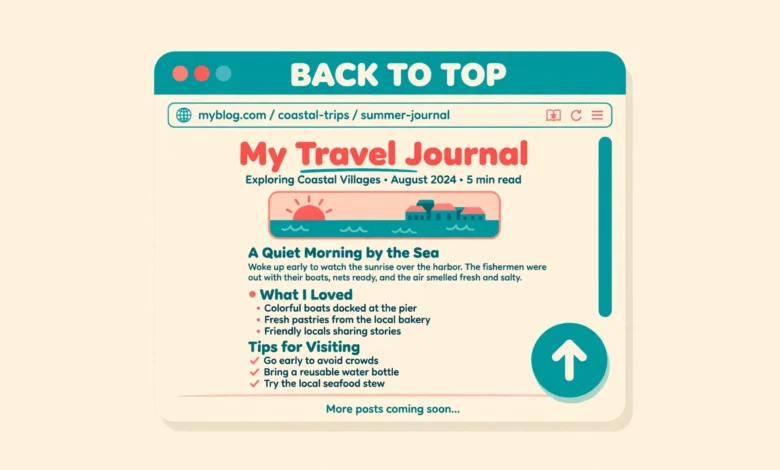
A back to top button is a small floating button that appears when a visitor scrolls down a long page. One click takes them back to the top without dragging the scrollbar or swiping for ten seconds. Long blog posts, sales pages, and documentation pages benefit most, because readers who reach the bottom often want to jump back to the menu, the search box, or the start of the article. It is a small detail, yet it makes a long page feel much easier to use.
Most themes do not include this button by default. Some premium themes add one in the Customizer, but many free themes leave it out. A plugin can add one in a minute, but a plugin also adds another settings screen, another update to track, and a little extra code on every page. The code method in this guide is about twenty lines, loads only where you place it, and gives you full control over the design.
This guide gives you three methods. Method 1 adds the button site wide with a small code snippet in the footer, using a child theme or the Code Snippets plugin. Method 2 adds the button to one page with a Custom HTML block. Method 3 builds a smooth scroll version with vanilla JavaScript and no jQuery. Pick the method that matches where you want the button to appear.
What do you need before you start?
Decide where the button should appear and how far a visitor must scroll before it shows. A common choice is to show it after 400 pixels of scrolling, which keeps it hidden near the top of the page and visible on long content. You also need a child theme if you plan to edit theme files, because a theme update will erase edits made to the parent theme. If you have never created one, read our guide to create a WordPress child theme first. The Code Snippets plugin is a safe alternative, because it stores the code in the database and survives theme updates.
Also decide the look before you write code. A round button with a dark background and a white arrow works on most sites. Keep it small, about 44 to 48 pixels wide, so it never covers much content. Place it in the bottom right corner on desktop, and test it on a phone, because the same corner can cover a chat widget or a cookie notice on small screens.
Method 1: How do I add a back to top button site wide with a code snippet?
Method 1 is the best choice when you want the button on every page. Add the code below to your child theme footer file before the closing body tag, or add it as a footer snippet with Code Snippets set to run on the front end only. The code has three parts: a link that acts as the button, CSS that fixes it to the bottom corner and hides it at first, and JavaScript that shows it after scrolling.
<a href="#" id="vu-top" aria-label="Back to top">↑</a>
<style>#vu-top{position:fixed;right:20px;bottom:20px;width:48px;height:48px;line-height:48px;text-align:center;background:#111827;color:#fff;border-radius:50%;text-decoration:none;opacity:0;visibility:hidden;transition:opacity .3s;z-index:999}#vu-top.vu-show{opacity:1;visibility:visible}</style>
<script>(function(){var b=document.getElementById("vu-top");window.addEventListener("scroll",function(){if(window.scrollY>400){b.classList.add("vu-show")}else{b.classList.remove("vu-show")}});b.addEventListener("click",function(e){e.preventDefault();window.scrollTo({top:0,behavior:"smooth"})})})();</script>
The JavaScript listens for scrolling and adds a class named vu-show once the page has scrolled more than 400 pixels. That class changes the opacity from zero to one and makes the button visible. When the visitor clicks the button, the default link action is stopped and window.scrollTo moves the page to the top with smooth behaviour. Change 400 to a larger number if you want the button to appear later, or to a smaller number if you want it sooner.
If your site already loads jQuery, you can still use this code as it is, because it uses vanilla JavaScript only. Vanilla JavaScript runs in every modern browser without a library, which keeps the button fast. If the button never appears, check that the snippet is set to run on the front end and that no caching plugin is delaying the script.
Method 2: How do I add a back to top button with a Custom HTML block?
Method 2 suits a single long page, such as a sales page or a long guide. Open the page in the block editor, add a Custom HTML block at the very bottom of the content, and paste the same HTML, CSS, and JavaScript from Method 1 into it. The button then appears only on that page, and nowhere else on the site. This is useful when only one page is long enough to need it.
The limit is plain. A Custom HTML block lives inside one post, so you must repeat the paste on every page that needs a button. That quickly becomes messy on a site with many long posts. Method 1 is better for a site wide button, while Method 2 is better for a quick test or a one page fix. If you like the result on one page, move the same code into a footer snippet and remove the block.
Method 3: How do I build a smooth scroll version with vanilla JavaScript?
Method 3 uses the CSS scroll-behavior property instead of JavaScript for the smooth motion. Add scroll-behavior smooth to the html element in your Customizer Additional CSS, and the browser animates every jump to an anchor, including the back to top link. The JavaScript then only needs to show and hide the button, which makes the code shorter and easier to read. If you need help with the Customizer CSS area, read our guide to add custom CSS in WordPress.
html{scroll-behavior:smooth}
<script>(function(){var b=document.getElementById("vu-top");window.addEventListener("scroll",function(){b.classList.toggle("vu-show",window.scrollY>400)})})();</script>
The honest limit is browser support for smooth scrolling. All modern browsers support scroll-behavior, but a very old browser will jump straight to the top instead of animating. That is still a working button, only without the smooth motion. If smooth motion matters for your design, keep the JavaScript version from Method 1, because window.scrollTo with behavior smooth gives you more control over the scroll.
How do I style the button so it looks good?
Keep the design simple and consistent with your theme. Use your brand colour for the background, white for the arrow, and a round shape with a soft shadow so the button stands out from the page. A hover state that darkens the background tells visitors the button is clickable. Keep it under 56 pixels wide so it never covers text on small screens, and use an arrow alone, because it is clear in every language.
Add a small transition on opacity so the button fades in instead of popping into view. The CSS in Method 1 already includes a 0.3 second transition. Test the colour contrast too, because a light grey arrow on a white button is hard to see. Dark text on a light button, or white text on a dark button, is the safe choice.
Where should I place the button on mobile?
On a phone the bottom right corner is often busy. A WhatsApp chat button, a cookie notice, or a sticky cart bar can sit in the same spot, and two floating buttons will overlap. Move the back to top button higher on mobile with a media query, for example bottom 90 pixels instead of 20, or move it to the bottom left corner. Test it on a real phone, because a desktop preview does not show your chat widget or cookie bar. For a related floating element, see our guide to add a WhatsApp chat button in WordPress.
@media (max-width:600px){#vu-top{right:12px;bottom:90px;width:44px;height:44px;line-height:44px}}Also check the button on pages with a sticky header. A sticky header can cover the top of the page when the button scrolls back, so make sure the header does not hide the site logo or the menu after the jump. Our guide to a sticky header in WordPress without a plugin explains how sticky headers behave on scroll.
How do I make the button accessible?
A back to top button must work for keyboard users and screen reader users, not only for mouse users. Give the link an aria-label such as “Back to top” so a screen reader announces its purpose instead of reading a bare arrow character. Make sure the button can receive keyboard focus, and give it a visible focus outline, because a keyboard user tabs through the page and needs to see where the focus is. Do not remove the outline with CSS unless you replace it with another clear focus style.
Also respect visitors who prefer reduced motion. A smooth scroll animation can feel uncomfortable for them, so add a media query for prefers-reduced-motion that turns off the smooth behaviour and jumps straight to the top.
@media (prefers-reduced-motion:reduce){html{scroll-behavior:auto}#vu-top{transition:none}}How do I test the button and fix common problems?
- Open the page while logged out and scroll down past 400 pixels.
- Confirm the button fades in at the bottom right corner.
- Click it and confirm the page returns smoothly to the top.
- Open the page on a phone and confirm it does not cover a chat button or cookie notice.
- Press Tab on the keyboard and confirm the button shows a focus outline.
- Clear the cache and reload the page to confirm the button still works.
If the button never appears, open the page while logged out, scroll down slowly, and watch the corner. A caching plugin can delay the script, and an admin only view can hide the problem, so always test while logged out. If the button appears but the click does nothing, check the browser console for a JavaScript error, and check that no other script is using the same element id.
When is a plugin the better choice?
The code methods here are free, light, and fast, and they suit a simple button very well. A plugin is better when you want a progress ring, a button that appears only on certain post types, or a settings panel where a client can change the colour without code. If you are not comfortable editing theme files or adding snippets, use a plugin or ask your developer to add Method 1. Whichever route you choose, keep the button small and quiet, because it is a helper, not a feature to show off. For hosting speed, which affects how fast the script loads, see our web hosting guide, and for the official WordPress documentation, visit WordPress.org and the developer guides at developer.wordpress.org.
Frequently asked questions
Does WordPress have a built-in back to top button?
No. WordPress core has no built-in back to top button, and the block editor has no setting for one. Some themes include a button in the Customizer, so check your theme settings first. If your theme has none, use one of the code methods in this guide or install a small plugin.
Can I add a back to top button in WordPress without a plugin?
Yes. Paste the HTML, CSS, and JavaScript from Method 1 into a footer snippet with Code Snippets or into your child theme footer, and the button appears on every page. For a single page only, paste the same code into a Custom HTML block at the bottom of that page.
Why does my back to top button not show on mobile?
The usual cause is overlap. A chat widget, cookie notice, or sticky cart bar can cover the button, or the button can sit behind another element with a higher z-index. Move it higher with the mobile media query in this guide, raise its z-index, and test on a real phone while logged out.
Does a back to top button slow down my site?
No, not in any way you can measure. The code in this guide is about twenty lines, uses no library, and runs only a small check when the page scrolls. A plugin version can add more code, but the code method here adds almost nothing to the page weight or the load time.
Last updated: November 2026.