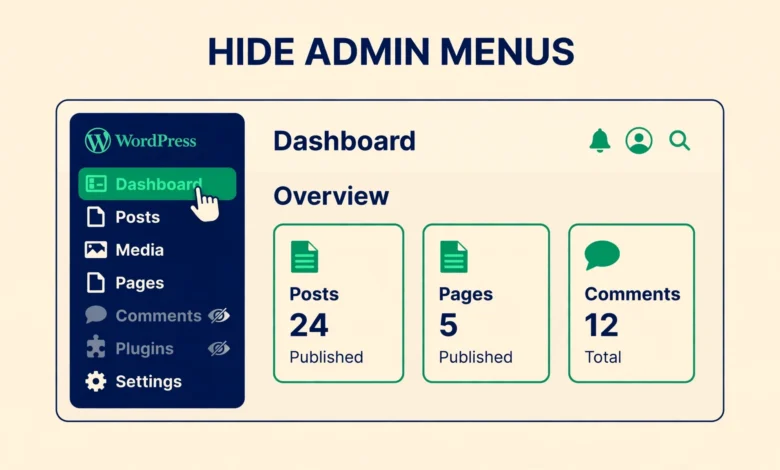
The WordPress admin sidebar grows with every plugin you install. Tools, Settings, Plugins, Appearance, and a dozen plugin menus pile up, and on a client site that clutter causes real problems. An editor clicks the wrong menu, and a client changes a setting they should never touch. Hiding the menu items they do not need makes the dashboard calmer and easier to use.
You can hide admin menu items with a few lines of code and no plugin. WordPress has built-in functions for exactly this job, remove_menu_page and remove_submenu_page, and they run on the admin_menu hook. The code is short and you can copy it. This guide covers top level menus, submenu items, role based hiding, hiding for one user, and keeping the code safe from theme updates.
Read this warning first, because it shapes the whole guide. Hiding a menu item does not block access to the page behind it. A user who knows the direct URL, such as wp-admin/tools.php, can still open that page by typing it in the browser. Hiding a menu is cosmetic. It tidies the dashboard and stops accidental clicks, but it is not a security control. If you need to truly block access, you must remove the capability, and that part is covered near the end.
What do you need before you start?
You need administrator access, because only an administrator can edit theme files or add code snippets. You also need the menu slug of each item you want to hide. Every admin menu has a slug, which is the file name in its URL.
- Dashboard: index.php
- Posts: edit.php
- Media: upload.php
- Pages: edit.php?post_type=page
- Comments: edit-comments.php
- Appearance: themes.php
- Plugins: plugins.php
- Users: users.php
- Tools: tools.php
- Settings: options-general.php
For a plugin menu, find the slug in the URL when you open that menu. Decide who the hiding applies to before you write code. Hiding Tools from everyone, including yourself, is a mistake you will regret the next time you need the import tool. Plan role based hiding instead, so administrators keep full access and other roles see a tidy sidebar. If you plan to put the code in your child theme, read our guide to create a WordPress child theme first, because a theme update erases parent theme edits.
Method 1: How do I hide a top level menu item?
Method 1 uses remove_menu_page, the built-in WordPress function that removes one top level menu item. Add the code below to your child theme functions.php file, or add it as a snippet with Code Snippets set to run in the admin area only. Each call takes one menu slug, so add one line per menu you want to hide. The code runs on the admin_menu hook, because WordPress builds the menu on that hook and removing an item earlier has no effect.
function vu_hide_admin_menus() {
remove_menu_page( 'tools.php' );
remove_menu_page( 'edit-comments.php' );
remove_menu_page( 'options-general.php' );
}
add_action( 'admin_menu', 'vu_hide_admin_menus' );
Save the code, reload any admin page, and the three menus are gone from the sidebar. Change the slugs to hide different menus, and add or remove lines to match your site. If a menu is still visible after saving, check that the slug is spelled correctly and that the snippet is set to run in the admin area, because a snippet set to run on the front end only never touches the admin menu.
Method 2: How do I hide a submenu item?
Submenu items are the links inside a top level menu, such as Theme File Editor under Appearance, or Writing under Settings. Hiding one uses remove_submenu_page, which takes two values: the slug of the parent menu, and the slug of the submenu item. Add the code below on the same admin_menu hook, in the same snippet or functions.php file as Method 1.
function vu_hide_admin_submenus() {
remove_submenu_page( 'themes.php', 'theme-editor.php' );
remove_submenu_page( 'options-general.php', 'options-writing.php' );
}
add_action( 'admin_menu', 'vu_hide_admin_submenus' );
The code above hides Theme File Editor from the Appearance menu and Writing from the Settings menu. Hiding Theme File Editor is a common safety step on client sites, because the file editor lets anyone with access edit theme and plugin files from the dashboard, and one wrong save can break the whole site.
Method 3: How do I hide menus only for certain roles?
Method 3 is the version you should use on almost every site. Instead of hiding menus from everyone, hide them only from users who do not need them. The current_user_can function checks what the logged in user is allowed to do, and manage_options is the capability that only administrators have. The code below hides Tools, Plugins, and Settings from everyone except administrators.
function vu_hide_menus_by_role() {
if ( ! current_user_can( 'manage_options' ) ) {
remove_menu_page( 'tools.php' );
remove_menu_page( 'plugins.php' );
remove_menu_page( 'options-general.php' );
}
}
add_action( 'admin_menu', 'vu_hide_menus_by_role' );
Test this with a second user account, not with your administrator account. Create an editor account, log in as that editor in a private window, and confirm the menus are hidden. Then log back in as administrator and confirm the menus are still there. Testing with your own admin account proves nothing, because the code leaves administrators untouched. For other roles, swap manage_options for a different capability, for example edit_posts or publish_pages. The official capability list is in the developer guides at developer.wordpress.org.
Method 4: How do I hide a menu for one specific user?
Sometimes role based hiding is too broad, and you want to hide a menu from one person only, for example a client who keeps opening the Comments menu and approving spam by mistake. The get_current_user_id function returns the ID of the logged in user. Find the user ID by opening the user profile on the Users screen and reading the user_id number in the URL.
function vu_hide_menu_for_one_user() {
if ( get_current_user_id() === 4 ) {
remove_menu_page( 'edit-comments.php' );
}
}
add_action( 'admin_menu', 'vu_hide_menu_for_one_user' );
Change 4 to the real user ID, and change edit-comments.php to the menu you want to hide. The limit is plain. User IDs are fragile, because deleting and recreating the account changes the ID, and the code silently stops working. Use this method only for a quick fix, and prefer Method 3 for anything that must last.
How do I keep the code safe with a mu-plugin?
Code in your child theme functions.php file survives theme updates, but it breaks if you ever switch themes. A must use plugin, called a mu-plugin, survives theme changes too, because it lives outside any theme. Create a folder named mu-plugins inside wp-content, then create a file named vu-hide-menus.php inside it with the code below. Must use plugins load automatically and cannot be deactivated from the dashboard, which makes them the right home for small site wide tweaks such as this one.
<?php
/*
Plugin Name: VU Hide Admin Menus
Description: Hides selected admin menu items.
*/
function vu_hide_admin_menus() {
remove_menu_page( 'tools.php' );
}
add_action( 'admin_menu', 'vu_hide_admin_menus' );
Upload the file with FTP or your hosting file manager, then reload any admin page and confirm the Tools menu is gone. To remove the hiding later, delete the file from the mu-plugins folder, because there is no deactivate button for a must use plugin. If you use Code Snippets instead, the same code works as a normal snippet, and you can turn it off with one click. For more on keeping a site fast and tidy, see our web hosting guide and our guide to add custom fields to WordPress posts without a plugin.
Why does hiding a menu not block access?
This is the honest part, and it matters more than the code above. Removing a menu item only removes the link from the sidebar. The page still exists, and anyone who types its URL can still open it. An editor who has Tools hidden can still visit wp-admin/tools.php directly if their role has the capability for that page. Hiding a menu stops accidental clicks, but it never restricts what a user can do.
Real restriction needs capabilities, not menu hiding. WordPress checks a capability before it shows each admin page, and a role without that capability gets an error page instead of the content. To truly block a page, remove the capability from the role, for example with a role editor plugin, or with code that calls remove_cap on the role object. That is a bigger change, because it affects the whole role, so test it on a staging site first. If a client must never reach a page, use capabilities. If you only want a tidier sidebar, menu hiding is enough, and you should say so plainly to the client. For the official documentation, visit WordPress.org.
How do I test the hidden menus and fix common problems?
- Create an editor test account and log in as that editor in a private window.
- Confirm the hidden menus are gone from the editor sidebar.
- Log in as administrator and confirm the full menu is still there.
- Type a hidden page URL directly and confirm whether the editor can still open it.
- Clear the cache and reload the admin area to confirm the hiding still works.
If a menu is still visible, check three things. First, confirm the slug is spelled correctly, because one wrong character means WordPress removes nothing. Second, confirm the code runs on the admin_menu hook, because code on the wrong hook runs before the menu exists. Third, confirm the snippet is set to run in the admin area, and that no other plugin is adding the menu back after your code runs. If a plugin re-adds a menu with a later hook priority, raise yours, for example add_action with priority 999, so your code runs last.
When is a plugin the better choice?
The code methods here are free, light, and fast, and they suit a fixed set of hidden menus very well. A plugin is the honest better choice when a client must change the hidden menus without code, when you need different menus hidden for many roles at once, or when you also need to block direct URL access with redirects. A menu editor plugin gives you checkboxes for each role, which is far easier than editing PHP for every change. If the hidden menus rarely change and you are comfortable with code, the methods in this guide are enough, and you keep the site lighter. For more ways to keep WordPress tidy, see our guide to schedule WordPress posts.
Frequently asked questions
Can I hide WordPress admin menu items without a plugin?
Yes. Add remove_menu_page calls on the admin_menu hook in your child theme functions.php file, in a Code Snippets snippet set to run in the admin area, or in a mu-plugin file. Each call takes one menu slug, such as tools.php, and the menu disappears from the sidebar on the next page load.
How do I hide a submenu item in the WordPress admin?
Use remove_submenu_page with two values: the parent menu slug and the submenu slug. For example, remove_submenu_page with themes.php and theme-editor.php hides Theme File Editor from the Appearance menu. Find the slug by opening the submenu item and reading the file name at the end of the URL.
How do I hide admin menus only for editors?
Wrap the remove_menu_page calls in a check with current_user_can. The code in Method 3 hides Tools, Plugins, and Settings from everyone who lacks the manage_options capability, which means everyone except administrators. Test it with a real editor account, because testing with your administrator account proves nothing.
Does hiding an admin menu block access to the page?
No. Hiding a menu only removes the link from the sidebar. The page still exists, and a user who types the direct URL can still open it if their role has the capability for that page. To truly block access, remove the capability from the role, or use a plugin that redirects users away from pages they should not open.
Last updated: November 2026.